

This post describes steps to enable or disable apps communicating with unpaired devices in Windows 11.
Windows 11 allows you to minimize connections from apps and Microsoft services or configure privacy settings, so communication is not enabled by default.
One such app communication feature you may want to limit is a connection between devices not paired to your PC, such as an Xbox One, and others wanting to share and sync info.
You can enable or disable app communication with unpaired devices in Windows via the Windows Settings app, Group Policy Editor, and Windows Registry.
Below is how to turn on or off Communicate with unpaired devices in Windows 11.
How to disable or enable communication with unpaired devices in Windows 11
As described above, users can turn on or off apps communication with unpaired devices in Windows 11.
Below is how to do it.
Windows 11 has a centralized location for the majority of its settings. As a result, everything can be done, from system configurations to creating new users and updating Windows from its System Settings pane.
To get to System Settings, you can use the Windows key + I shortcut or click on Start ==> Settings, as shown in the image below:

Alternatively, you can use the search box on the taskbar and search for Settings. Then select to open it.
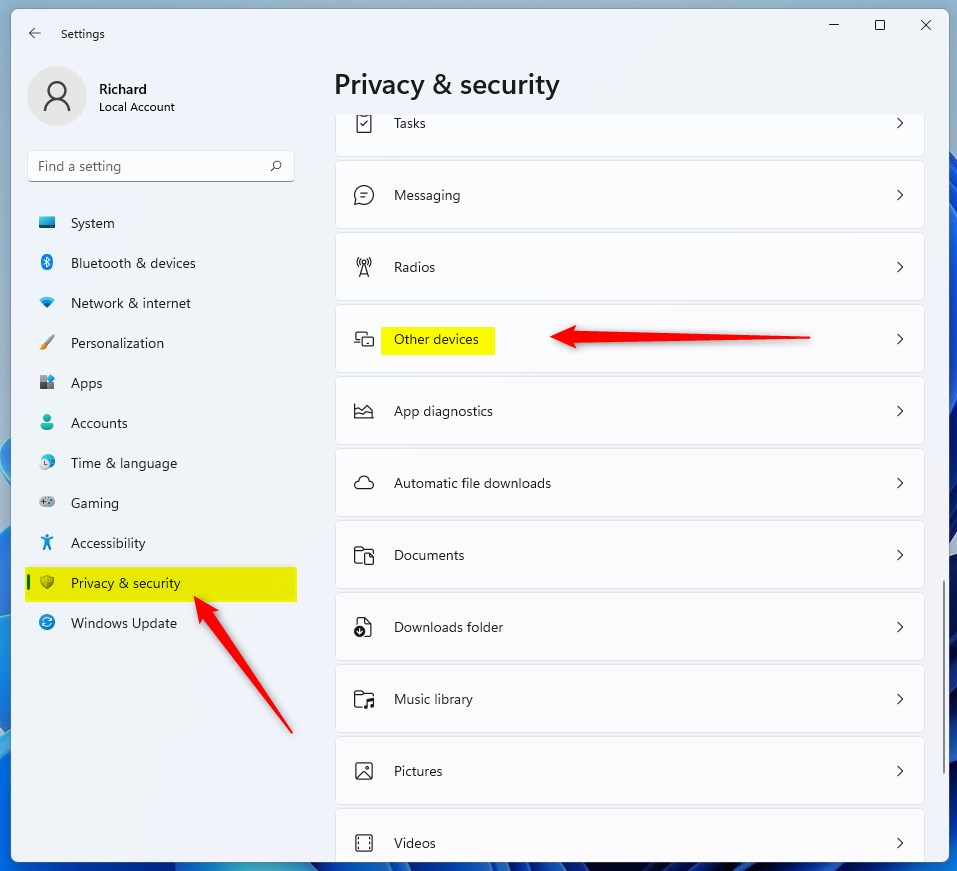
Windows Settings pane should look similar to the image below. In the Windows Settings app, click Privacy & security on the left. On the right, select the Other devices tile to expand, as highlighted in the image below.
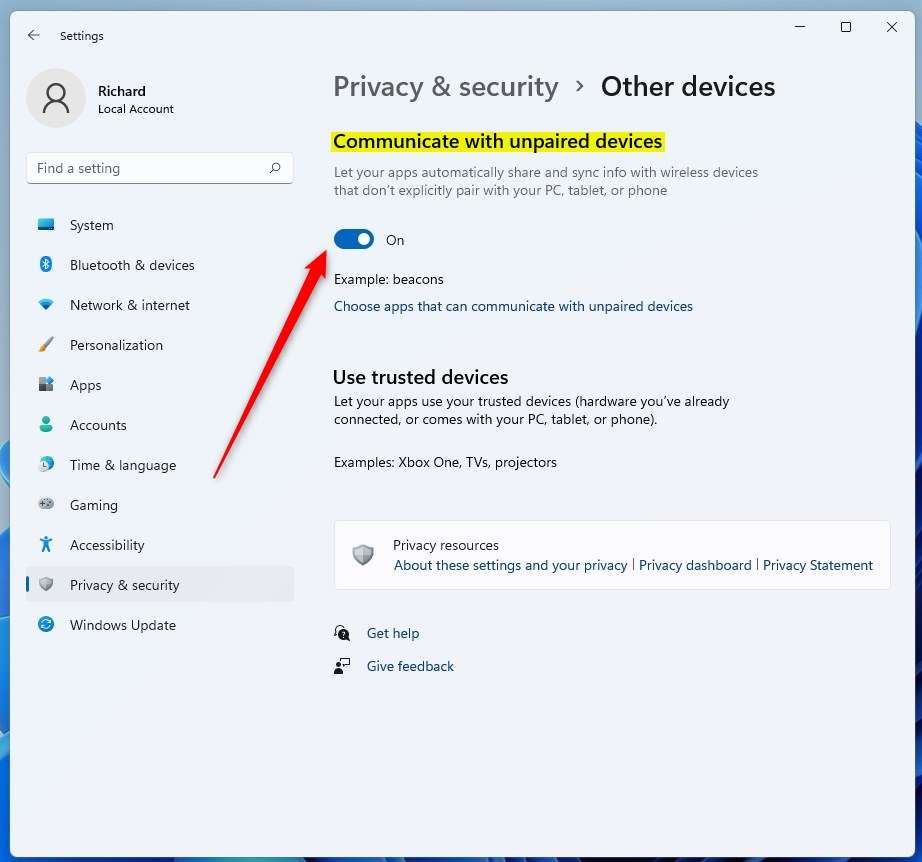
When you click on the Data usage field, it will automatically open the Privacy & security -> Other devices setting pane; toggle the switch below “Communicate with unpaired devices” to On or Off to enable or disable this feature.
Alternatively, open Local Group Policy Editor by clicking on the Start Menu and searching for Edit group policy, as highlighted below.
Under Best match, select Edit group policy to launch Local Group Policy Editor.

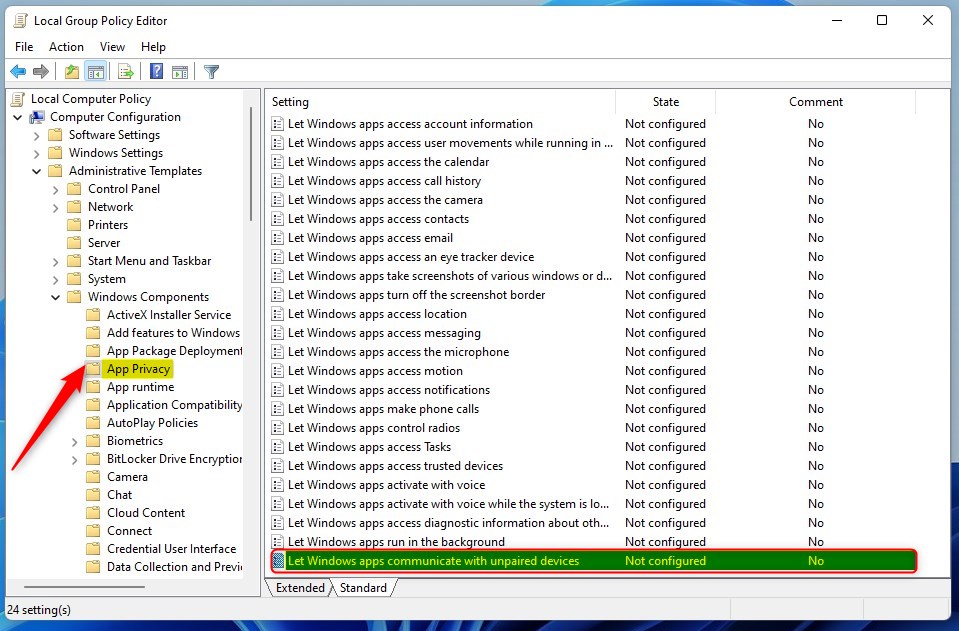
In the left pane of Local Group Policy Editor, expand the tree:
Computer Configuration > Administrative Templates > Windows Components > App Privacy
Then, locate and double-click the setting in the App Privacy details pane on the right. Finally, let Windows apps communicate with unpaired devices.
In the Let Windows apps communicate with unpaired devices setting window, set the option to Not Configure, Enabled, or Disabled.
- Not Configured (Default)
- Enabled
- Disabled
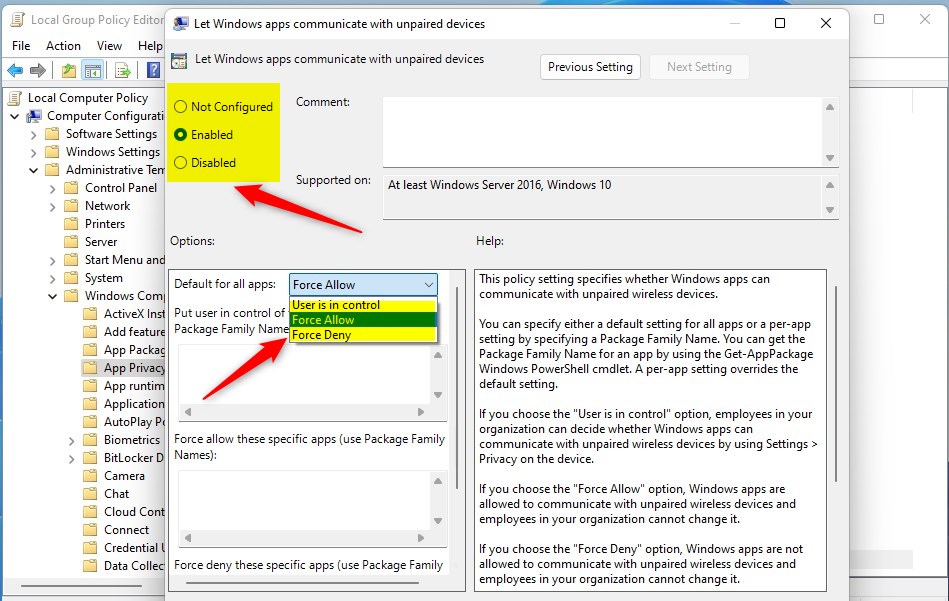
When you enable it, select Force Allow in the Default for all apps drop menu under “Options” to allow apps to communicate with unpaired devices.
To disable, select Force Deny in the Default for all apps drop menu under “Options” to disable apps to communicate with unpaired devices.
Select OK to apply your changes.
Close Local Group Policy Editor.
That should do it!
Conclusion:
- This post covered how to enable or disable app communication with unpaired devices in Windows 11 through Windows Settings, Group Policy Editor, and Windows Registry.
- Users can conveniently manage app communication settings with unpaired devices to enhance privacy and control over their devices.
- This feature can be enabled through the Windows Settings app or the Local Group Policy Editor, providing flexibility based on user preferences.
- Whether users want to allow all apps to communicate with unpaired devices or restrict this communication, Windows 11 offers the necessary options to customize these settings according to individual needs.



Leave a Reply