Enable Cursor Blinking in Ubuntu for Better Accessibility


This post describes steps to enable or disable the keyboard cursor blinking in Ubuntu Linux.
In Ubuntu Linux, if you find it difficult to see the keyboard cursor in a text field, you can make it blink to make it easier to locate.
Some people have poor vision, making viewing small text or locating the cursor on their screen difficult.
For these people, enabling the keyboard cursor to blink can help.
There are multiple accessibility features one can enable in Ubuntu Linux. From increasing the mouse pointer size to enabling the pointer locater. These features are there to help.
Making the cursor blink in the text field in Ubuntu Linux is another accessibility feature you can turn on and off. Below are the steps that show you how to do it.
How to turn on or off cursor blinking in Ubuntu Linux
As described above, if you find it difficult to see the keyboard cursor in a text field, you can make it blink to make it easier to locate.
Below is how to do that.
Ubuntu Linux has a centralized location for the majority of its settings. From system configurations to creating new users and updating, all can be done from the System Settings panel.

Alternatively, click on the System menu at the top-right corner of the top bar on your desktop.
On the System menu, select Settings, as highlighted below.

In the Settings app, click on the Accessibility tile to open the panel.

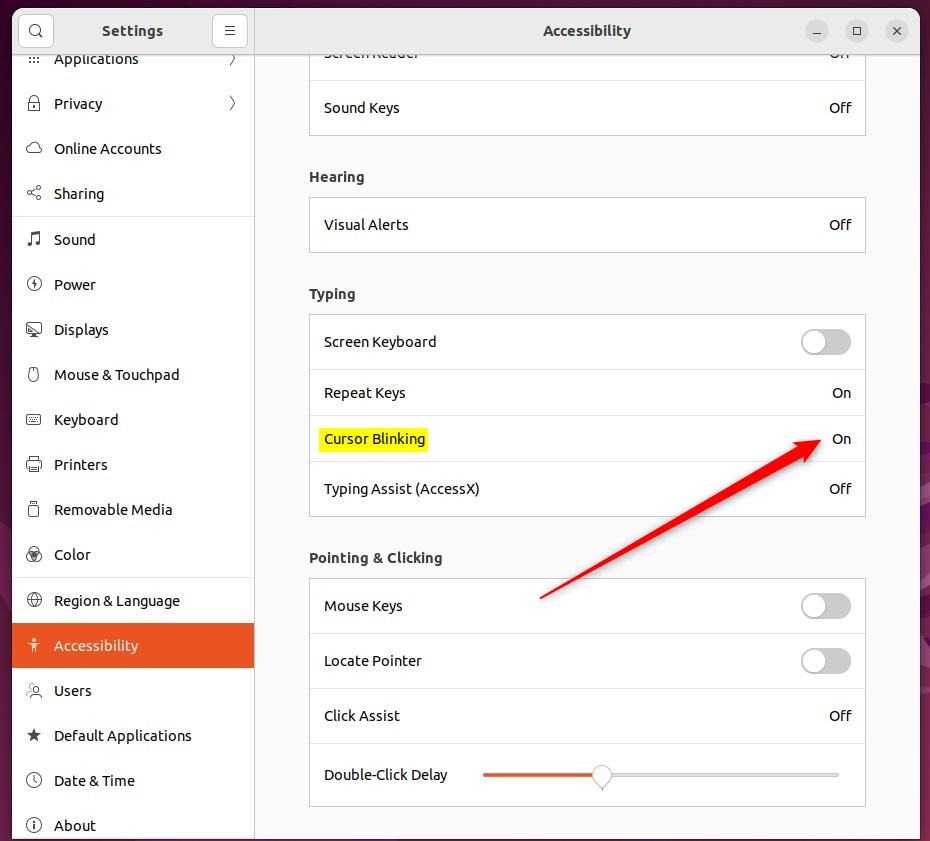
In the System Settings -> Accessibility panel, under Typing, select Cursor Blinking, highlighted below.
On the Cursor Blinking window, toggle the Cursor Blinking button to the On position to enable.
To disable it, toggle the button to the Off position.
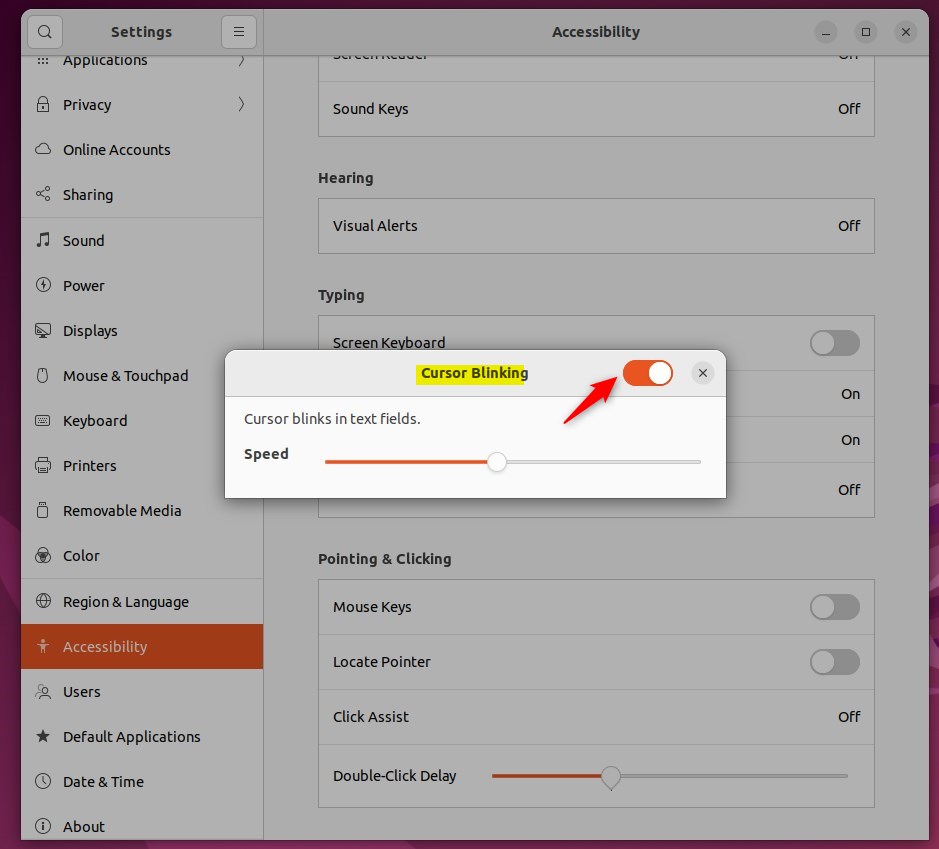
Once enabled, use the Speed slider to adjust how quickly the cursor blinks.
That should do it! You can now close the Settings app.
Conclusion:
- Enabling cursor blinking can be helpful for users with poor vision, making it easier to locate the keyboard cursor in a text field.
- Ubuntu Linux offers a centralized location for adjusting accessibility settings, including the cursor blinking feature.
- Users can easily toggle the cursor blinking on or off and adjust the blinking speed according to their preferences through the System Settings panel.
- This accessibility feature, along with others like increasing the mouse pointer size and enabling the pointer locator, aims to improve the user experience for individuals with visual challenges.
Frequently Asked Questions
How do I enable cursor blinking in Ubuntu?
Can I disable cursor blinking in Ubuntu?
Why is cursor blinking important for accessibility?
Where can I find accessibility settings in Ubuntu?
How can I adjust the blinking speed of the cursor in Ubuntu?
Was this guide helpful?

About the Author
Richard
Tech Writer, IT Professional
Richard, a writer for Geek Rewind, is a tech enthusiast who loves breaking down complex IT topics into simple, easy-to-understand ideas. With years of hands-on experience in system administration and enterprise IT operations, he’s developed a knack for offering practical tips and solutions. Richard aims to make technology more accessible and actionable. He's deeply committed to the Geek Rewind community, always ready to answer questions and engage in discussions.

No comments yet — be the first to share your thoughts!