How to Simulate Right-Click in Ubuntu Linux


You can simulate a right-click in Ubuntu Linux by holding down your left mouse button.
This simulated secondary click, often called tap-to-click or click-and-hold, allows you to access context menus without a physical right-click button, which is particularly useful if you’re using a touchpad or have accessibility needs.
This handy feature is readily available in Ubuntu 22.04 LTS and more recent releases.
Once enabled, you simply press and hold your left mouse button where you intend to right-click. A visual timer will appear, and releasing the button after the timer completes will execute the right-click action.
Hold the left mouse button down to simulate a right-click. Access this option by going to System Settings, then Accessibility, and enabling “Simulated Secondary Click” under Click Assist. You can adjust the delay before the click registers.
How to simulate right-click with the left mouse button in Ubuntu Linux
You can simulate a right-click in Ubuntu Linux by holding down the left mouse button, which is helpful if you have trouble with finger movements or if your mouse has only one button.
Here’s how to enable or disable it in Ubuntu Linux.
Ubuntu centralizes most of its settings. You can manage everything from system configurations to user creation and updates within the System Settings panel.

Alternatively, click on the System menu at the top-right corner of the top bar on your desktop.
On the System menu, select Settings, as highlighted below.

In the Settings app, click on the Accessibility tile to open the panel.

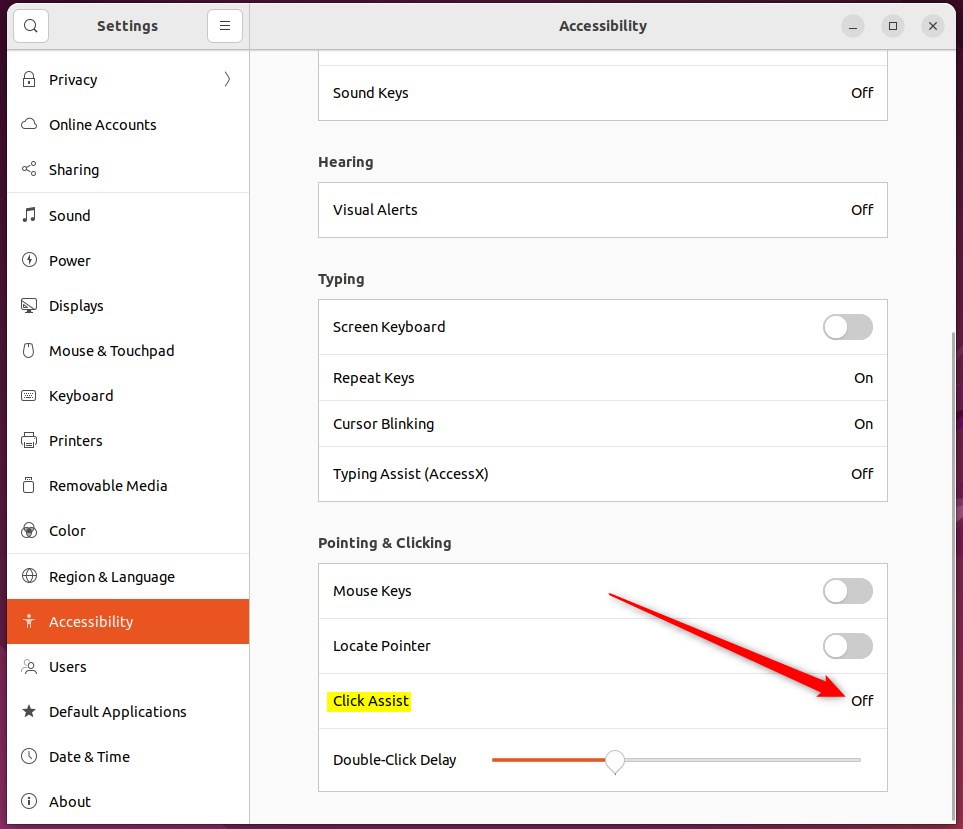
In the System Settings -> Accessibility panel, under Pointing & Clicking, select Click Assist tile to expand.
On the Click Assist pop-up window, toggle the Simulated Secondary Click switch to the On position to enable.
To disable it, toggle the switch back to the Off position.
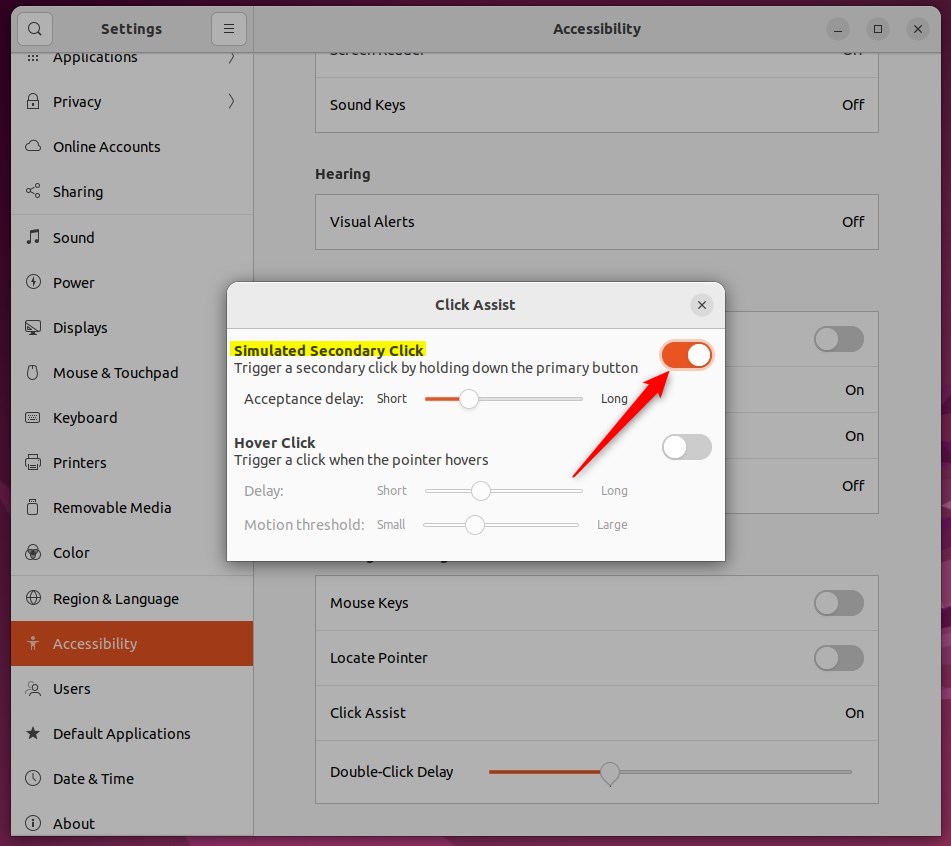
You can change how long you must hold down the left mouse button before it registers as a right-click by adjusting the Acceptance delay.
That should do it! You can now close the Settings app.
Conclusion:
- Simulated Secondary Click allows users to simulate right-click actions by holding down the left mouse button
- Changing the Acceptance delay can customize the duration required to hold down the left mouse button before it’s recognized as a right click
- Ubuntu Linux’s centralized System Settings panel provides an accessible location to toggle the Simulated Secondary Click feature on or off
Was this guide helpful?

About the Author
Richard
Tech Writer, IT Professional
Richard, a writer for Geek Rewind, is a tech enthusiast who loves breaking down complex IT topics into simple, easy-to-understand ideas. With years of hands-on experience in system administration and enterprise IT operations, he’s developed a knack for offering practical tips and solutions. Richard aims to make technology more accessible and actionable. He's deeply committed to the Geek Rewind community, always ready to answer questions and engage in discussions.



No comments yet — be the first to share your thoughts!