How to Show or hide Notifications for each app in the Notification Center in Windows 11

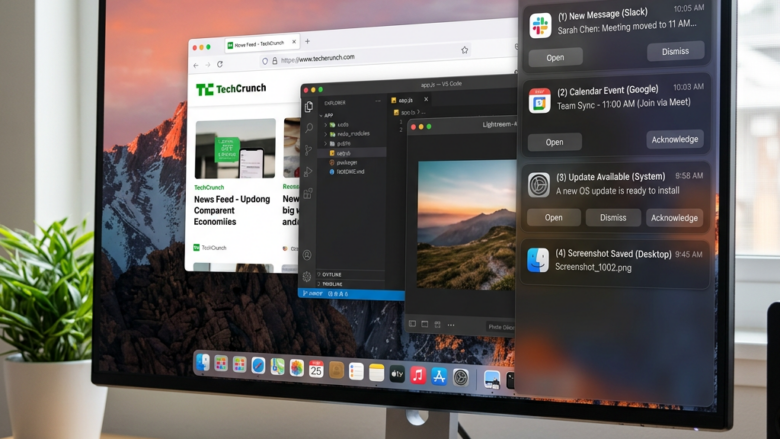
Controlling app notifications in Windows 11 lets you manage alerts from individual apps directly within the Notification Center.
The Notification Center in Windows 11 gathers all your app alerts in one place, acting like a central inbox for reminders and messages.
This feature prevents your desktop from being cluttered with constant pop-ups. You can pick and choose which apps get to send notifications and whether they appear there.
For example, you might want to see alerts from your email but hide them from a game.
Windows 11 makes it simple to adjust these settings for each program.
Go to Settings > System > Notifications. Find the app you want to adjust and click its name. Ensure “Show notifications in notification center” is checked to see alerts there later.
What is the Notification Center?
The Notification Center in Windows is like a digital message board for all your app alerts and updates, keeping them in one easy-to-find spot so you don’t miss anything important.
Pro Tip: Press Windows key + N to quickly open the Notification Center.
Control Notifications for Each App
Windows lets you change notification settings for every app. You can choose what you see and where. We will focus on getting alerts into your Notification Center.
Step 1Go to Notification Settings
To manage your app notifications, you first need to open Windows Settings and find the Notifications section.
- Click the Start button. It’s usually in the bottom-left corner.
- Click the Settings cogwheel icon.
- In Settings, click on System.
- On the left side, click Notifications.
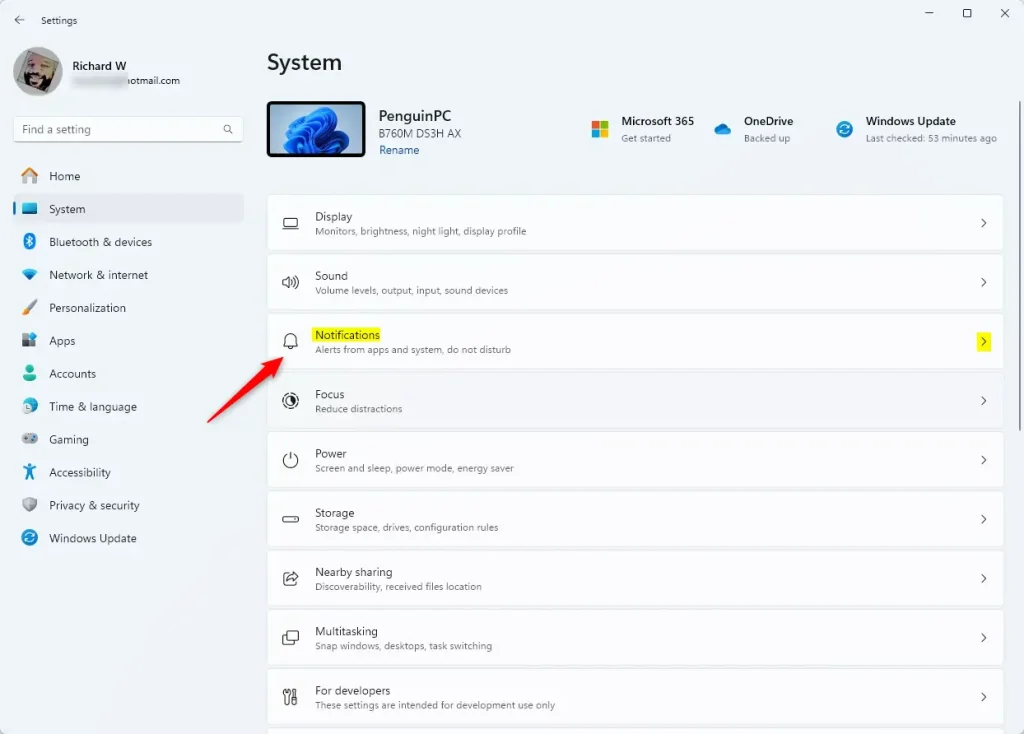
This is your central hub for managing alerts. While you can toggle everything on or off here, we’ll delve deeper into app-specific controls.
Step 2Find App Settings
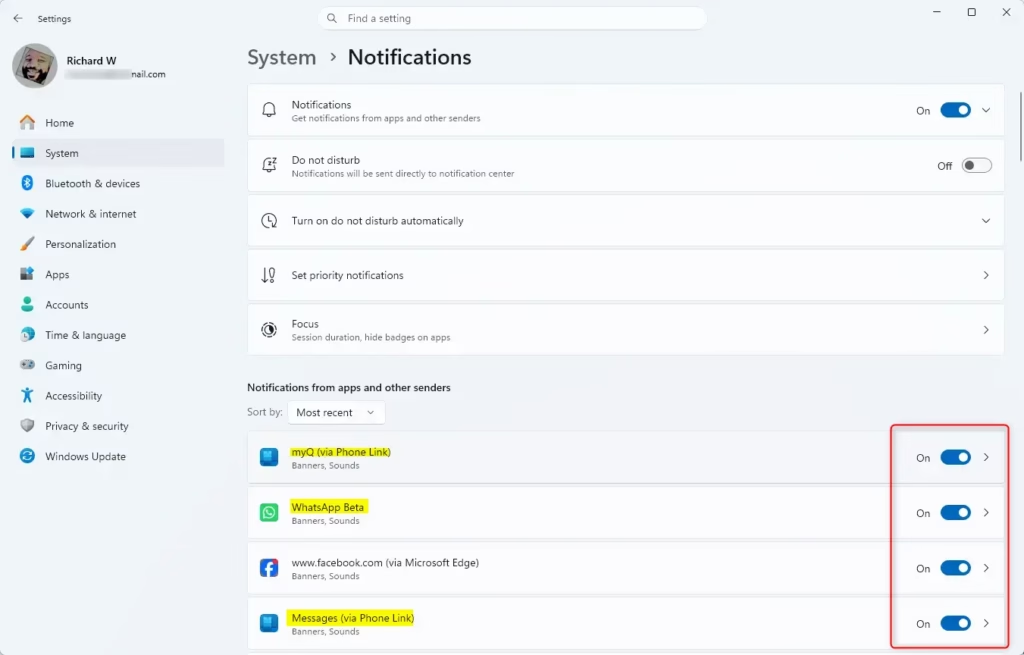
In the Notifications settings, scroll down. Look for a section like “Notifications from apps and other senders”. Below this, you’ll see a list of apps that send notifications.
Step 3Change “Show notifications in notification center”
To make sure you see alerts from a specific app in your Notification Center, you need to check its individual settings and ensure the ‘Show notifications in notification center’ box is ticked.
To get alerts in your Notification Center, make sure “Show notifications in notification center” is box is checked for that app.
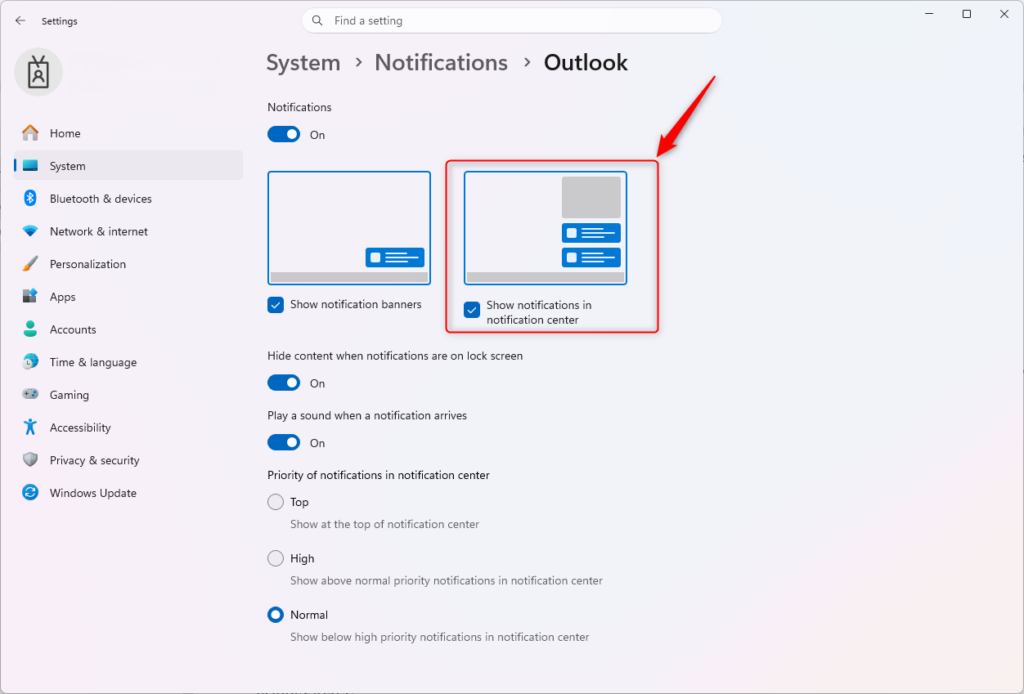
Practical Tip: For important apps (like work email or chat), turn both “Show notification banners” and “Show notifications in notification center” on. This gives you an instant alert and saves it for later. For less important apps, you can turn off banners but keep notifications in the center, or turn them off completely if they are just noise.
Reference:
Summary
In short, you have full control over how and where Windows notifications appear. Navigating to Settings > System > Notifications allows for app-by-app adjustments. Ensuring “Show notifications in notification center” is active means you can always review missed alerts. Disabling distracting pop-up banners is also an option.
Was this guide helpful?

About the Author
Richard
Tech Writer, IT Professional
Richard, a writer for Geek Rewind, is a tech enthusiast who loves breaking down complex IT topics into simple, easy-to-understand ideas. With years of hands-on experience in system administration and enterprise IT operations, he’s developed a knack for offering practical tips and solutions. Richard aims to make technology more accessible and actionable. He's deeply committed to the Geek Rewind community, always ready to answer questions and engage in discussions.

No comments yet — be the first to share your thoughts!