How to turn Microsoft Store Suggested Search Results on or off in Windows 11


Microsoft Store suggested search results in Windows 11 let you see app recommendations right in the Windows Search box. You can easily choose to turn these suggestions on or off.
Windows Search is the tool on your taskbar for finding files, settings, apps, and information online. It helps you quickly locate what you need across your computer and the web.
When enabled, seeing suggested results from the Microsoft Store can help you discover new apps. This feature is available in certain recent versions of Windows 11.
You can control these suggestions directly from Windows Settings. This guide shows you how to manage them.
Go to Settings > Privacy & security > Search and toggle “Show suggested search results” to On or Off. Alternatively, use the Registry Editor to modify the IsStoreSuggestionsEnabled value under 🗝️HKEY_CURRENT_USER\Software\Microsoft\Windows\CurrentVersion\Search.
Option 1Turn Suggestions On or Off in Settings
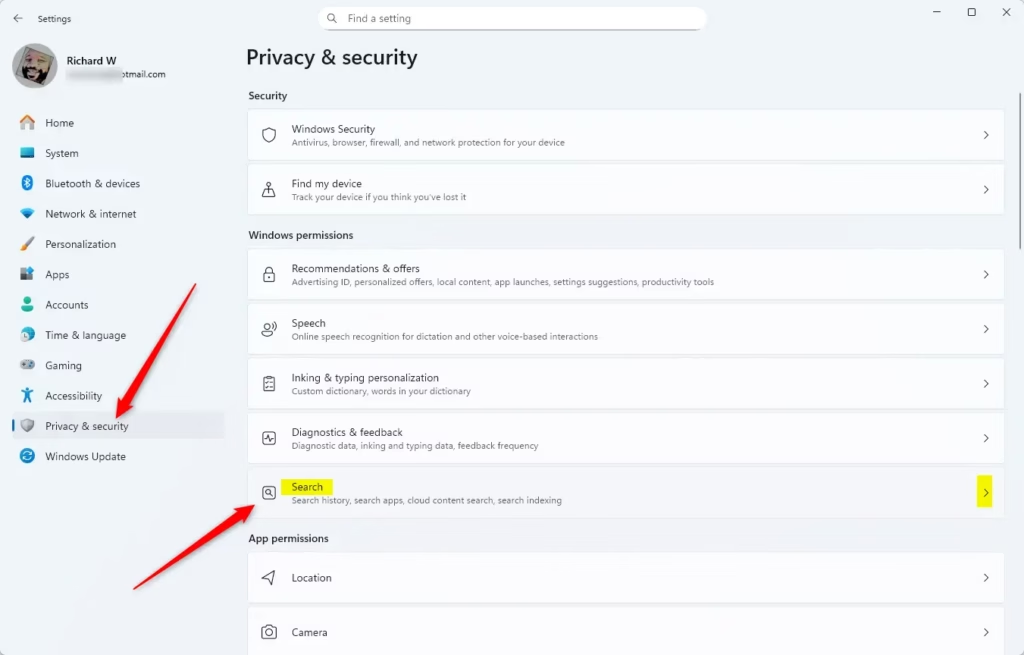
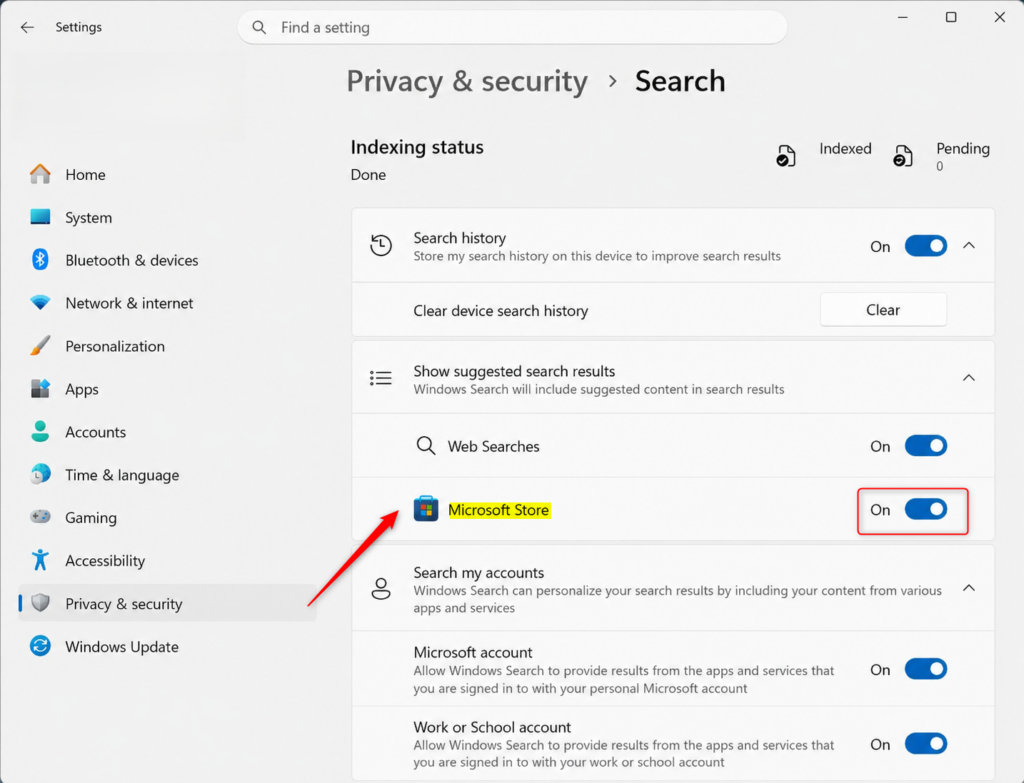
You can easily turn Microsoft Store suggested search results on or off right in Windows 11 Settings. Just open Settings, go to Privacy & security, then Search, and find the ‘Show suggested search results’ option to make your choice.
- Open Settings. You can do this by pressing the Windows key + I on your keyboard.
- On the left side, click on Privacy & security. Then, on the right side, click on Search.
- Look for the section called Show suggested search results. Here, you can choose to turn suggestions from the Microsoft Store On or Off.
- You can now close the Settings window if you wish.
Option 2Turn Suggestions On or Off Using the Registry Editor
For more advanced control, you can turn Microsoft Store suggested search results on or off using the Registry Editor. This method changes the same setting as the Settings app but requires careful steps to avoid issues.
Why do this? This setting controls whether the Microsoft Store can offer suggestions when you type in the Windows Search bar. Turning it on can help you discover new apps or content from the store. Turning it off can reduce clutter and keep your search results focused on your files and general web searches.
What happens when done? After making changes here, you should restart your computer for the changes to take full effect.
Turn On Microsoft Store Suggested Search Results
This is usually the default setting.
Open the Registry Editor by pressing Windows key + R, typing regedit, and then pressing Enter. You might need administrator permission for this step.
Navigate to the following key: HKEY_CURRENT_USER\Software\Microsoft\Windows\CurrentVersion\Search
Right-click on the right-hand pane, select New, and then choose DWORD (32-bit) Value.
Name the new value IsStoreSuggestionsEnabled.
Double-click on IsStoreSuggestionsEnabled and set its Value data to 1. Click OK.
Turn Off Microsoft Store Suggested Search Results
Open the Registry Editor by pressing Windows key + R, typing regedit, and then pressing Enter. You might need administrator permission for this step.
Navigate to the following key: HKEY_CURRENT_USER\Software\Microsoft\Windows\CurrentVersion\Search
Right-click on the right-hand pane, select New, and then choose DWORD (32-bit) Value.
Name the new value IsStoreSuggestionsEnabled.
Double-click on IsStoreSuggestionsEnabled and set its Value data to 0. Click OK.
Reference:
Summary
Managing Microsoft Store search suggestions in Windows is straightforward, with options in both the Settings app and the Registry Editor. Whether you want to discover new apps or keep your searches focused, you have control over these suggestions.
How do I disable store results in Windows search?
msc , and hit Enter. Navigate to: Computer Configuration > Administrative Templates > Windows Components > Search . Double-click Do not allow web search, set it to Enabled. Double-click Don't search the web or display web results in Search, set it to Enabled.
Was this guide helpful?

About the Author
Richard
Tech Writer, IT Professional
Richard, a writer for Geek Rewind, is a tech enthusiast who loves breaking down complex IT topics into simple, easy-to-understand ideas. With years of hands-on experience in system administration and enterprise IT operations, he’s developed a knack for offering practical tips and solutions. Richard aims to make technology more accessible and actionable. He's deeply committed to the Geek Rewind community, always ready to answer questions and engage in discussions.
No comments yet — be the first to share your thoughts!