How to Choose a display mode on your Windows 11 PC

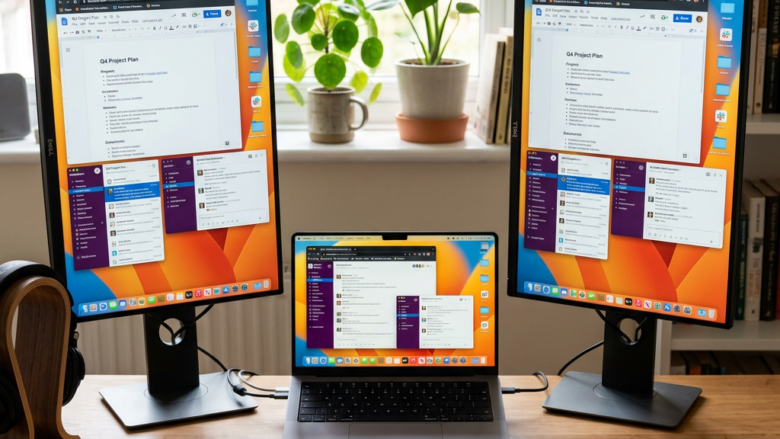
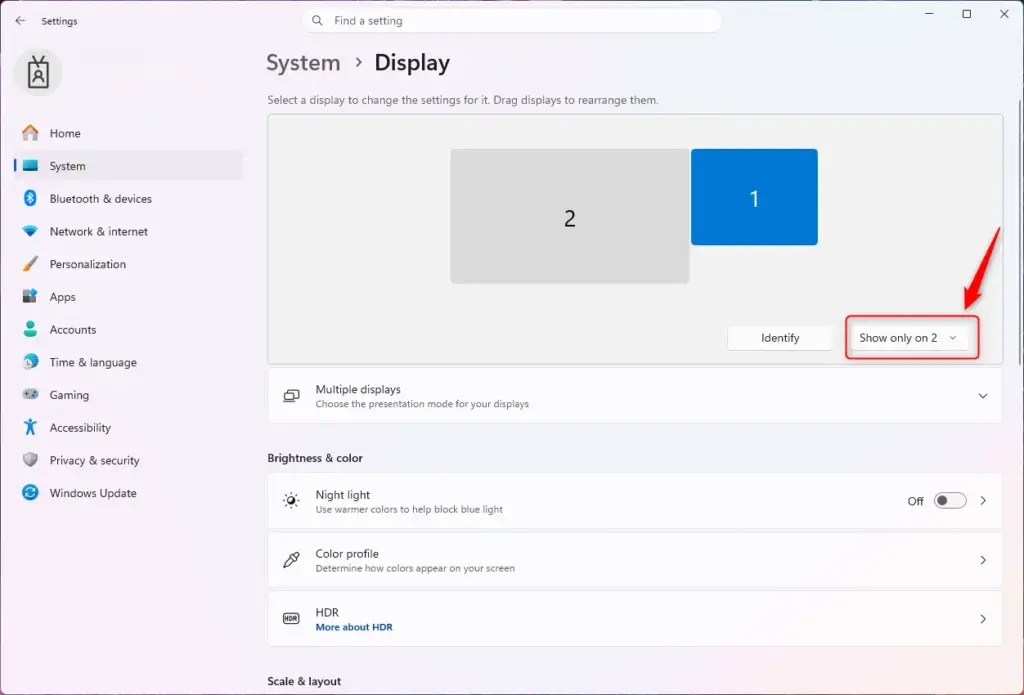
You choose a display mode on your Windows 11 PC to control how your screen extends or duplicates across multiple monitors or a projector.
Windows 11 offers four main display modes: Duplicate, Extend, Second screen only, and PC screen only. These modes let you create a larger desktop, mirror your content, or focus on a single display. This is especially handy when using external monitors or presenting.
For example, the Extend mode creates one large desktop spread across two monitors, giving you more space to work. You can access these settings quickly by pressing the Windows key + P.
Press Windows key + P to open the Project menu. Select “PC screen only,” “Duplicate,” “Extend,” or “Second screen only” to choose your display mode.
How to Access Display Modes in 🪟 Windows 11
There’s a super quick way to access your display settings. You don’t need to navigate through a maze of menus!
Press the Magic Combination
On your keyboard, press and hold the Windows key (it looks like a flag) and then press the P key. A small menu will appear on the right side of your screen.
Understanding Your Display Mode Options
That menu that popped up? It lets you control what appears on each screen. Windows 11 offers four main display modes. Let’s explore what each one does so you can pick the best fit for your needs.
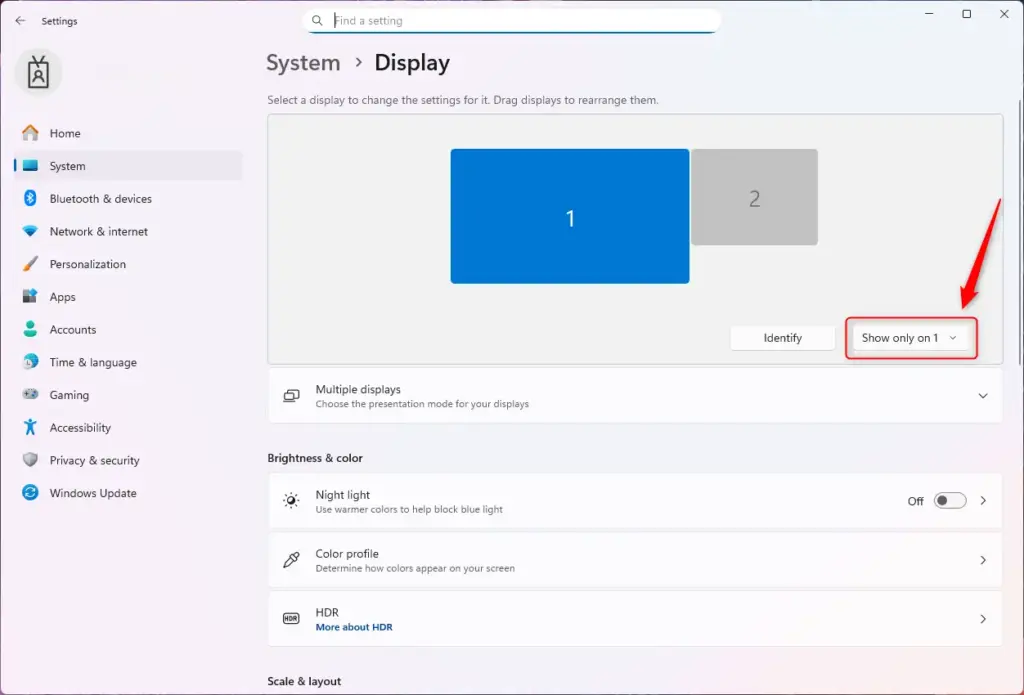
1PC screen only
The ‘PC screen only’ display mode in Windows 11 shows everything just on your main computer screen or laptop, turning off any other connected displays.
What it does: It disables any other connected screens. Your main screen is the only one that will show content.
When to use it: Use this if you’re working on a laptop and don’t need to share your screen. It’s also helpful if you’ve disconnected an external display and want to ensure everything is back on your main monitor. It can also conserve a bit of power when you’re not using additional screens.
2Duplicate
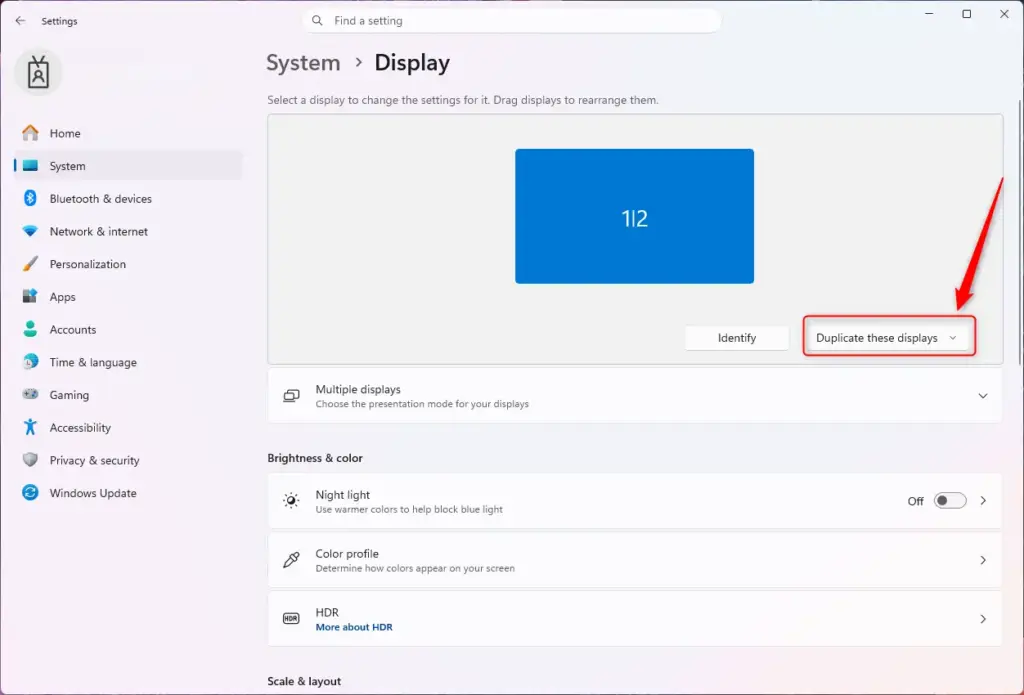
Windows 11’s ‘Duplicate’ display mode copies whatever is on your main screen to another connected screen, making it perfect for sharing your view during presentations.
What it does: It replicates what’s on your primary screen onto your other connected screen(s). Everything you see on your main screen will appear identically on the external display.
When to use it: Use this for presentations so your audience can view the same content you are. It’s also beneficial if you’re collaborating with someone and they need to see your work on a larger display.
3Extend
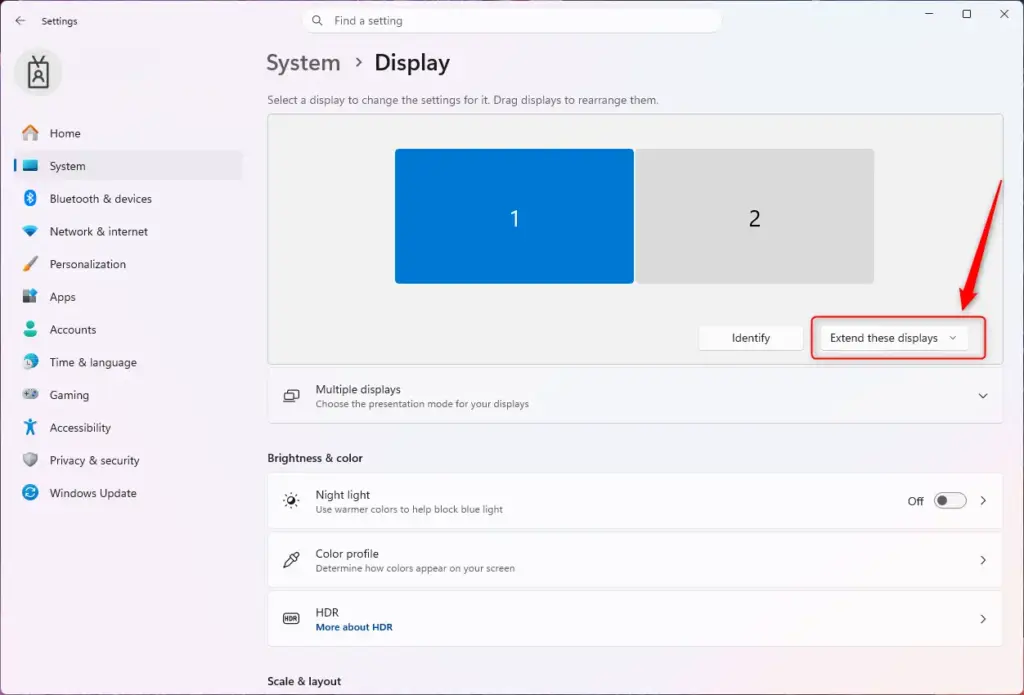
The ‘Extend’ display mode in Windows 11 turns your extra screens into a larger desktop space, letting you move apps between them for more room to work.
What it does: It makes your connected external screen(s) function as an extension of your main desktop. You gain a larger workspace that spans across all your connected screens. You can move windows and applications between screens, providing more room for your tasks.
When to use it: This is perfect for managing multiple tasks simultaneously. Keep your email open on one screen while you’re composing a document on another. Or, display your notes on one monitor while you type on the other. Some gamers might use this for a more immersive experience, though “duplicate” is more common for gaming displays.
4Second screen only
Using the ‘Second screen only’ mode in Windows 11 turns off your main screen and shows everything only on your connected external display or projector.
What it does: It directs the display output solely to the connected external screen or projector. Your primary laptop screen or monitor will be turned off.
When to use it: This is very useful if you use your laptop like a desktop computer, with an external display, keyboard, and mouse. You can close your laptop lid without the display turning off, which saves space. It’s also helpful if your primary screen isn’t functioning or if you simply prefer using the larger external monitor.
Reference:
Summary
In Windows 11, you can easily change your display mode using Windows key + P, choosing between ‘PC screen only,’ ‘Duplicate,’ ‘Extend,’ or ‘Second screen only’ to best suit your needs.
Was this guide helpful?

About the Author
Richard
Tech Writer, IT Professional
Richard, a writer for Geek Rewind, is a tech enthusiast who loves breaking down complex IT topics into simple, easy-to-understand ideas. With years of hands-on experience in system administration and enterprise IT operations, he’s developed a knack for offering practical tips and solutions. Richard aims to make technology more accessible and actionable. He's deeply committed to the Geek Rewind community, always ready to answer questions and engage in discussions.
No comments yet — be the first to share your thoughts!