How to Stop a website from using Your Camera and Microphone in Microsoft Edge

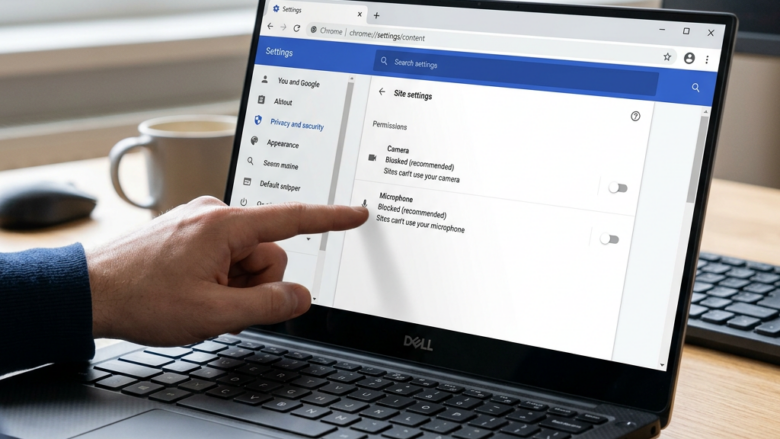
You can stop websites from using your camera and microphone in Microsoft Edge by adjusting browser permissions.
This control prevents unauthorized access to your sensitive hardware, giving you privacy over what sites can see and hear.
Microsoft Edge allows you to manage these permissions individually for each website, or globally, ensuring you remain in charge of your PC’s input devices.
For instance, you can deny a specific news site access to your microphone, or block all websites from accessing your camera unless you explicitly grant permission, starting with Edge version 100.
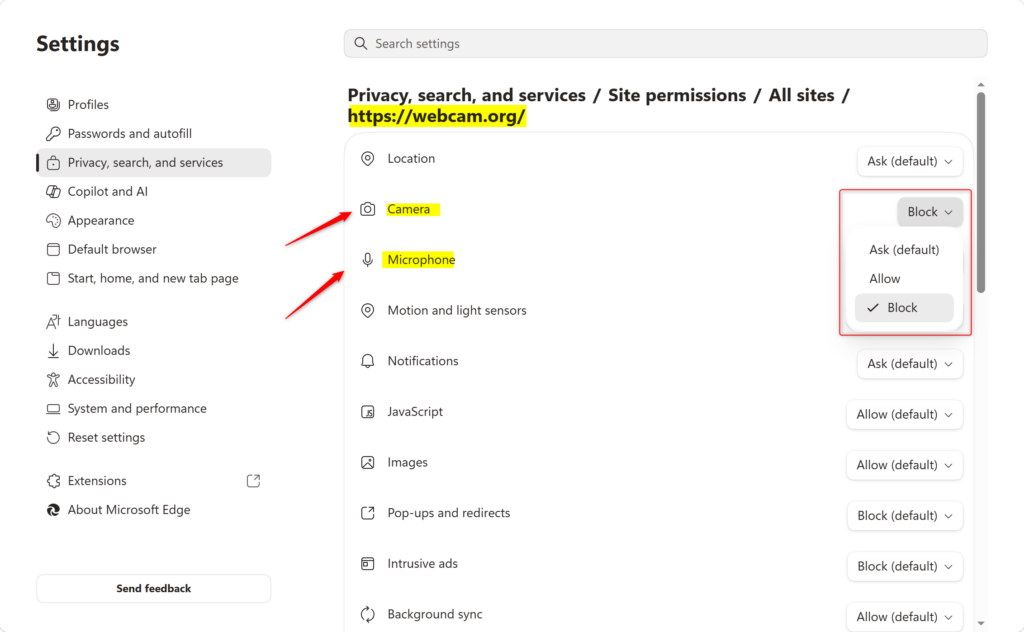
Go to Microsoft Edge Settings, then Privacy, search, and services, and click Site permissions. Find the website, click its name, and choose “Block” for Camera and Microphone access.
What Happens When You Block Access?
Blocking a website from using your camera or microphone means that specific site won’t be able to access them, protecting your privacy.
How Windows Shows Access
Windows helps you know when your camera or microphone is being used, keeping your personal information private.
- Camera Light: Many cameras have a small light next to them. This light turns on when the camera is active. If your camera doesn’t have a light, Windows will show a message on your screen.
- Microphone Icon: You will see a small microphone symbol in the corner of your screen, near the clock. This icon shows up when an app or website is using your microphone.
Always watch for these indicators. They’ll show you if something is using your hardware.
How to Stop Websites from Using Your Camera and Microphone in Microsoft Edge
Websites often request permission to use your camera and microphone through your web browser. We’ll focus on Microsoft Edge. These instructions are designed to be clear.
Step 1Open Edge Settings
To start, you need to open the settings menu in your Microsoft Edge browser.
- Open the Microsoft Edge browser.
- Look for the three dots in a row at the top right corner. This is the “Settings and more” button. Click on it.
- A menu will appear. Click on “Settings”.

Step 2Find Site Permissions
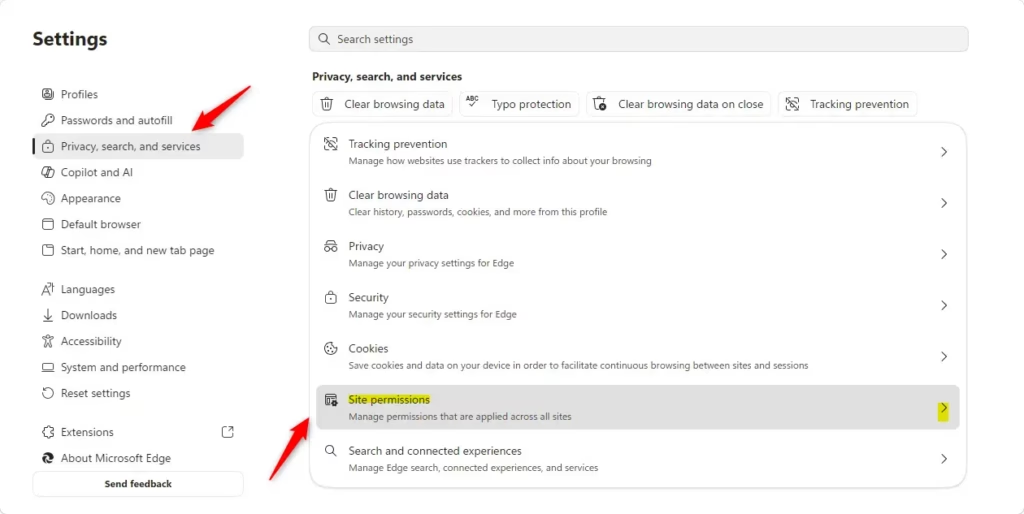
Once you’re in the Edge settings, look for the ‘Site permissions’ section under ‘Privacy, search, and services’ to manage website access.
- On the left side of the settings screen, click on “Privacy, search, and services”.
- Scroll down the main part of the screen. Look for a section called “Permissions”.
- Under “Permissions”, click on “Site permissions”.
Step 3Manage Permissions for Websites
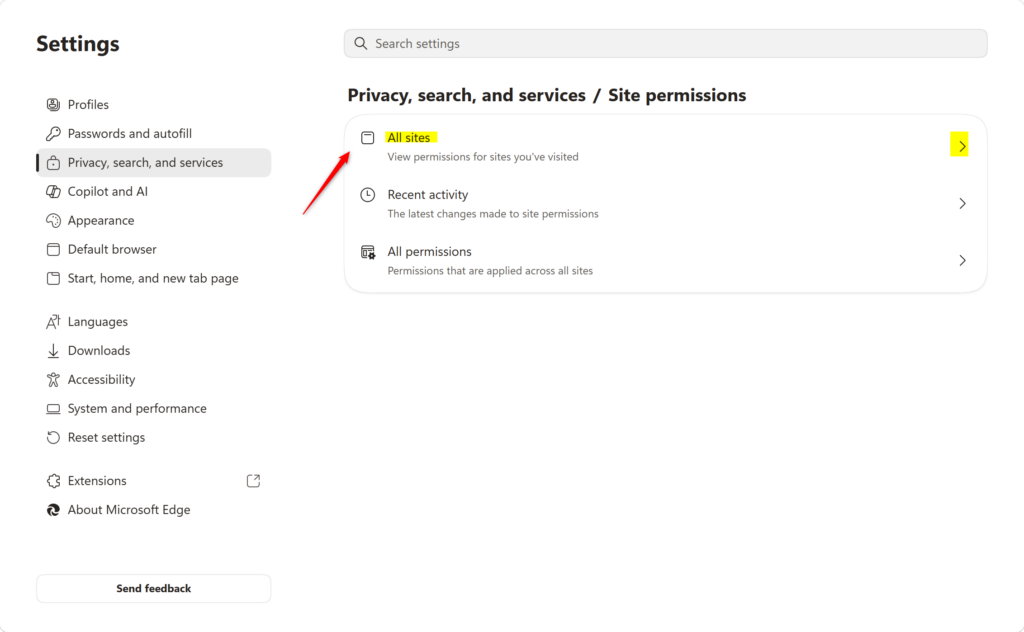
This section lets you see and change what each website is allowed to access, like your camera or microphone.
- In the “Site permissions” section, you will see an option like “All sites”. Click on it.
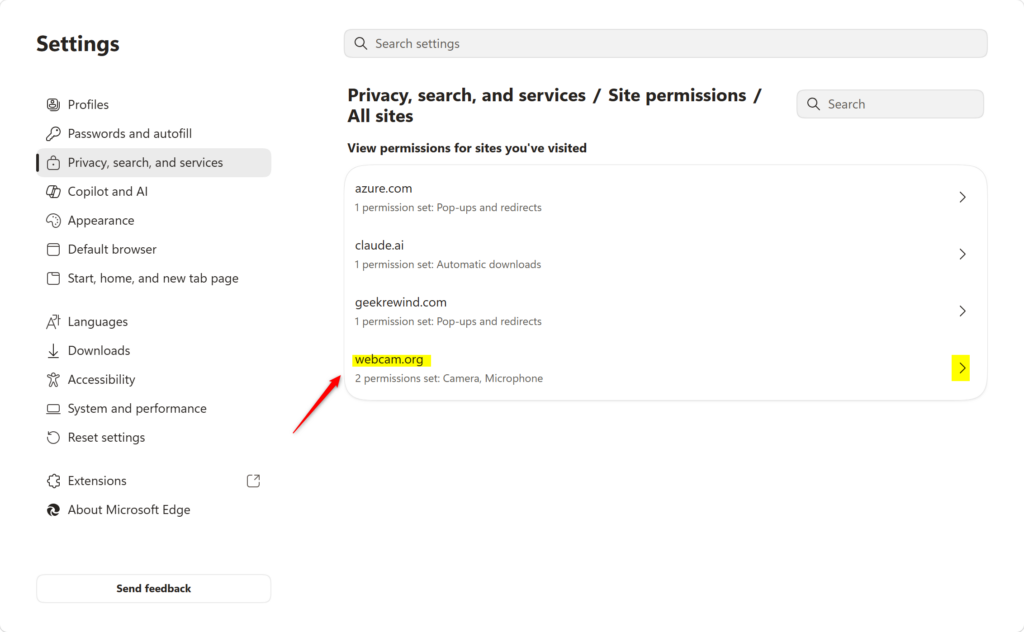
- You will now see a list of websites. You can scroll through the list or type a website name in the search box.
- Find the website you want to control. Click on its name.
- You will see options for “Camera” and “Microphone”.
- Click the box next to “Camera”. A menu will pop up. Choose “Block”.
- Do the same for “Microphone”. Click the box and choose “Block”.
Reference:
Summary
You can stop websites from using your camera and microphone in Microsoft Edge by going to Settings, then ‘Privacy, search, and services’, and finally ‘Site permissions’ to manage each site.
Was this guide helpful?

About the Author
Richard
Tech Writer, IT Professional
Richard, a writer for Geek Rewind, is a tech enthusiast who loves breaking down complex IT topics into simple, easy-to-understand ideas. With years of hands-on experience in system administration and enterprise IT operations, he’s developed a knack for offering practical tips and solutions. Richard aims to make technology more accessible and actionable. He's deeply committed to the Geek Rewind community, always ready to answer questions and engage in discussions.
No comments yet — be the first to share your thoughts!