

You can change how long before a tab goes to sleep in Microsoft Edge by adjusting the “Tab sleep duration” setting.
Sleeping Tabs is a Microsoft Edge feature that conserves system resources by putting inactive browser tabs into a low-power state. This frees up RAM and CPU usage, allowing your active tabs and other applications to perform better.
The default time for a tab to go to sleep in Edge is 5 minutes of inactivity. However, you might want tabs to go to sleep sooner to save more power or stay awake longer for quicker access.
Fortunately, you can easily customize this behavior within Edge’s settings.
Open Microsoft Edge Settings, navigate to System and performance, then Performance. Ensure “Automatically put tabs to sleep” is on and select your desired inactivity time from the “Put inactive tabs to sleep after” dropdown. This adjustment helps manage your computer’s resources.
How to Change How Long Tabs Stay Awake in Microsoft Edge
Microsoft Edge lets you choose how long a tab waits before it “goes to sleep.” When a tab is sleeping, it stops using computer resources. But you can click on it, and it will wake up instantly.
Why change this setting?
You might want to change this setting to save more computer power. Opening many tabs can use up a lot of resources, so making them sleep sooner frees those up. Alternatively, if you switch between many tabs often, you might want them to stay awake longer so they don’t reload every time.
What happens when you change this setting?
When you set tabs to sleep sooner, your computer has more power available for other tasks. When you click on a sleeping tab, it will take a moment to reload. If you set tabs to sleep after a longer time, they will stay active longer, using more computer resources. They will load instantly when you click on them.
Adjusting Your Tabs’ Sleep Time
Here’s how to change that setting:
- Open Microsoft Edge Settings
First, open Microsoft Edge. Click on the three dots in the top-right corner. This is the “Settings and more” button. Then, click on Settings in the menu that appears.
- Go to System and Performance
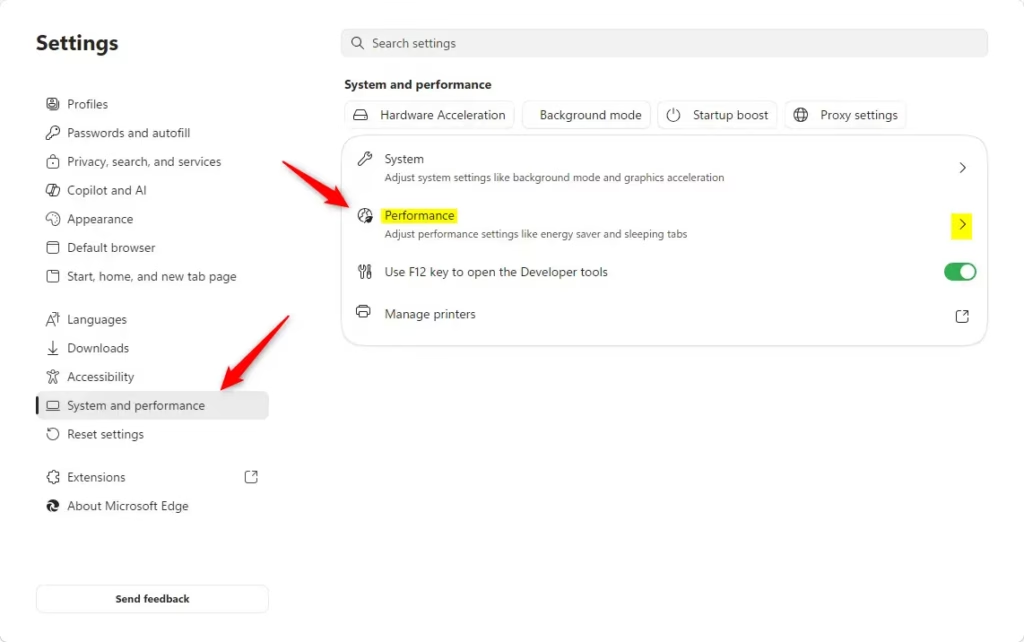
In the Settings window, look at the left-hand side. Click on System and performance.
- Find the Sleeping Tabs Options
Under the “System and performance” section, find the category called Performance. Click on it.
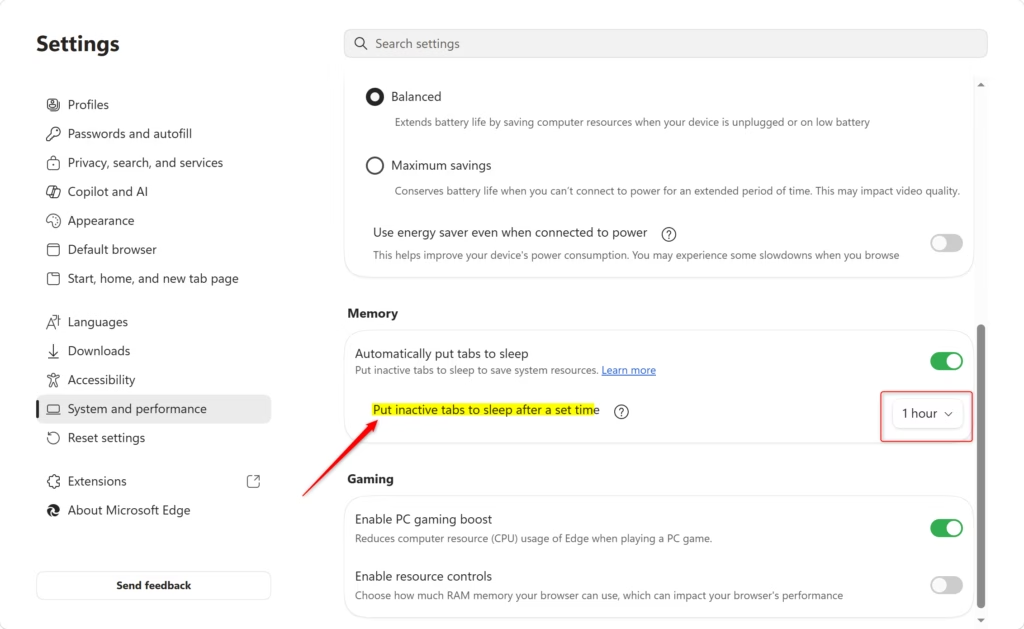
Scroll down until you see the “Sleeping tabs” section. You will see a switch labeled Automatically put tabs to sleep. Make sure this switch is turned On. If it is off, your tabs will never go to sleep, and you cannot change the time. - Set Your Desired Inactivity Time
Right below the “Automatically put tabs to sleep” switch, you will see another option: Put inactive tabs to sleep after. Click on the box next to it. A list of times will show up, like 30 minutes, 1 hour, or 2 hours. Choose the time that works best for you.
Warning: If you choose a very short time and then find yourself waiting for tabs to reload often, try setting the time longer. Find the time that works best for how you use the internet.- Shorter times (like 30 minutes or 1 hour): These are good if you open many tabs and want to save power quickly. This is especially helpful if your computer is older or you run many programs at once.
- Longer times (like 1.5 hours or 2 hours): These are better if you switch between many tabs often and want them to be ready right away.

Reference:
https://support.microsoft.com/en-us/edge/learn-about-performance-features-in-microsoft-edge
Summary
You can control how long your inactive tabs stay awake in Microsoft Edge. Navigate to Settings, then System and performance, and finally Performance. There, you’ll find the “Sleeping tabs” options. You can turn on “Automatically put tabs to sleep” and then choose how long tabs stay inactive before they go to sleep using the “Put inactive tabs to sleep after” setting. This helps manage your computer’s resources.
Was this guide helpful?

About the Author
Richard
Tech Writer, IT Professional
Richard, a writer for Geek Rewind, is a tech enthusiast who loves breaking down complex IT topics into simple, easy-to-understand ideas. With years of hands-on experience in system administration and enterprise IT operations, he’s developed a knack for offering practical tips and solutions. Richard aims to make technology more accessible and actionable. He's deeply committed to the Geek Rewind community, always ready to answer questions and engage in discussions.

No comments yet — be the first to share your thoughts!