Here’s How to Manually Change Your Windows 11 Display Brightness

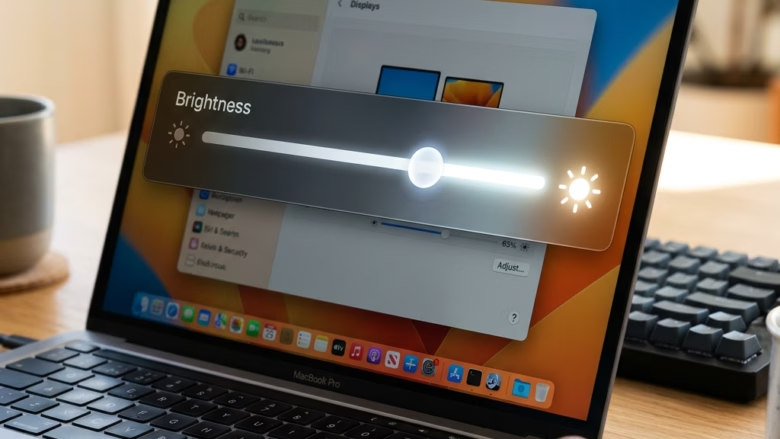
You can manually change your Windows 11 display brightness through the Settings app or the Quick Settings.
Windows 11 offers several quick ways to fine-tune your display’s brightness. For instance, using the Quick Settings provides a slider that lets you adjust brightness in increments.
You can access the Quick Settings by pressing the Windows key + A. Alternatively, navigating to Settings > System > Display reveals a more detailed brightness slider and advanced color calibration options.
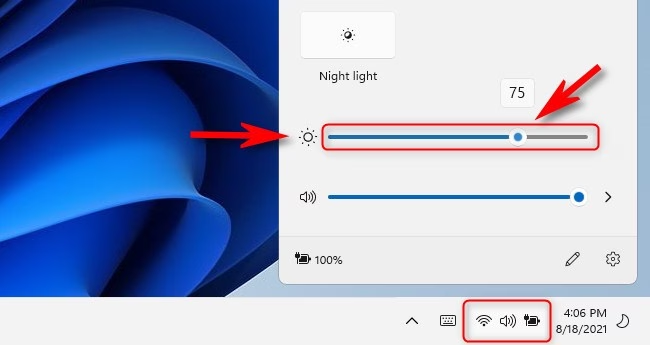
You can change Windows 11 display brightness via the Quick Settings panel by clicking the Wi-Fi, sound, or battery icons on the taskbar and adjusting the sun slider. Alternatively, go to Settings > System > Display and use the brightness slider there.
Why Change Screen Brightness?
You adjust screen brightness to keep your eyes comfortable. Too much brightness can be harsh, especially in a dark room. If it’s too dim, you might struggle to see your screen clearly. Finding the right level helps you see better and prevents eye strain.
What Happens When You Change Brightness?
When you adjust the brightness slider, you’re changing how much light your screen emits. Making it brighter increases the light output; making it dimmer decreases it. This makes your screen easier or harder to see, depending on your needs and the lighting around you.
Quick Way: Adjust Brightness from the Taskbar
For many, especially laptop users, this is the quickest method.
Step 1Open Quick Settings
Look at the right side of your taskbar, near the clock. You’ll see icons for things like Wi-Fi, sound, and battery. Click on this group of icons.
Note: Your user account might need administrator privileges (permission to make system-wide changes) for this action if it has restrictions.

Step 2Find the Brightness Slider
A panel will pop up with quick settings. Find the slider with a sun icon. This is your brightness control.
Important: If you don’t see a brightness slider, don’t worry. It might not appear on all systems, especially desktops with external monitors (separate screens connected to your PC). In that case, you can use the Settings app.
Step 3Adjust the Brightness
Click and drag the circle on the slider. Drag it left to dim the screen. Drag it right to brighten it. Adjust it until your screen looks and feels comfortable.
Detailed Way: Adjust Brightness in Windows Settings
If you can’t find the slider on the taskbar, or want to explore more display options, use the Windows Settings app.
Step 1Open Windows Settings
Click the Start button (the Windows logo) on your taskbar. Then, click the gear icon for Settings. Alternatively, press Windows key + I on your keyboard at the same time.
Step 2Go to Display Settings
In the Settings app, click on System in the left-hand menu. Then, click on Display.

Step 3Find the Brightness Slider
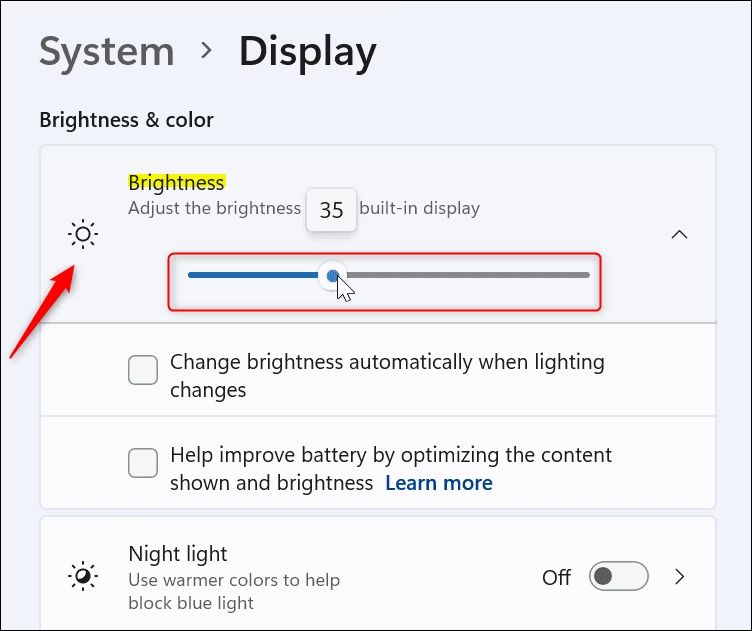
On the Display page, find the slider labeled Brightness. It might say “Change brightness for the built-in display.”
Important Note for Desktop Users: If you use a desktop computer with an external monitor (separate screen connected to your PC), you likely won’t see a brightness slider here. External monitors have their own brightness controls. Use those buttons on your monitor.
Step 4Adjust the Brightness
Click and drag the brightness slider. Move it left to dim your screen or right to brighten it. Adjust until you find the setting that works best for you.
Important: You might not see the Brightness slider on desktop PCs with an external monitor (separate screen connected to your PC). To change the brightness on one, use the buttons on the monitor itself.
Reference:
Summary
You can adjust your Windows 11 screen brightness using either the Quick Settings panel on the taskbar or the Windows Settings app. This helps make your screen comfortable to view in any lighting, reducing eye strain and improving your overall experience.
Was this guide helpful?

About the Author
Richard
Tech Writer, IT Professional
Richard, a writer for Geek Rewind, is a tech enthusiast who loves breaking down complex IT topics into simple, easy-to-understand ideas. With years of hands-on experience in system administration and enterprise IT operations, he’s developed a knack for offering practical tips and solutions. Richard aims to make technology more accessible and actionable. He's deeply committed to the Geek Rewind community, always ready to answer questions and engage in discussions.



No comments yet — be the first to share your thoughts!