How to Turn use Cellular whenever Wi-Fi is Poor On or Off in Windows 11

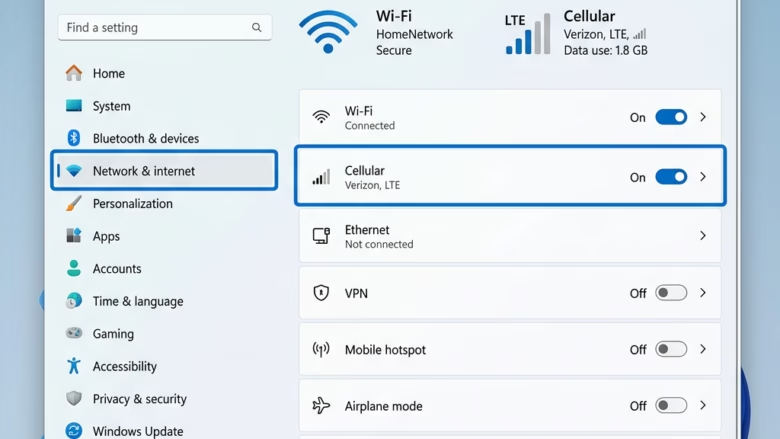
You can turn on or off the feature that automatically uses your cellular connection when Wi-Fi is poor in Windows 11.
This setting ensures you maintain an internet connection even if your primary Wi-Fi is unstable or too slow for comfortable browsing.
Windows 11 Pro and Home editions support this connectivity management feature, allowing seamless switching when Wi-Fi signal strength or speed drops below a usable threshold. Imagine your Wi-Fi suddenly becomes sluggish during an important video call. Instead of dropping out, your PC automatically switches to your cellular data, keeping you online.
This guide shows you exactly where to find and configure this smart connection setting in Windows 11’s Settings app.
Step 1Go to Your Cellular Settings
First, you need to find the right place in Windows Settings. Think of this as the control center for your computer’s mobile connection.
- Click the Start button. It’s in the bottom-left corner of your screen. This opens up everything in Windows.
- Type “Settings” in the search bar. Click on the Settings app when it shows up. You can also use the
Windows key + Ikeyboard shortcut to open Settings right away. - In the Settings window, look for Network & internet on the left side. Click it.
- Now, find and click on Cellular. This section has all the options for your computer’s cellular data connection.
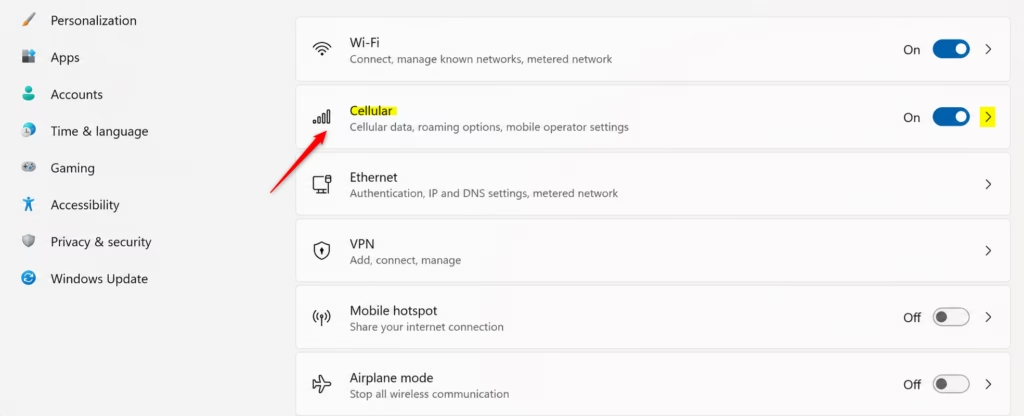
Tip: If you don’t see a Cellular option here, your computer might not have built-in cellular hardware. In that case, you would need to use an external cellular modem (sometimes called a mobile broadband device). Make sure it’s connected correctly and that Windows recognizes it.
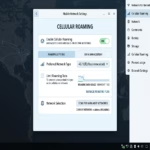
Step 2Turn on “Use cellular whenever Wi-Fi is poor”
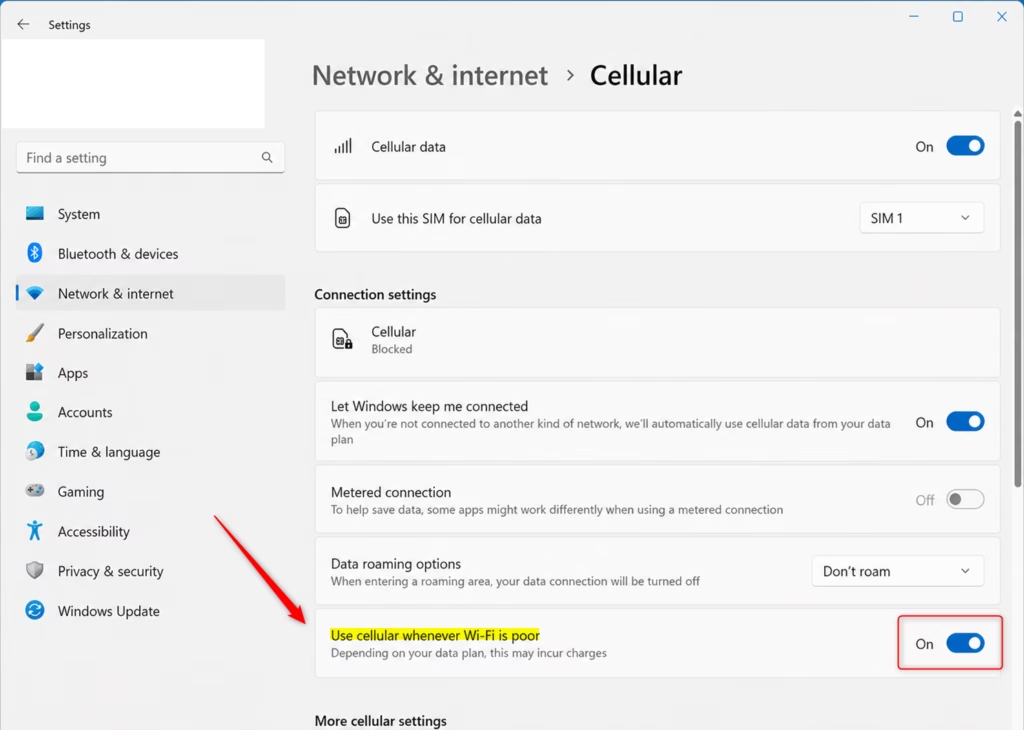
This is the important switch that tells Windows to be smart about your connection. When this is on, Windows will watch how well your Wi-Fi is working. It will switch to cellular if it notices your Wi-Fi is much slower or unreliable. It’s like having an automatic backup connection.
- On the Cellular settings page, you should see a switch that says Use cellular whenever Wi-Fi is poor. Make sure this switch is turned On.
If the switch is grayed out or you can’t click it, there might be a reason. Sometimes, other settings can affect this. For example, if you have turned off cellular data completely, this option might not be available. Also, make sure Windows sees your cellular modem or SIM card correctly.
Warning: When Windows uses your cellular connection, it uses data from your mobile plan. Be aware of your data limits and any possible extra costs, especially if your plan has a data cap. This feature helps you stay connected, but it’s important to know how it affects your data usage.
Step 3Understand What “Poor Wi-Fi” Means
So, what does Windows actually mean by “poor Wi-Fi”? It’s not just about a weak signal. Windows looks at how well and how reliably your Wi-Fi connection is working overall. This can include things like:
- High latency: This is the delay when data travels between your computer and the internet. High latency makes things feel slow, especially for things like video calls or online games that need a quick response.
- Low bandwidth: This is how fast data can be sent or received. If your Wi-Fi can’t download or upload data quickly enough, it’s considered poor.
- Packet loss: Sometimes, data packages get lost while traveling. If too many packages are lost, your connection becomes unreliable, and apps might not work right.
- Intermittent connectivity: If your Wi-Fi signal keeps dropping and reconnecting, Windows might decide it’s better to use a stable cellular connection.
By turning on “Use cellular whenever Wi-Fi is poor,” you are telling Windows to make a smart choice for you. It will choose a connection that works over a Wi-Fi experience that might be frustrating.
Reference:
Summary
Why do this? When your Wi-Fi is slow or not working, your computer can automatically switch to using your cellular data. This keeps you connected without you having to do anything.
What happens when done? Windows 11 will monitor your Wi-Fi connection. If it detects that the Wi-Fi is performing poorly (slow, unreliable, or dropping), it will automatically switch to your cellular data connection. This makes sure you have a stable internet connection for whatever you need to do.
Was this guide helpful?

About the Author
Richard
Tech Writer, IT Professional
Richard, a writer for Geek Rewind, is a tech enthusiast who loves breaking down complex IT topics into simple, easy-to-understand ideas. With years of hands-on experience in system administration and enterprise IT operations, he’s developed a knack for offering practical tips and solutions. Richard aims to make technology more accessible and actionable. He's deeply committed to the Geek Rewind community, always ready to answer questions and engage in discussions.

No comments yet — be the first to share your thoughts!