How to Change Your Cellular Data Roaming Options in Windows 11

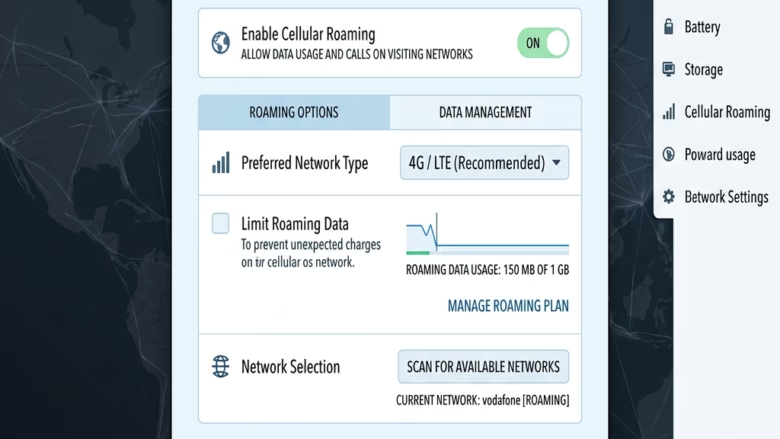
You change your cellular data roaming options in Windows 11 to control whether your device uses your mobile carrier’s network when outside your usual coverage area.
Cellular data roaming allows your Windows 11 PC or tablet to connect to a different mobile network, often when you’re traveling internationally or in a remote location, to maintain internet access.
This feature is crucial for managing potential extra costs, as roaming rates can differ significantly from your standard plan. For example, Windows 11 offers specific settings to enable or disable roaming on a per-connection basis.
You’ll find these options within the Network & Internet settings, under Cellular. Here, you can choose whether roaming is on or off, or sometimes set it to ask each time.
Understanding Data Roaming Options
When your Windows 11 device goes outside your mobile company’s usual coverage area, it might need to connect to a different network. This is called roaming. It keeps you online, but it can also cost extra depending on your data plan. Fortunately, Windows 11 lets you control this, so you can decide if and when your device roams.
What is Data Roaming?
Think of data roaming like using your phone’s data connection when you’re outside your home network’s signal range. Your mobile company has deals with other carriers to let you use their networks. This means you can still send emails, browse the web, or use your favorite apps. But, it’s key to know that the data you use might cost differently.
For example, if you take your Windows 11 laptop on a trip abroad, your device might automatically try to connect to a local cellular network there. If you don’t manage the settings, you could use a lot of data at a much higher price than you’re used to.
Why You Need to Manage Roaming Settings
The main reason to manage data roaming is to avoid surprise bills. Mobile companies often charge a lot more for data used while roaming. By understanding and changing these settings, you can:
- Avoid High Charges: This is the most important benefit. You can turn off roaming completely to make sure you don’t get unexpected costs.
- Stay Connected When Necessary: If you need to be online while traveling and your plan lets you, you can turn on roaming, maybe with limits.
- Control Your Data Usage: Even if roaming is on, you might want to watch how much data you use to stay within your budget.
How to Access Data Roaming Options in 🪟 Windows 11
Finding these settings is straightforward. Windows 11 keeps most network settings in one place.
- Open Settings: Click the Start button (the Windows icon) on your taskbar. Then, click the Settings cogwheel icon. You can also press the
Windows key + Ikeys on your keyboard to open Settings directly. - Go to Network & internet: In the Settings window, click on Network & internet in the left sidebar.
- Find Cellular: Scroll down the options on the right side of the Network & internet window. Look for Cellular and click it.
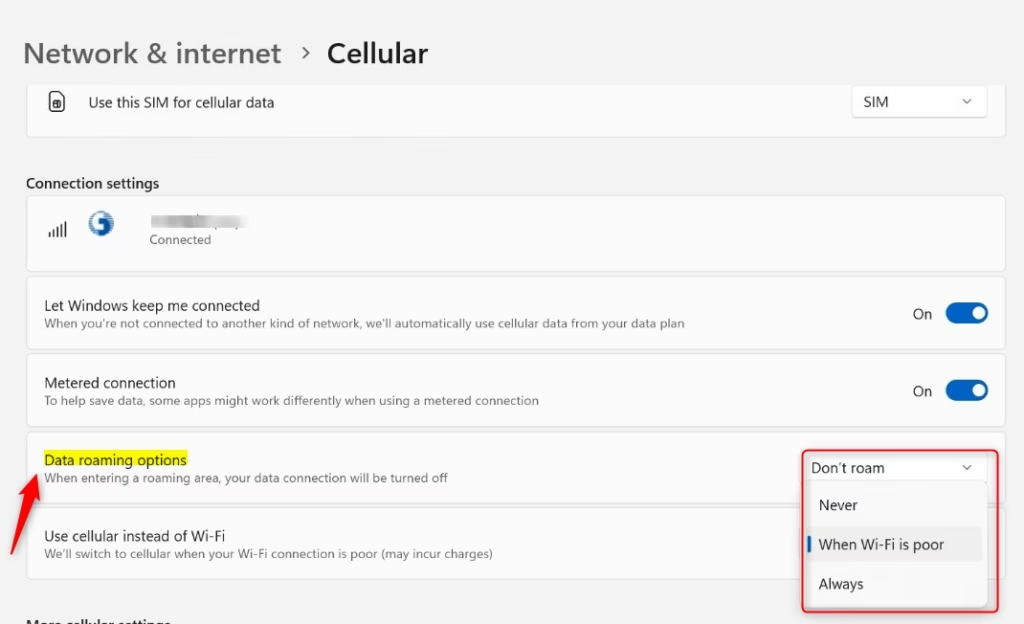
- Locate Data Roaming Options: Inside the Cellular settings, you’ll see different options. Find the section or option called Data roaming options and click it.
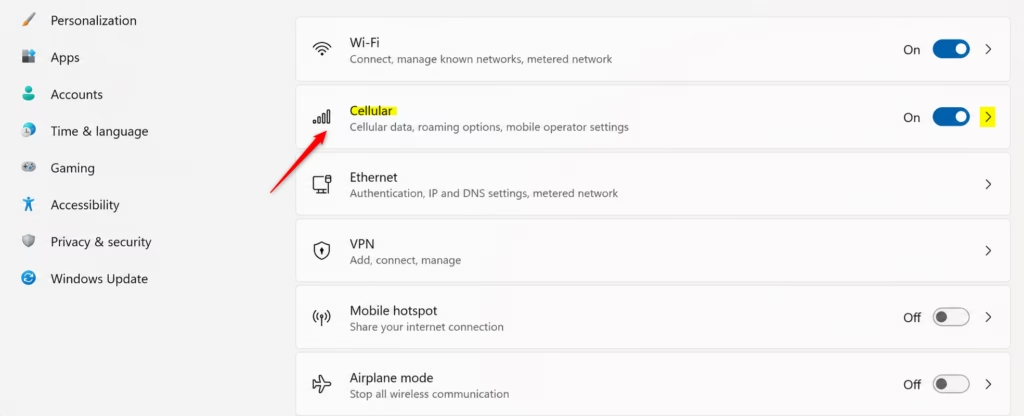
Tip: If you don’t see the ‘Cellular’ option, your device might not have built-in cellular hardware (like a SIM card slot or eSIM). If so, these settings won’t be available. You usually see this option if your PC has a cellular modem or an internal cellular module.
Configuring Your Data Roaming Settings
Once you are in the Data roaming options, you will usually see one main choice:
- Don’t roam: This is the safest choice if you want to avoid any data charges when you’re outside your company’s network. If you pick this, your Windows 11 device will not use cellular data when it detects it is roaming. It will just disconnect from cellular data until it’s back in your home network’s area.
Warning: Choosing “Don’t roam” means you won’t have internet using cellular data when you’re in a roaming area, even if you really need it. Make sure this works for your travel plans.
- Roam: If you choose this, your device can use cellular data when it’s outside your company’s network. This keeps you connected, but you must know about the possible costs. Your mobile company will charge you for the data used based on their roaming rates.
Good Tip: If you plan to roam, check with your mobile company before you travel. Ask them about their international data plans, roaming packages, or daily/monthly limits. Some companies offer special travel passes that can be cheaper than normal roaming rates.
The exact words might be slightly different depending on your Windows 11 version and your mobile company’s setup. But the main choice will be between allowing or blocking data use while roaming.
Reference:
Summary
Data roaming lets your Windows 11 device connect to cellular networks outside your home provider’s coverage. This keeps you online, but can lead to high charges if you don’t manage it. To control this, go to Settings > Network & internet > Cellular > Data roaming options. There, you can choose Don’t roam to avoid extra costs, or Roam if you need to stay connected and have a plan that covers it. Always check with your mobile provider about roaming costs and plans before traveling to avoid surprise bills.
Was this guide helpful?

About the Author
Richard
Tech Writer, IT Professional
Richard, a writer for Geek Rewind, is a tech enthusiast who loves breaking down complex IT topics into simple, easy-to-understand ideas. With years of hands-on experience in system administration and enterprise IT operations, he’s developed a knack for offering practical tips and solutions. Richard aims to make technology more accessible and actionable. He's deeply committed to the Geek Rewind community, always ready to answer questions and engage in discussions.
No comments yet — be the first to share your thoughts!