How to Enable or Disable Location Services in Windows 11

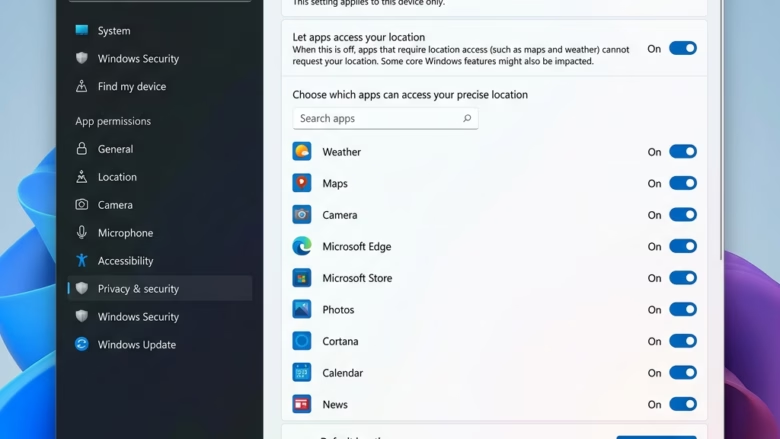
This guide explains how to control location services on your Windows 11 computer.
Why: You may want to manage which apps track your location to protect your privacy or stop unwanted data collection.
What happens when done: When enabled, apps can show you local weather, nearby stores, or help find your device. When disabled, apps cannot access your precise location, and features like automatic time zone settings may stop working correctly.
Understanding Location Settings
Location services allow Windows to use GPS, Wi-Fi, cell towers, and your IP address to find your location. If you turn this on, you can decide which specific apps can use this data. Windows also saves your recent location history. If you sign in with a Microsoft account, this info is saved to the cloud to help apps on your other devices.
Note: You must be signed in as an administrator to change these settings for the entire device.
Option One: Using Settings
- Open Settings (press the Win + I keys).
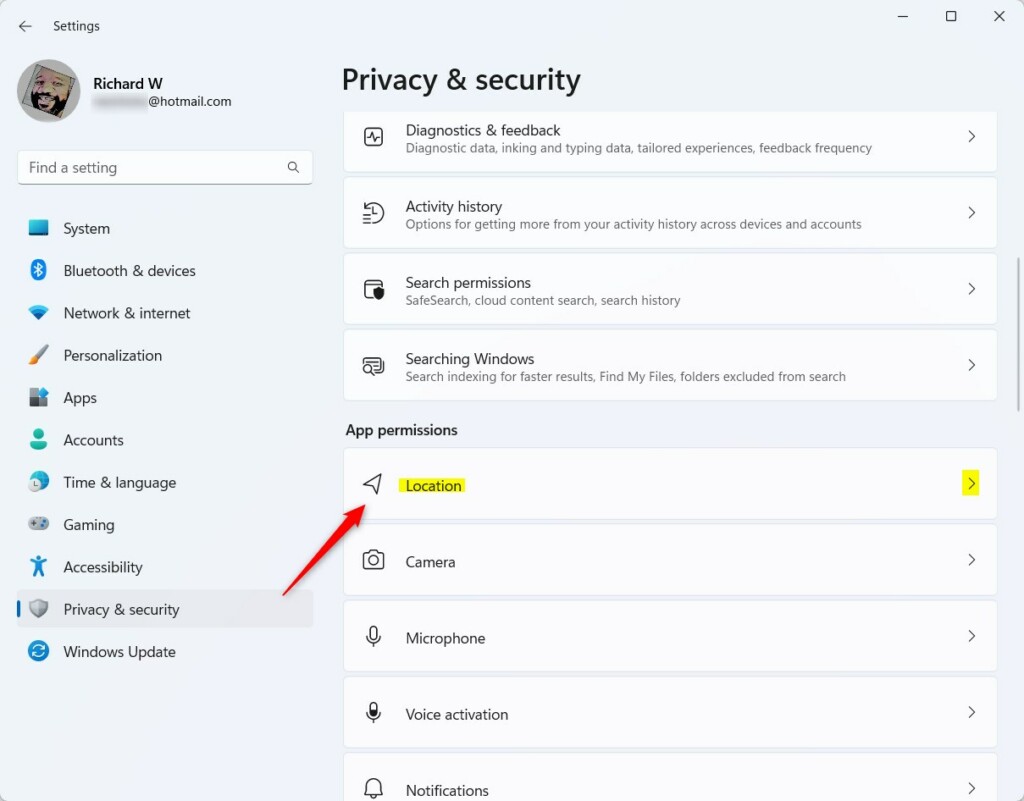
- Click Privacy & security on the left, then click Location on the right.
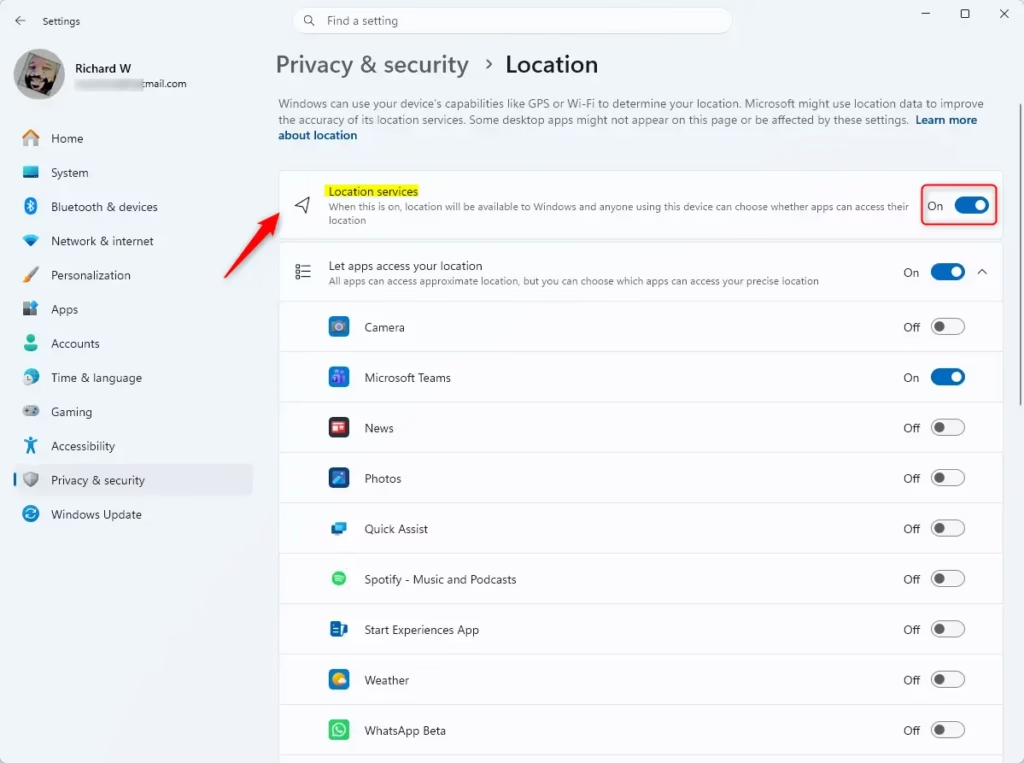
- Use the switch to turn Location services On or Off.
- If turning it off, click Turn off to confirm.
Option Two: Using Command Prompt
Requires Administrator privileges.
- Right-click the Start button and select Terminal (Admin).
- Choose Windows PowerShell or Command Prompt.
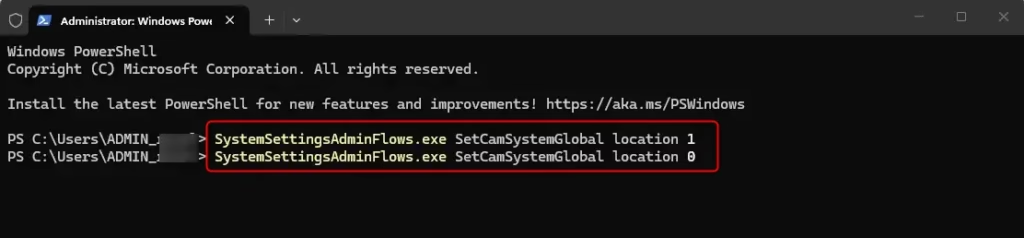
- Copy and paste the command below and press Enter.
To turn on: SystemSettingsAdminFlows.exe SetCamSystemGlobal location 1
To turn off: SystemSettingsAdminFlows.exe SetCamSystemGlobal location 0
Option Three: Using Group Policy Editor
Requires Administrator privileges. Only for Pro, Enterprise, and Education editions.
- Press Win + R, type
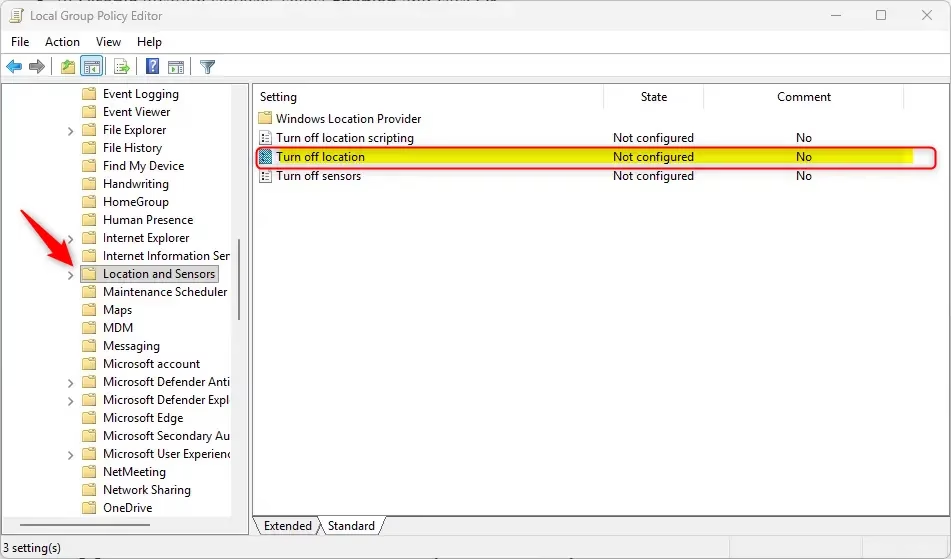
gpedit.msc, and press Enter. - Go to:
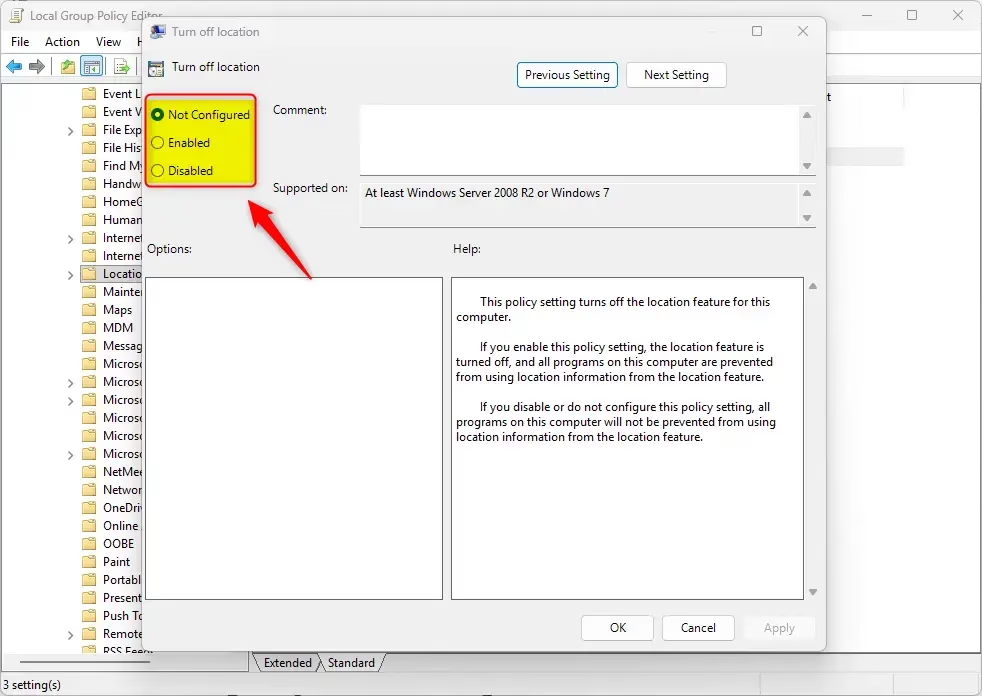
Computer Configuration\Administrative Templates\Windows Components\Location and Sensors - Double-click Turn off location.
- To Enable location services, select Not Configured and click OK.
- To Disable location services, select Enabled and click OK.
Troubleshooting Greyed-Out Settings
If your location toggle is greyed out, it is likely due to a Group Policy restriction or a managed account setting. Check if your organization controls your device. You can also verify if the Geolocation Service is running in services.msc. If it is disabled, right-click it, select Properties, and set the Startup type to Automatic.
Managing Location History
Windows keeps a record of where your device has been. To clear this, go to Settings > Privacy & security > Location. Scroll down to Location history and click the Clear button. This removes the stored data from your device and the cloud.
Find My Device and Privacy
Disabling global location services does not necessarily turn off Find My Device. This feature uses its own location tracking to help you locate a lost laptop. To manage this, go to Settings > Privacy & security > Find my device. You can toggle it independently of your general app location permissions.
Why is my location service toggle greyed out in Windows 11?
The toggle is often greyed out because of a Group Policy setting or a work/school account restriction. It can also happen if the Geolocation Service is disabled in the background. Check your system services or consult your IT administrator if your computer is managed by an organization.
Summary
Managing your location settings gives you control over your digital footprint. You can toggle these services through the Settings app for ease of use, or use the Terminal or Registry for more advanced control. Remember that turning these off may affect features like automatic time zone updates and certain app functionalities. Always check your privacy settings periodically to ensure your data is being shared only with apps you trust.
Was this guide helpful?


Leave a Reply