How Do You Translate Videos in Microsoft Edge?

Microsoft Edge has a feature that translates video audio and subtitles in real-time. This can help you watch content in other languages.
Why use this feature?
You may want to use this if you frequently watch videos in foreign languages and need help understanding the audio or subtitles. It is useful for learning or catching up on global news.
What happens when you turn it on?
When you enable this, Edge will ask to download a language model the first time you translate a video. Once downloaded, all translation happens right on your computer. Your video data never leaves your device.
Note: Your computer needs at least 12 GB of RAM and a 4-core processor for this to work.
Real-time video translation | Microsoft Edge
Option One: Turn On or Off for Your Account
This method works for your specific user profile.
- Open Microsoft Edge.
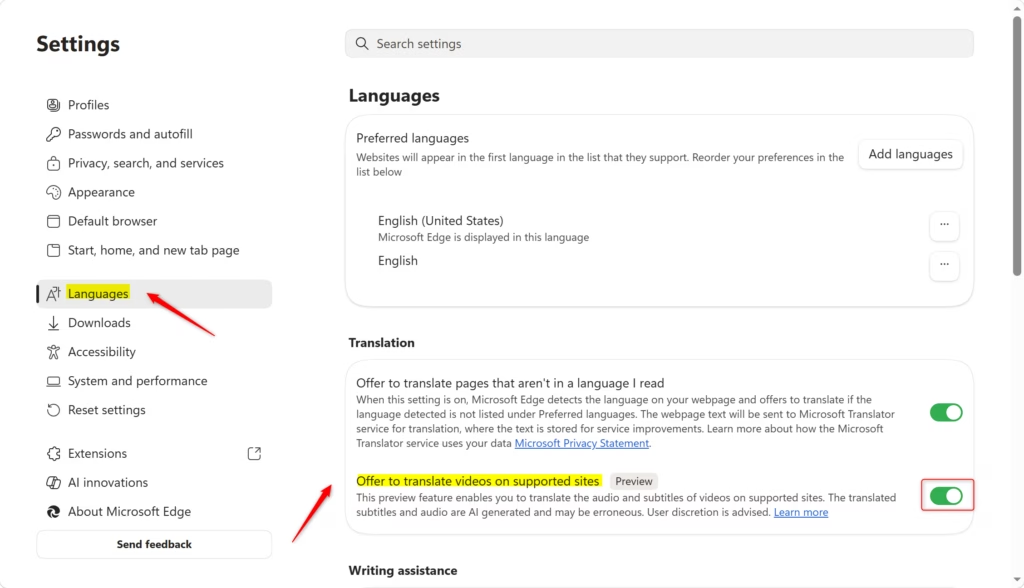
- Click the Settings and more (three dots) menu icon, then select Settings.
- Click on Languages in the left menu.
- Under the Translation section, toggle the switch for Offer to translate videos on supported sites to On or Off.
- Close the Settings tab when you are finished.

Option Two: Enable or Disable for All Users
This option requires admin privileges. It uses the LiveVideoTranslationEnabled policy to set the rule for everyone on the computer. Open the Windows Terminal as an administrator to run these commands.
To Always Enable for All Users:
reg add "HKLM\SOFTWARE\Policies\Microsoft\Edge" /v LiveVideoTranslationEnabled /t REG_DWORD /d 1 /f
To Disable for All Users:
reg add "HKLM\SOFTWARE\Policies\Microsoft\Edge" /v LiveVideoTranslationEnabled /t REG_DWORD /d 0 /f
To Reset to Default (User Choice):
reg delete "HKLM\SOFTWARE\Policies\Microsoft\Edge" /v LiveVideoTranslationEnabled /f
Summary
The video translation feature in Microsoft Edge allows you to watch videos with AI-generated audio and subtitles. You can enable or disable this feature for your personal account through the browser settings or force a global setting for all users on the computer using the command line if you have administrator access.
Was this guide helpful?


Leave a Reply