How to Enable or Disable Copilot New Tab Page in Microsoft Edge on Windows 11

Microsoft Edge is now more than just a browser. It uses AI to help you search, shop, and stay organized. One of the newer features is the Copilot new tab page. This guide will show you how to turn this feature on or off.
Why use the Copilot new tab page?
This mode changes your new tab screen into a streamlined search and chat hub. It is designed to help you find answers faster by letting you chat with AI directly from your search box. It also offers a custom theme and smart suggestions based on what you are looking at.
What happens when you are done?
Once you change these settings, your browser will refresh its appearance. If you turn the feature on, your new tabs will show the AI-powered search box. If you turn it off, your browser will return to the classic look you are used to.
Copilot Mode | Microsoft Edge
Microsoft Edge acts as your personal AI assistant. With Copilot mode active, you can chat and search with ease.
Introducing Copilot Mode in Edge: A new way to browse the web
The way we browse the web has stayed the same for years. AI is now changing how we interact with information by making it faster and more helpful.
Microsoft Edge Browser Policy Documentation CopilotNewTabPageEnabled
How to change your Copilot settings
- Open Microsoft Edge.
- Click the Settings and more menu (the three dots in the top right corner, or press Alt+F).
- Select Settings.
- Look at the left-hand menu. Click on AI innovations or Start, home, and new tab page.
- If you do not see the menu, click the three-bar icon in the top left or stretch your browser window wider.
- Find the setting for Copilot new tab page.
- Switch the toggle to On or Off based on your preference.
Note: You must have Copilot Mode enabled in your browser for this specific setting to appear.

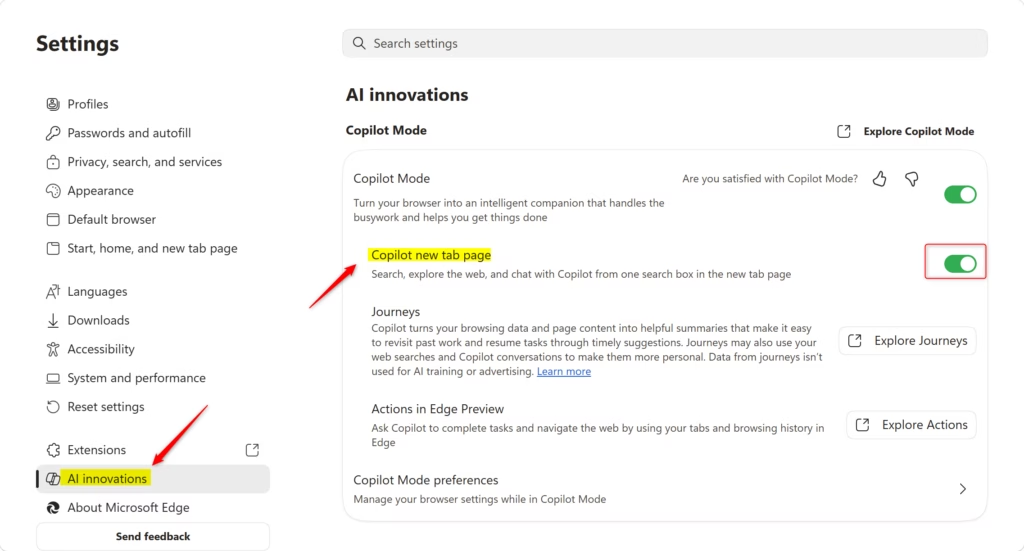
You can now close the settings tab. Your changes are saved automatically.
Summary
The Copilot new tab page replaces your standard browser start screen with an AI-focused interface. You can enable or disable this feature at any time through the Edge settings menu. This does not require admin privileges, as it only affects your personal user profile settings within the browser.
Was this guide helpful?

Leave a Reply