Notifications are little alerts from your apps and Windows that keep you updated. This guide will help you learn how to turn these notifications on or off, either for all apps or just for specific ones, so you only get the alerts you want.
What Are Notifications?
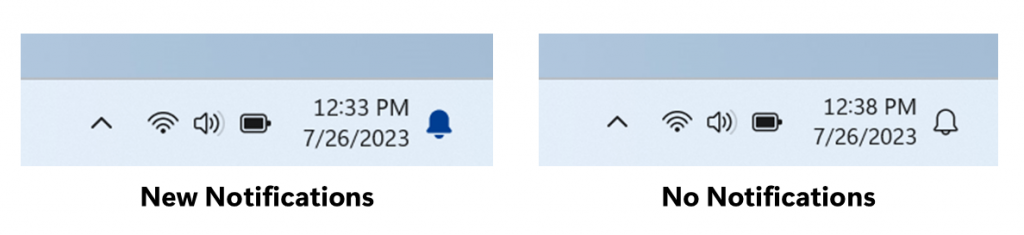
Notifications are messages that pop up on your screen to tell you about things like new emails, calendar reminders, or app updates.
In Windows 11, notifications can appear in these places:
- Lock screen (press
Win + L) - Notification Center (press
Win + N) - Notification banners near the bottom-right corner above the taskbar
By default, a sound will play when a new notification arrives.
How to Turn Notifications On or Off Using Settings
- Press Win + I to open Settings.
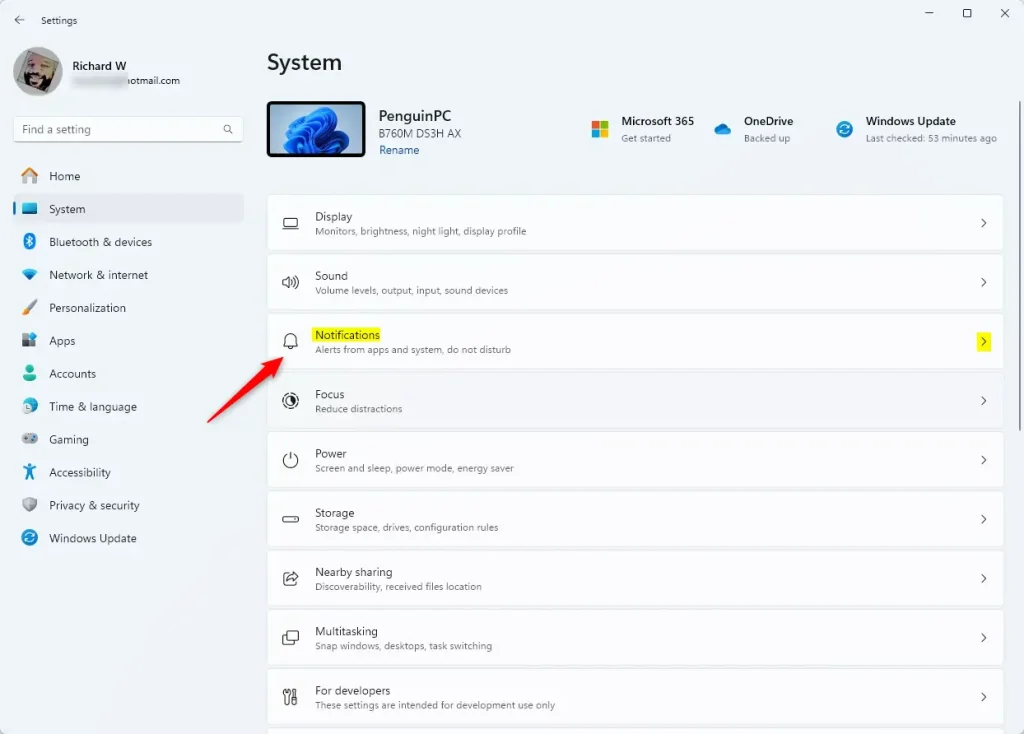
- Click System on the left side, then select Notifications on the right.
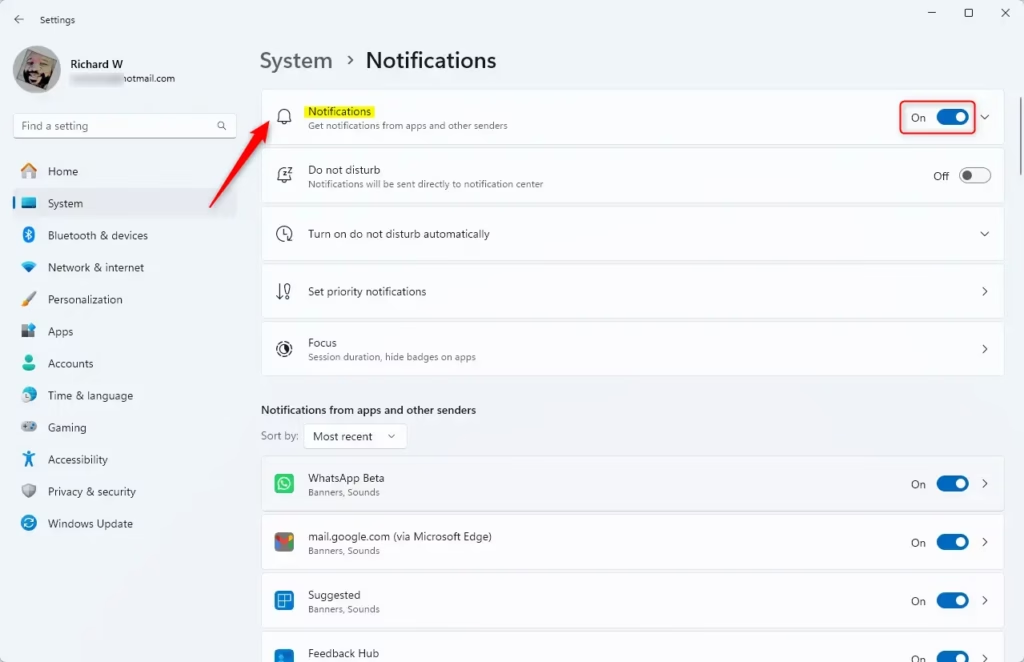
- To turn all notifications on or off, toggle the switch at the top labeled “Notifications.”
- You can also scroll down to turn notifications on or off for specific apps.
- When done, you can close Settings.
Open Notifications settings now
Turn Off Notifications for a Specific App Quickly from Notification Center
- Press Win + N to open the Notification Center.
- Find a notification from the app you want to mute.
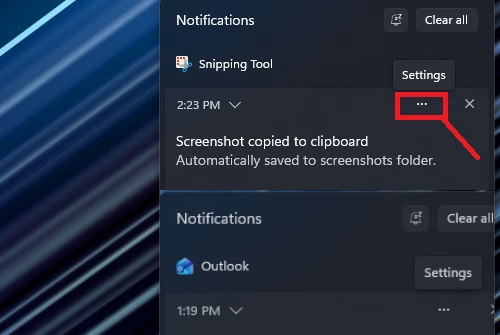
- Click the three dots (Settings) button on that notification.
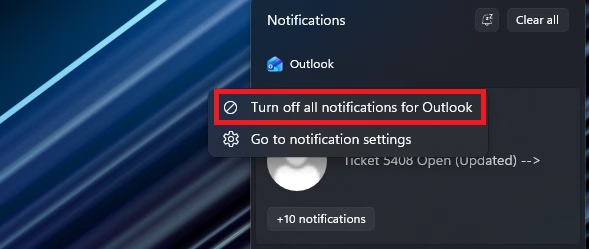
- Select “Turn off all notifications for [app name]”.
Turn Off Notifications from a Notification Banner
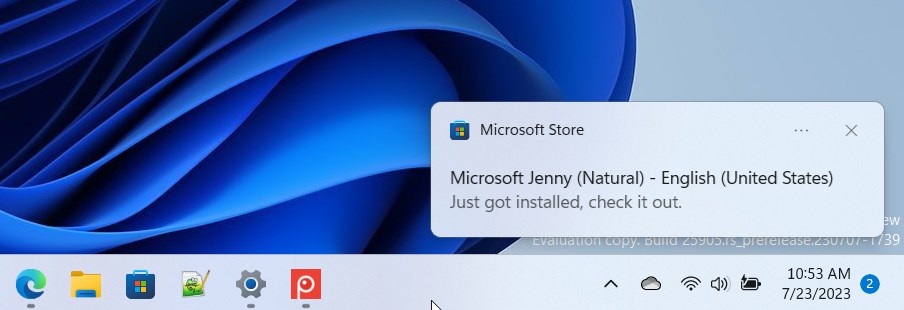
When a notification pops up at the bottom-right:
- Click the three dots (Settings) in the notification banner.
- Choose “Turn off all notifications for [app name]” to stop notifications from that app.
Extra: Turn Notifications On or Off Using a Registry File (For Advanced Users)
If you’re comfortable editing system files, you can use a registry file to turn notifications on or off for your user account.
Turn Off All Notifications
reg add "HKEY_CURRENT_USERSoftwareMicrosoftWindowsCurrentVersionPushNotifications" /v ToastEnabled /t REG_DWORD /d 0 /f
Turn On All Notifications (Default)
reg add "HKEY_CURRENT_USERSoftwareMicrosoftWindowsCurrentVersionPushNotifications" /v ToastEnabled /t REG_DWORD /d 1 /f
Note: Be careful when editing the Registry. Always back it up first!
Summary
- Use Settings: Press
Win + Ito open Settings and manage notifications easily. - Control Apps: Turn notifications on or off for specific apps in the Notifications settings or Notification Center.
- Quick Turn Off: Use the three-dot menu on notifications to stop alerts from an app quickly.
- Advanced Users: Use Registry Editor for more detailed control (with care).
- Stay Focused: Use the “Do Not Disturb” mode in the Notification Center to pause notifications when working.
For more details and Microsoft’s official help, visit their support pages:

Leave a Reply