How to Control App Communication with Unpaired Devices in Windows 11

You control which apps can communicate with unpaired devices in Windows 11 through the “Other devices” privacy settings.
This setting stops apps from finding and connecting to devices your PC hasn’t officially paired with yet, such as Bluetooth speakers or wireless mice you haven’t set up. It’s a crucial privacy feature that gives you more granular control over your system’s interactions.
Windows 11 started offering this advanced control back with version 22H2. By managing this setting, you ensure only trusted apps can attempt to connect to nearby, unassociated hardware.
Manage app communication with unpaired devices in Windows 11 via Settings > Privacy & security > Other devices. Toggle the “Communicate with unpaired devices” option On to allow or Off to block this functionality. This setting prevents apps from discovering and connecting to devices your PC isn’t currently paired with.
Why This Matters
Windows 11 gives you the choice over whether apps can communicate with unpaired devices. Remember, unpaired devices are gadgets that your PC hasn’t officially connected to yet. Think gaming consoles, smart devices, or other electronics nearby.
What Happens When You Change This Setting?
When you turn this setting On, apps can send and receive information with unpaired devices near your PC. When you turn it Off, apps cannot communicate with devices that aren’t paired to your computer. This gives you more privacy and control.
How to Control This Using Windows Settings (Easiest Method)
- Press
Windows key + Ion your keyboard to open Settings. Or click the Start button and select Settings. - Click Privacy & security from the menu on the left side.
- Scroll down on the right side. Then click Other devices.
- Look for the option called Communicate with unpaired devices.
- Toggle the switch to On to let apps communicate with unpaired devices. Toggle it to Off to block this.
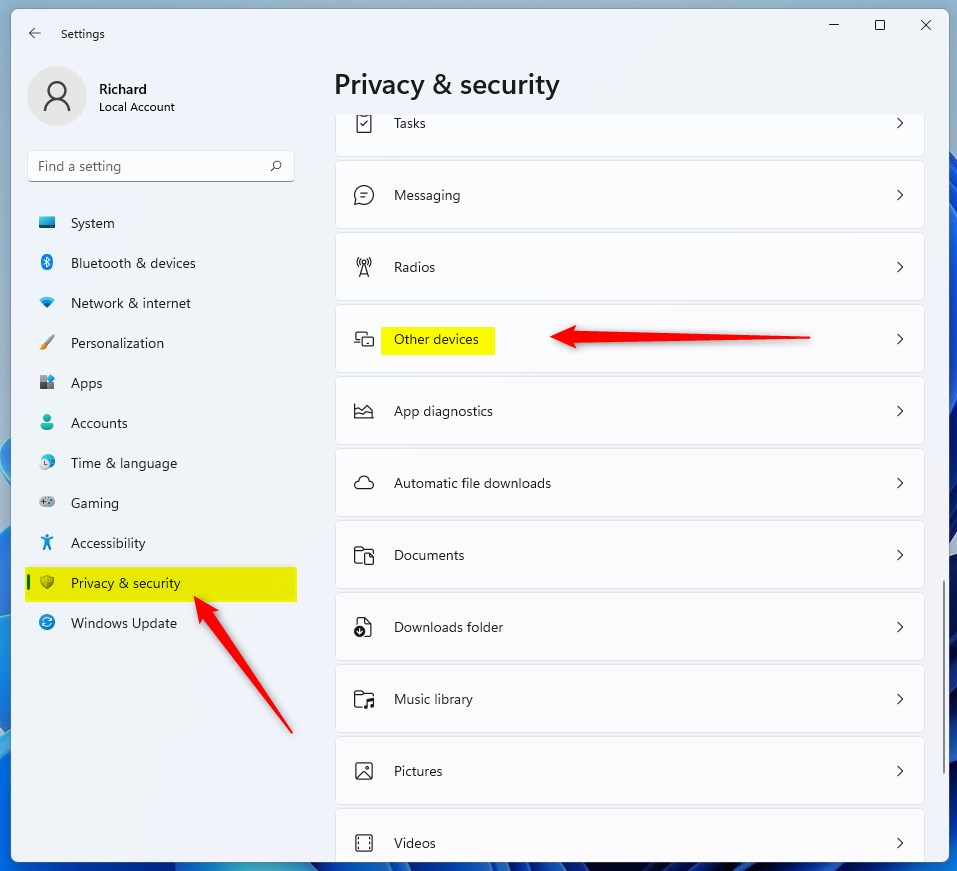
You can easily control how apps on your Windows 11 PC talk to devices that aren’t paired by using the main Settings app. This simple adjustment helps keep your computer secure by managing which apps can connect to nearby, unpaired devices.
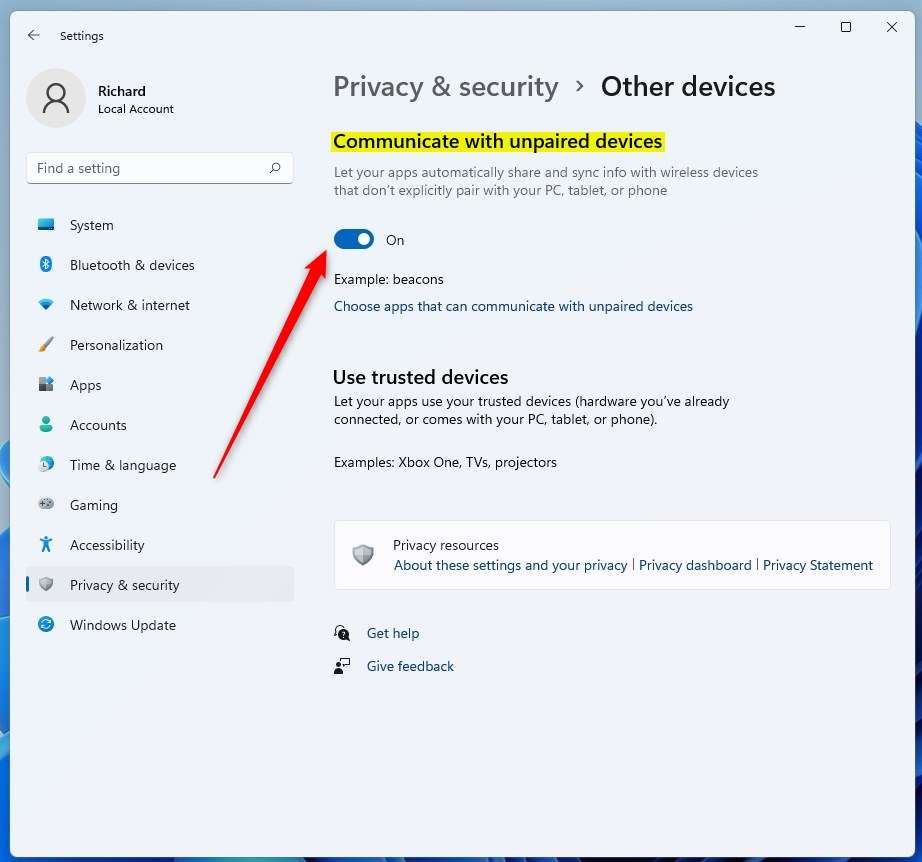
You can easily control how apps on your Windows 11 PC talk to devices that aren’t paired by using the main Settings app. This simple adjustment helps keep your computer secure by managing which apps can connect to nearby, unpaired devices.
How to Control This Using Local Group Policy Editor (Advanced Users)
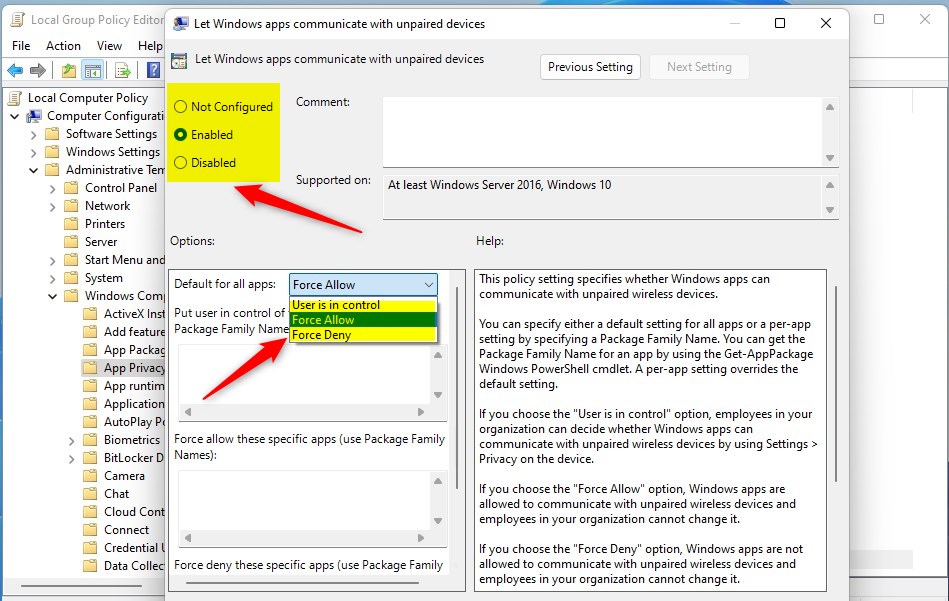
For more advanced control over app communication with unpaired devices in Windows 11 Pro and higher versions, you can use the Local Group Policy Editor. This tool lets you fine-tune the setting for apps connecting to devices that aren’t officially paired with your computer.
- Click the Start button. Type
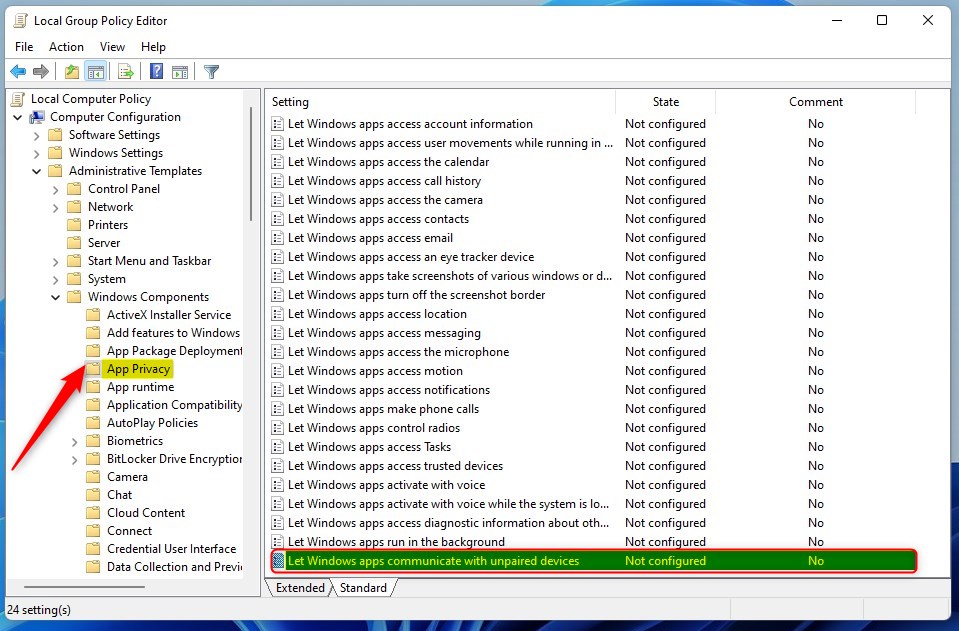
Edit group policyand press Enter. - In the Local Group Policy Editor window, follow this path on the left side:
Computer Configuration > Administrative Templates > Windows Components > App Privacy - On the right side, find and double-click Let Windows apps communicate with unpaired devices.
- Choose one of these options:
- Not Configured – This is the default setting.
- Enabled – Allows apps to communicate with unpaired devices.
- Disabled – Blocks apps from communicating with unpaired devices.
- If you select Enabled, go to the “Options” section. Choose Force Allow to let all apps communicate with unpaired devices. If you select Disabled, choose Force Deny to block all apps.
- Click OK to save your changes.
- Close the Local Group Policy Editor.

Summary
Controlling app communication with unpaired devices in Windows 11 is important for privacy and security. You can easily manage this setting through the Windows Settings app, or use the Local Group Policy Editor for more detailed control if you have Windows 11 Pro or a higher version.
What is communicate with unpaired devices?
What does communicating with unpaired devices mean? This means apps can interact with nearby wireless devices that your PC hasn’t explicitly connected to (paired) yet.
Was this guide helpful?

About the Author
Richard
Tech Writer, IT Professional
Richard, a writer for Geek Rewind, is a tech enthusiast who loves breaking down complex IT topics into simple, easy-to-understand ideas. With years of hands-on experience in system administration and enterprise IT operations, he’s developed a knack for offering practical tips and solutions. Richard aims to make technology more accessible and actionable. He's deeply committed to the Geek Rewind community, always ready to answer questions and engage in discussions.




No comments yet — be the first to share your thoughts!