How to Make a User Administrator in Windows 11

This guide shows you how to give someone full access to your Windows 11 PC. You do this by making their account an Administrator. Why? Because Administrators can change important settings and install programs.
What is an Administrator Account?
Windows 11 has two main types of user accounts:
- Standard User: Can use the computer but cannot make big changes. They cannot install software.
- Administrator: Has full access. Can change almost anything on the PC.
When you create a new user, they usually start as a Standard User. If you want to give them more control, you need to make them an Administrator. What happens when you do this? They get permission to install programs and change PC settings.
How to Change a User to Administrator
Follow these easy steps:
- Open the Settings App
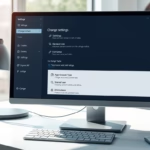
Click on the Start menu (the Windows icon on the bottom left) and select Settings. Or press Windows key + I on your keyboard to open Settings quickly. Learn more about Windows Settings
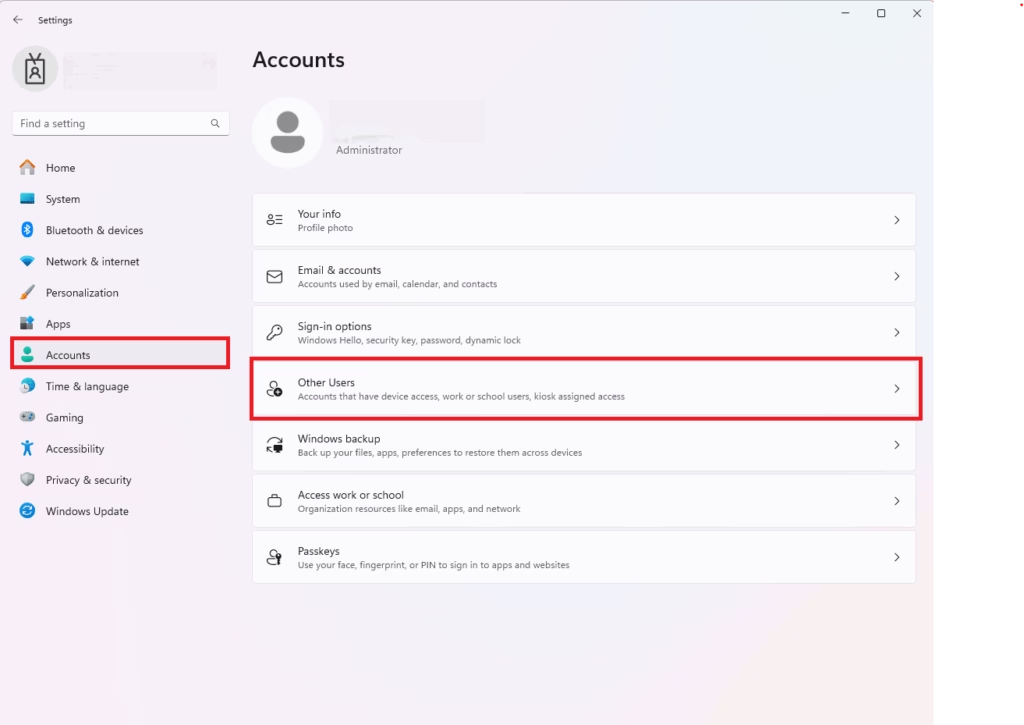
- Go to Accounts
In the Settings window, click on Accounts from the menu on the left side.
- Choose Other Users
On the right side, find and click the Other Users section to see the list of users.
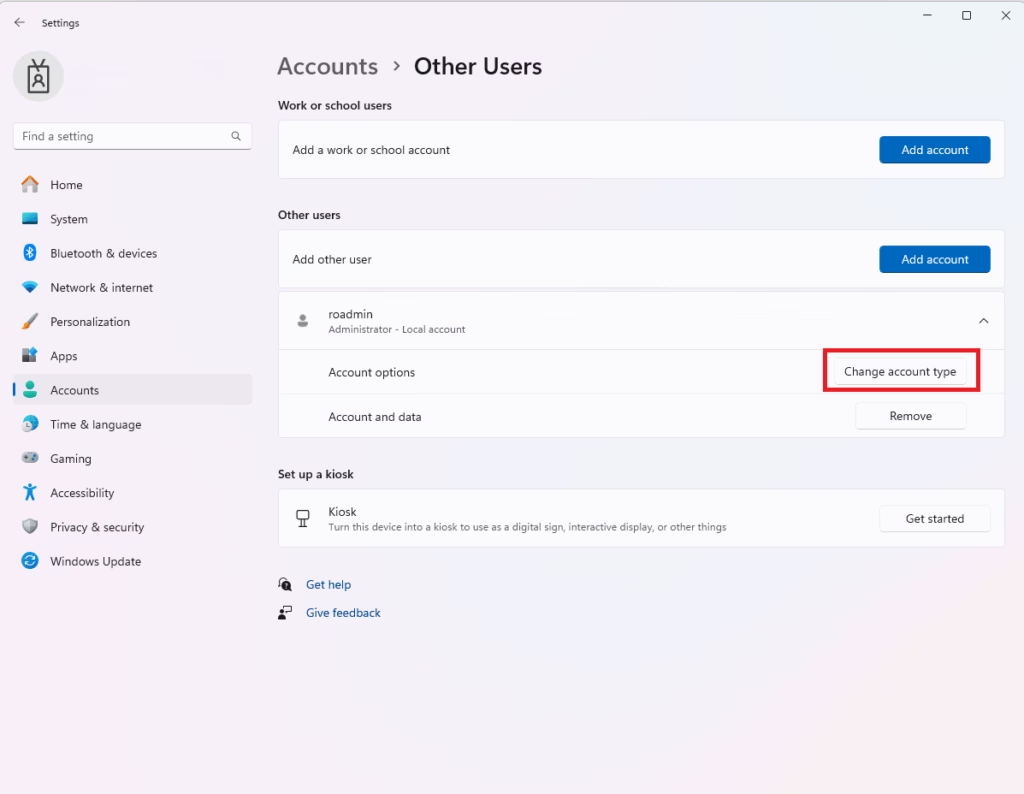
- Select the User You Want to Change
Click the user account you want to make an Administrator.
- Change Account Type
Click the Change account type button. ⚠️ This step requires admin privileges.
- Set to Administrator
In the pop-up window, click the drop-down menu and select Administrator, then click OK.
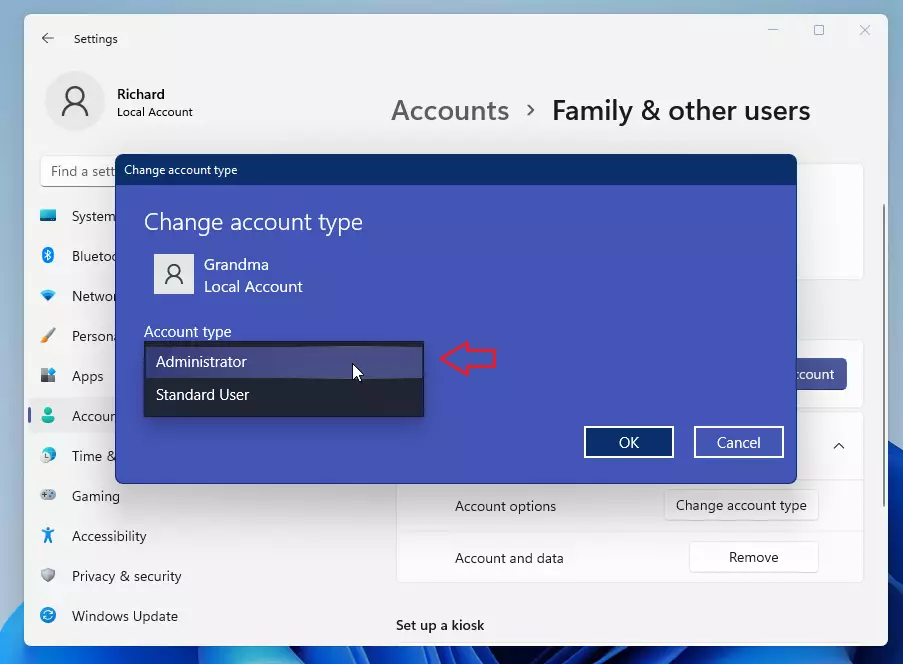
That’s it! The user now has Administrator rights on your Windows 11 PC.
Important Tips
- Only give Administrator rights to people you trust. They can change important settings.
- If you want to change roles later, just come back to Settings > Accounts > Other Users.
- Keep an eye on user accounts and their permissions. This keeps your PC safe.
Summary
Making someone an Administrator on Windows 11 gives them full access to your PC. You do this through Settings > Accounts > Other Users. Select the user, click Change account type, and select Administrator from the drop-down menu. Only give Administrator rights to people you trust, because they can change important settings and install programs.
Frequently Asked Questions
What is an Administrator Account?
Was this guide helpful?

About the Author
Richard
Tech Writer, IT Professional
Richard, a writer for Geek Rewind, is a tech enthusiast who loves breaking down complex IT topics into simple, easy-to-understand ideas. With years of hands-on experience in system administration and enterprise IT operations, he’s developed a knack for offering practical tips and solutions. Richard aims to make technology more accessible and actionable. He's deeply committed to the Geek Rewind community, always ready to answer questions and engage in discussions.


[…] You must be signed in as an administrator to delete user accounts. Also, you cannot delete an account that is currently signed in — […]