Stop Unwanted Emails from Signing In to Your Microsoft Account

Do you worry that someone might try to get into your Microsoft account using an email you don’t use anymore? Or maybe an email you don’t even know? It’s a good worry to have! Your Microsoft account is super important. It’s used for Windows, Office, Xbox, OneDrive, and more. Good news! Microsoft lets you control which emails, called aliases, can be used to log in. Aliases are like different names or emails that all go to the same Microsoft account. They share your contacts, files, subscriptions, and settings. They all use the same password.
It’s handy to have many ways to log in, but sometimes you want to make it harder for others by stopping certain aliases from being used to sign in. Let’s learn how to do that and keep your online life safe.
What Are Microsoft Account Aliases?
Before we start, let’s understand what aliases are for your Microsoft account. Think of them as different doors that all lead to the same house. You can add different email addresses (like Gmail, Yahoo, or another Outlook.com email) or phone numbers as aliases. By default, Microsoft lets you use any of these aliases to sign in. This is usually fine. But if someone gets hold of one of your aliases, or if you just want to make logging in simpler by using only your main email, you can stop those other aliases from being used for login. This doesn’t delete the alias. It just stops it from being a way into your account.
How to Stop Unwanted Emails from Signing In
Ready to take control? Here’s how to manage which aliases can sign in to your Microsoft account. You do this on Microsoft’s website, so you’ll need a web browser.
Step 1: Sign In to Your Microsoft Account
First, go to the official Microsoft account website. You need to log in with your current Microsoft account details. This is the account you want to manage.
- Open your web browser (like Edge, Chrome, or Firefox).
- Go to account.microsoft.com.
- Type in your email address or phone number for your Microsoft account and click “Next.”
- Enter your password and click “Sign in.”
Tip: If you have two-factor authentication (2FA) or multi-factor authentication (MFA) turned on, you’ll need to confirm it’s you. This might be through an app, a text message, or another way you set up. This is an extra security step, so don’t skip it!
Warning: Always make sure you are on the real Microsoft website (account.microsoft.com) before typing your login details. Watch out for fake websites trying to trick you.
Step 2: Go to Sign-In Preferences
Once you are logged in, find the section where you can change your sign-in options. This is usually in your account’s personal info or security settings.
- After logging in, look for a menu. It’s often on the left side or at the top.
- Click on “Your info.” This is where your account details are.
- In the “Your info” section, find and click on “Sign-in preferences.”
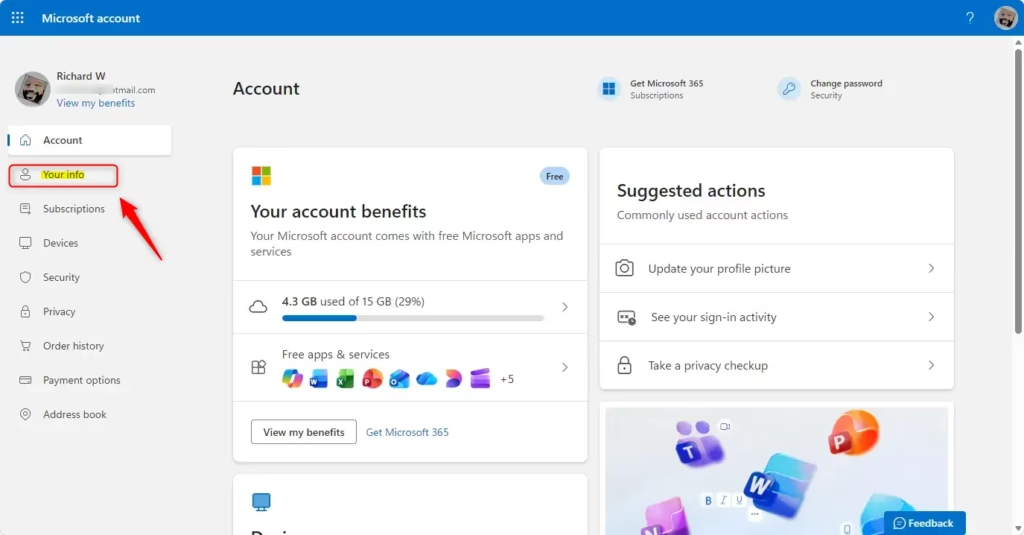
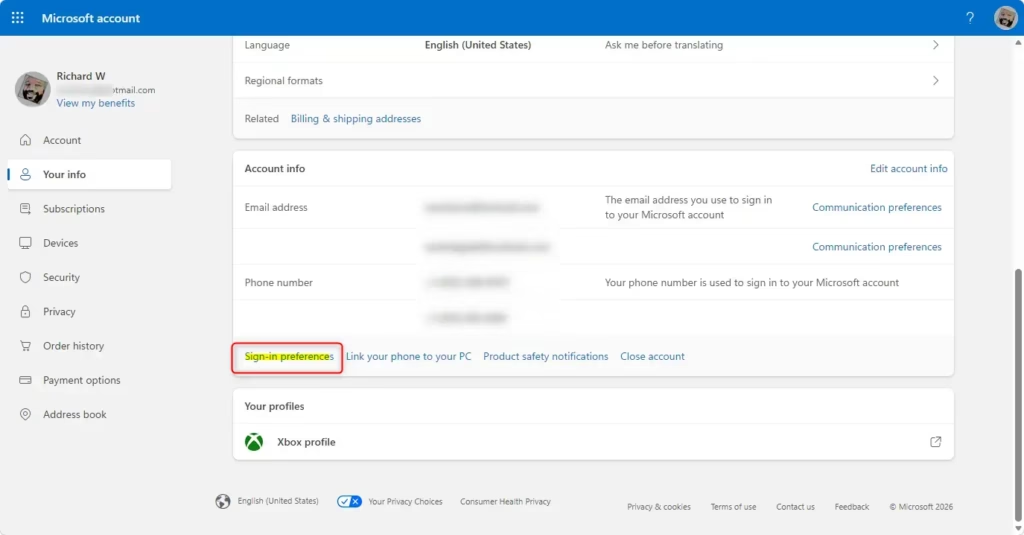
Tip: Microsoft’s website can change its look. If you can’t find “Your info” right away, try looking for sections like “Account security,” “Personal info,” or “Manage how you sign in.”
Step 3: Choose Which Aliases Can Sign In
Here you will see all the email addresses and phone numbers linked to your Microsoft account. You can pick which ones you want to allow for signing in.
- On the “Sign-in preferences” page, you’ll see a list of your aliases.
- Next to each alias, there will probably be a box to check or a switch to turn.
- Uncheck the box or turn off the switch for any alias you do not want to use for logging in.
- Keep the box checked or the switch on for the aliases you do want to use for signing in.
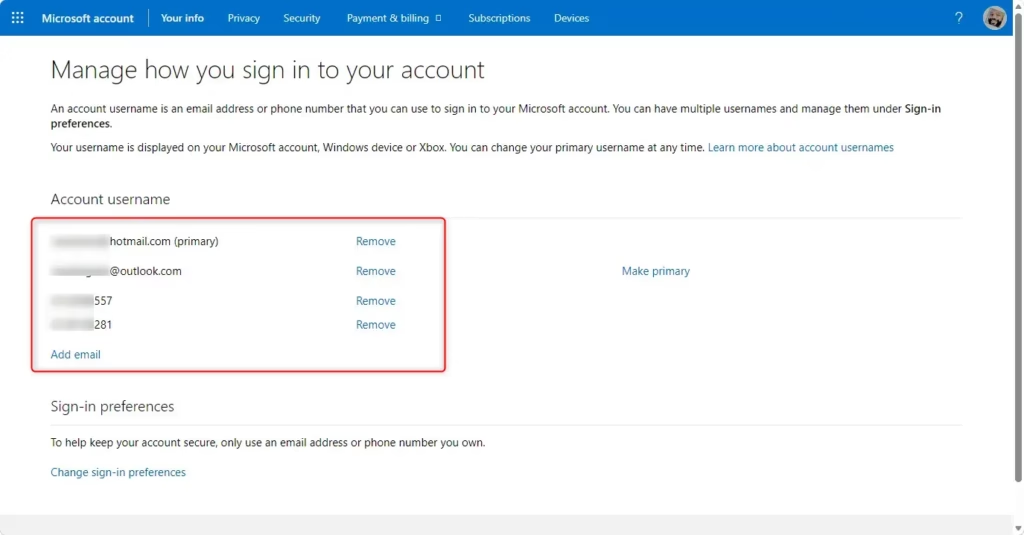
Good to Know: It’s smart to keep your main email address or the alias you use most often turned on for sign-in. You might also want to keep another trusted alias on as a backup, just in case your main one has a problem.
Important Note: Turning off sign-in for an alias does not remove it from your Microsoft account. The alias will still be there, and you can still get emails sent to it (if it’s an email address). You just won’t be able to use that specific alias to log into your Microsoft account. You can always turn it back on later if you want.
Step 4: Save Your Changes
After you pick which aliases to use, you need to save these new settings. If you don’t do this, your changes won’t work.
- Look for a button that says “Save” or “Apply.” It’s usually at the bottom of the “Sign-in preferences” page.
- Click the “Save” button.
Once you click “Save,” your settings will be updated. The aliases you turned off won’t work to sign in to your Microsoft account anymore. If someone tries to use one of those blocked aliases to log in, they will get an error message saying the username is turned off or not recognized for sign-in.
Warning: Look carefully at which aliases you are turning off. If you accidentally turn off your only sign-in alias, it might be hard to get back into your account without a more complicated recovery process. Always make sure you have at least one good alias left turned on for sign-in.
What Happens After You Block an Alias?
After you save your sign-in preferences, the aliases you blocked will no longer work for logging in. This is a great way to make your account more secure, especially if you think someone else might know an alias or if it was involved in a past security issue.
For example: If you added a temporary email address as an alias and now want to make sure no one can use it to try and access your account, blocking its sign-in is the best way. Emails sent to that address will still come to your Microsoft account inbox, but the address itself can’t be used to get into your account.
Trouble and More Help
Sometimes, things don’t work perfectly. If you have problems or can’t sign in after making changes, Microsoft has resources to help:
- Sign-in Helper Tool: For common sign-in problems, Microsoft has a tool that can help figure out and fix many issues. You can usually find a link to this tool on their sign-in pages if you’re having trouble.
- Contact Microsoft Support: If the tools don’t help, you can contact Microsoft’s official support. They have special ways to get technical help. You can usually find a “Contact Support” link on most Microsoft help pages.
A Very Important Warning from Microsoft Support: Microsoft support workers are usually not allowed to send password reset links or directly access and change your account details. This is a security measure to protect your information. You will likely need to use their automatic recovery tools or prove you own the account if you get locked out.
Conclusion: Take Control of Your Microsoft Account Security
Managing your Microsoft account aliases is a smart step to protect your online identity. By understanding how aliases work and knowing how to limit sign-in access, you add a strong layer of security. Remember, this isn’t about deleting old email addresses. It’s about controlling how they can be used to access your private Microsoft account information. Take a few minutes to check your sign-in preferences today. It’s a small effort that can greatly improve your account security and give you peace of mind.
Reference: Block an email address from signing in – Microsoft Support
Why do I keep getting emails about my Microsoft account?
You might receive emails about your Microsoft account due to security alerts, password reset requests, or notifications about account activity. Microsoft sends these to keep you informed and protect your account from unauthorized access. Always check the sender's address to ensure it's a legitimate Microsoft communication.
How do I block my Microsoft login?
You can't directly 'block' your Microsoft login entirely, but you can manage which email addresses or phone numbers (aliases) can be used to sign in. By removing unwanted aliases from your account settings, you prevent them from being used for login, thereby enhancing your account's security.
How to block emails from Microsoft?
To stop receiving certain emails from Microsoft, you can manage your communication preferences in your Microsoft account settings. Look for options related to marketing emails or newsletters and unsubscribe from those you no longer wish to receive. This won't affect important security notifications.
How do I stop my Microsoft account from automatically logging in?
To prevent automatic login to your Microsoft account, clear your browser's cookies and cache. You can also ensure that the 'Keep me signed in' option is unchecked when you log in. For added security, consider signing out completely after each session on shared or public computers.
Was this guide helpful?

About the Author
Richard
Tech Writer, IT Professional
Richard, a writer for Geek Rewind, is a tech enthusiast who loves breaking down complex IT topics into simple, easy-to-understand ideas. With years of hands-on experience in system administration and enterprise IT operations, he’s developed a knack for offering practical tips and solutions. Richard aims to make technology more accessible and actionable. He's deeply committed to the Geek Rewind community, always ready to answer questions and engage in discussions.


No comments yet — be the first to share your thoughts!