How to Show Notifications and Actions until dismissed in Outlook

This article explains how to enable or disable a feature that shows notifications and actions until they are dismissed in the new version of Outlook..
In the new Outlook, go to Settings, then General, then Accessibility. Toggle “Show error notifications and action confirmations until I dismiss them” to enable persistent alerts. Click Save to apply the changes.
Why adjust Outlook notification settings?
Managing your inbox can be overwhelming. By customizing your Outlook notifications settings, you ensure that important emails are never missed. When you control how alerts appear, you stay productive without constant interruptions. This guide helps you master your email notification settings for both the Classic and New Outlook.
What happens when you change these settings?
When you enable persistent notifications, alerts stay on your screen until you manually close them. This prevents you from missing critical updates if you step away from your desk. Changing these settings gives you full control over your desktop alerts and system tray behavior.
How to show notifications until dismissed
You can force Outlook to keep alerts visible. This is great for busy users.
1. Open the Outlook app from your Start menu.
2. Click the Settings gear icon at the top right.

3. Go to General, then Accessibility.
4. Toggle Show error notifications and action confirmations until I dismiss them.
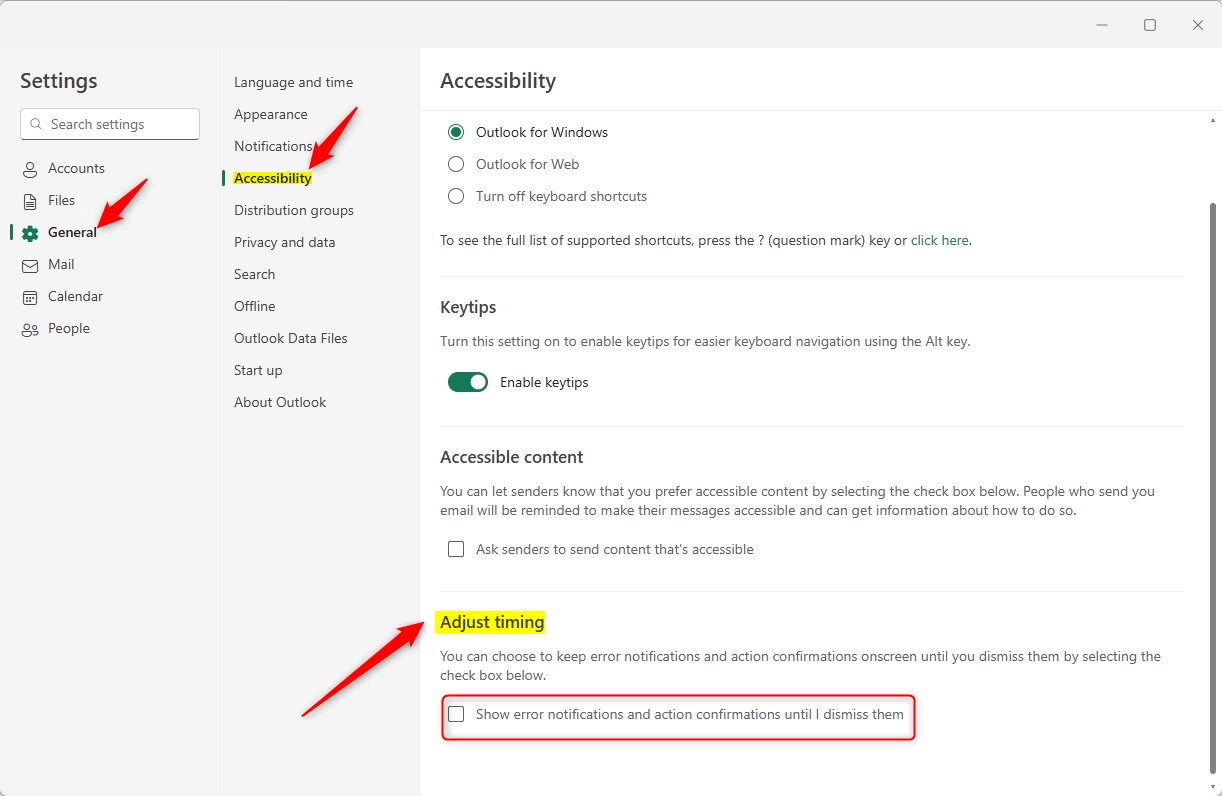
5. Click Save.
Troubleshooting Outlook notifications on 🪟 Windows 11
If your Outlook notifications aren’t showing up on Windows 11, you can troubleshoot by checking a few common settings. Make sure Focus Assist isn’t blocking alerts, check that Outlook isn’t just hidden in the system tray, and review your Outlook rules to ensure they aren’t moving emails without showing a notification.
- Focus Assist: Ensure Do Not Disturb mode is off in Windows settings.
- System Tray: Check if Outlook is minimized to the tray.
- Rules: Verify that your Outlook Rules are not moving emails to folders without alerts.
- Permissions: [ADMIN PRIVILEGE REQUIRED] Check if your Windows notification policy blocks Outlook via Registry: 🗝️HKEY_CURRENT_USER\Software\Microsoft\Windows\CurrentVersion\PushNotifications
Summary
Customizing your Outlook notifications settings helps you stay organized. Whether you need alerts to stay on screen or want to change notification sounds, these steps ensure you never miss an important message. Always check your Focused Inbox and Windows Do Not Disturb settings if alerts stop appearing.
Why am I not getting Outlook notifications on 🪟 Windows 11?
This often happens if Focus Assist or Do Not Disturb mode is enabled in Windows. Check your system settings to ensure Outlook has permission to send notifications. Also, verify that your Outlook notification settings are enabled within the app and that your email account is syncing correctly.
How do I change the sound of my Outlook email alerts?
In Classic Outlook, go to File > Options > Mail. Under Message arrival, click Sound settings. In the New Outlook, sound settings are managed through Windows Settings. Search for Notifications & actions, find Outlook in the list, and select your preferred sound for incoming email alerts.
Was this guide helpful?

About the Author
Richard
Tech Writer, IT Professional
Richard, a writer for Geek Rewind, is a tech enthusiast who loves breaking down complex IT topics into simple, easy-to-understand ideas. With years of hands-on experience in system administration and enterprise IT operations, he’s developed a knack for offering practical tips and solutions. Richard aims to make technology more accessible and actionable. He's deeply committed to the Geek Rewind community, always ready to answer questions and engage in discussions.


No comments yet — be the first to share your thoughts!