Setting Up Apache WebDAV on Ubuntu 24.04

You set up Apache WebDAV on Ubuntu 24.04 by installing the necessary Apache modules and configuring your virtual host.
WebDAV (Web-based Distributed Authoring and Versioning) is a set of extensions to the Hypertext Transfer Protocol (HTTP) that allows users to collaboratively edit and manage files remotely on a web server.
This enables you to treat remote files like local ones, creating, deleting, or moving them directly through your web server without needing FTP access. This is incredibly handy for team projects and managing content from anywhere.
For Windows clients, securing your WebDAV setup with SSL is often crucial for stable connections.
Install the `apache2-utils` package, create a WebDAV directory, configure an Apache virtual host with `Alias` and `Location` directives, and create a user account using `htpasswd`. Finally, enable the WebDAV module, your site, and restart Apache.
Set up Apache WebDAV
Setting up Apache WebDAV on Ubuntu 24.04 involves creating a dedicated directory and making it accessible over HTTP using Apache.
This post assumes Apache is already installed on the Ubuntu machine. If not, read the post below to learn how to install Apache.
Install Apache on Ubuntu Linux.
Run the command below to install the Apache utility package.
sudo apt install apache2-utils
Next, create the WebDAV directory and adjust the folder permissions so the Apache web server can interact with it.
sudo mkdir /var/www/webdav
sudo chown www-data:www-data /var/www/webdav
sudo chmod 770 /var/www/webdav
Configure Apache
To configure Apache for WebDAV on Ubuntu 24.04, you’ll create a new virtual host file with specific settings to point to your WebDAV directory.
sudo nano /etc/apache2/sites-available/webdav.conf
Then, copy the block below, paste it into the file, and save it.
Alias /webdav /var/www/webdav
<Location /webdav>
    DAV On
    SSLRequireSSL
    Options None
    AuthType Basic
    AuthName WebDAV
    AuthUserFile /etc/apache2/.htpasswd
    <RequireAny>
        Require method GET POST OPTIONS
        Require valid-user
    </RequireAny>
</Location>
Exit the file when you are finished.
Create user account
Creating a user account for WebDAV on Ubuntu 24.04 is simple using Apache’s basic authentication, which requires a username and password.
For more on Apache’s basic authentication, read the post below.
Set up Apache basic authentication
Run the command below to create a basic user account.
sudo htpasswd -Bc /etc/apache2/.htpasswd username
Replace the username with the account name you want to use.
When prompted to create a password, enter and confirm a new password for the account.
Next, enable the Apache WebDAV module and the virtual host file you created. Then, restart Apache services.
sudo a2enmod dav*
sudo a2ensite webdav
sudo systemctl restart apache2
Connect to the WebDAV
Connecting to your WebDAV server from a Windows machine is straightforward; you can add it as a network location in File Explorer.
Add a network location in Windows.
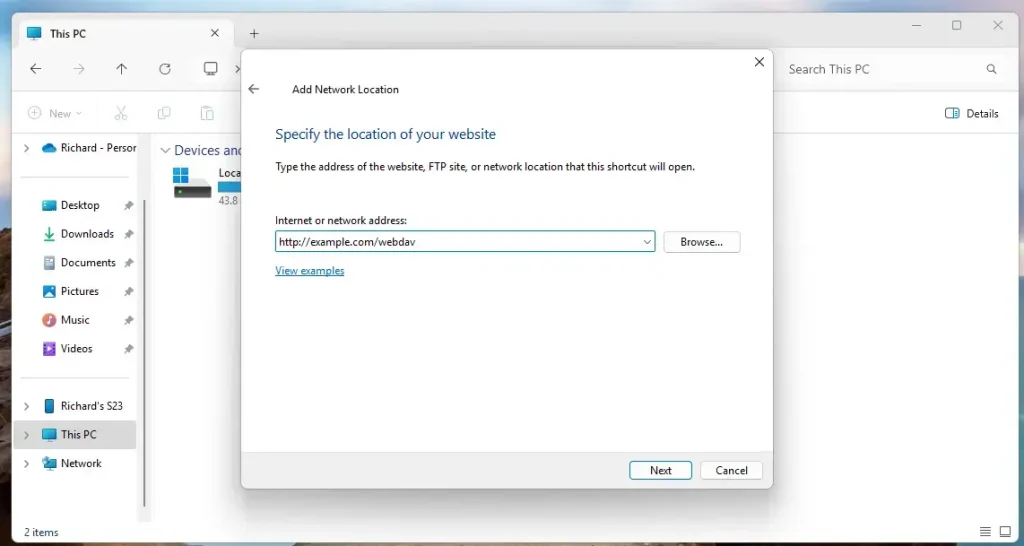
Right-click File Explorer home and select ‘Add a network location.’
Type in the WebDAV address.
http://example.com/webdav
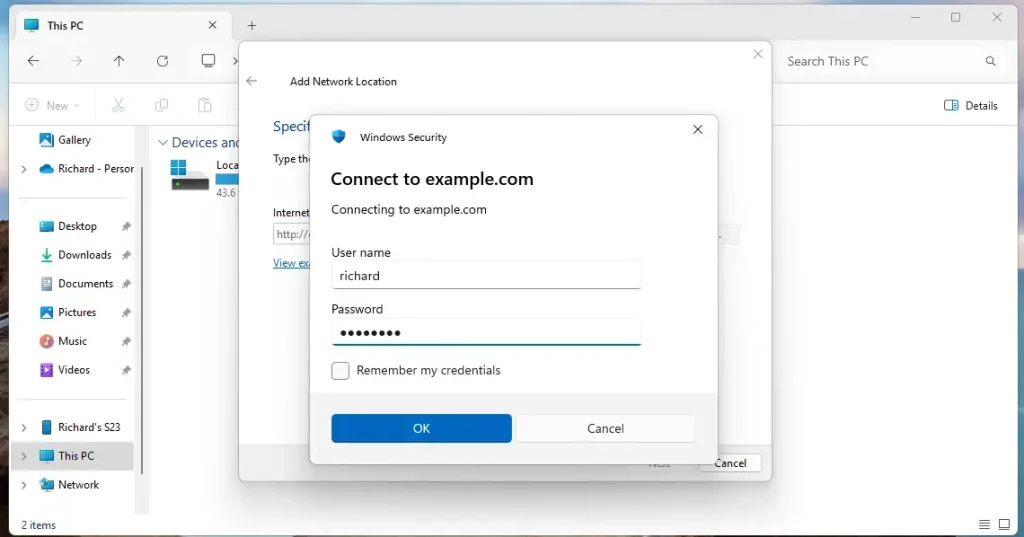
When prompted, type in the account you created above.
Continue and complete the setup.
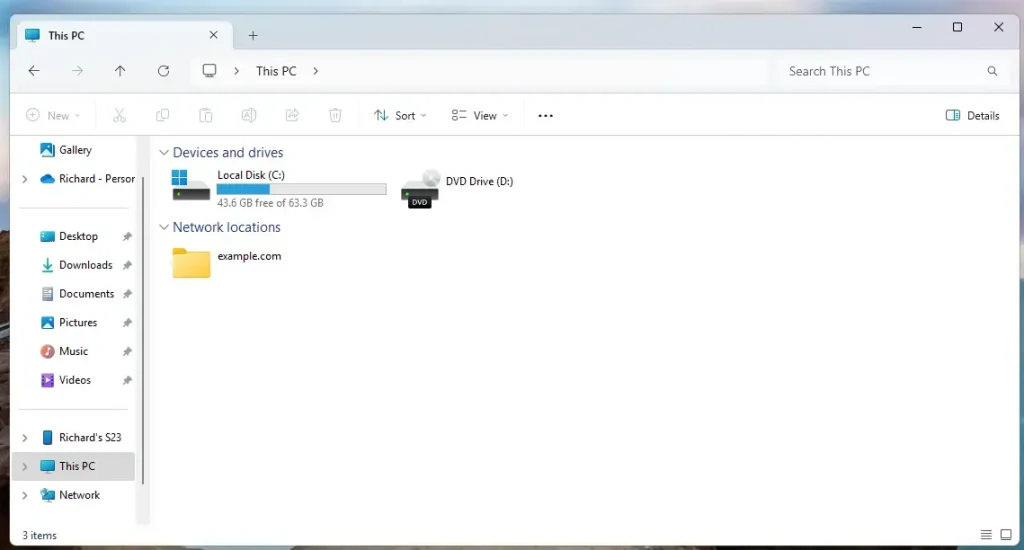
That should do it!
Conclusion:
So, to wrap things up, setting up Apache WebDAV on Ubuntu 24.04 gives you a really powerful way to manage files collaboratively. With WebDAV, you can efficiently manage files on a remote server without a separate FTP client. Here are the key takeaways:
- Easy File Management: WebDAV allows direct editing, creation, and deletion of files on the server.
- Authentication: Utilizing basic authentication enhances security with username and password protection.
- Cross-Platform Compatibility: While Windows requires SSL for WebDAV, workarounds are available.
- Scalability: The setup can be adapted for larger systems as needed by adjusting configurations and permissions.
- Community Resources: Numerous tutorials and guides exist for troubleshooting and expanding WebDAV capabilities.
By following these steps, you’ll be able to collaborate on files much more effectively and boost your productivity.
What replaced WebDAV?
If you’re looking for alternatives to WebDAV, secure options like FTPS and SFTP (SSH File Transfer Protocol) are commonly used for transferring files securely.
Was this guide helpful?

About the Author
Richard
Tech Writer, IT Professional
Richard, a writer for Geek Rewind, is a tech enthusiast who loves breaking down complex IT topics into simple, easy-to-understand ideas. With years of hands-on experience in system administration and enterprise IT operations, he’s developed a knack for offering practical tips and solutions. Richard aims to make technology more accessible and actionable. He's deeply committed to the Geek Rewind community, always ready to answer questions and engage in discussions.



No comments yet — be the first to share your thoughts!