How to Enable or Disable Windows 11 Update Restart Notifications

You can enable or disable Windows 11 update restart notifications to control when you’re prompted to restart your PC after installing updates.
These are pop-up messages or Action Center alerts that remind you to restart your PC to finish installing important updates. They often appear right before Windows restarts your computer automatically.
For instance, Windows 11 might schedule a restart if you don’t respond to a notification within a specific time, making sure security patches get applied quickly.
Whether you find these reminders helpful or intrusive, you have the power to manage them.
This guide shows you two methods to adjust these restart notification settings on your Windows 11 machine.
Open Settings, navigate to Windows Update > Advanced options, and toggle “Notify me when a restart is required to finish updating.” You can also use the Registry Editor for advanced control.
How to Turn On or Off Restart Notifications Using Windows Settings
You can easily turn Windows 11 restart notifications on or off directly through the Windows Settings app, making it simple to control when your computer reminds you to restart after an update.
- Open the Windows Settings app. You can do this by clicking the Start button and selecting the gear icon, or by pressing the Windows key + I.
- On the left side, click Windows Update.
- On the right side, click the Advanced options tile to open more settings.
- Find the option called Notify me when a restart is required to finish updating.
- Toggle the switch to On if you want to get notifications, or Off if you want to stop them.
- When done, simply close the Settings window.
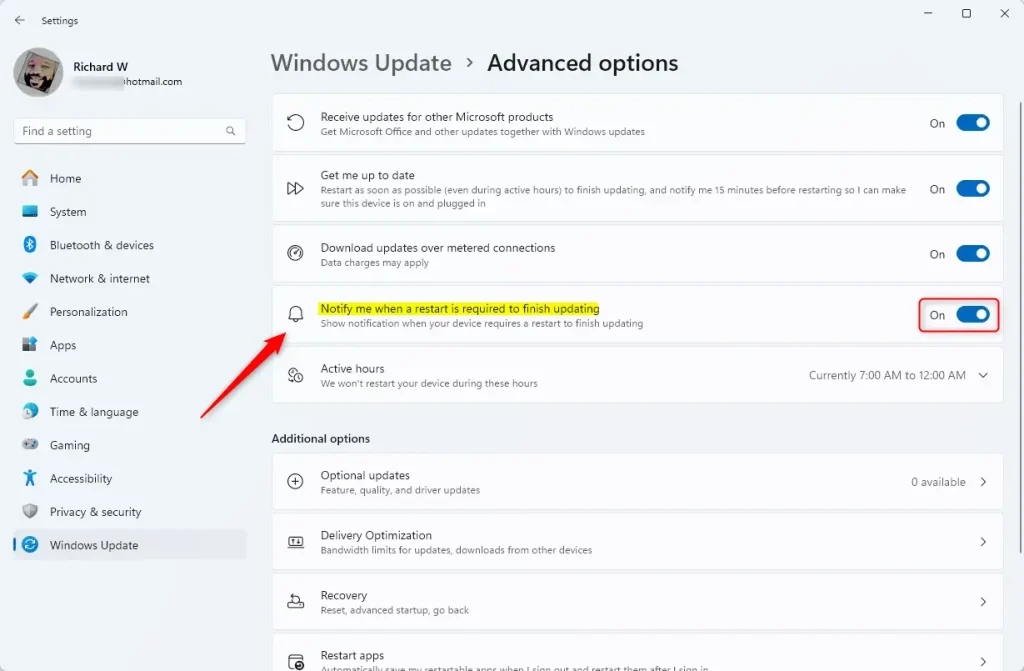
What happens after you make this change? Windows will either start sending you restart notifications or stop sending them, depending on which option you chose. You’ll see the change take effect the next time Windows installs an update.
How to Turn On or Off Restart Notifications Using the Registry Editor (For Advanced Users)
For those comfortable with advanced system tweaks, you can change Windows 11 restart notifications using the Registry Editor, a powerful tool that lets you adjust hidden settings.
Here’s how:
- ⚠️ Admin privileges required — Open the Windows Registry Editor by typing
regeditin the search box and pressing Enter. - Navigate to this folder path:
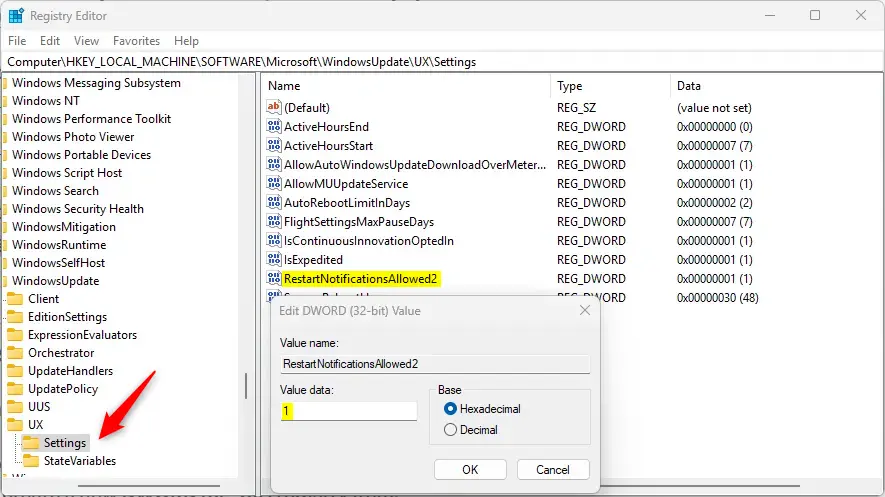
Computer\HKEY_LOCAL_MACHINE\SOFTWARE\Microsoft\Windows\Update\UX\Settings - Look for an entry named
RestartNotificationsAllowed2on the right side. - If it exists, double-click it and:
- Set the value to
1to enable restart notifications. - Set the value to
0to disable them.
- Set the value to
- If it doesn’t exist:
- Right-click in the blank area and choose New > DWORD (32-bit) Value.
- Name it
RestartNotificationsAllowed2. - Double-click it and set the value to
1or0as above.
- Close the Registry Editor.
- Restart your computer to apply the changes.
Warning: Editing your registry can be risky. Please make sure to back up your system or create a restore point before you proceed.
Choose a Time to Restart After Updates
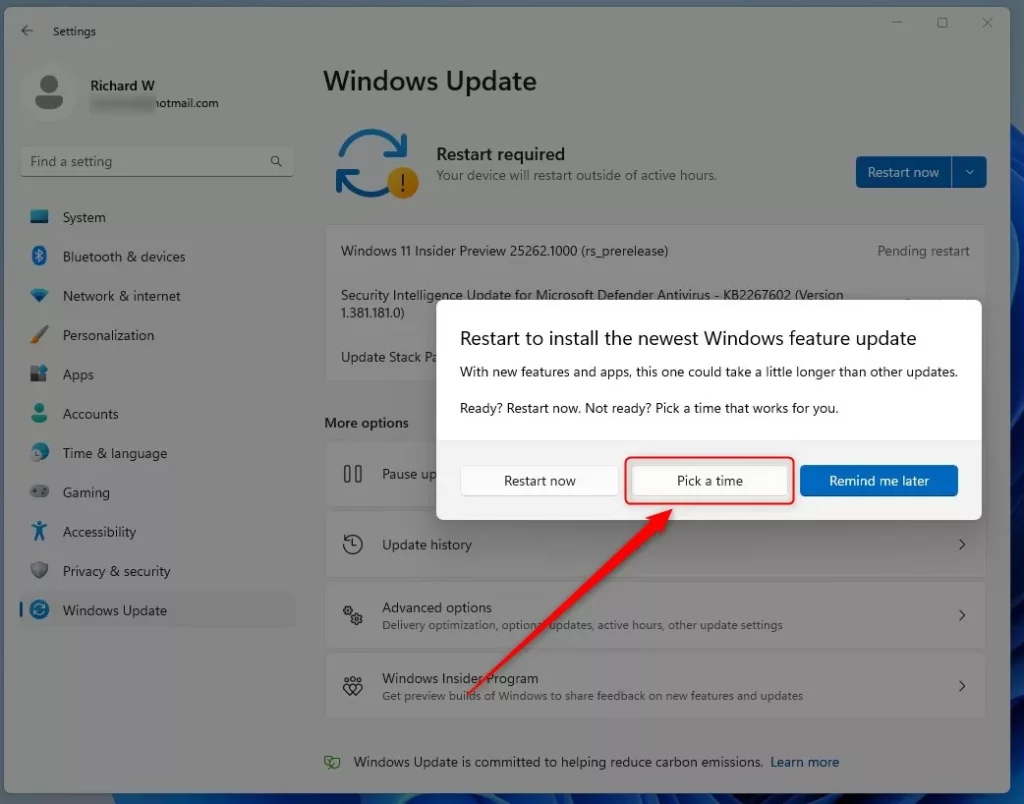
Windows 11 also lets you pick a convenient time to restart your computer after updates. This way, you won’t be interrupted unexpectedly.
Summary
- You can easily turn Windows Update restart notifications on or off using the Settings app.
- Advanced users can also manage these notifications by editing the Windows Registry.
- Always be careful when changing registry settings and back up your system first.
- Restart your computer after making changes to make sure they take effect.
- By managing these notifications, you can control when and how your PC restarts after updates.
Managing Windows 11 restart notifications is straightforward, with options to turn them on or off using either the simple Settings app or the more advanced Registry Editor.
How to see reasons for Windows restart?
You can filter the system event logs to determine the cause of an unexpected reboot. Event IDs 12, 13, 6005, and 6009 can show the reboot history and frequency of a computer. Event ID numbers might be associated with different sources, so make sure you filter on the relevant ones for reboots.
Was this guide helpful?

About the Author
Richard
Tech Writer, IT Professional
Richard, a writer for Geek Rewind, is a tech enthusiast who loves breaking down complex IT topics into simple, easy-to-understand ideas. With years of hands-on experience in system administration and enterprise IT operations, he’s developed a knack for offering practical tips and solutions. Richard aims to make technology more accessible and actionable. He's deeply committed to the Geek Rewind community, always ready to answer questions and engage in discussions.



No comments yet — be the first to share your thoughts!