
Narrator featured image icon

Adjust Volume for Narrator in Windows 11

This article explains how to enable or disable a feature on Windows 11 that lowers the volume of other apps when the Narrator is speaking.

Narrator is a screen-reading app built into Windows that reads the text on your screen aloud and describes events for users with low vision or blindness.

When you use the Narrator app, you can turn on or off its keyboard shortcutslaunch it automaticallyadjust the voice, speed, and volumemanage natural voices, and more.

In another Narrator app setting, you can adjust a feature that lowers the volume of other apps when the Narrator is speaking.

Keeping the Narrator’s voice louder than other apps can be helpful for people who rely on the Narrator app to use their computer. By prioritizing the Narrator’s volume, users can better hear and understand the information the app conveys without being distracted by sounds from other apps.

This can be especially important for individuals with visual impairments or other disabilities that affect their ability to use a computer normally.

Keep the Narrator volume louder than other apps

As mentioned above, you can adjust the Narrator settings to keep the volume of other apps lower when the Narrator is speaking on Windows.

Here’s how to do it.

First, open the Windows Settings app.

You can do that by clicking on the Start menu and selecting Settings. Or press the keyboard shortcut (Windows key + I) to launch the Settings app.

When the Setting app opens, click the Accessibility button on the left and select the Narrator tile on the right to expand it.

Narrator tile in the Settings app

On the Narrator settings pane, under “Narrator’s voice,” select the tile that reads “Lower the volume of other apps when Narrator is speaking.” Then, toggle the switch button to the On or Off position to enable or disable it.
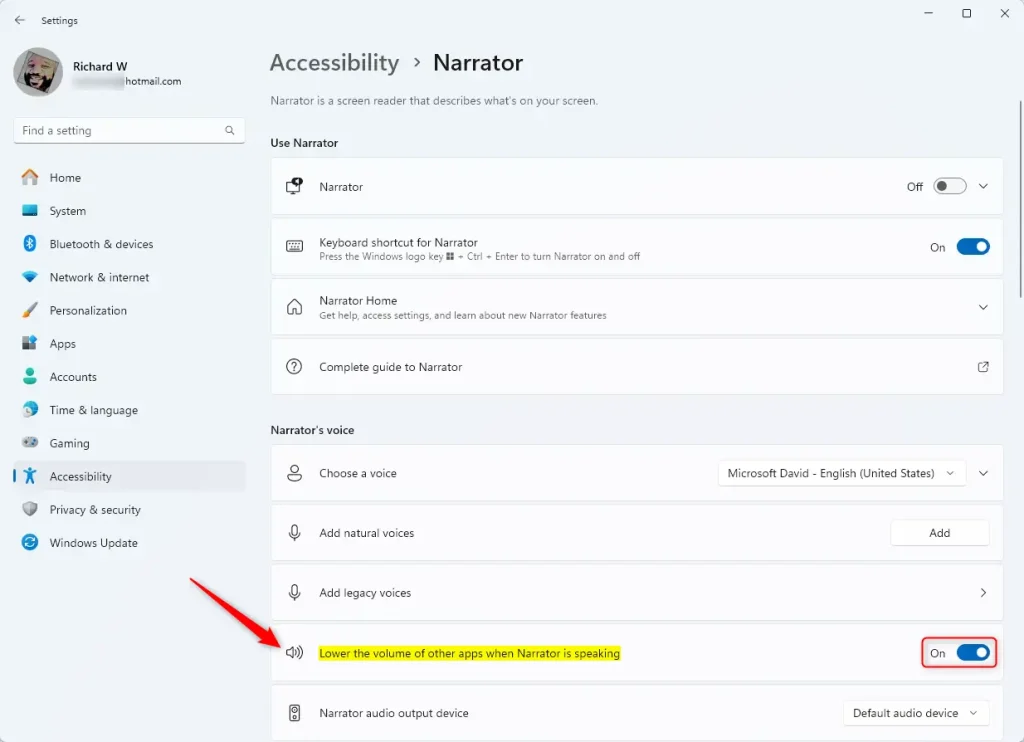
Lower other apps volume when Narrator is speaking

That should do it!

Conclusion:

  • Enabling this feature can help prioritize the Narrator’s voice over other app sounds.
  • Adjusting Narrator settings can improve the user experience for those relying on the Narrator.
  • Ensuring the Narrator’s volume takes precedence may be particularly beneficial for individuals with visual impairments or other disabilities affecting computer use.


Frequently Asked Questions

How do I adjust the volume for Narrator in Windows 11?

To adjust the volume for Narrator, open the Windows Settings app, go to Accessibility, and select the Narrator tile. Under 'Narrator's voice,' toggle the option for 'Lower the volume of other apps when Narrator is speaking' to your desired setting.

What is the purpose of lowering the volume of other apps when Narrator is speaking?

Lowering the volume of other apps ensures that the Narrator's voice is prioritized, making it easier for users with visual impairments to hear and understand the spoken content without distractions from other sounds.

Can I disable the Narrator feature in Windows 11?

Yes, you can disable the Narrator feature by going to the Accessibility settings in Windows 11. Simply toggle the Narrator switch to the Off position to disable it completely.

Is the Narrator app helpful for users with disabilities?

Yes, the Narrator app is designed to assist users with low vision or blindness by reading text aloud and describing events on the screen, enhancing their ability to navigate and use their computer effectively.

What keyboard shortcuts can I use with the Narrator in Windows 11?

Narrator includes various keyboard shortcuts that allow users to control its features easily. You can enable or disable these shortcuts in the Narrator settings under the Accessibility menu.

Categories:

Tags:

5 responses to “Adjust Volume for Narrator in Windows 11”

  1. […] shortcuts, launch it automatically, adjust the voice, speed, and volume, manage natural voices, lower other apps volume when the Narrator is speaking, change Narrator audio output device, change verbosity level, emphasize formatted text, enable […]

  2. […] shortcuts, launch it automatically, adjust the voice, speed, and volume, manage natural voices, lower other apps volume when the Narrator is speaking, change Narrator audio output device, change verbosity level, emphasize formatted text, enable […]

  3. […] it automatically, adjust the voice, speed, and volume, manage natural voices, lower other apps volume when Narrator is speaking, change Narrator audio output device, change verbosity level, emphasize formatted […]

  4. […] it automatically, adjust the voice, speed, and volume, manage natural voices, lower other apps volume when Narrator is speaking, change Narrator audio output device, change verbosity level, emphasize formatted […]

  5. […] it automatically, adjust the voice, speed, and volume, manage natural voices, lower other apps volume when Narrator is speaking, change Narrator audio output device, change verbosity level, emphasize formatted […]

Leave a Reply

Your email address will not be published. Required fields are marked *

Exit mobile version
