
This article explains how to identify a shared printer’s name in Windows 11.
Windows lets you share a local printer installed on a PC and make it accessible to other devices, even if it isn’t directly connected to the network.
This means you can print documents from any device connected to the network without a physical connection to the printer. With printer sharing, you can save money on buying multiple printers for each device, making printing more convenient and efficient for everyone in your network.
Once you share a printer over the network, other devices can connect to it and print. To do so, you will need to know the network path of a shared printer, including the IP address or computer name of the PC the shared printer is connected to and the printer’s share name.
If a printer is shared on a Windows device and you want to know the shared name, the steps below can help you.
Identifying a shared printer name can be useful in a networked environment where multiple devices must access a single printer. By identifying the shared printer name, you can easily connect to it from any device connected to the network.
Additionally, identifying a shared printer’s name can be helpful when troubleshooting printing issues or configuring print settings.
Find the name of a shared printer in the Settings app
One way to locate a printer’s shared name is to use the Settings app.
Here’s how to do that.
First, open the Windows Settings app.
You can do that by clicking on the Start menu and selecting Settings. Or press the keyboard shortcut (Windows key + I) to launch the Settings app.
When the Setting app opens, click the Bluetooth & devices button on the left.

Select the Printers & scanners tile under ‘Bluetooth & devices’ on the right to expand it.

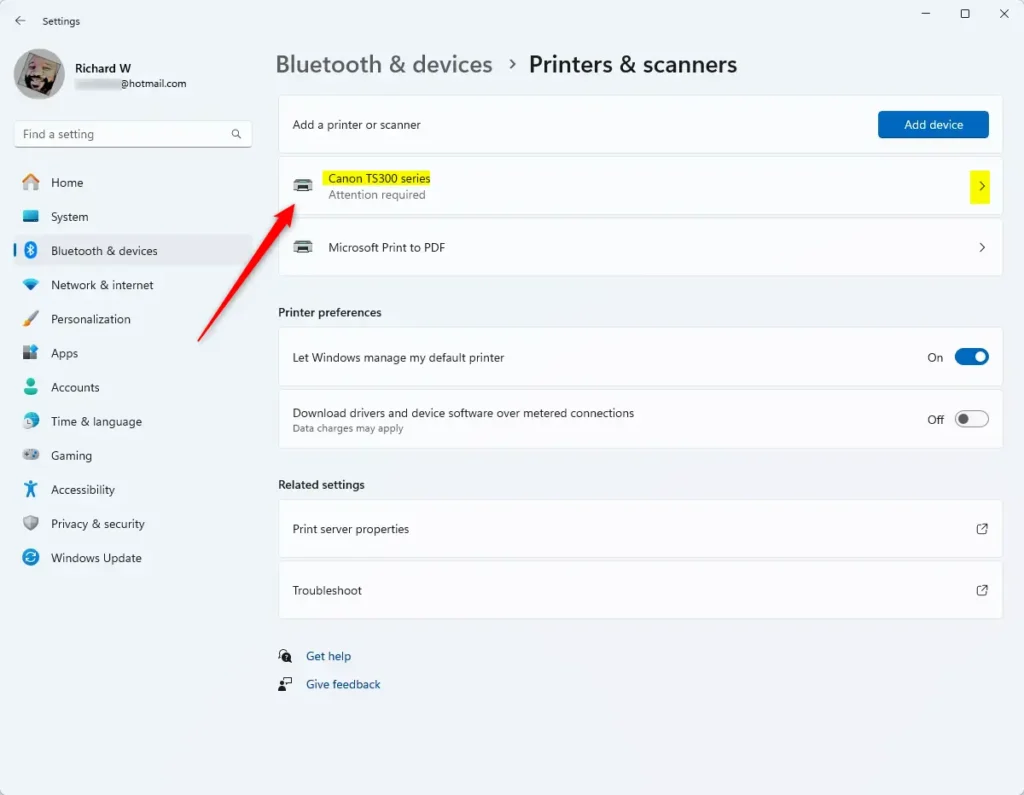
Next, select the printer you share to expand its properties on the Printers & scanners settings page.
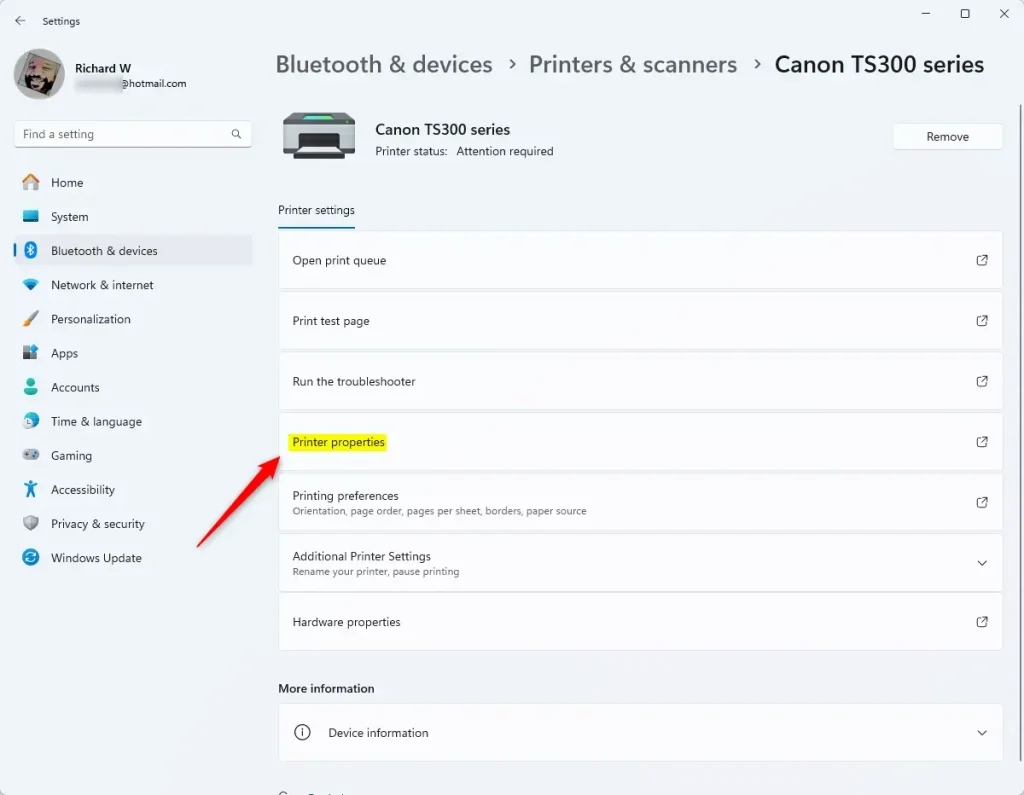
Then, click the “Printer properties” tile to expand it.
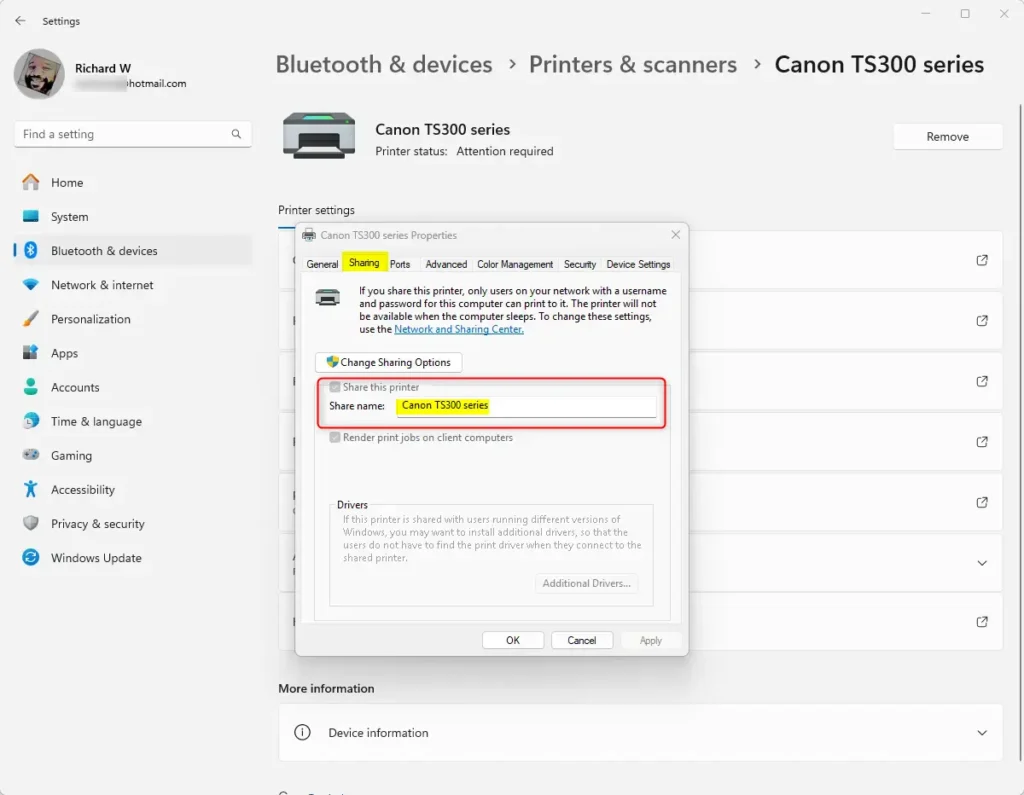
On the Sharing tab of the printer’s properties window, you should see the printer’s shared name.
Close the Settings app when you’re done.
Find a printer’s shared name from the Devices and Printers folder
Another way to locate a shared printer name is to use the Devices and Printers folder.
First, open the Devices and Printers folder.
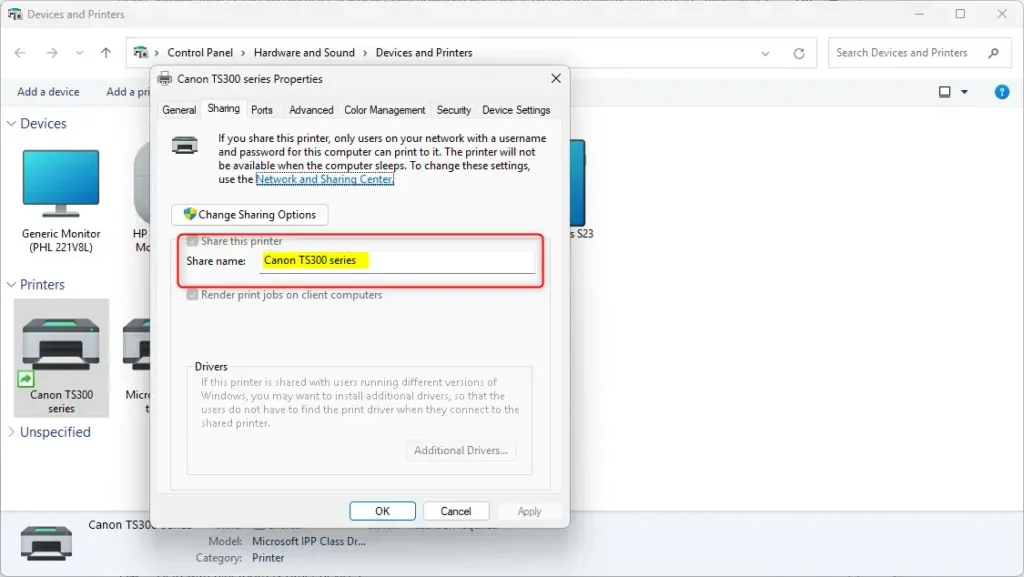
Then, right-click on your shared printer and select “Printer properties” on the context menu.

Under the “Sharing” tab of the Properties window, you should find the printer’s shared name.
Locate a printer’s shared name via PowerShell
Users can also use Windows PowerShell to locate and identify a printer’s shared name.
First, open the Windows Terminal app as administrator and select the PowerShell tab.
Then, run the command below to list available printers on your device.
Get-Printer | Format-List Name,ShareName,Shared
There, you should find the printer’s shared name.

That should do it!
Conclusion:
- Identifying a shared printer’s name in Windows 11 allows for convenient printing from any device connected to the network without a physical connection to the printer.
- The shared name of a printer can be located in the Settings app, Devices, and Printers folder or via Windows PowerShell, providing flexibility in retrieving this information.
- This knowledge is particularly useful in networked environments with multiple devices accessing a single printer. It can facilitate troubleshooting printing issues or configuring print settings effectively.


Leave a Reply Cancel reply