
This article explains installing the latest administrative templates (ADMX files) for PowerToys to control it using Group Policies in Windows 11.
PowerToys, a suite of utilities developed by Microsoft, is a powerful tool for Windows users. Each utility in PowerToys serves a unique purpose, from improving file management to adding keyboard shortcuts, resizing images, and enhancing virtual desktops.
After installing the administrative templates (ADMX files) for PowerToys, you can control it using Windows’s Local Group Policy Editor (gpedit.msc).
Managing PowerToys via Group Policy can help ensure that only the approved features are enabled, reducing the risk of users inadvertently accessing or using features that may not be aligned with the device’s policies.
The policies are under Administrative Templates > Microsoft PowerToys in the Computer Configuration and User Configuration folders.
Download PowerToys ADMX files
As mentioned, you can install the latest PowerToys ADMX files to control it via Windows’s local group policy editor.
Here’s how to do it.
First, download the files from the link below.
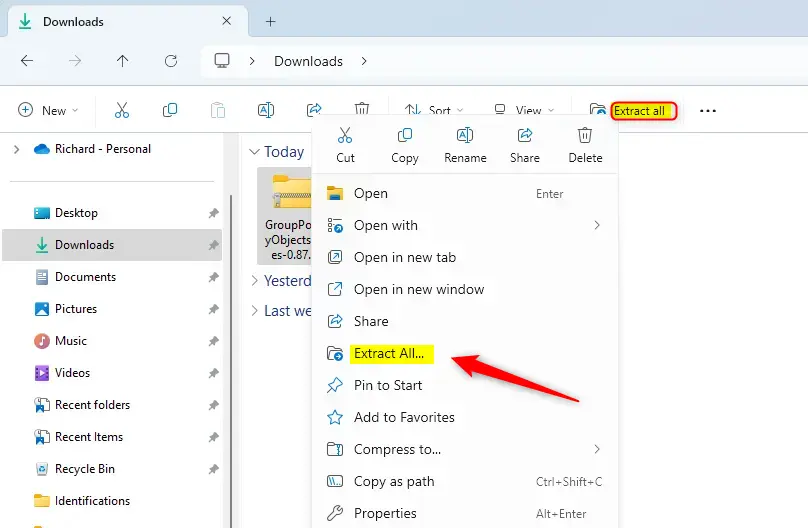
Under Assets, select the GroupPolicyObjectsFiles-{version}.zip file and download it. Then, extract the downloaded file on your computer.
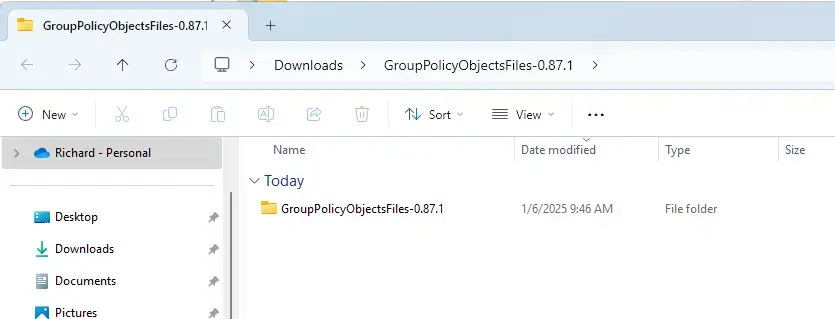
Once extracted, open the extracted GroupPolicyObjectsFiles-{version} folder.
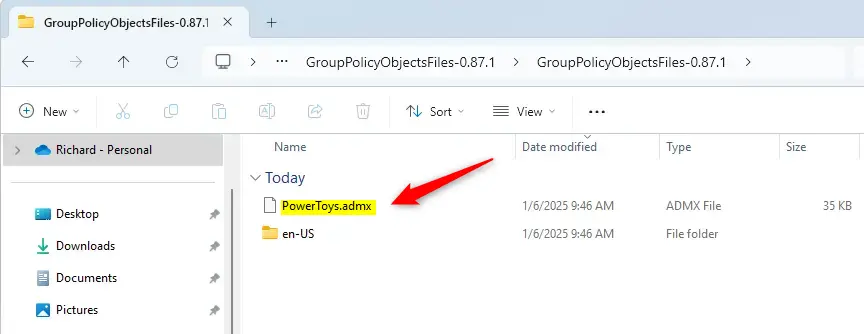
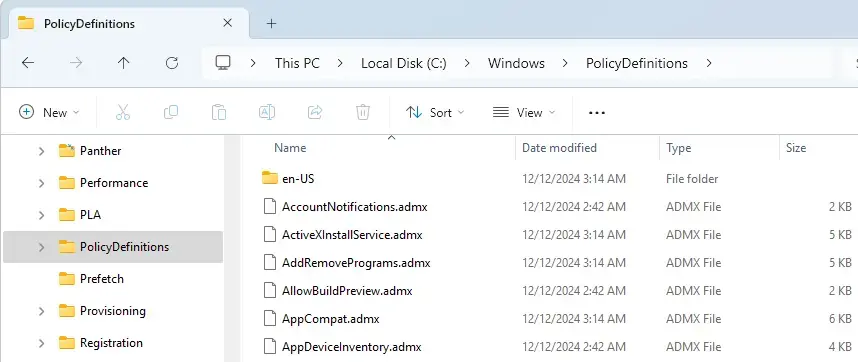
In the PowerToys extracted folder, copy the PowerToys.admx file.
Then, paste the file into the C:WindowsPolicyDefinitions folder on your local machine.
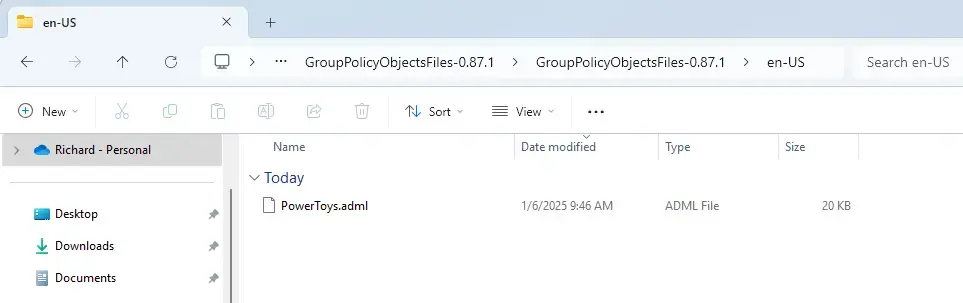
Next, copy the PowerToys.adml file from the extracted GroupPolicyObjectsFiles-{version}en-US folder.
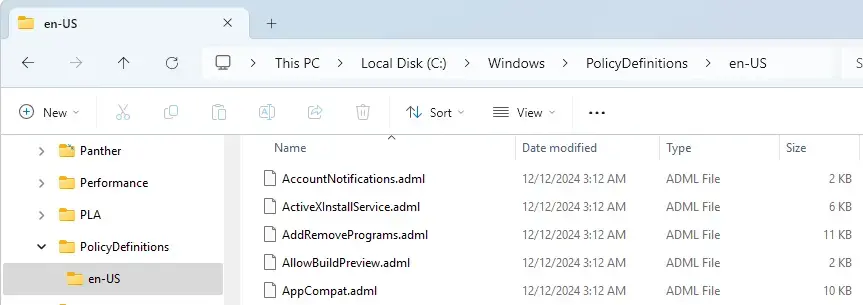
Paste it into the C:WindowsPolicyDefinitionsen-US folder on your machine.
Click the “Continue” button when prompted for administrator permission.
You can close File Explorer when you are finished.
The policies are under Administrative Templates > Microsoft PowerToys in the Computer Configuration and User Configuration folders.
That should do it!
Conclusion:
In summary, installing and managing PowerToys ADMX files via the Local Group Policy Editor offers several benefits:
- Enhanced Control: Enables administrators to restrict or enable specific PowerToys features according to organizational policies.
- Improved Security: Reduces the risk of users accessing potentially unapproved functionalities that could affect device performance or security.
- Streamlined Management: Simplifies the configuration of PowerToys across multiple devices using Group Policy settings.
- User Customization: Allows for tailored user experiences while adhering to company guidelines.
Following the abovementioned steps, you can effectively integrate PowerToys into your administrative framework and ensure optimal organizational use.

Leave a Reply