

This article explains how to install Joomla locally with XAMPP on Windows 11.
XAMPP is a free and open-source cross-platform web server solution stack package developed by Apache Friends. It consists primarily of the Apache HTTP Server, MariaDB, and interpreters for scripts written in the PHP and Perl programming languages.
You can install XAMPP on Windows or Ubuntu to run PHP apps locally on your computer.
Joomla is a free and open-source content management system (CMS) for building and managing websites.
Install XAMPP
XAMPP is a single package with Apache, MariaDB, and PHP components. After installing XAMPP app on Windows or Ubuntu, you can install and manage other PHP-based apps like WordPress, Joomla, and Joomla.
If you haven’t already installed XAMPP on your machine, read the post below to learn how to install it.
Create a Joomla database
As part of the XAMPP installation, a MariaDB database server was installed along with Apache and PHP.
Now, create a blank database to store Joomla content.
First, click the ‘Shell‘ button on the Control Panel on the left to launch the XAMPP command shell.
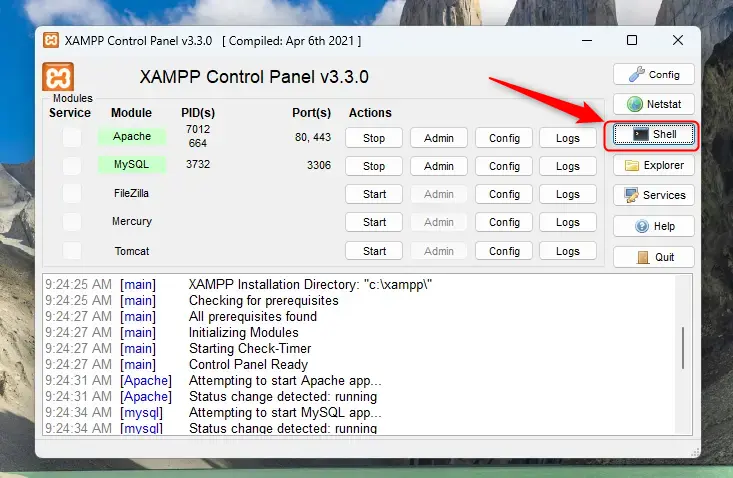
For this setup, we will create a database named ‘joomladb ‘. Additionally, we will create a corresponding user account called ‘joomladbuser ‘.
Finally, we’ll grant the joomladbuser full access to the joomladb database.
All the database steps above can be done using the commands below:
But first, log on to the MariaDB database server:
mysql -u root
Then run the commands below to complete the steps:
CREATE DATABASE joomladb CHARACTER SET utf8mb4 COLLATE utf8mb4_general_ci;
CREATE USER joomladbuser@localhost IDENTIFIED BY 'type_your_password_here';
GRANT ALL ON joomladb.* TO joomladbuser@localhost;
FLUSH PRIVILEGES;
exit
Ensure to replace ‘type_your_password_here‘ with your password.
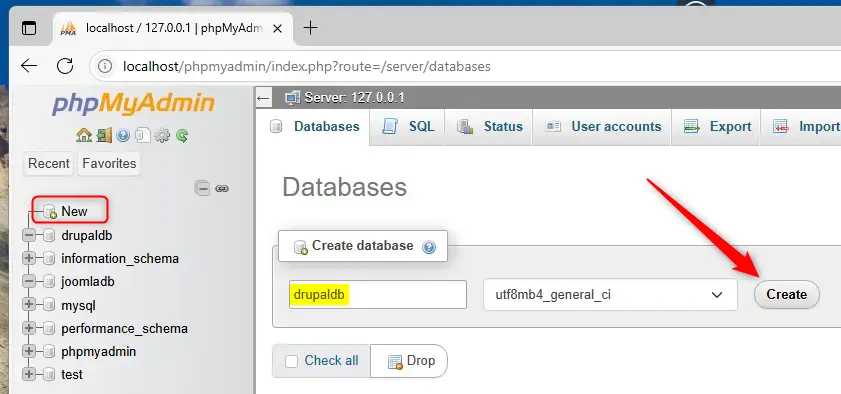
If you cannot use the command line, click the phpMyAdmin [Admin button] next to MySQL in the Control Panel.
Create a new database. Create a new user. Then, give (grant) the user full access to the database.
Continue below to download Joomla files.
Download Joomla files
Let’s begin by downloading and configuring the Joomla files on Ubuntu Linux.
First, navigate to the C:xampphtdocs directory and create a Joomla folder called [joomla].
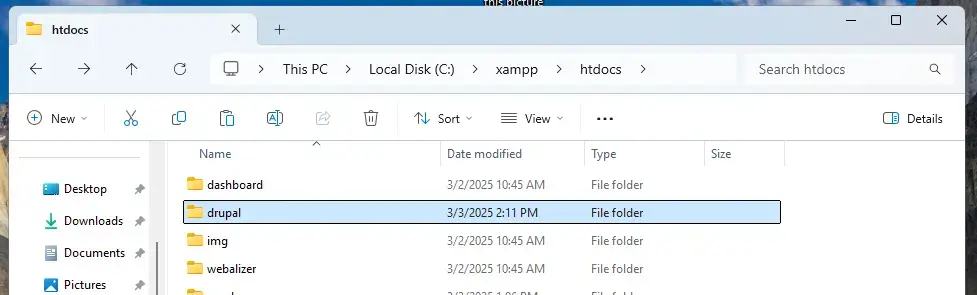
Download the Joomla files from the official download page and extract them into the joomla folder created earlier.
Extract the downloaded files and copy all the contents into the Joomla folder created earlier [C:xampphtdocsjoomla].
After copying the Joomla content to the folder, navigate to the root directory [C:xampphtdocs] and edit the index.html file.
By default, all requests to the server hostname are redirected to the [/Dashboard/]. This file is responsible for that.
You can change it to [/joomla/] to bring up your Joomla site instead of the dashboard.
<?php
	if (!empty($_SERVER['HTTPS']) && ('on' == $_SERVER['HTTPS'])) {
		$uri = 'https://';
	} else {
		$uri = 'http://';
	}
	$uri .= $_SERVER['HTTP_HOST'];
	header('Location: '.$uri.'/joomla/');
	exit;
?>
Something is wrong with the XAMPP installation :-(
Save the file and exit.
Return to the XAMPP Control Panel and stop and start Apache to apply the changes.
After restarting the Apache web server, open your browser and navigate to the server hostname or IP address specified in the Apache server block.
http://joomla.example.com
A Joomla installation wizard page should appear. Select the installation language, enter the site name and continue to the next page.

Next, enter your name, username, password for your account, email address, and continue to the next page.

On the next page, type in the database name, username, and password created above. Then, click “Install Joomla.”

Your new Joomla site should be created and ready to use.

That should do it!
Conclusion:
- Installing Joomla locally with XAMPP on Windows 11 is a straightforward process.
- You can easily set up a database and user for Joomla using the command line or phpMyAdmin.
- Downloading the Joomla files and configuring your XAMPP environment allows you to test and develop your website locally.
- Following the installation wizard, you can set up your Joomla site, including defining your site name and admin credentials.
- With Joomla, you can start building and managing your website effectively.


Leave a Reply