

This article explains installing Contao CMS with Apache on Ubuntu 24.04.
Contao is an open-source enterprise content management system that relies on the LAMP or LEMP stack, which allows you to create professional websites and scalable web applications.
Installing Contao with Apache on Ubuntu Linux provides a stable, scalable, and reliable platform for running the CMS. Additionally, Ubuntu Linux is a popular operating system that is well-suited for web server environments, and Apache is a widely used web server software with a long history of reliable performance.
By using Ubuntu Linux with Apache support, users can gain from the security, flexibility, and ease of use that this combination provides.
Install Apache HTTP server on Ubuntu
Contao requires a web server. This post will install and use the Apache web server to run Contao.
To do that, open the Ubuntu terminal and run the commands below to install the Apache web server.
sudo apt update
sudo apt install apache2
Once Apache is installed, the commands below can start, stop, and enable the Apache web server to start automatically when your server boots up.
sudo systemctl stop apache2
sudo systemctl start apache2
sudo systemctl enable apache2
You can test that the Apache web server is running by opening your web browser and browsing to the server’s localhost or IP address.
http://localhost
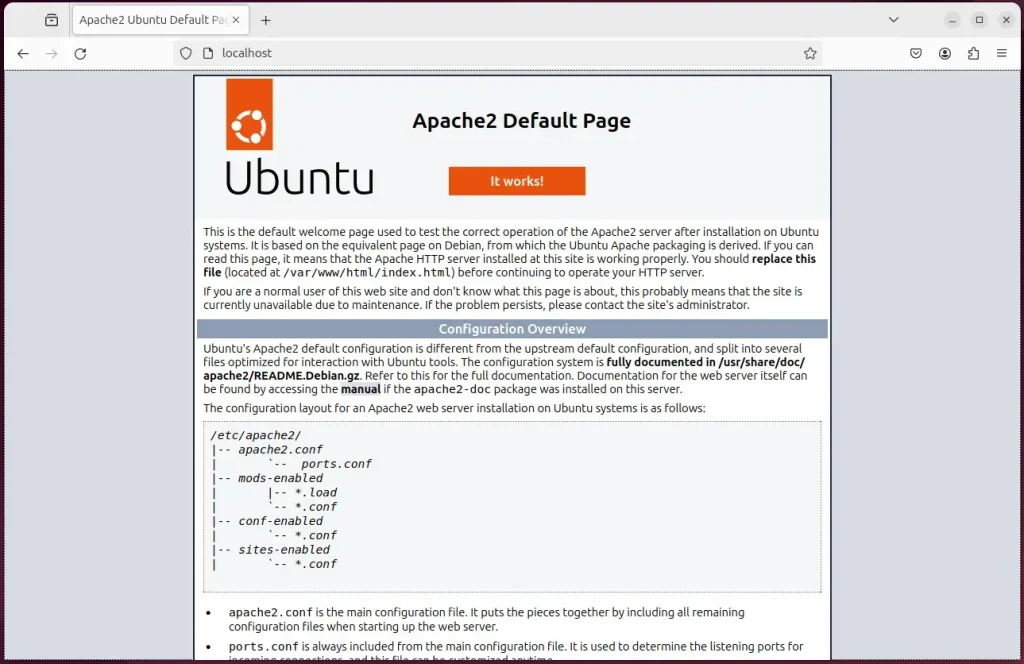
When you see the Apache2 Default Page, it means the Apache HTTP server is successfully installed.
Additional help on installing Apache on Ubuntu is in the link below.
How to install Apache on Ubuntu
Install the MariaDB database server on Ubuntu
The next component required to run Contao is a database server. This post will install and use the MariaDB database server.
To install and use the MariaDB database server, use the instructions below.
Open the Ubuntu terminal and run the commands below to install the MariaDB database server.
sudo apt update
sudo apt install mariadb-server
Once the MariaDB database server is installed, use the commands below to stop, start, and enable the MariaDB server to start automatically when the server boots.
sudo systemctl stop mariadb
sudo systemctl start mariadb
sudo systemctl enable mariadb
Run the following commands to validate and test if the MariaDB database server is installed successfully.
sudo mariadb
Once you run the commands above, it will log you onto the MariaDB console and display a message similar to the one below.
Welcome to the MariaDB monitor.  Commands end with ; or g.
Your MariaDB connection id is 32
Server version: 10.11.2-MariaDB-1 Ubuntu 23.04

Copyright (c) 2000, 2018, Oracle, MariaDB Corporation Ab and others.

Type 'help;' or 'h' for help. Type 'c' to clear the current input statement.

MariaDB [(none)]>
The message tells you that the server is installed successfully.
Additional help on installing MariaDB.
Create a Contao database
Upon successfully installing the MariaDB database server, create a blank database on the server specifically for the Contao application.
As part of the setup, we will create a contaodb database and a user account called contaodbuser.
Finally, we’ll grant the contaodbuser full access to the contaodb database.
All the database steps above can be done using the commands below:
But first, log on to the MariaDB database server:
sudo mariadb
Then run the commands below to complete the steps:
CREATE DATABASE contaodb CHARACTER SET utf8mb4 COLLATE utf8mb4_general_ci;
CREATE USER contaodbuser@localhost IDENTIFIED BY 'type_your_password_here';
GRANT ALL ON contaodb.* TO contaodbuser@localhost WITH GRANT OPTION;
FLUSH PRIVILEGES;
exit
Ensure to replace ‘type_your_password_here ‘with your password.
Install PHP on Ubuntu Linux
The last component you will need to run Contao is PHP. The Contao application is PHP-based and supports the latest versions of PHP.
Then, run the commands below to install the latest PHP version.
sudo apt install php libapache2-mod-php php-intl php-mysql php-curl php-cli php-zip php-xml php-gd php-common php-mbstring php-xmlrpc php-bcmath php-json php-sqlite3 php-soap php-zip
Additional help on installing PHP
How to install PHP on Ubuntu Linux
Download Contao files
Let’s begin downloading and configuring the Contao files on Ubuntu Linux.
To always install the latest version, check the download page for Contao. The Contao Managed Edition is a pre-configured application that can be installed and managed with the Contao Manager.
First, navigate to the /tmp/ directory and download Contao files. Next, move the content into the Contao folder in the Apache root directory.
The final step is to change the permissions. This will allow the Apache web server to interact safely with the files, ensuring a secure environment for your Contao installation.
cd /tmp/
wget https://download.contao.org/contao-manager/stable/contao-manager.phar
sudo mkdir -p /var/www/contao/web
sudo mv contao-manager.phar /var/www/contao/web/contao-manager.phar.php
sudo chown -R www-data:www-data /var/www/contao
Once you have completed all the above steps, continue configuring the Apache web server below to serve the Contao content.
Run the commands below to create an Apache virtual host file for Contao.
sudo nano /etc/apache2/sites-available/contao.conf
Then, copy and paste the content block below into the Apache server block.
<VirtualHost *:80>
  ServerName contao.example.com
  ServerAlias www.contao.example.com
  ServerAdmin [email protected]
  DocumentRoot /var/www/contao/web

  <Directory /var/www/contao/web/>
       Options FollowSymlinks
       AllowOverride All
       Require all granted
  </Directory>

       ErrorLog ${APACHE_LOG_DIR}/error.log
       CustomLog ${APACHE_LOG_DIR}/access.log combined
</VirtualHost>
Save the file.
Then, run the commands below to enable the virtual host and restart the Apache server.
sudo a2ensite contao.conf
sudo a2enmod rewrite
sudo systemctl restart apache2
Setup Let’s Encrypt SSL/TLS for Contao
You may want to install an SSL/TLS certificate to secure your Contao site. Secure your Contao installation with HTTPS from Let’s Encrypt.
Please read the post below for additional resources on installing and creating Let’s Encrypt SSL certificates for Apache.
How to set up Let’s Encrypt SSL certificate for Apache on Ubuntu Linux
Once you have restarted the Apache web server, open your browser and browse to the server hostname or IP address defined in the Apache server block.
http://contao.example.com/contao-manager.phar.php
A Contao installation wizard page should appear. To manage your installation, please create an account for the Contao Manager. This account is unrelated to the Contao back or front end.
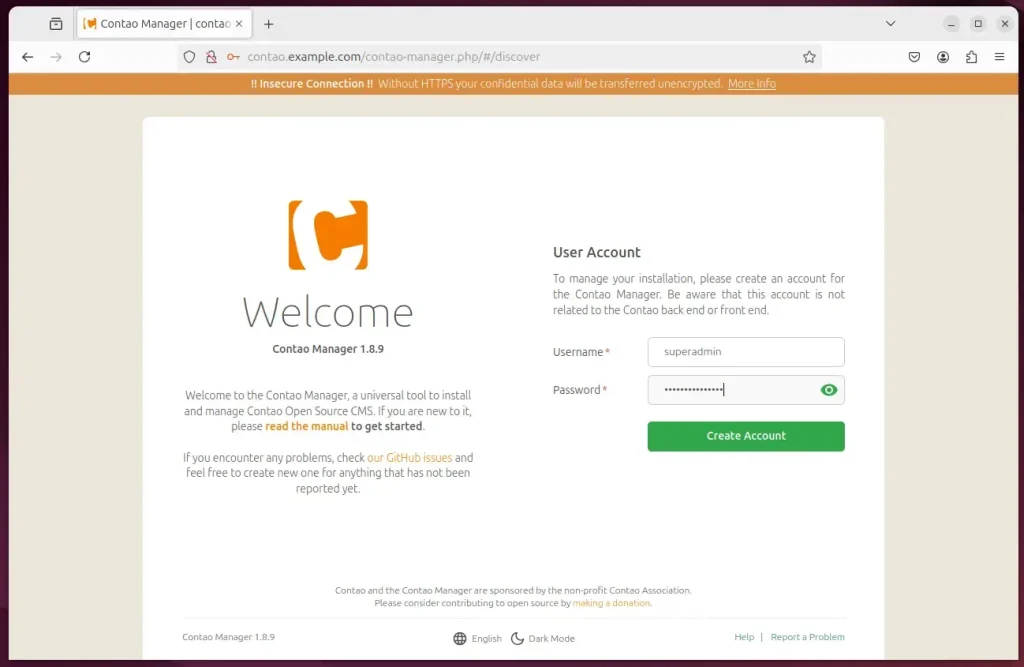
Next, click the Setup button to begin.
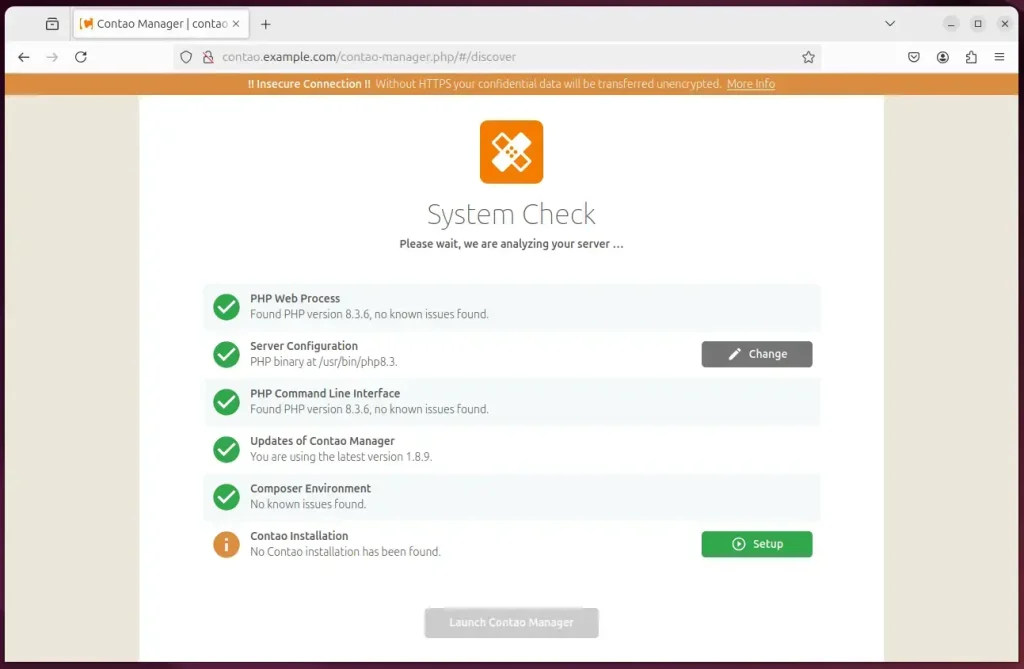
Accept the defaults and continue.
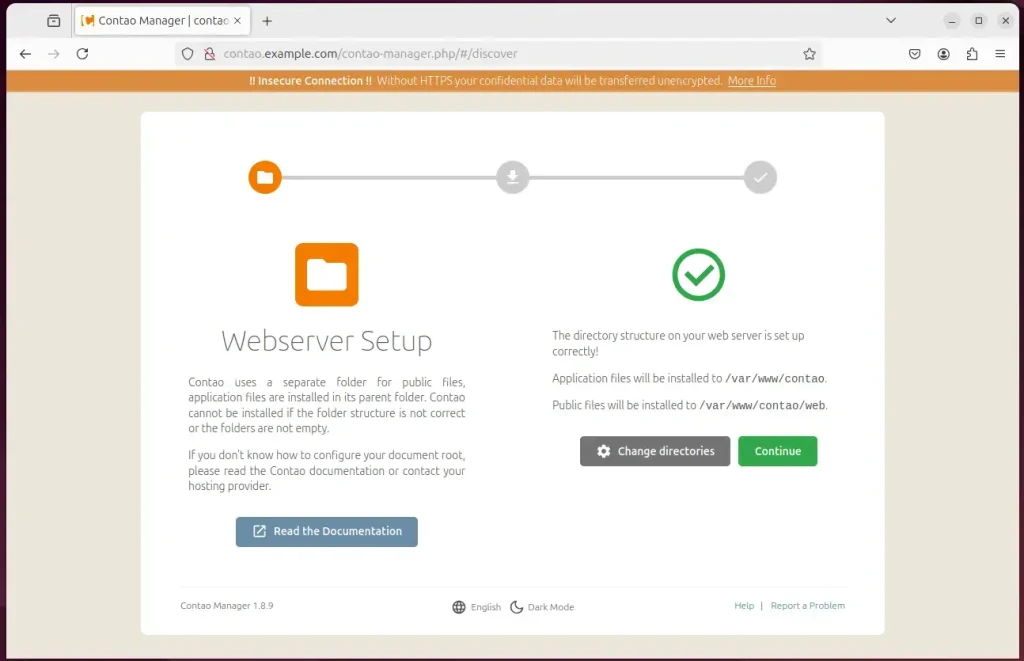
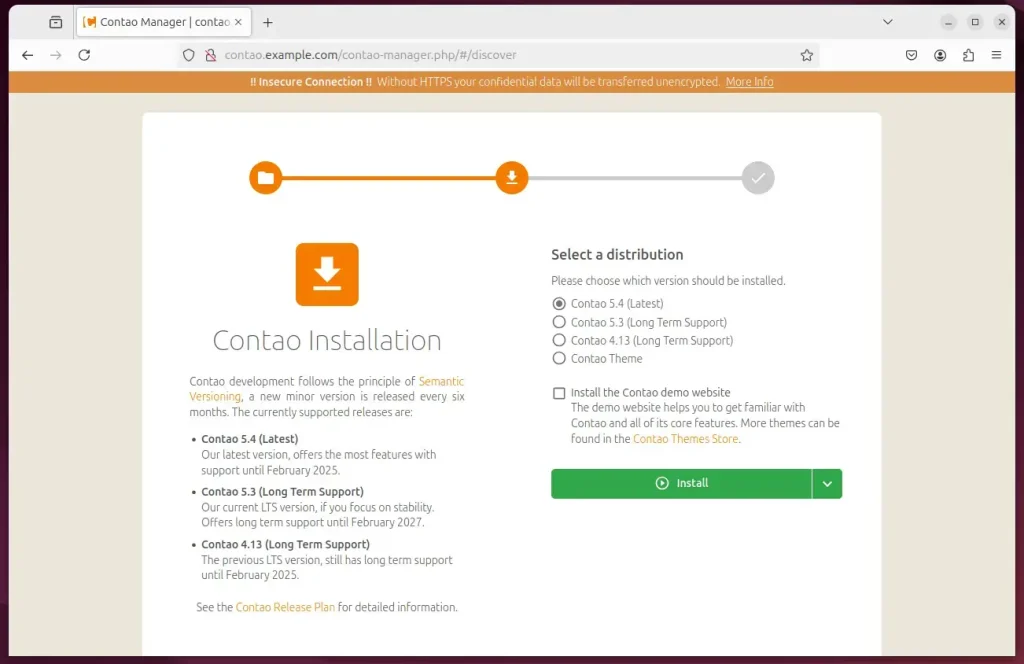
Click Install
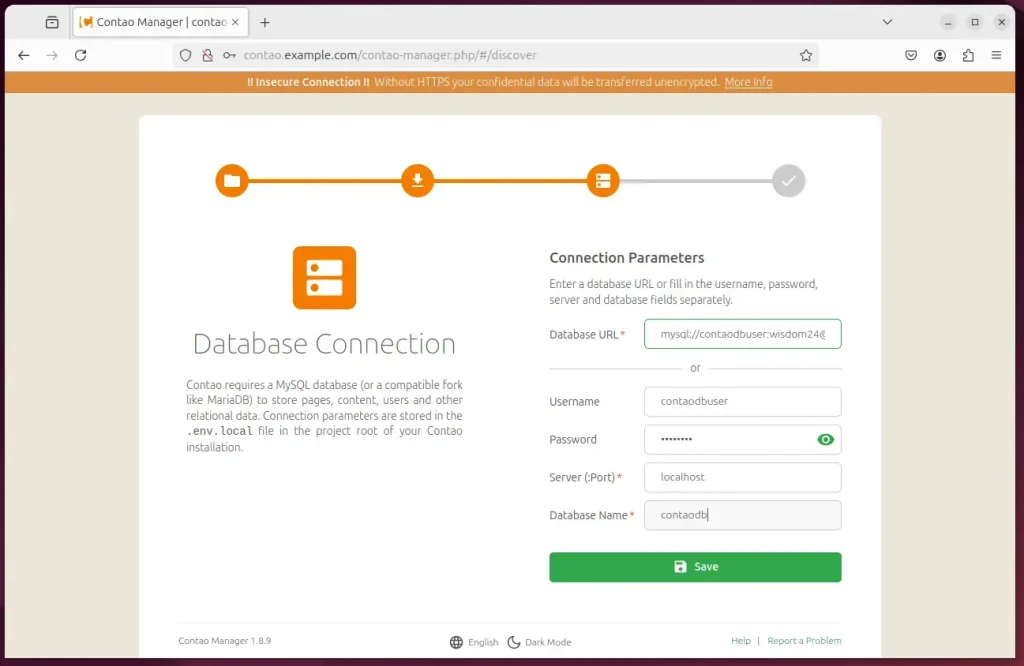
Type in the database connection details created above.
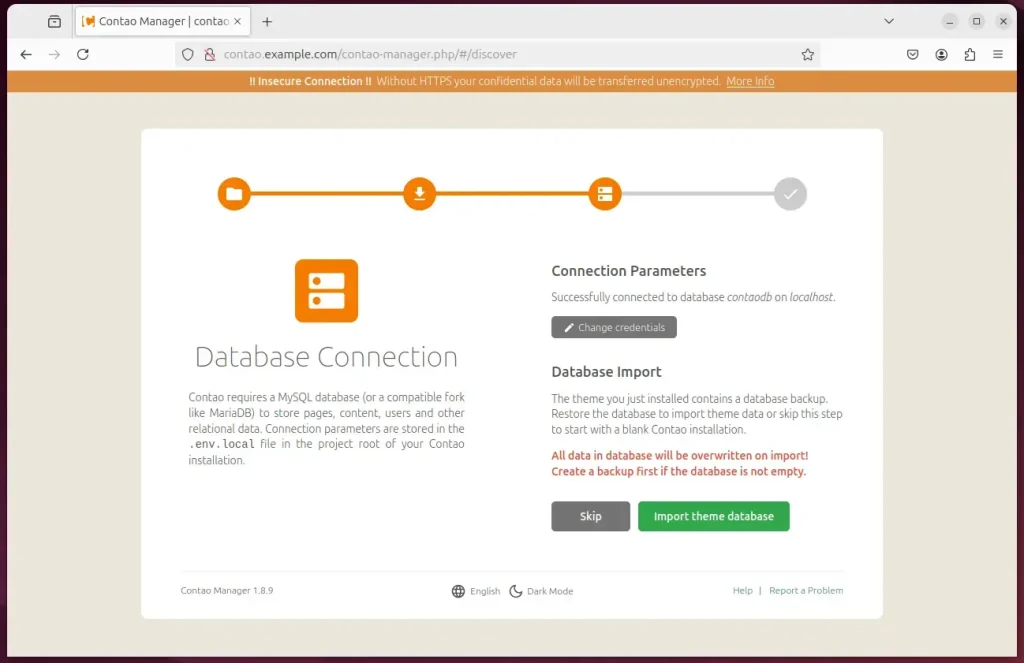
Import the theme database, update the schema, and continue.
After that, the setup should be completed.
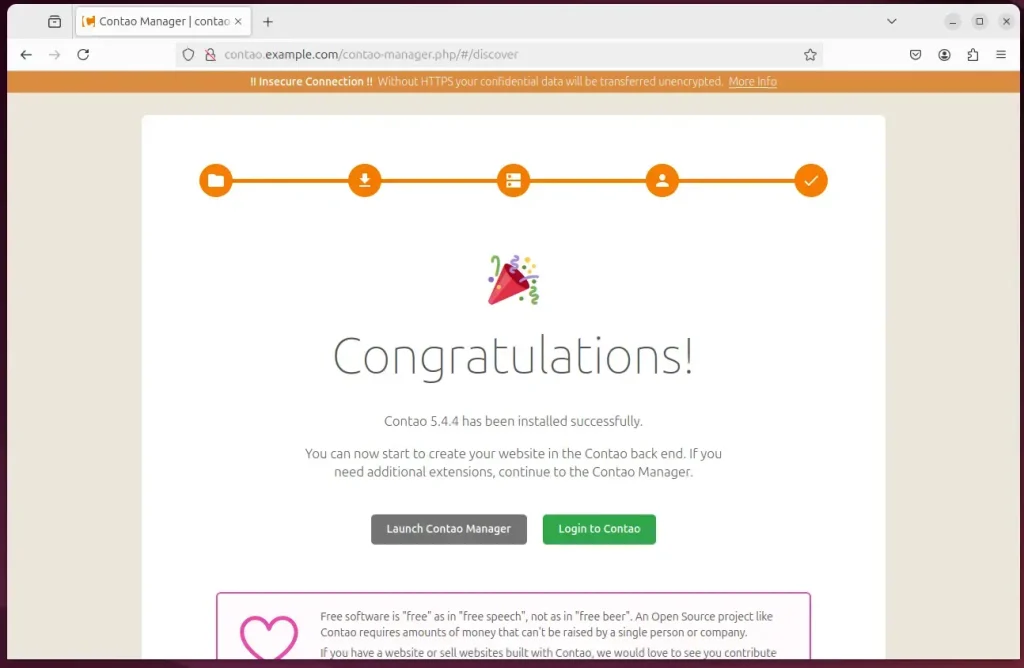
That should do it!
Conclusion:
Installing Contao CMS on Ubuntu with Apache offers a robust platform for effectively managing and scaling web applications. By following the steps outlined in this article, you can successfully set up a fully functional Contao environment. Here are the key takeaways:
- Stable Environment: Ubuntu and Apache provide a reliable foundation for running Contao.
- Comprehensive Steps: The guide covers all necessary installations, from Apache and MariaDB to PHP and Contao.
- Database Configuration: Creating a dedicated database and user enhances security and organization.
- SSL/TLS Security: Implementing Let’s Encrypt helps protect your site with HTTPS.
- User-Friendly Installation Process: The Contao installation wizard simplifies the setup of your CMS, allowing for easy management.
- Scalability: Contao is well-suited for building professional websites and applications that can grow as needed.
By following these guidelines, you can leverage the full potential of Contao CMS for your web development projects.



Leave a Reply