How to Improve Facial Recognition Sign-in for Your Windows 11 Account

You can improve facial recognition sign-in for your Windows 11 account by adjusting specific settings and ensuring optimal conditions.
Windows Hello facial recognition offers a fast and secure way to log into your PC using your unique facial features, providing an alternative to passwords and PINs.
Before you can use facial recognition, you must first set up a PIN, which Windows Hello also uses for enhanced security.
If your Windows 11 PC occasionally struggles to recognize your face, perhaps due to changes in lighting or accessories like glasses, optimizing the recognition setup is crucial.
This process involves ensuring your infrared camera has a clear view and potentially re-enrolling your face data for better accuracy.
Improve Windows Hello facial recognition by going to Settings, Accounts, Sign-in options, then clicking “Improve recognition” under Facial recognition. Follow the on-screen prompts to re-enroll your face for better accuracy.
How to Improve Windows Hello Facial Recognition
- Open Settings: Press the Windows key + I on your keyboard.
- Go to Accounts: Click or tap Accounts on the left side, then select Sign-in options on the right.
Windows 11 account sign-in options tile for wake settings. - Find Facial Recognition: Under Ways to sign in, click Facial recognition (Windows Hello) to open it.
- Click Improve Recognition: Press the Improve recognition button next to “Make your sign-in more personal.”
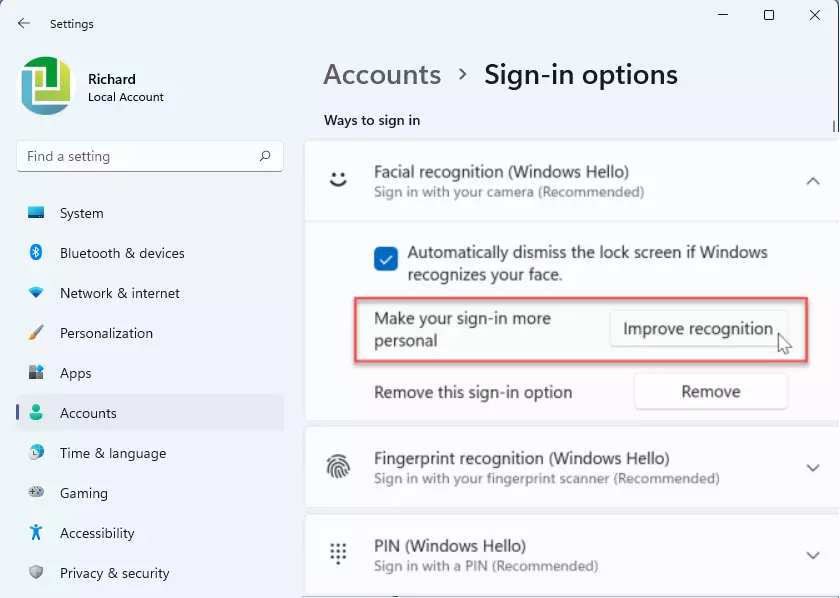
windows 11 improve recognition facial - Start the Process: Click Get started.
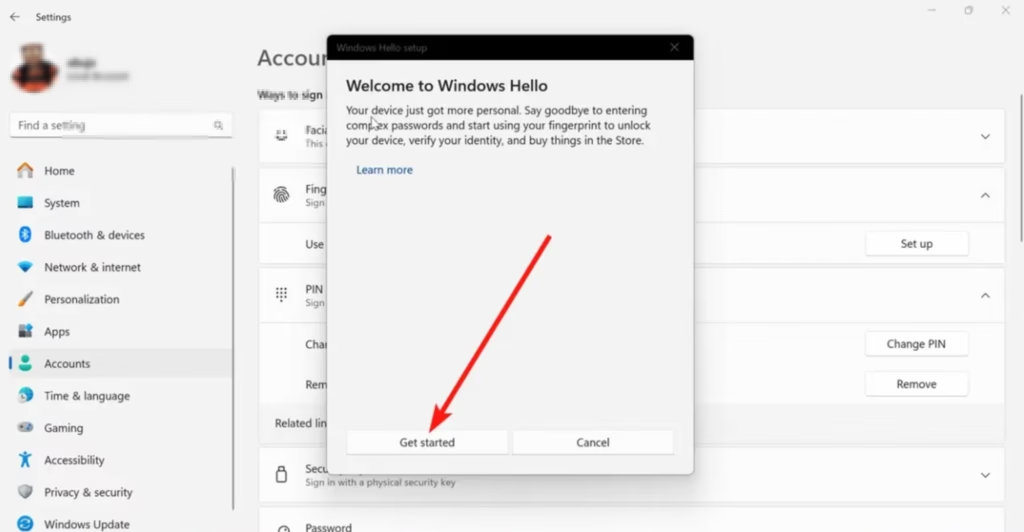
Windows Hello welcome screen with Get started button - Enter Your PIN: Type your account PIN to prove it’s you.
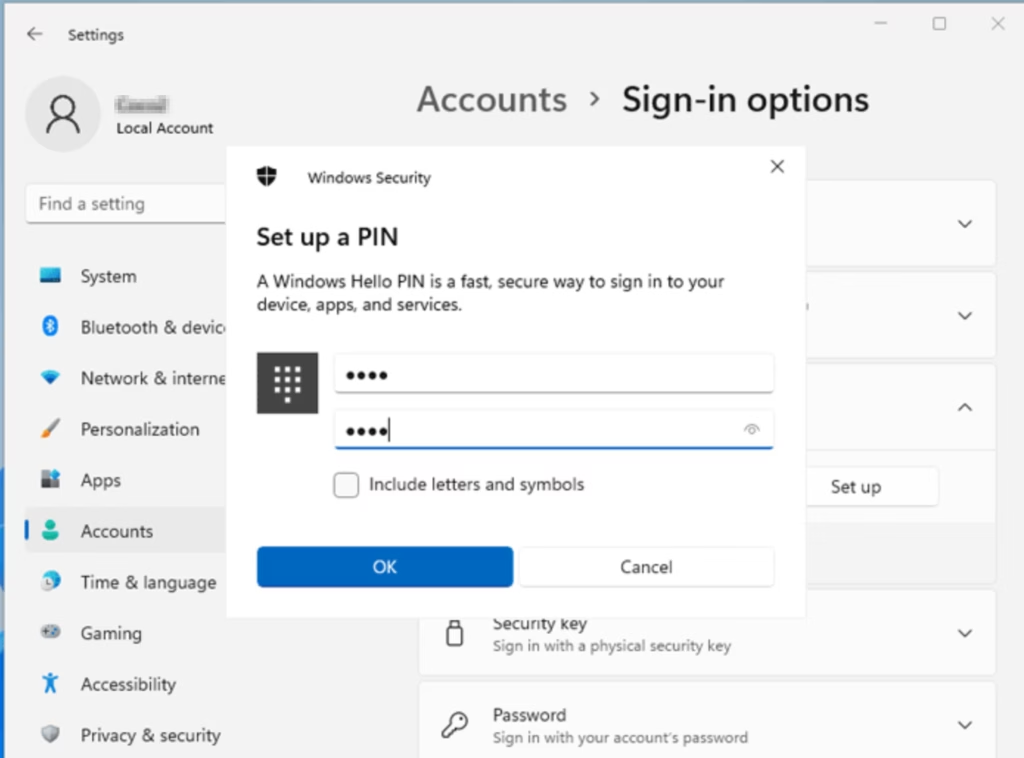
Windows Hello PIN setup screen for facial recognition - Position Your Face: Look straight at the screen with your face centered in the camera frame. Keep looking until the setup finishes.
- Finish: When you see the “All set” message, click Close.
Improving your Windows Hello facial recognition helps your PC recognize you faster and more reliably.
Tips for Better Recognition
- Make sure your camera is clean and working properly.
- Try to do the setup in good lighting but avoid bright lights behind you.
- Keep your face centered and look directly at the camera.
- Wear glasses or hats you use regularly during setup to help Windows Hello recognize you better.
Summary
Making your Windows Hello facial recognition better means you can sign into your computer more quickly and securely.
- Windows Hello makes signing in easy and safe using your face or PIN.
- You need a PIN set up before using facial recognition.
- Use an infrared camera for the best results.
- Good lighting and face position help Windows Hello recognize you better.
- Follow the steps above to improve your facial recognition setup anytime.
By following these simple steps, you’ll have a smoother and safer sign-in experience on Windows 11!
Does Windows Hello use facial recognition?
Yes, Windows Hello uses facial recognition as one of its main sign-in methods, along with a PIN or fingerprint.
Why didn't Windows Hello facial recognition recognize me?
Make sure the camera is clean and unobstructed. Check your lighting. If there is harsh or particularly bright light coming from one side or the other, Windows Hello might have a harder time recognizing you.
Was this guide helpful?

About the Author
Richard
Tech Writer, IT Professional
Richard, a writer for Geek Rewind, is a tech enthusiast who loves breaking down complex IT topics into simple, easy-to-understand ideas. With years of hands-on experience in system administration and enterprise IT operations, he’s developed a knack for offering practical tips and solutions. Richard aims to make technology more accessible and actionable. He's deeply committed to the Geek Rewind community, always ready to answer questions and engage in discussions.



No comments yet — be the first to share your thoughts!