Is your computer running out of space? When your hard drive gets full, Windows might slow down or stop updating, which can cause problems. Don’t worry — there are easy ways to free up space and keep your computer running smoothly!
Why Free Up Disk Space?
If your computer doesn’t have enough free space, it might:
- Run slowly and take longer to open apps.
- Have trouble installing important updates or new programs.
- Make it harder to save new files or photos.
Keeping some free space on your hard drive helps your computer work faster and stay secure.
How to Use the Disk Cleanup Tool
Windows 11 has a simple tool called Disk Cleanup that deletes old and temporary files you don’t need anymore.
Follow these easy steps:
- Click the Start button (the Windows logo at the bottom-left corner).
- Type disk cleanup in the search box.
- Click the Disk Cleanup app from the list.

Now, a window will open showing different types of files you can delete:
- Temporary Internet Files
- Downloaded Program Files
- Thumbnails (small pictures of your files)
Check the boxes next to the files you want to remove. To clean even more space, click Clean up system files and select extra system files to delete.
When ready, click OK, then choose Delete files to start cleaning up.
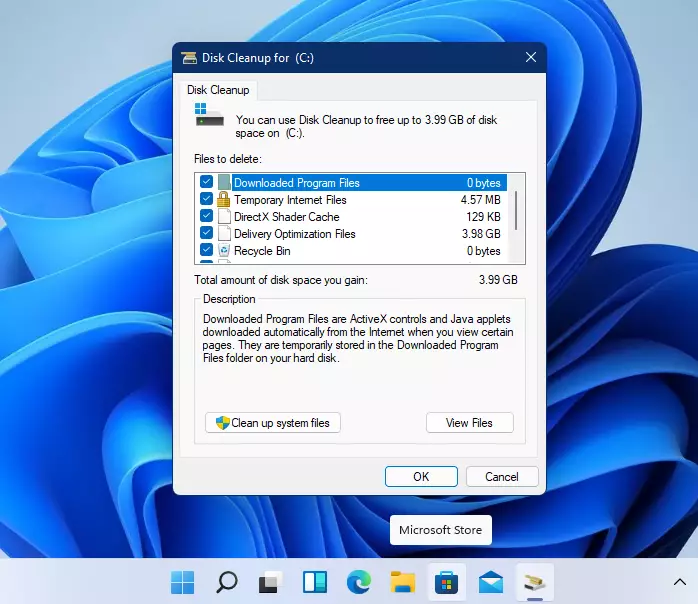
This will free up some space on your computer.
How to Use Storage Sense to Clean Up Automatically
Storage Sense is a feature in Windows 11 that cleans up unnecessary files automatically, so you don’t have to remember to do it yourself.
Here’s how to turn it on and set it up:
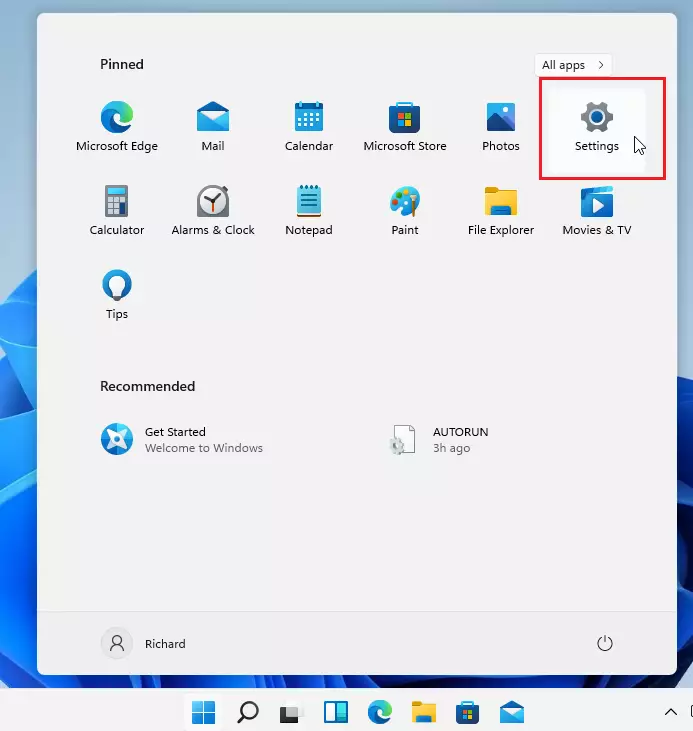
- Click the Start button, then select Settings (It looks like a gear icon.)
- Go to System > Storage.
- Turn on Storage Sense by clicking the switch.
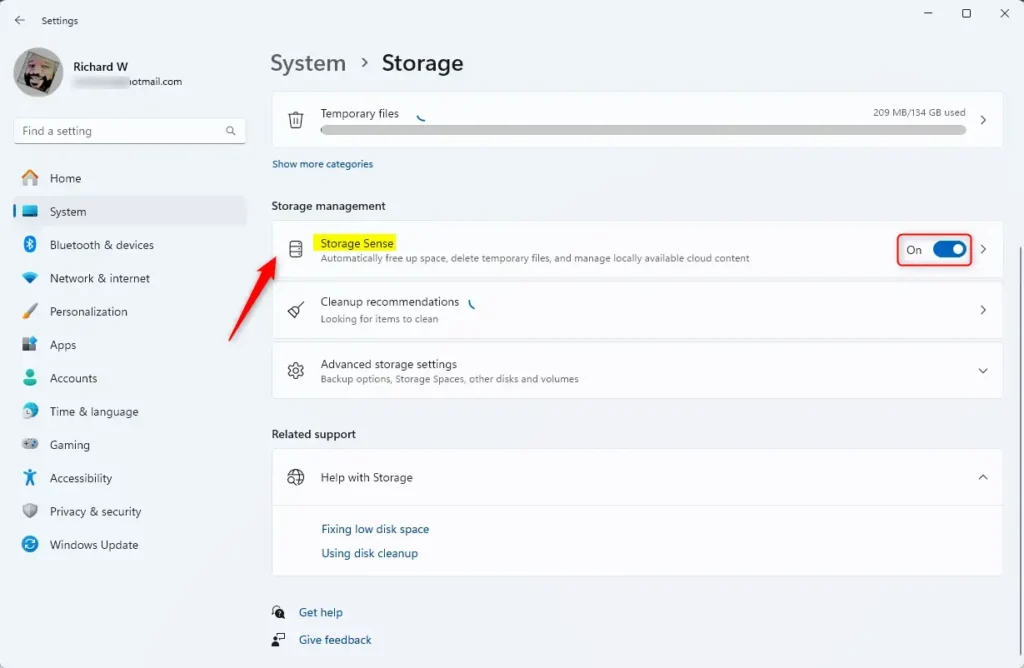
Click on the Storage Sense tile to see more settings. You can choose how often you want Storage Sense to clean up (like daily or weekly), and decide what kind of files it should remove.
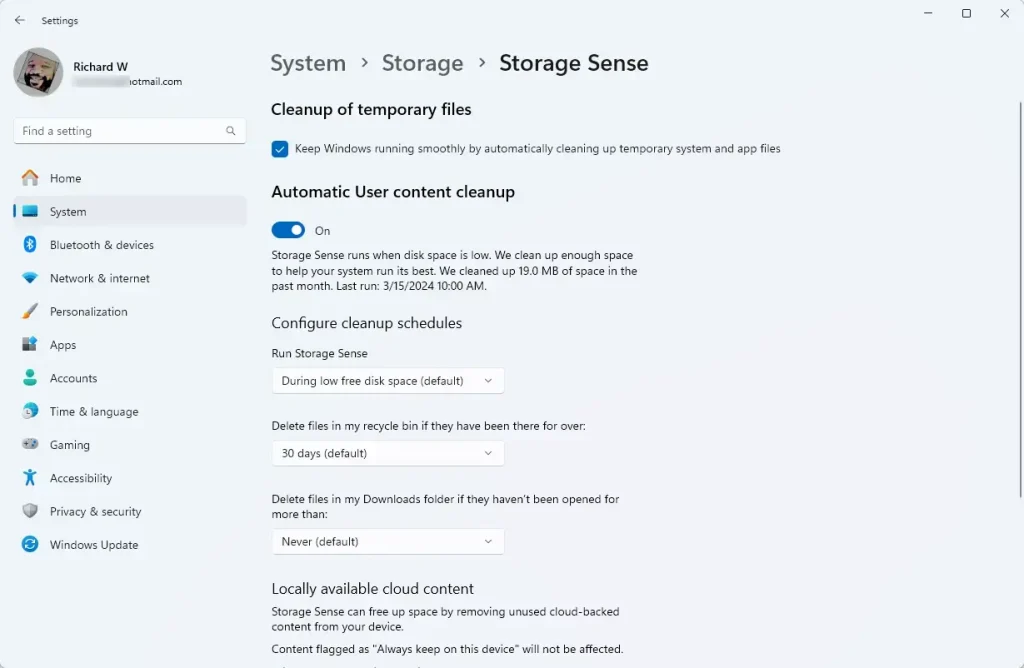
Most people can leave the default settings as they are — Windows will handle the cleanup for you!
Summary
- Running low on disk space can slow your computer and cause update problems.
- Use Disk Cleanup to quickly remove old files you don’t need.
- Turn on Storage Sense to keep your disk clean automatically.
- check your disk space regularly to keep your computer running fast and smooth.
If you want to learn more about managing disk space on Windows 11, you can visit the official Microsoft guide here: Free up drive space in Windows 11 – Microsoft Support.


Leave a Reply