
Want an easy way to take screenshots on your Windows 11 PC? You can set your Print Screen key to open the Snipping Tool, which lets you capture part or all of your screen quickly.
The Snipping Tool is a handy app that not only takes screenshots but also lets you draw or write on them before saving or sharing.
What Happens When You Turn This On or Off?
- Turn On: Pressing the Print Screen key will open the Snipping Tool so you can snip your screen right away.
- Turn Off: Pressing the Print Screen key will just take a full screenshot and copy it to your clipboard (like usual).
Tip: Starting with Windows 11 build 22621.1928, the Print Screen key opens the Snipping Tool by default.
If you have another screenshot app installed, it might change how your Print Screen key works. Also, you might need to restart your PC after changing this setting for it to work.
How to Turn On or Off Print Screen for Screen Snipping
Option 1: Using Windows Settings
- Press the Windows key + I to open Settings.
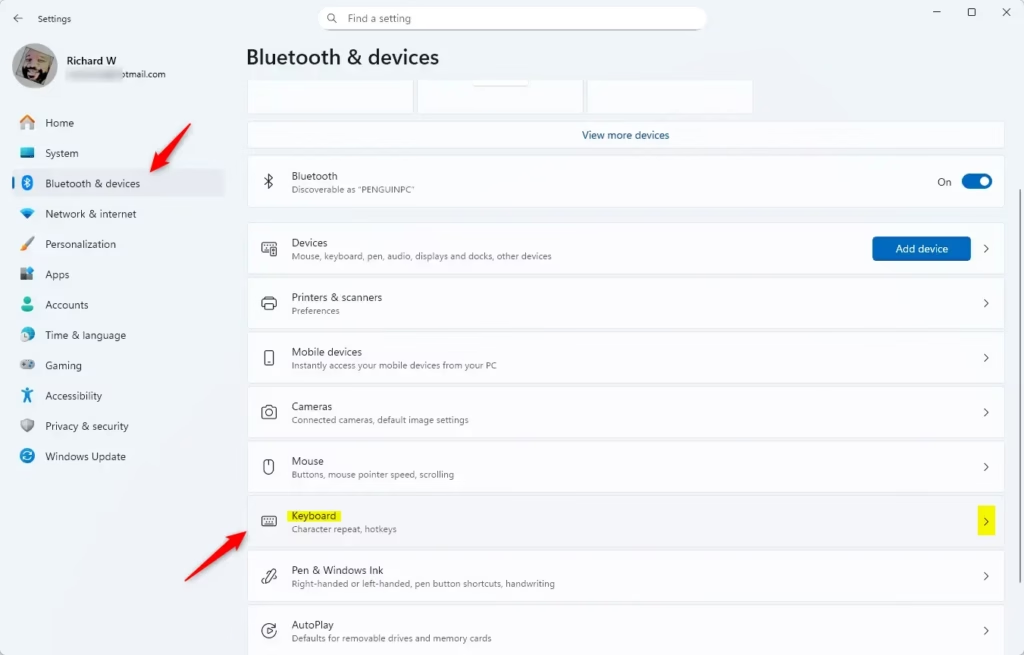
- Click on Bluetooth & devices on the left menu.
- Click Keyboard on the right side.
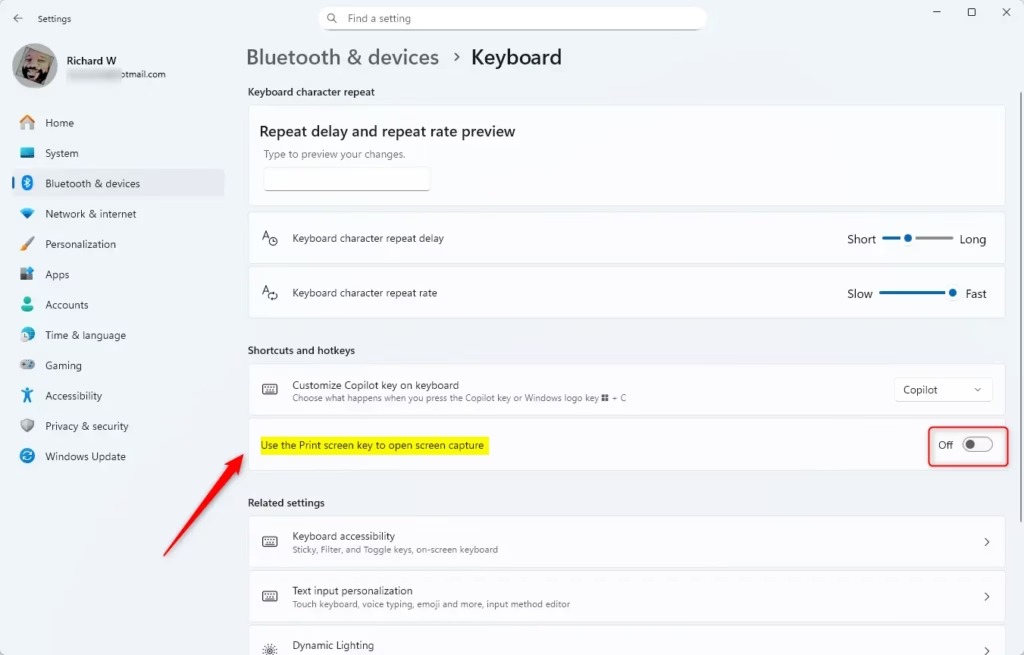
- Look for “Use the Print screen key to open screen snipping” under Shortcuts and hotkeys.
- Turn it On or Off depending on what you want.
Here’s what it looks like:
After you change the setting, you can close Settings.
Option 2: Using a Registry File (For Advanced Users)
If you like, you can also change this setting by editing the Windows Registry.
To turn ON Print Screen for Snipping:
reg add "HKEY_CURRENT_USER\Control Panel\Keyboard" /v PrintScreenKeyForSnippingEnabled /t REG_DWORD /d 1 /fTo turn OFF Print Screen for Snipping:
reg add "HKEY_CURRENT_USER\Control Panel\Keyboard" /v PrintScreenKeyForSnippingEnabled /t REG_DWORD /d 0 /fNote: Editing the Registry can be risky. Make sure to back up your Registry before making changes, or stick to Option 1 if you’re unsure.
Summary
- Quick Access: Press Print Screen to open Snipping Tool instantly.
- Easy to Change: Turn this feature on or off anytime in Settings.
- Default in New Windows 11: The Snipping Tool opens by default with Print Screen in recent Windows 11 versions.
- May Need Restart: Restart your PC if changes don’t take effect right away.
- More than Screenshots: Snipping Tool lets you draw, save, and share your screen captures easily.
Using this feature can save you time and make taking screenshots much easier!
Leave a Reply