How to Use Password Generator to Create more Secure Passwords in Microsoft Edge

Microsoft Edge’s built-in Password Generator creates strong, unique passwords for your online accounts.
This feature helps you avoid using weak or reused passwords, significantly boosting your online security. It’s an integrated tool within the browser designed to simplify password creation and management.
You can access the Password Generator directly when signing up for new services or when Edge prompts you to save a password. It suggests passwords usually 12 characters or longer, mixing uppercase and lowercase letters, numbers, and symbols for maximum complexity.
This guide will show you exactly how to activate and use this powerful security feature in Microsoft Edge.
Click on the password field on a sign-up or password reset page. Microsoft Edge will automatically suggest a strong, unique password in a small menu above the field. Click the suggested password to accept it, and then save it when prompted by Edge.
Why Use Edge’s Password Generator?
Using the Edge password generator makes creating strong, unique passwords simple because it does the hard work for you, saving you time and boosting your online safety.
- Strong: These are not just random characters. They are made to be very hard for hackers to guess or break.
- Unique: You get a new password for each website. If one account gets hacked, your other accounts stay safe.
- Saved Automatically: Edge remembers the password for you. When you go back to that website, it will fill in the password for you.
- Synced Across Devices: If you are signed into Edge with your Microsoft account and have password syncing turned on, the new password will work on your other computers, tablets, and phones.
This feature really helps you keep good security habits without much effort. It removes the guesswork and the need to remember everything.
How to Let Edge Create Your Next Password
Letting Edge create your next password is easy; it automatically shows up when you’re on a sign-up or password change page in Microsoft Edge.
- Go to a Sign-Up or Password Reset Page
Open Microsoft Edge. Go to a website where you need to create a new account or change a password. You usually find these on registration forms or when you click a “Forgot Password” link.
- Click on the Password Field
Once you are on the page with the password box, click inside it. You do not need to type anything yet.
- Look for the Password Suggestion
Right away, a small menu should appear above or next to the password box. This is the Password Generator working! It will show you a suggested password.
- Accept the Suggested Password
The suggested password is made to be strong and secure. If you like it, click on it in the menu. Edge will put it into the password box for you.
- Complete the Form and Save
Fill in any other needed information on the website. When you send the form, the website will accept the new password. Edge will then ask you to save the password. Click “Save” so it can fill it in for you next time.
That’s it! You have created a strong, unique password without much effort. Edge has now saved this password safely and will be ready to fill it in the next time you visit.
Turning the Password Generator On or Off
The Password Generator is on by default in Microsoft Edge because it’s a very useful security tool. However, you might want to turn it off, or maybe you turned it off and want to turn it back on.
Steps to Manage Password Generator Settings
You can easily manage your Edge password generator settings by opening Edge, going to the three dots menu, then Settings, and finding the Password Manager.
- Open Edge Settings
Click the three dots (…) in the top-right corner of your Edge window. This opens the “Settings and more” menu. Then, choose Settings.
- Go to Password Manager
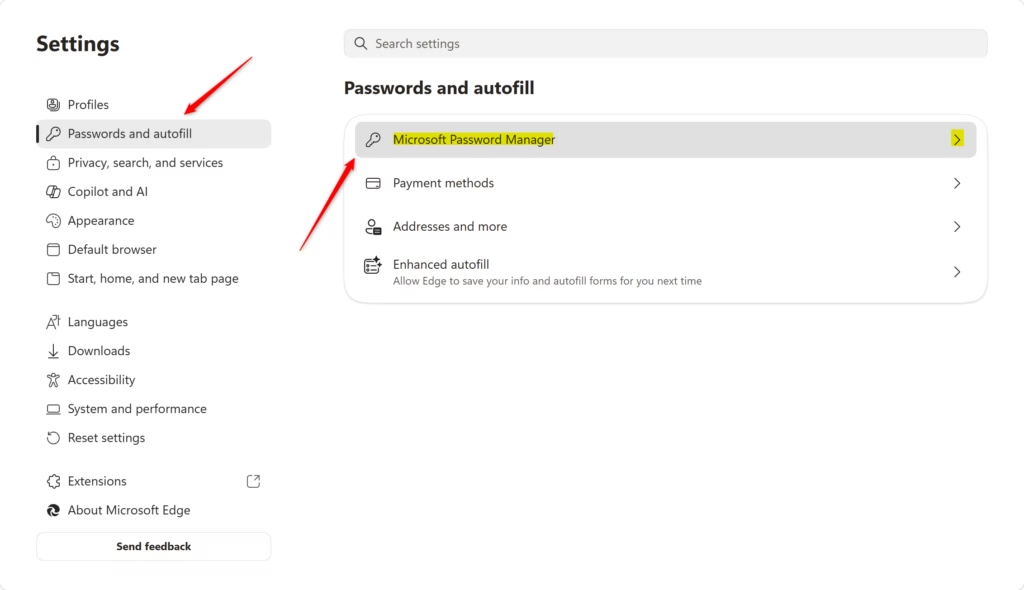
In the Settings menu, look for Passwords and autofill in the left sidebar. Click it. Then, find and click on Microsoft Password Manager.
- Access More Settings
In the Microsoft Password Manager section, you should see a link or button for More settings. Click on it.
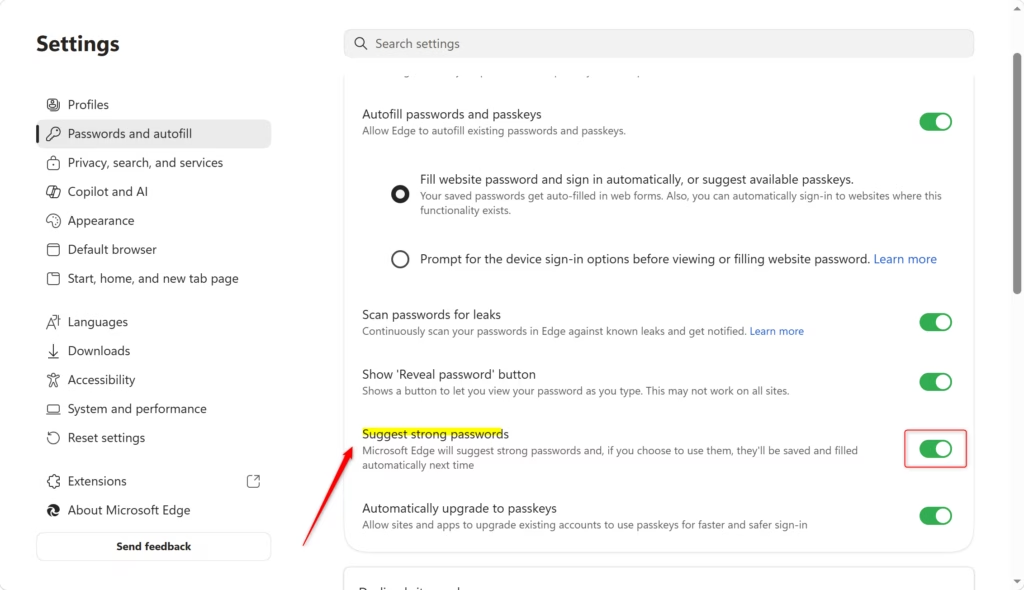
- Adjust the “Suggest strong passwords” Toggle
You will see a switch labeled Suggest strong passwords.
- To turn off : Click the switch so it turns gray (off).
- To turn on : Click the switch so it turns blue (on).
- Make sure “Ask to save passwords” is On

Once you have made your changes, you can close the Settings tab. The Password Generator will now work the way you want it to.
Reference:
Summary
Using the Edge password generator is a smart way to boost your online security by easily creating strong, unique passwords for every account, giving you peace of mind.
Does Microsoft Edge have a password generator?
Yes, Microsoft Edge has a built-in Password Generator. It automatically creates strong, unique passwords when you sign up for new accounts or when Edge prompts you to save a password, enhancing your online security by avoiding weak or reused credentials.
How do I force Edge to generate passwords?
You don't need to force Edge to generate passwords. The feature activates automatically when you visit a sign-up page for a new service or when you are prompted to save a password for an existing site. Edge will offer a strong, unique password suggestion.
What is the 8 4 rule for passwords?
The '8 4 rule' for passwords typically refers to a minimum length of 8 characters and the inclusion of at least 4 character types: uppercase letters, lowercase letters, numbers, and symbols. Microsoft Edge's generator creates passwords that easily meet and exceed these complexity requirements.
Is Microsoft phasing out passwords soon?
While Microsoft is actively exploring and promoting passwordless authentication methods like Windows Hello and authenticator apps for enhanced security, passwords are not being phased out immediately. They remain a primary method for account access, with tools like Edge's Password Generator improving their strength.
Was this guide helpful?

About the Author
Richard
Tech Writer, IT Professional
Richard, a writer for Geek Rewind, is a tech enthusiast who loves breaking down complex IT topics into simple, easy-to-understand ideas. With years of hands-on experience in system administration and enterprise IT operations, he’s developed a knack for offering practical tips and solutions. Richard aims to make technology more accessible and actionable. He's deeply committed to the Geek Rewind community, always ready to answer questions and engage in discussions.




No comments yet — be the first to share your thoughts!