How to Use Microsoft Edge in Another Language

You can easily use Microsoft Edge in another language by adjusting its translation settings.
Microsoft Edge is a web browser that allows you to translate entire webpages or just the text within them, making content accessible regardless of the original language.
You can set up multiple languages in Edge, ensuring both websites and the browser interface appear in a language you understand. For instance, Edge’s built-in translator can handle over 100 languages.
To get started, you’ll want to access Edge’s settings and navigate to the ‘Languages’ section.
Here, you can add languages you wish to use and prioritize them for translation, ensuring the best possible experience when browsing foreign websites.
Making Microsoft Edge Speak Your Language
Your web browser is how you see the internet, so it’s important that it’s in a language you can read. Microsoft Edge is usually pretty good. By default, it uses the same language as your Windows computer. But what if you want a different one, or if it picks the wrong one? You can tell Edge exactly what you prefer.
Step 1Go to Edge’s Language Settings
Let’s start by opening Edge’s settings. This is where you’ll control your browser’s language choices.
- Open Microsoft Edge.
- Look for the three dots (
...) in the top-right corner of the browser window. This is the “Settings and more” menu. Click it. - A menu will appear. Click on Settings. This opens a new tab for Edge’s settings.

Quick Tip: If you can’t find a setting in Edge, the three dots in the top-right corner are almost always the place to start. They mean “more options”!
Step 2Find the Languages Section
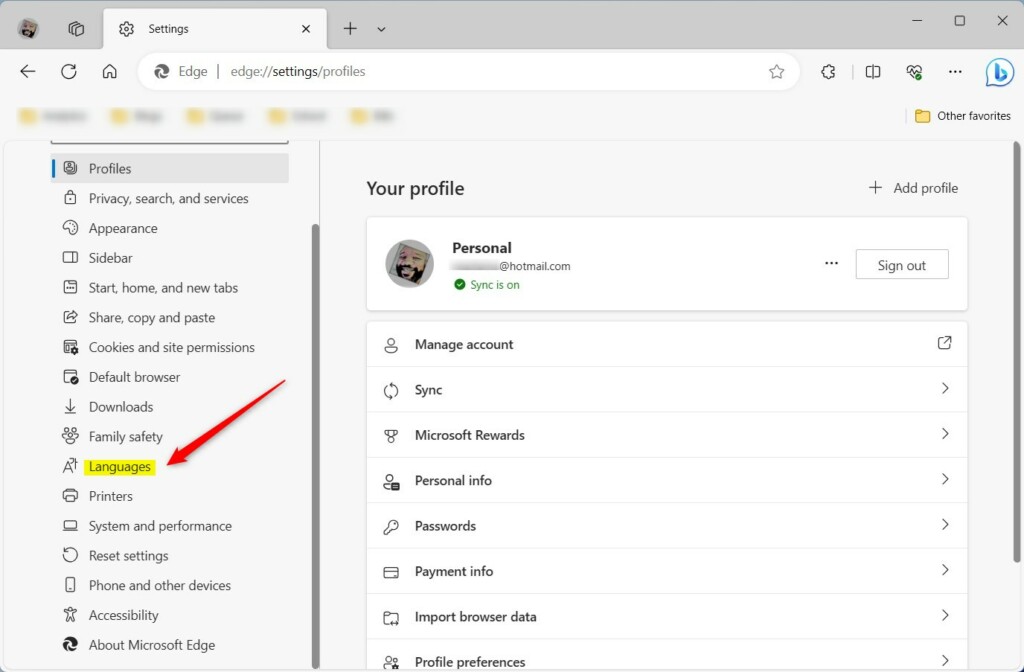
In the Settings tab, you’ll see a list of options on the left side. Find the one for languages.
- On the left side of the Settings menu, click on Languages.
This screen shows the languages Edge knows and lets you manage them.
Step 3Add a New Language
What if you want to add a language that isn’t listed? This is great if you’re learning a new language, visit foreign websites often, or have friends who use your computer and prefer a different language.
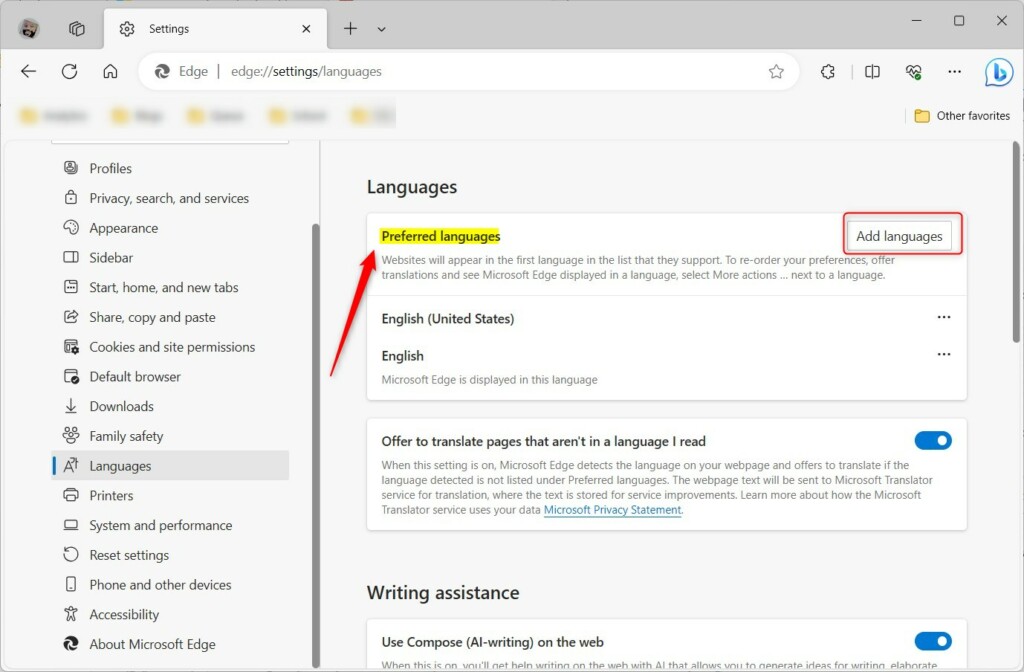
- On the Languages settings page, look for the section called “Preferred languages.”
- Click the button that says Add languages.
- A new window will open with a long list of languages. You can scroll through it. Or, if you know the language name, type it in the search bar at the top. For example, type “Spanish” to find Spanish.
- When you find the language you want, check the box next to it. You can pick more than one.
- After choosing your languages, click the Add button at the bottom of the window.
Good to Know: Adding languages is safe! Edge won’t use them automatically. You can think of this list as your “languages I might want to use” collection.
Step 4Choose Your Main Display Language
Having a language in your list is good, but you need to tell Edge which one to use for its menus, buttons, and settings. This is your main language for the browser itself.
- Go back to the main Languages settings page.
- You will now see the language you just added in your “Preferred languages” list.
- Next to the language you want to use most, click the three dots (
...). - A small menu will appear. Click Display Microsoft Edge in this language.
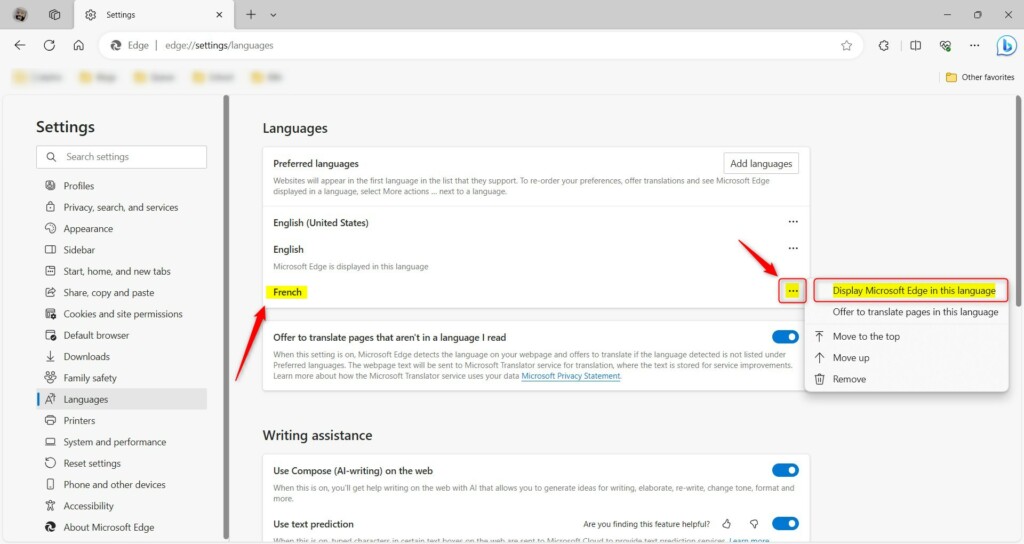
Important: When you choose “Display Microsoft Edge in this language,” Edge will ask you to restart the browser for the changes to work. Make sure you save anything you are working on in Edge before you restart!
Step 5Change the Language Order (If You Want)
Sometimes, the order of languages in your “Preferred languages” list is important, especially for websites. Websites often try to show you content in your top language if they can. If you have many languages listed, you might want to put your most used one at the very top.
- On the Languages settings page, look at your list of preferred languages.
- Next to each language, you’ll see those same three dots (
...). Click them. - In the menu that pops up, you’ll see options like “Move to top,” “Move up,” and “Move down.” Use these to arrange your languages in the order you like, with your favorite at the top.
Summary
Now you know how to manage languages in Microsoft Edge! It’s a straightforward process to improve your online experience. Whether you browse international sites, are learning a new language, or just like things a certain way, you can now tell Edge exactly which languages to use.
You can always come back to these settings to add or remove languages. Don’t be afraid to try things out. Your web browser should work for you!
Was this guide helpful?

About the Author
Richard
Tech Writer, IT Professional
Richard, a writer for Geek Rewind, is a tech enthusiast who loves breaking down complex IT topics into simple, easy-to-understand ideas. With years of hands-on experience in system administration and enterprise IT operations, he’s developed a knack for offering practical tips and solutions. Richard aims to make technology more accessible and actionable. He's deeply committed to the Geek Rewind community, always ready to answer questions and engage in discussions.

No comments yet — be the first to share your thoughts!