How to turn Underline Access Keys on or off in Windows 11

You can turn underline access keys on or off in Windows 11 to make keyboard shortcuts visible.
Access keys are underlined letters that appear on menus and buttons, allowing you to activate those items using your keyboard in combination with the Alt key (e.g., Alt+F for File). This feature can significantly speed up your navigation if you prefer keyboard control.
Windows 11 provides a specific setting to control the visibility of these underlines. For instance, when enabled, you might see an underline on the ‘F’ in the File menu, letting you know you can press Alt+F to open it.
Enabling this setting makes those helpful keyboard shortcuts instantly recognizable across Windows and many applications, eliminating the need to memorize complex key combinations.
How to Turn on Underlined Access Keys in 🪟 Windows 11
Turning on this setting is quick. You just need to go through the Windows 11 Settings app. Follow these steps, and you’ll see the helpful underlines in no time.
- Open Windows Settings: The fastest way is to press two keys together: the Windows logo key (the one with the Windows flag) and the R key. This opens a small window. Type
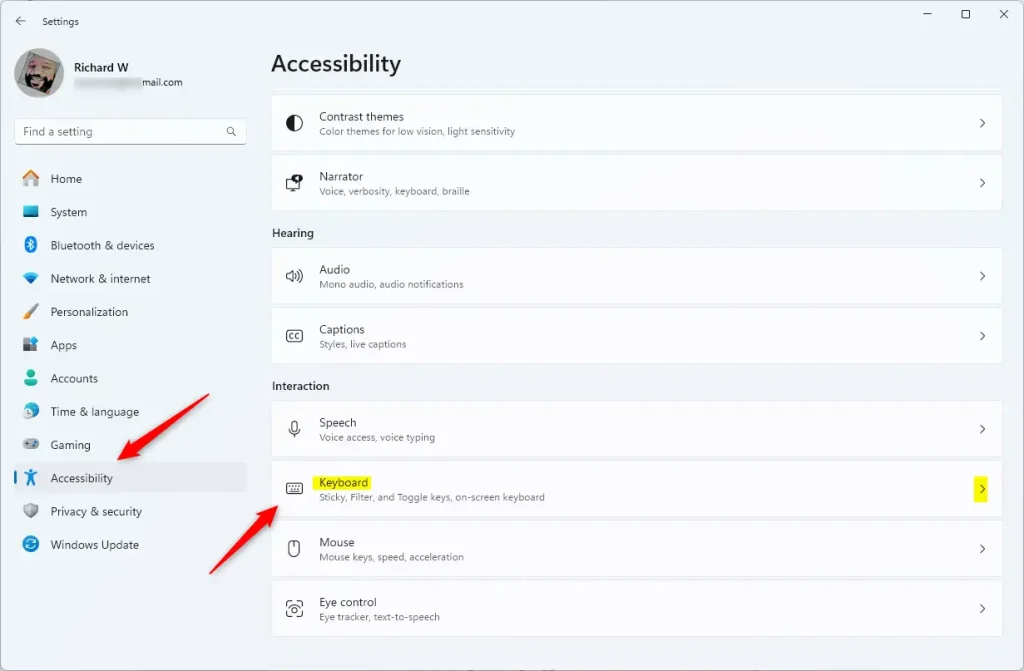
ms-settings:and press Enter. This will open the main Settings window. Or, you can click the Start button on your taskbar and then click the ‘Settings’ gear icon. - Go to Accessibility: When the Settings window opens, look for ‘Accessibility’ in the list on the left side. Click on it. This is where Windows keeps all the options to make your computer easier to use.
- Find the Keyboard Section: Scroll down in the Accessibility settings. Look for a section called ‘Interaction’. Under this section, you will see an option named ‘Keyboard’. Click on it. This opens settings just for your keyboard.
- Find the Access Keys Setting: Now, in the Keyboard settings, you will see a list of options. Look for the one that says ‘Underline access keys when they are available’. There might be a switch next to it.
- Turn the Switch On : Click the switch next to ‘Underline access keys when they are available’. Move it to the ‘On’ position. When it’s on, the switch usually changes color (like blue or green, depending on your Windows theme) and moves to the right.
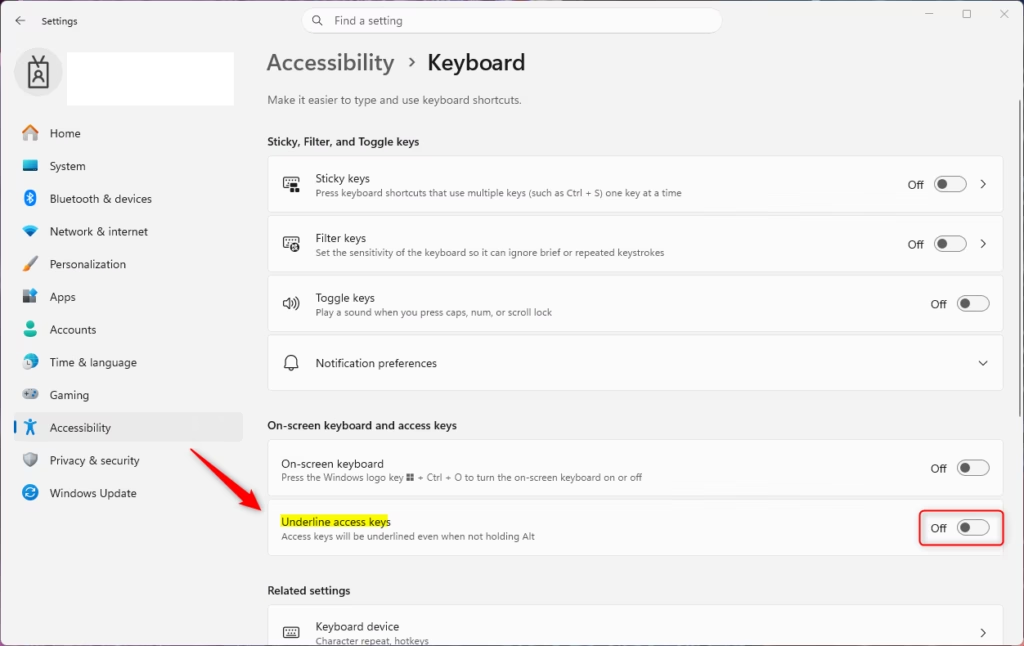
That’s it! You’ve now enabled this feature. Now, when you press the Windows key, you should see underlines appear under the letters for menus, buttons, and other elements that use access keys.
Reference:
Summary
Turning on the underline access keys setting in Windows 11 is a small tweak that can really improve how fast you navigate with your keyboard. By following the steps to enable it in the Accessibility > Keyboard settings, you’ll make it easier to spot and use keyboard shortcuts for menus and buttons, allowing for a more efficient workflow.
Was this guide helpful?

About the Author
Richard
Tech Writer, IT Professional
Richard, a writer for Geek Rewind, is a tech enthusiast who loves breaking down complex IT topics into simple, easy-to-understand ideas. With years of hands-on experience in system administration and enterprise IT operations, he’s developed a knack for offering practical tips and solutions. Richard aims to make technology more accessible and actionable. He's deeply committed to the Geek Rewind community, always ready to answer questions and engage in discussions.




No comments yet — be the first to share your thoughts!