

This article explains how to turn “Read receipts” on or off in the Signal app on mobile devices.
Signal is a cross-platform popular messaging app. It allows users to send and receive encrypted messages, make voice and video calls, and share files from their devices, including computers.
When you install and set up the Signal Desktop app, you can choose to have it open automatically when you log in to your computer. The app also allows you to turn on or off call relay through Signals’ servers to avoid revealing your IP address, turn disappearing messages on or off, change notification content settings, and more.
The Signal mobile version allows users to turn “Read receipts” on or off, which isn’t available on the desktop version.
Read receipts are a feature in the Signal app that allows the sender to know if the recipient has received and read their message. Some users find this feature useful, while others may feel it pressures them to respond quickly.
Turning read receipts off can be a good option for those who prefer more control over their messaging experience. On the other hand, turning them on can help users confirm that their messages have been delivered and read, which can be useful in some situations.
Turn “Read receipts” on or off in Signal
As mentioned above, users can turn “Read receipts” on or off in the Signal mobile version of the app.
Here’s how to do it.
First, screen your apps and open the Signal app on your mobile device.

When the app opens, click your profile image to display the Settings menu or select the Settings and more (three vertical dots) button on the top right of your screen, then select Settings on the context menu.

Click the “Privacy” tile on the Settings menu to open it.
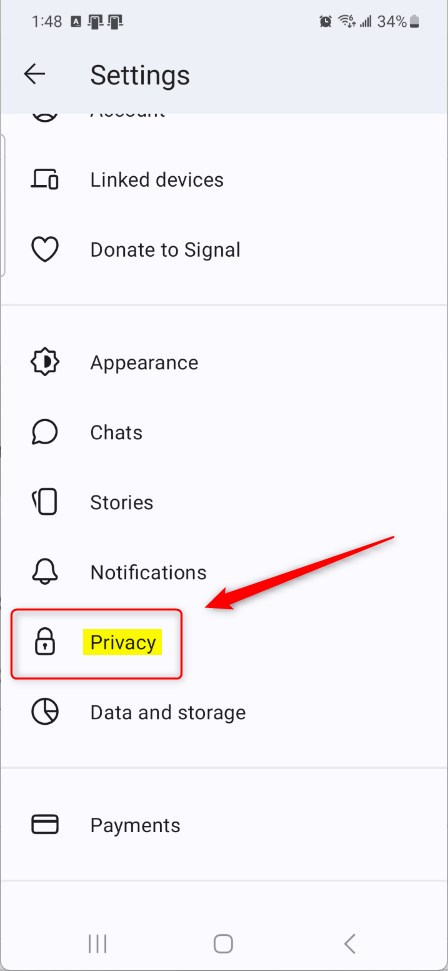
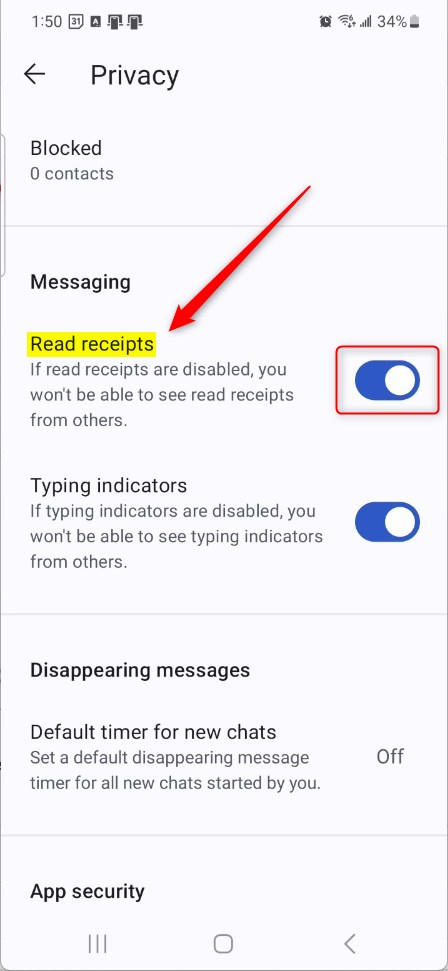
On the Settings -> Privacy settings page, under Messaging, select the “Read receipts” tile. Then, toggle the switch button to the On position to enable it.
To disable it, toggle the switch button to the Off position.
That should do it!
Conclusion:
- In this article, we learned how to manage “Read receipts” in the Signal mobile app, a feature that allows users to control their messaging experience.
- Whether it’s about confirming message delivery or preferring more privacy, toggling “Read receipts” can be a valuable tool for Signal users.
- Feel free to leave feedback or additional insights in the comments section below!
Leave a Reply