How to Show or Hide Voice Typing Mic on Windows 11 Touch Keyboard

Want to show or hide the voice typing microphone icon on your Windows 11 touch keyboard? It only takes a quick setting adjustment.
Think of the Windows 11 touch keyboard as a virtual keyboard that pops up on your screen. It’s really handy for devices with touchscreens, letting you tap keys right on the display.
The voice typing microphone lets you speak your text directly into any app. It converts your speech into written words with surprising accuracy. You’ll find this handy feature can significantly speed up your typing process.
This tutorial focuses on the specific setting within Windows 11 that controls the visibility of this microphone icon on the touch keyboard.
Show or hide the voice typing mic button in Windows 11 by going to Settings > Time & language > Typing > Touch keyboard. Toggle the “Show the voice typing mic button” option on or off there.
Why Use Voice Typing?
Voice typing is helpful when you want to enter text faster. Instead of typing with your fingers, you can speak. Your computer will convert your words into text.
How to Turn On or Off the Voice Typing Mic Button Using Windows Settings
Follow these steps:
- Open Windows Settings. Click the Start menu button and choose Settings. Or press
Windows key + Ion your keyboard. - In the Settings window, click on Time & language on the left side.
- On the right side, click the Typing section to open it.
- Find and expand the Touch keyboard section.
- Look for the option “Show the voice typing mic button” and check the box to turn it on. Uncheck it to turn it off.
How to Turn On or Off the Voice Typing Mic Button Using the Registry (For Advanced Users)
If you’re comfortable making changes inside Windows, you can also turn this feature on or off using the Registry Editor.
Heads up: The Registry Editor requires extra care. Messing with the wrong settings can cause issues. You’ll also need administrator privileges for this method.
Here’s how:
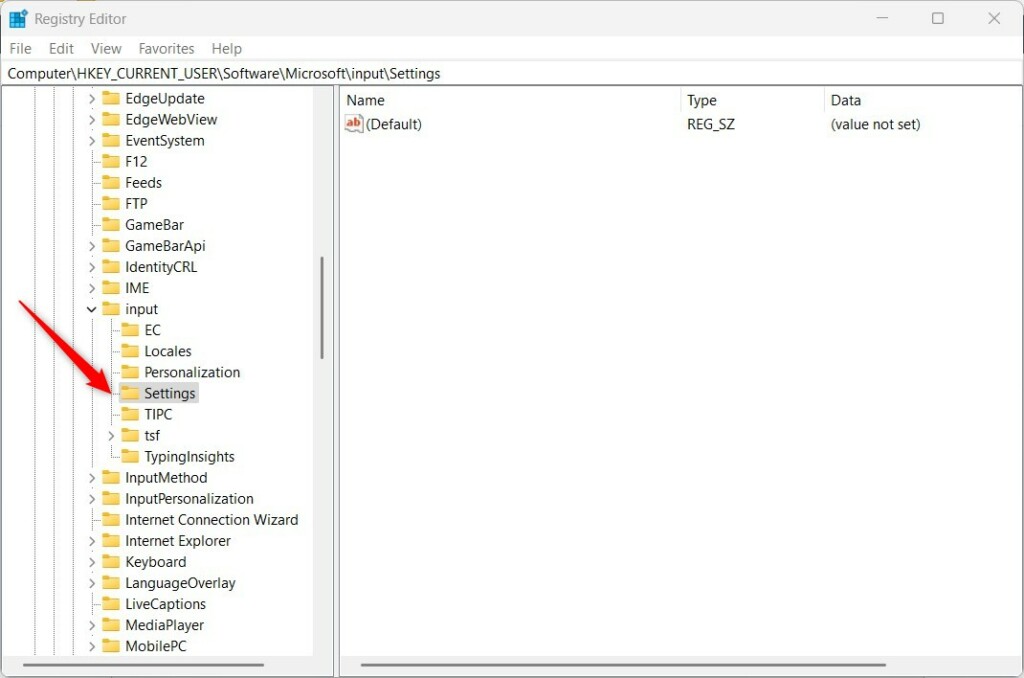
- Open the Registry Editor by typing
regeditin the Start menu search and pressing Enter. - Go to this folder (key):
HKEY_CURRENT_USER\Software\Microsoft\InputSettings - If you don’t see the Settings folder, right-click on Input. Select New > Key and name it Settings.
- Right-click on the right side of the Settings folder. Choose New > DWORD (32-bit) Value and name it IsVoiceTypingKeyEnabled.
- Double-click this new value. Set the Base to Decimal and enter:
1to turn the mic button ON0to turn the mic button OFF
- Click OK and close the Registry Editor.
- Restart your computer for the changes to take effect.
Summary
You can turn the voice typing mic button on or off right from Windows Settings. This is the best method for most users.
For advanced users, the same can be done by changing a setting in the Windows Registry. Remember to be careful when editing the registry.
This feature helps you type with your voice. It makes entering text faster on touch devices.
Choose the method that works best for you. Enjoy using voice typing on your Windows 11 device!
Is Windows Voice Typing any good?
Audio is processed in Microsoft’s cloud. If you’re offline or have privacy concerns about cloud processing, Windows Voice Typing won’t work. For quick documents, emails, and casual dictation, Windows Voice Typing is surprisingly competent for a free built-in feature.
Was this guide helpful?

About the Author
Richard
Tech Writer, IT Professional
Richard, a writer for Geek Rewind, is a tech enthusiast who loves breaking down complex IT topics into simple, easy-to-understand ideas. With years of hands-on experience in system administration and enterprise IT operations, he’s developed a knack for offering practical tips and solutions. Richard aims to make technology more accessible and actionable. He's deeply committed to the Geek Rewind community, always ready to answer questions and engage in discussions.




No comments yet — be the first to share your thoughts!