How to Enable or Disable the Resume App Button on Your Windows 11 Taskbar

You can enable or disable the “Resume apps” button on your Windows 11 taskbar to control if your PC suggests apps to continue using from your phone.
This feature, part of Windows 11’s phone integration capabilities, allows you to pick up where you left off with Android apps directly on your desktop.
When enabled, the taskbar will display relevant app suggestions, helping you switch between devices seamlessly. For example, if you’re using a specific app on your Android phone, Windows 11 might prompt you to open it on your PC.
What is the Resume App Button?
A recent Windows 11 update (build 26120.5761) added a cool new feature. It lets you open Android apps on your PC and pick up where you left off on your phone.
Why would you want this? Imagine you were listening to a song on Spotify on your phone. When you click the Resume button on your PC, Spotify opens and plays the same song. Just make sure you’re signed in with the same Spotify account on both devices.
What You Need First
- Allow your PC to access your phone in your Windows settings.
- Link your Android phone to your PC using the Phone Link app.
- Turn on the Resume feature in your PC’s Mobile Devices settings.
How to Show the Resume Button on Your Taskbar
Follow these easy steps to turn the Resume app button on or off:
- Open the Settings app on your PC. You can click the Start menu and select Settings, or press
Windows key + Ion your keyboard. - In the Settings window, click Personalization on the left menu.
- On the right, click Taskbar to open taskbar settings.

- Find the Resume option under Taskbar items and turn its switch On to show the Resume button.
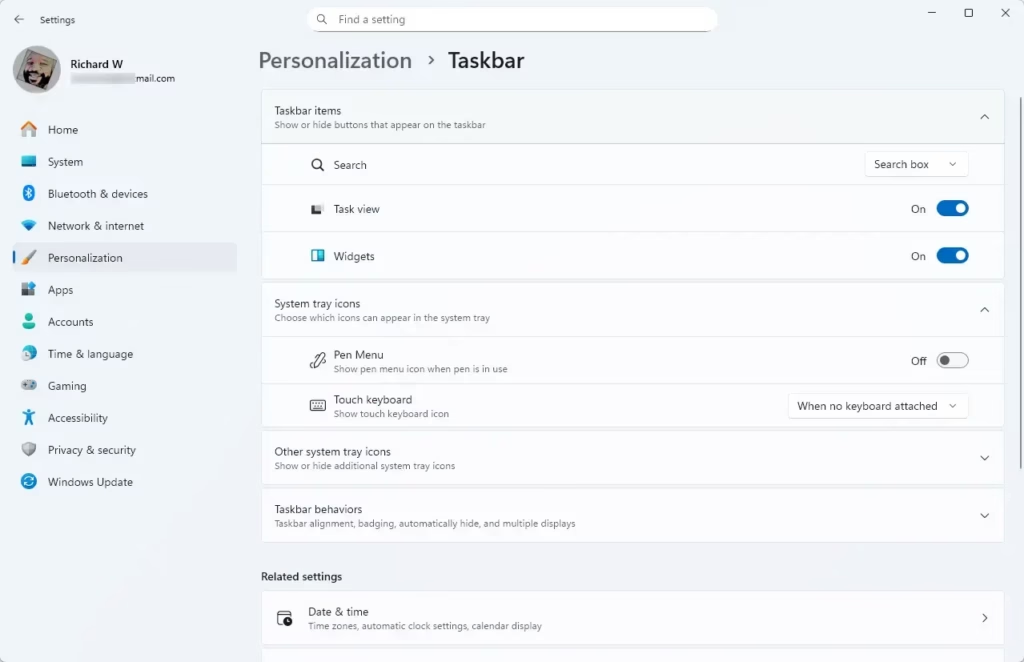
To hide the button, just toggle the switch back to Off.
That’s it! Now you can easily switch between your phone apps and PC apps using the Resume button on your taskbar.
Summary
- Open Windows Settings to access personalization options.
- Go to Personalization > Taskbar.
- Make sure your phone is linked to your PC for best results.
- Turn the Resume button on or off with a simple toggle.
- This helps you quickly continue apps from your phone right on your PC.
If you want to learn more, you can check out the detailed guides linked above.
Was this guide helpful?

About the Author
Richard
Tech Writer, IT Professional
Richard, a writer for Geek Rewind, is a tech enthusiast who loves breaking down complex IT topics into simple, easy-to-understand ideas. With years of hands-on experience in system administration and enterprise IT operations, he’s developed a knack for offering practical tips and solutions. Richard aims to make technology more accessible and actionable. He's deeply committed to the Geek Rewind community, always ready to answer questions and engage in discussions.


No comments yet — be the first to share your thoughts!