How to Reset Default Firewall Settings in Windows 11

You reset Windows 11 firewall settings to their default state by using the Windows Security app.
Resetting the Windows Defender Firewall sends its configuration back to the original settings, effectively undoing any custom changes you or another user may have made. This action is vital for troubleshooting network connectivity problems where custom rules might be blocking essential applications or services.
For example, if you suddenly can’t connect to your favorite online game or access shared network drives after a recent change, a firewall reset can quickly resolve these issues. This entire process takes place within the Windows 11 Security app, specifically under the Firewall & network protection section.
You can reset your Windows 11 firewall by opening Windows Security, navigating to Firewall & network protection, and selecting Restore firewalls to default. Confirm the action in the pop-up window to revert to the original firewall settings.
What is Windows Firewall?
Windows Firewall is like a guard for your computer. It blocks unwanted visitors from getting into your computer through the internet or your network.
Method 1Reset Firewall Using the Windows Security App
You can easily reset your firewall settings back to their original state using the built-in Windows Security app, which is the simplest method for most users.
- Click the Start button in the bottom-left corner of your screen.
- Click Settings (the gear icon).
- In the Settings window, click Privacy & security on the left side. Then click Windows Security.
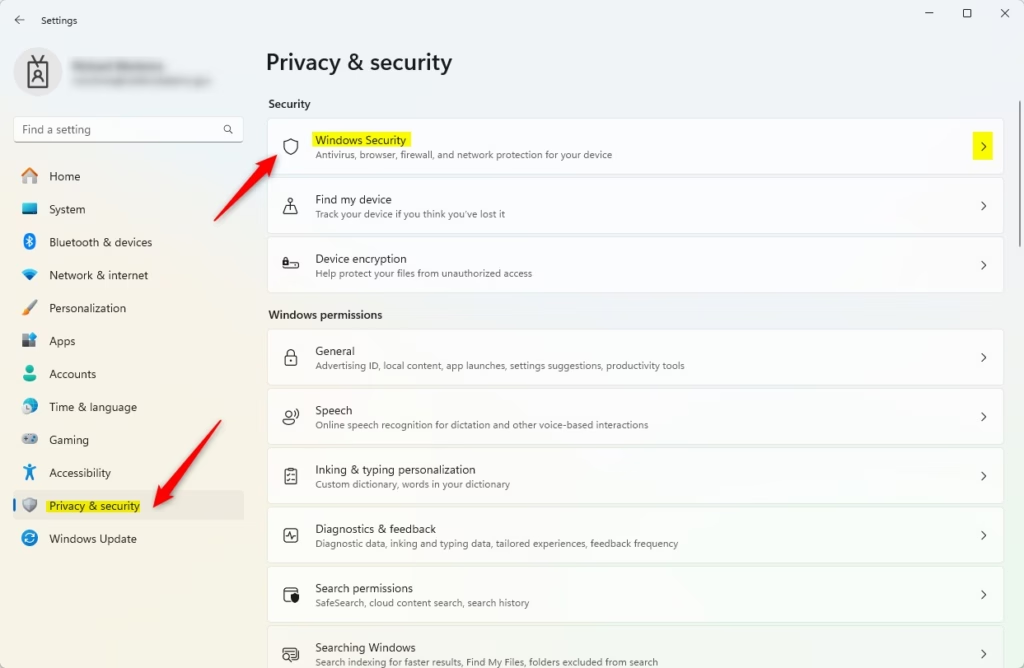
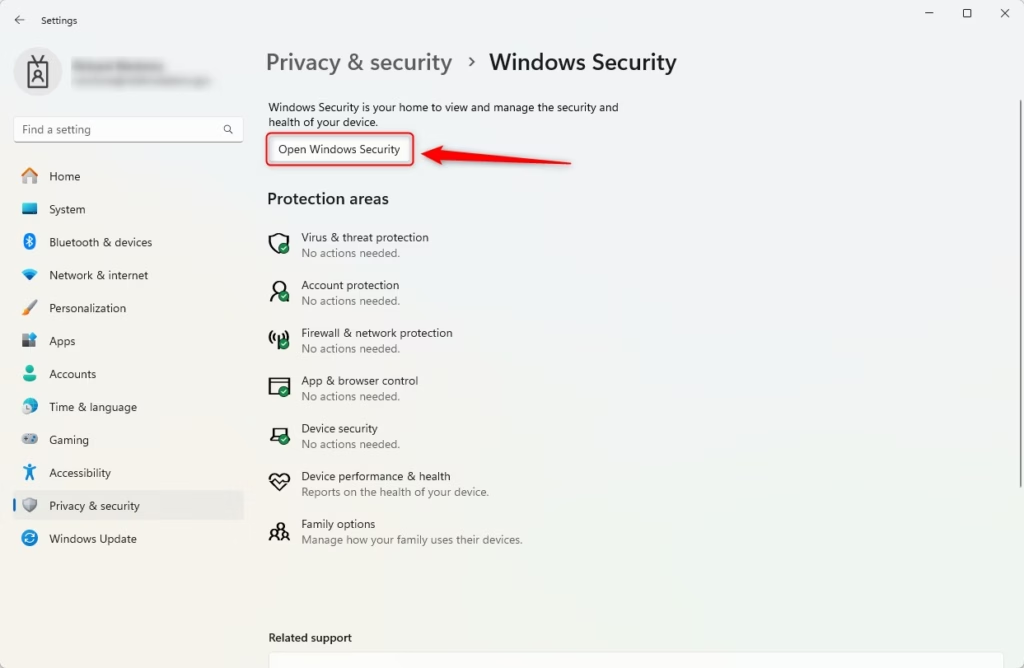
- Click the Open Windows Security button.
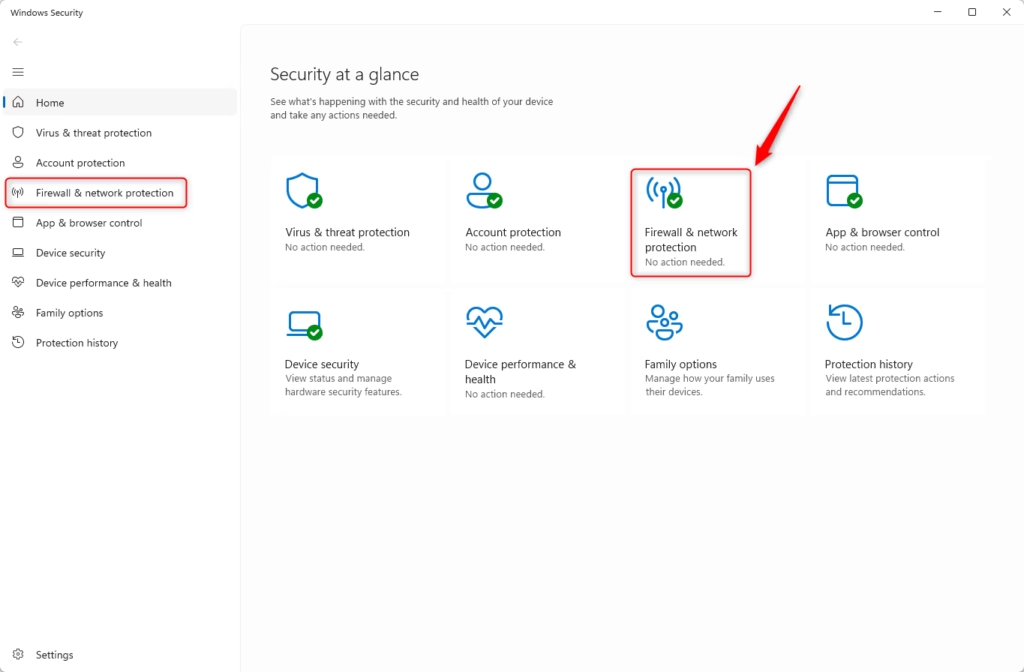
- In the Windows Security app, click on Firewall & network protection. You can also open this directly by clicking here.
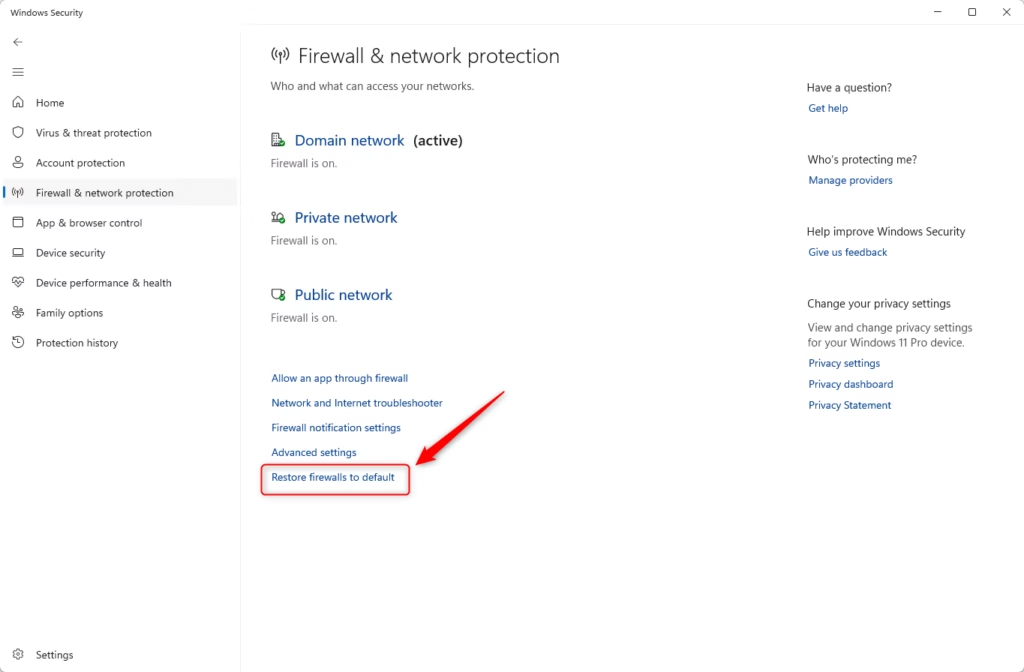
- Scroll down and click Restore firewalls to default.
- When a pop-up appears, click Restore defaults.
- Click Yes if asked to confirm.
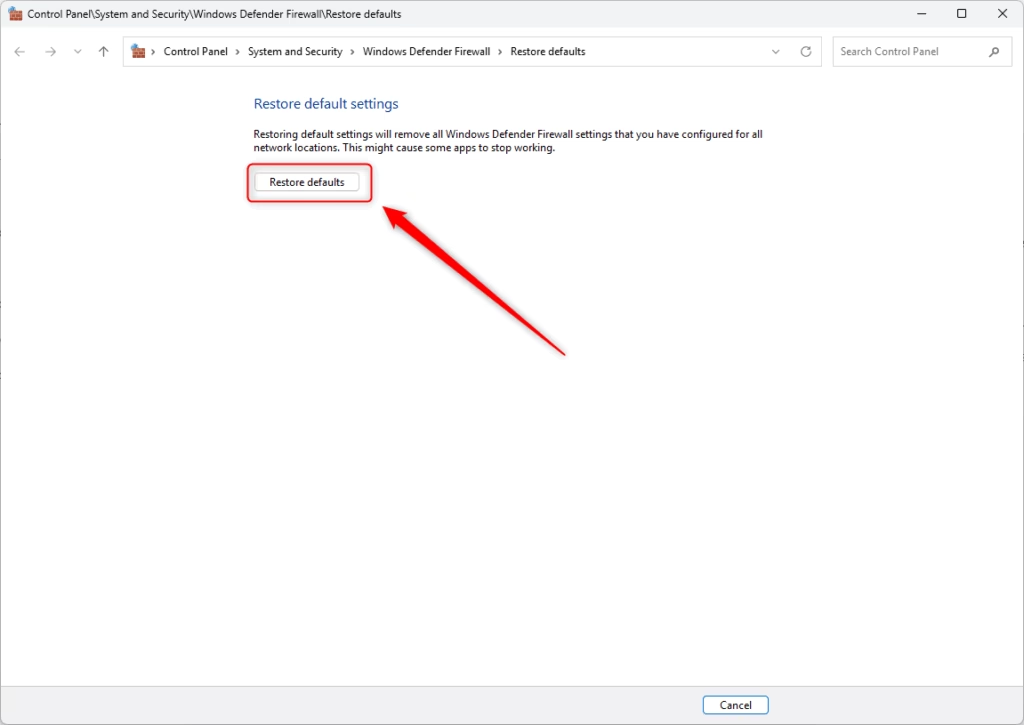
That’s it! Your firewall is now back to its original settings. What happens next? Your computer will be protected with the standard firewall rules that Windows recommends.
Method 2Reset Firewall Using Advanced Security
For more detailed control over your firewall, you can reset it using the Windows Defender Firewall with Advanced Security tool.
- Press Windows key + R on your keyboard to open the Run box.
- Type
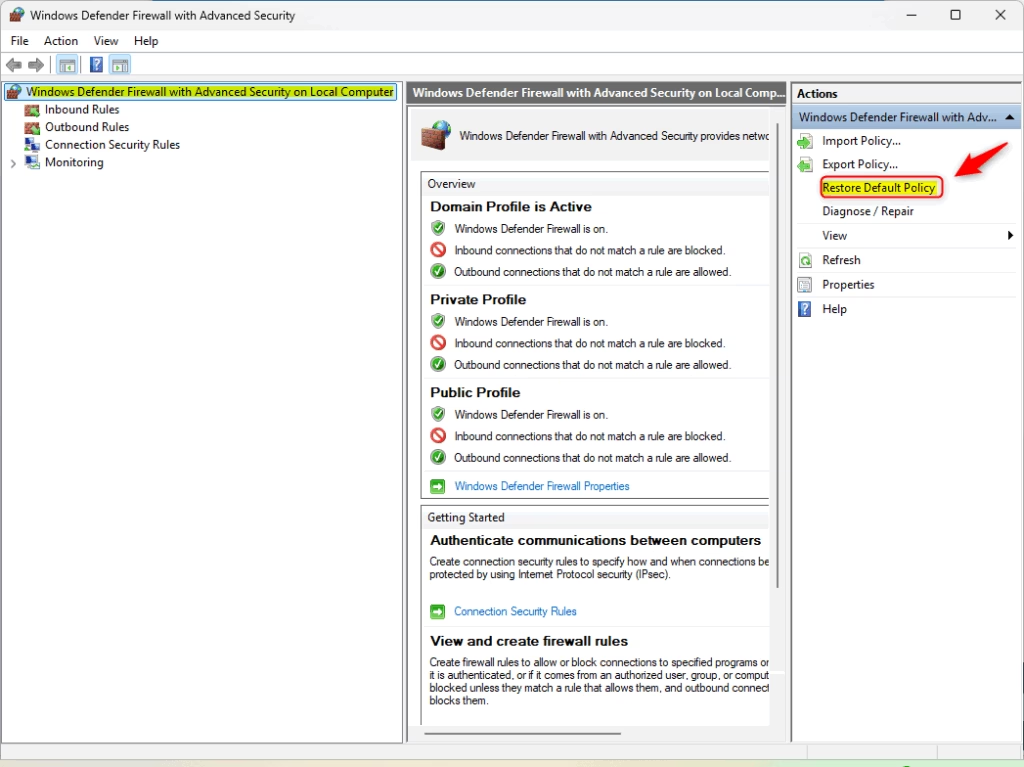
wf.mscand press Enter. - In the window that opens, click on Windows Defender Firewall with Advanced Security on Local Computer on the left side.
- On the right side, find and click Restore Default Policy.
- Confirm any pop-ups that appear.
Method 3Reset Firewall Using Command Prompt
Resetting your firewall using the Command Prompt is a quick and direct method that requires administrator privileges.
Like using commands? This method is quick and direct. Why use this? Because one command does all the work for you.
- Right-click the Start button and select Windows Terminal (Admin).
- If needed, click the down arrow at the top and select the Command Prompt tab.
- Type the following command and press Enter:
netsh advfirewall resetWhat happens? This command tells your firewall to go back to its default settings right away.
Method 4Reset Firewall Using PowerShell
You can also reset your firewall settings using PowerShell, another command-line tool that requires administrator access.
Another command option is PowerShell. Why try this method? Because it works directly with your firewall settings.
- Open Windows Terminal (Admin) again.
- Choose the PowerShell tab.
- Type this command and press Enter:
(New-Object -ComObject HNetCfg.FwPolicy2).RestoreLocalFirewallDefaults()What happens? PowerShell will reset your firewall settings back to default immediately.
Summary
Resetting your firewall in Windows 11 can be done through several methods, including the easy Windows Security app, Advanced Security for more control, or command-line tools like Command Prompt and PowerShell.- The Windows Security app is the easiest way to reset your firewall.
- Advanced Security gives you more control if you need it.
- Command Prompt and PowerShell are for people comfortable with typing commands.
- Resetting your firewall fixes problems caused by wrong settings.
- Following these steps keeps your PC safe from threats online.
Is it safe to reset firewall settings?
Resetting the firewall to its default state is a safe troubleshooting step when apps can't connect to the network, network file sharing stops working, or you want to remove all user-defined rules and start fresh. However, this process doesn't remove any of the system default firewall rules.
What does resetting the Windows Firewall do?
Resetting Windows Defender Firewall restores all security settings to their default state, resolving configuration errors and network access problems. Access the reset option through Windows Security → Firewall & network protection → Advanced settings → Restore defaults → Yes.
How do I fix my firewall from blocking the internet?
Check your device firewall first Windows firewall settings: Search and open Windows Defender Firewall → Check “Allow an app through firewall”. That should do the trick if a Windows firewall is blocking incoming connections.
Was this guide helpful?

About the Author
Richard
Tech Writer, IT Professional
Richard, a writer for Geek Rewind, is a tech enthusiast who loves breaking down complex IT topics into simple, easy-to-understand ideas. With years of hands-on experience in system administration and enterprise IT operations, he’s developed a knack for offering practical tips and solutions. Richard aims to make technology more accessible and actionable. He's deeply committed to the Geek Rewind community, always ready to answer questions and engage in discussions.


No comments yet — be the first to share your thoughts!