How to Backup and Restore Microsoft Defender Firewall in Windows 11

You can backup and restore Microsoft Defender Firewall rules in Windows 11 to save your custom security configurations.
Microsoft Defender Firewall is a built-in Windows security feature that monitors and controls network traffic to protect your PC from threats.
Backing up your firewall settings is especially useful if you have complex rules, like blocking specific IP addresses or allowing certain applications, which would take time to reconfigure manually.
This process lets you export your current firewall profile to a file, making it easy to reapply your security settings on a new Windows 11 installation or after a system reset.
Export your firewall policy from Windows Defender Firewall with Advanced Security. Navigate to Firewall & network protection, then Advanced settings, and click Export Policy to save your configuration. To restore, return to Advanced settings and select Import Policy, choosing your saved backup file.
Why Back Up Your Firewall Settings?
Backing up your firewall keeps your security settings safe. If something goes wrong, you can restore them quickly. You won’t have to set up everything again from scratch.
Method 1Using Windows Security App
You can easily backup your firewall settings using the Windows Security app by following a few simple steps right from your computer’s settings menu.
- Click the Start button (Windows icon), then click Settings.
- Click Privacy & security on the left side, then click Windows Security.
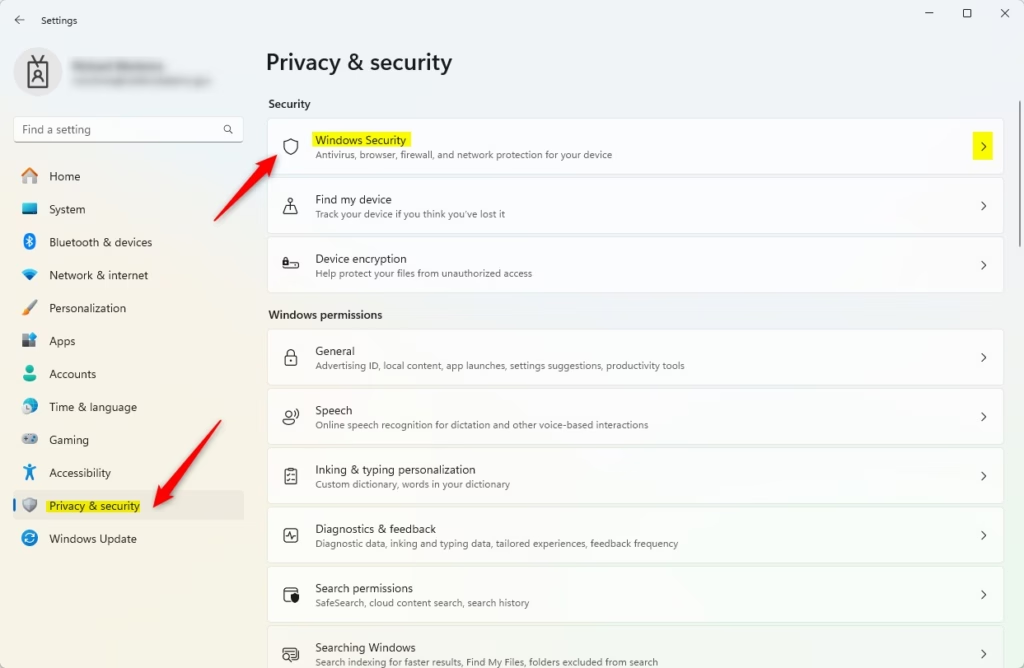
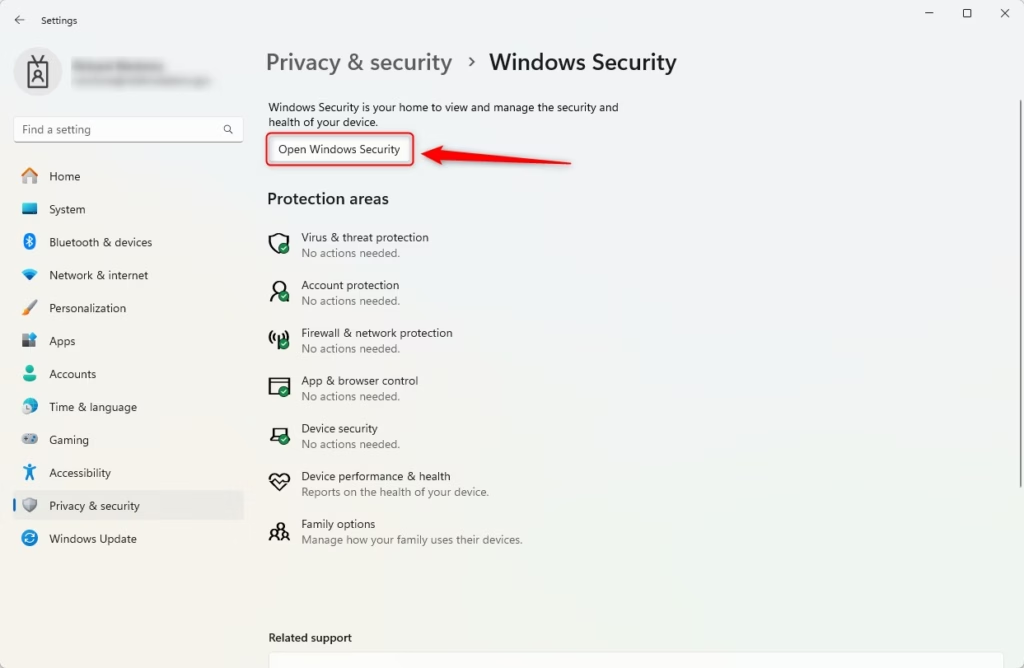
- Click the Open Windows Security button.
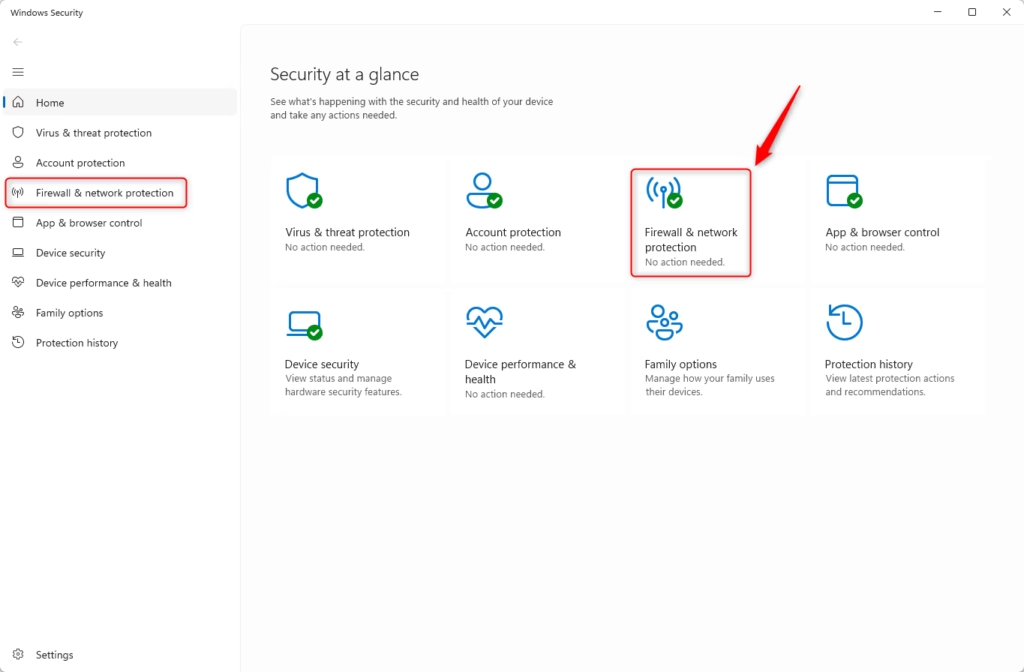
- In the Windows Security app, click Firewall & network protection. You can also open it with this link: Firewall & network protection.
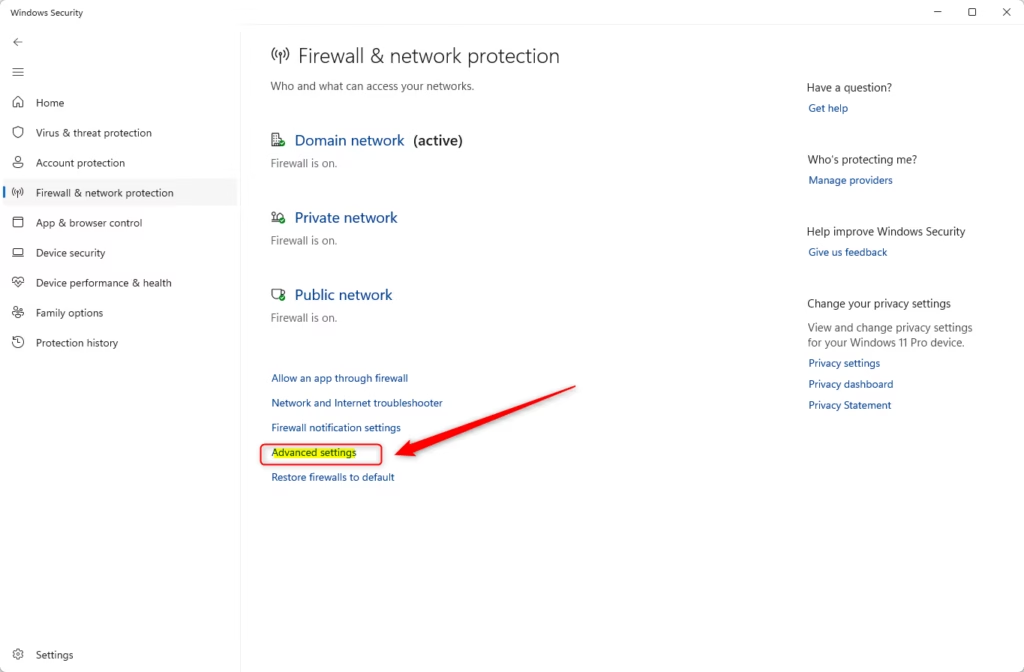
- Scroll down and click Advanced settings.
- A new window called Windows Defender Firewall with Advanced Security will open. On the right side, click Export Policy to save your settings.
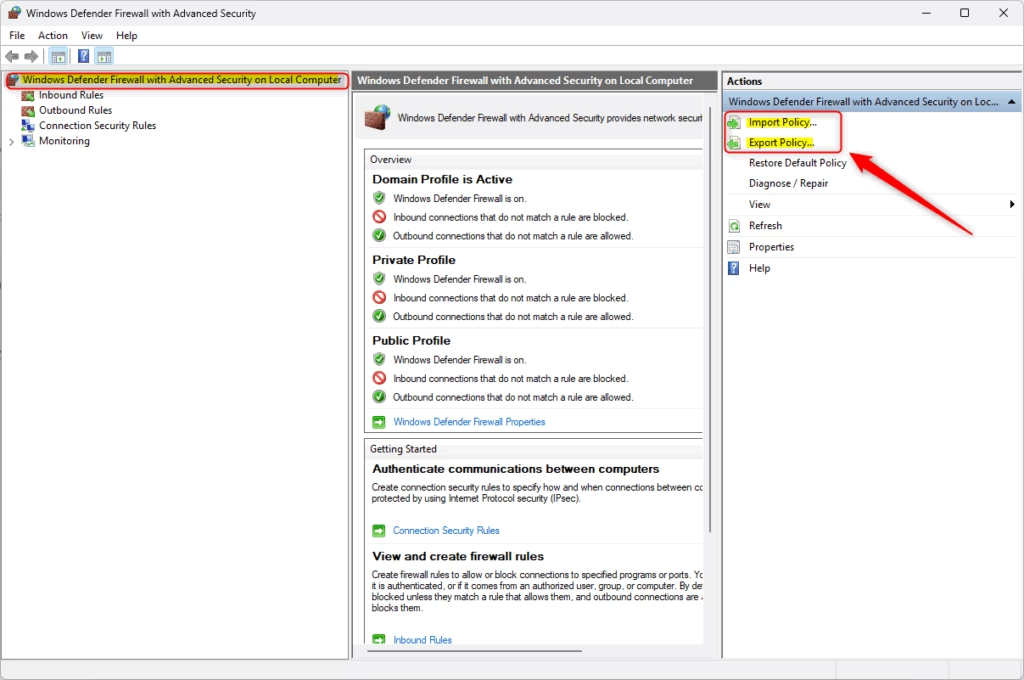
- Choose where you want to save the file (like your Desktop). Type a name like
FirewallBackup.wfw. Click Save.
What Happens After You Export?
Your firewall settings are now saved in a file. You can keep this file safe and use it later if you need to.
How to Restore Your Settings
Go back to the Windows Defender Firewall with Advanced Security window. Click Import Policy. Select your saved backup file. Your firewall settings will be restored.
Method 2Using Command Prompt
If you like typing commands, you can use this method instead.
- [ADMIN REQUIRED] Open Windows Terminal as administrator. Click Start, type
Windows Terminal, right-click it, and choose Run as administrator. - Make sure you are in the Command Prompt or PowerShell tab.
To Backup Your Firewall Settings
Type this command and press Enter:
netsh advfirewall export "%userprofile%\Desktop\FirewallBackup.wfw"This saves your backup file on your Desktop.
To Restore Your Firewall Settings
Type this command and press Enter (change the path if your file is somewhere else):
netsh advfirewall import "%userprofile%\Desktop\FirewallBackup.wfw"Your firewall settings are now restored.
Summary
Backing up your firewall settings is a smart move that protects your computer and saves you time if you ever need to fix issues or set up a new PC.What is 3 2 1 backup configuration?
The 3-2-1 backup rule is a simple way to protect your important files by keeping three copies of your data, storing them on two different types of devices, and making sure one copy is kept somewhere else, like online or at another location.
How to save firewall settings?
Log in to the firewall with an administrative account that has the role privileges required to save the desired changes. Select ConfigSave Changes at the top of the web interface. Select Save Changes Made By. To filter the Save Scope by administrator, click , select the administrators, and click OK.
Was this guide helpful?

About the Author
Richard
Tech Writer, IT Professional
Richard, a writer for Geek Rewind, is a tech enthusiast who loves breaking down complex IT topics into simple, easy-to-understand ideas. With years of hands-on experience in system administration and enterprise IT operations, he’s developed a knack for offering practical tips and solutions. Richard aims to make technology more accessible and actionable. He's deeply committed to the Geek Rewind community, always ready to answer questions and engage in discussions.



No comments yet — be the first to share your thoughts!