
This simple guide will show you how to switch your Wi-Fi on or off on a Windows 11 computer.
What is Wi-Fi?
Wi-Fi lets your computer connect to the internet without wires, using radio waves. It’s like magic airwaves that carry your internet signal to your device.
Why Turn Wi-Fi Off?
- Save Battery: Turning off Wi-Fi when you don’t need it saves energy.
- Stay Secure: It’s safer to turn off Wi-Fi when not in use to avoid unwanted connections.
Ways to Turn Wi-Fi On or Off in Windows 11
Option 1: Use a Wi-Fi Button or Switch on Your PC
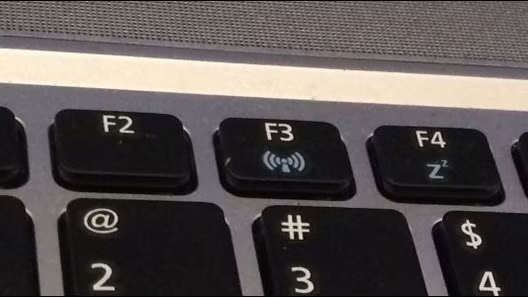
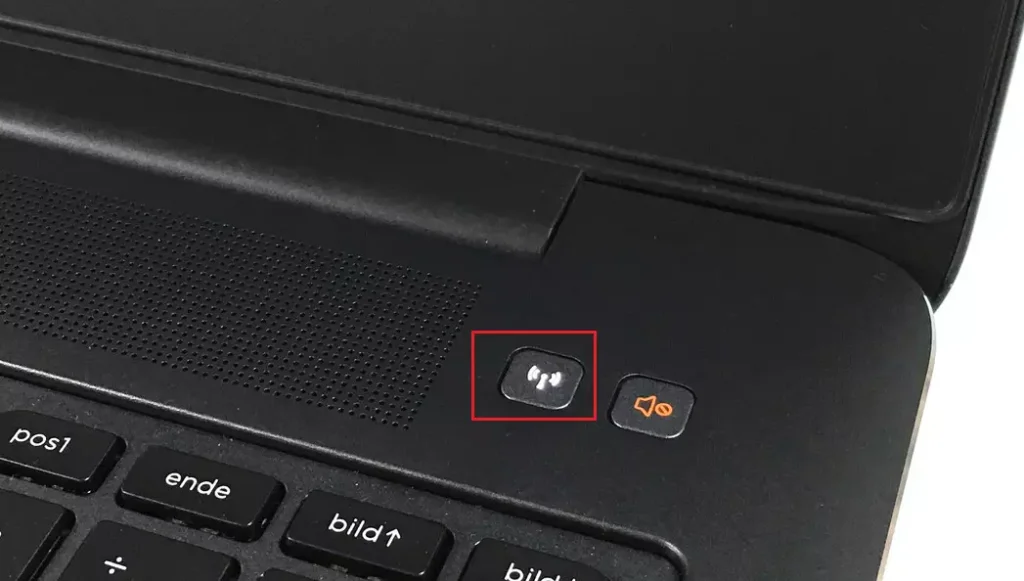
Many laptops have a special key or switch to quickly turn Wi-Fi on or off.
Look for a key with a wireless symbol (usually on the F-keys at the top of your keyboard) or a physical switch on the side.
Option 2: Use Quick Settings on the Taskbar
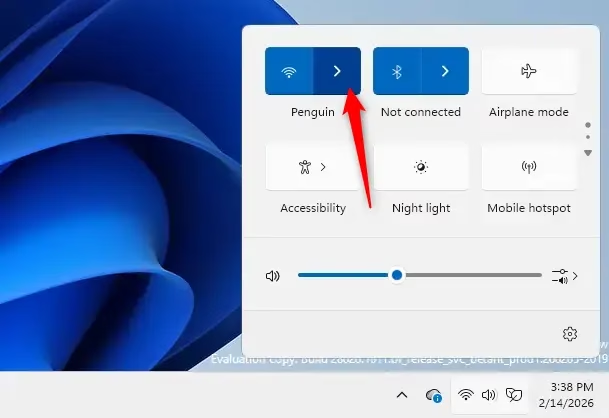
- Press Windows key + A to open Quick Settings.
- Find the Wi-Fi button.
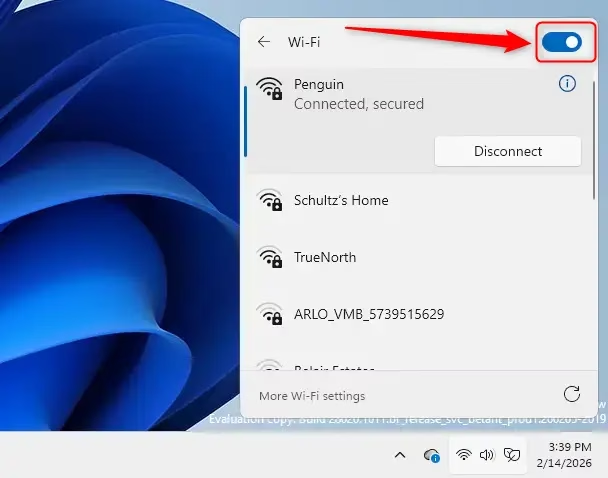
- Click the left side of the Wi-Fi button to turn Wi-Fi on or off.
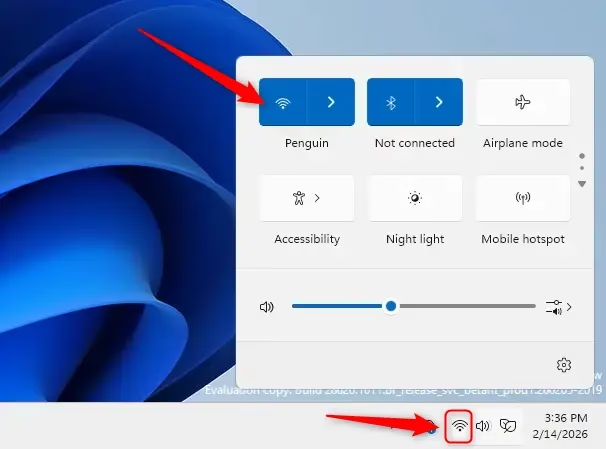
Extra: Clicking the right side of the Wi-Fi button lets you choose when Wi-Fi should turn back on automatically.
Option 3: Turn Wi-Fi On or Off in Settings
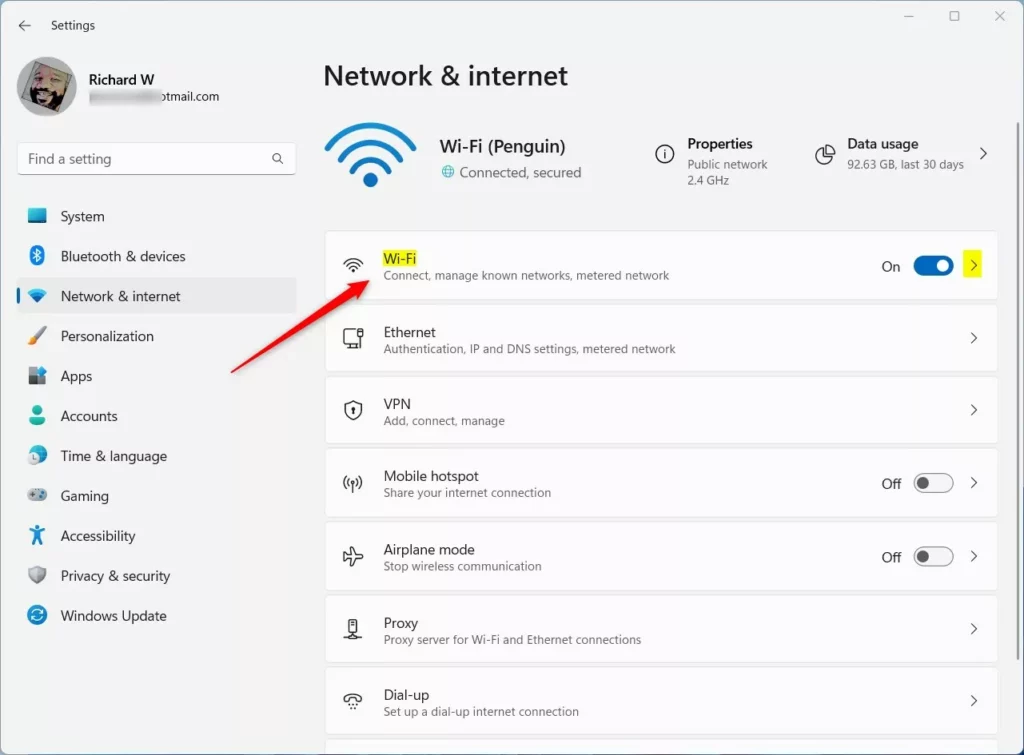
- Press Windows key + I to open Settings.
- Click Network & internet from the menu on the left.
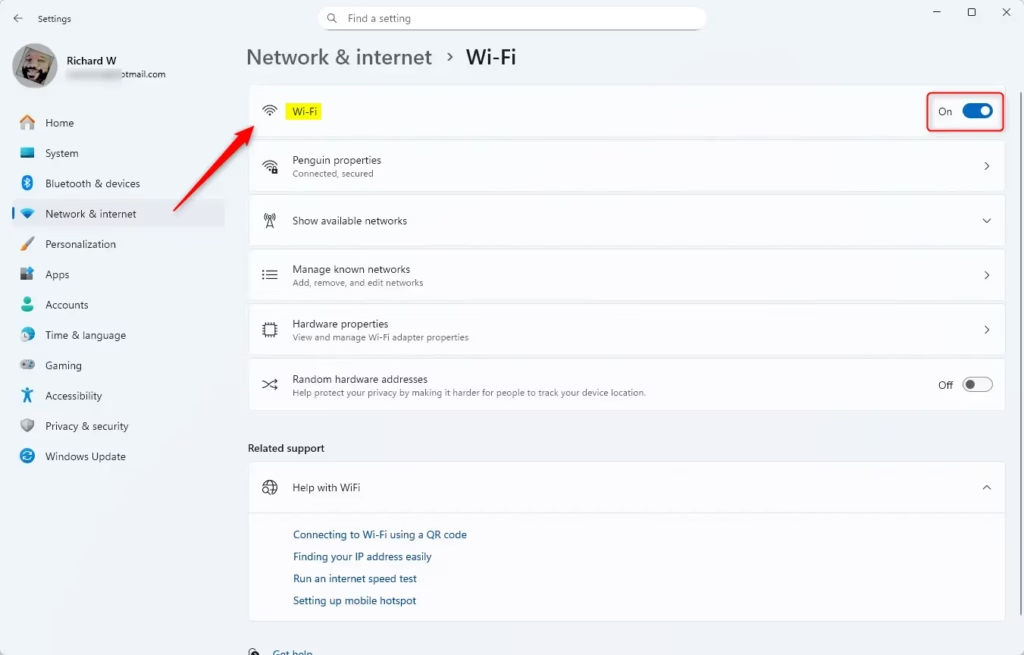
- On the right side, toggle the switch next to Wi-Fi to turn it on or off.
Open Network & Internet Settings
If Wi-Fi is off, click on Wi-Fi to choose a schedule for it to turn back on.
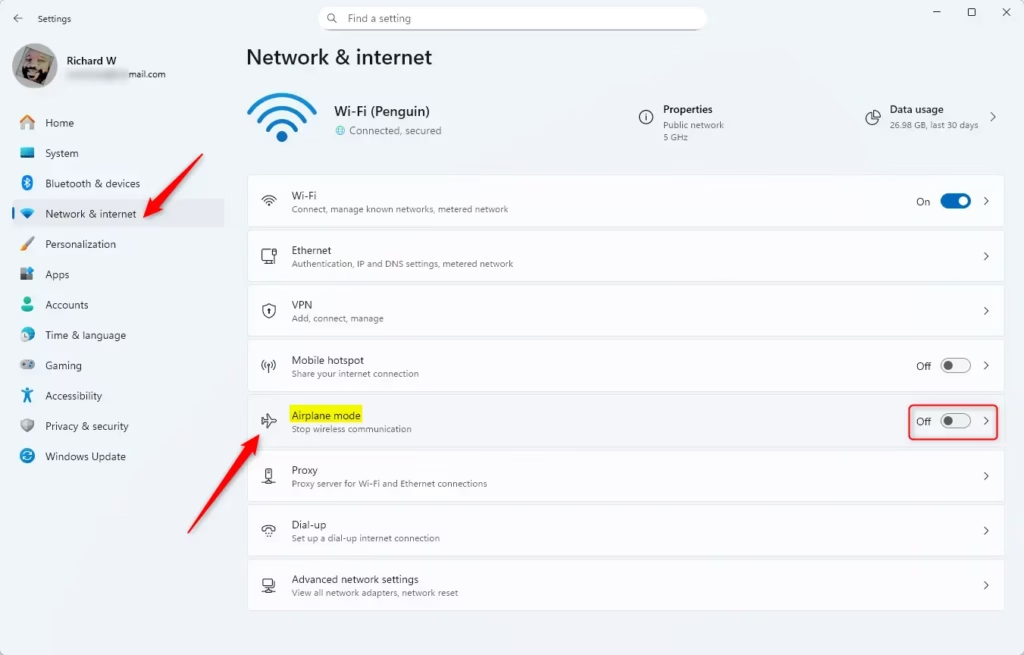
Option 4: Use Airplane Mode Settings
- Press Windows key + I to open Settings.
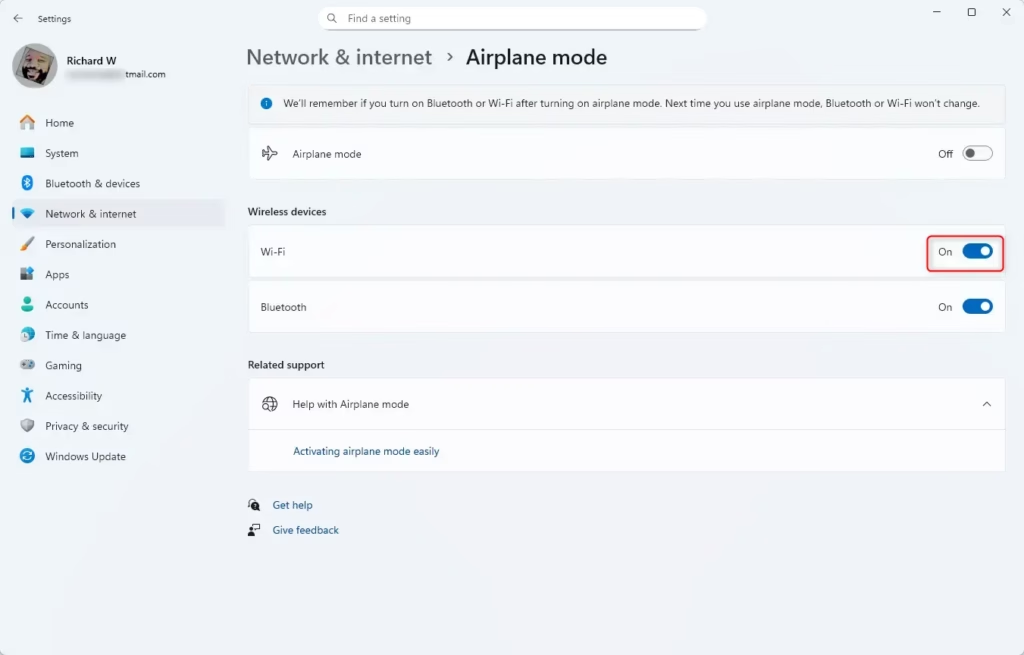
- Click Network & internet on the left, then Airplane mode on the right.
- Under Wireless devices, turn Wi-Fi on or off.
Option 5: Use the Game Bar
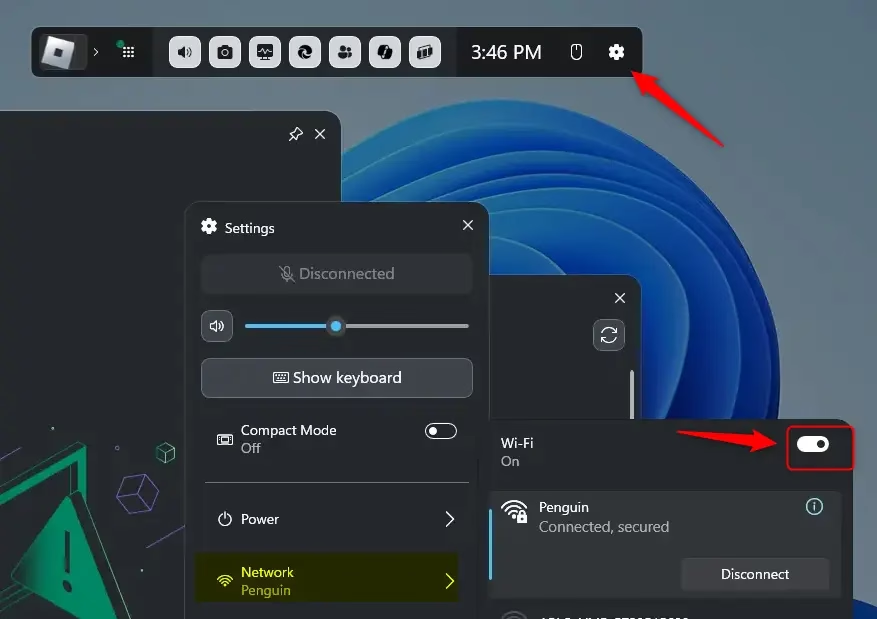
- Press Windows key + G to open the Game Bar.
- Click the Settings (gear) icon on the top bar.
- Go to the Network tab.
- Turn Wi-Fi on or off.
Summary
- You can turn Wi-Fi on or off in many easy ways – using a button on your keyboard, quick settings, the main Settings app, airplane mode, or even the Game Bar.
- Turning off Wi-Fi saves battery and helps keep your PC safe from unwanted connections.
- Windows 11 supports new Wi-Fi technology for faster and safer internet.
For more info about the latest Wi-Fi features in Windows 11, visit the official Microsoft page:
Faster and more secure Wi-Fi in Windows – Microsoft Support


Leave a Reply