How to Enable or Disable the Notification Center in Windows 11

Want to take control of your Windows 11 alerts? You can enable or disable the Notification Center to manage how you get notified. Think of the Notification Center as your personal command center. It gathers all your app alerts, system messages, and quick settings into one handy spot on your taskbar.
This feature is crucial for keeping you informed without constant interruptions. For instance, you can toggle whether incoming notifications from specific apps appear there, or even turn off all notifications entirely if you need to focus.
You can disable the Notification Center by editing the Group Policy Editor or Registry Editor. Navigate to User Configuration > Administrative Templates > Start Menu and Taskbar, then disable “Remove Notifications and Action Center” to turn it off. Restart your PC for changes.
What is the Notification Center?
The Windows 11 Notification Center is a handy panel that pops out from the right side of your screen, showing you all your important alerts like new emails, app updates, and calendar reminders in one spot.
You can open it by:
- Clicking the clock area on the taskbar (bottom right of your screen).
- Swiping in from the right edge if you have a touchscreen.
- Pressing Windows key + N on your keyboard.
Notifications will pop up automatically unless you have Do Not Disturb mode turned on.
Why Turn Off or Turn On the Notification Center?
You might want to turn off the Notification Center if you find notifications distracting. Or you might want to turn it back on if you miss important alerts. The choice is yours.
How to Turn Off or Turn On the Notification Center
If you want to hide or show the Notification Center, you can do it in two ways: using the Local Group Policy Editor or the Windows Registry Editor. We’ll guide you step-by-step!
Method 1Using Local Group Policy Editor (Easy if available)
- Click the Start Menu button and type
Edit group policyin the search box. - Click on Edit group policy from the search results. ⚙️ Admin privileges required
- In the window that opens, on the left side, click to open:
User Configuration > Administrative Templates > Start Menu and Taskbar - On the right side, find and double-click Remove Notifications and Action Center.
- Choose one of the options:
- Not Configured – Notification Center works normally (default).
- Enabled – Turns off the Notification Center (you won’t see it).
- Disabled – Same as Not Configured, Notification Center is on.
- Click OK to save.
- Restart your computer for the changes to take effect.
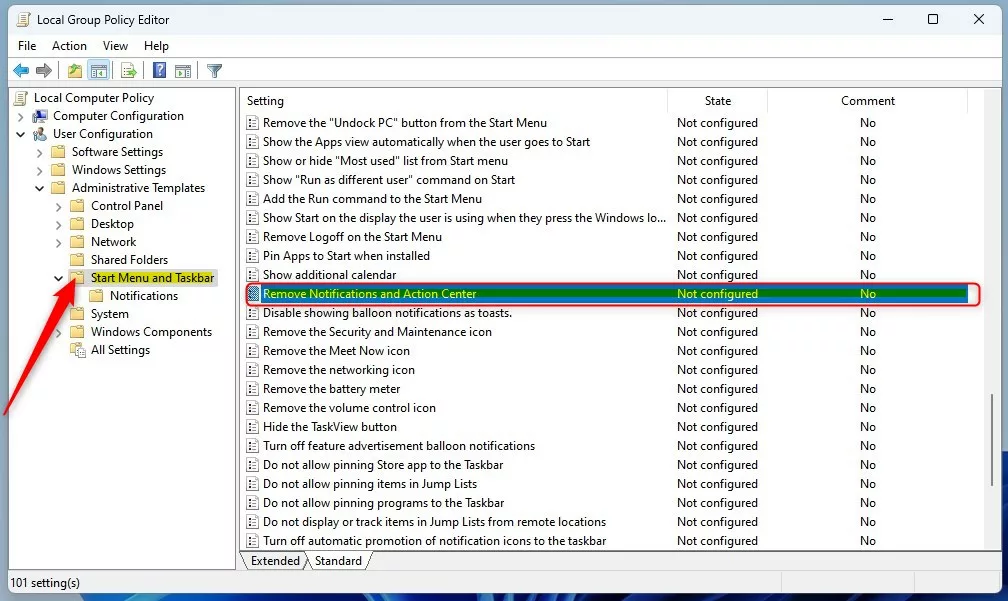
If you have the Local Group Policy Editor, you can easily turn off the Notification Center in Windows 11 by searching for ‘Edit group policy’ and opening the tool.
Method 2Using Windows Registry Editor (If Group Policy Editor is not available)
If the Group Policy Editor isn’t available on your Windows 11 PC, you can still turn off the Notification Center by carefully editing the Windows Registry.
- Press Windows key + R, type
regedit, and press Enter to open the Registry Editor. ⚙️ Admin privileges required - Navigate to this folder path:
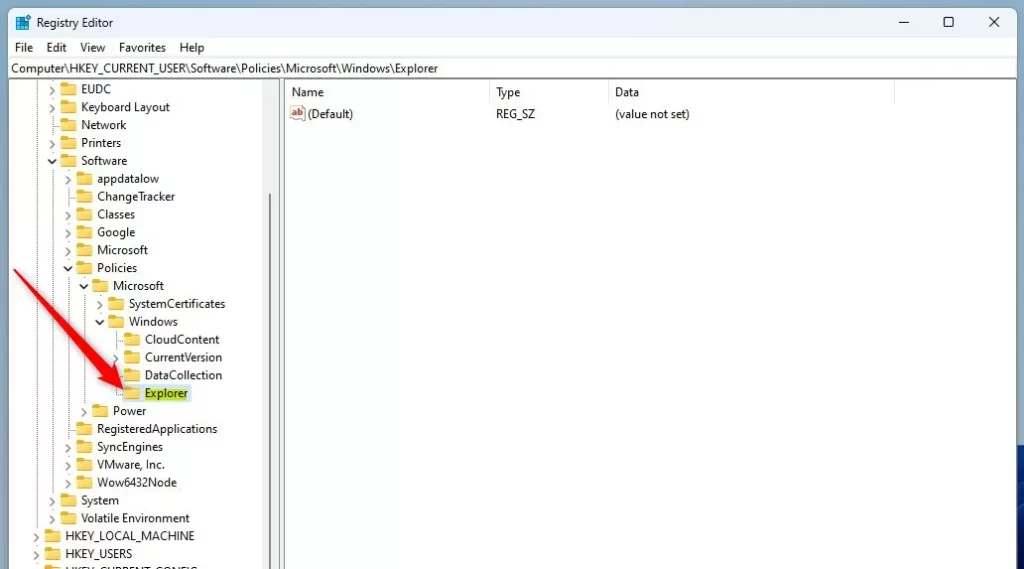
HKEY_CURRENT_USER\Software\Policies\Microsoft\Windows\Explorer - If you don’t see the Explorer folder, right-click on Windows, select New > Key, and name it Explorer.
- In the Explorer folder, right-click on the right side, choose New > DWORD (32-bit) Value, and name it DisableNotificationCenter.
- Double-click DisableNotificationCenter and set its value:
- 1 = Turn off Notification Center
- 0 = Turn on Notification Center
- Click OK and close the Registry Editor.
- Repeat the same steps for this path:
HKEY_LOCAL_MACHINE\SOFTWARE\Policies\Microsoft\Windows\Explorer - Restart your computer to apply the changes.
Summary
- The Notification Center helps you see all alerts in one place.
- You can turn it on or off using the Local Group Policy Editor or the Registry Editor.
- Follow the steps above carefully and restart your computer for changes to work.
- This lets you control how you receive notifications on your Windows 11 PC.
The Notification Center in Windows 11 is a central place for all your alerts, and you can choose to turn it on or off using either the Group Policy Editor or the Registry Editor.
How to Open Notification Center in Windows 11
Turn On or Off Do Not Disturb Mode
How to Open the Registry Editor
How to Use the Local Group Policy Editor
Where is my Notification Center on 🪟 Windows 11?
To check the notifications you missed, open the notification center using one of the following options: Select the notification button icon on the taskbar. Press the Windows key + A. Swipe from the side of the screen.
Was this guide helpful?

About the Author
Richard
Tech Writer, IT Professional
Richard, a writer for Geek Rewind, is a tech enthusiast who loves breaking down complex IT topics into simple, easy-to-understand ideas. With years of hands-on experience in system administration and enterprise IT operations, he’s developed a knack for offering practical tips and solutions. Richard aims to make technology more accessible and actionable. He's deeply committed to the Geek Rewind community, always ready to answer questions and engage in discussions.



No comments yet — be the first to share your thoughts!