
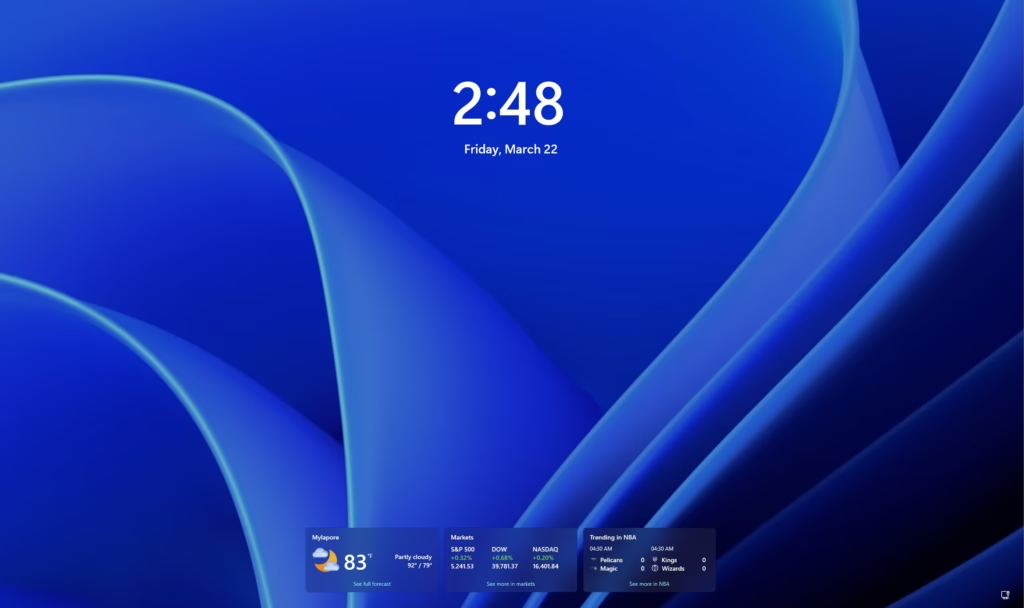
The lock screen is the screen you see when you start your computer or press Win + L to lock it. You have to close the lock screen to get to the sign-in screen where you enter your password or PIN.
If you want, you can turn off the lock screen. This means you will go straight to the sign-in screen when you start or lock your PC. The background picture you set will still show on the sign-in screen.
If you have more than one monitor, the lock screen only appears on your main screen.
Important: You must be signed in as an administrator to change these settings. Also, if your PC requires users to press Ctrl + Alt + Delete before signing in, you cannot turn off the lock screen.
What Does the Lock Screen Look Like?
Option 1: Turn On or Off Lock Screen Using Local Group Policy Editor
This method works only on Windows 11 Pro, Enterprise, or Education editions.
- Open Local Group Policy Editor: Press Win + R, type
gpedit.msc, and press Enter. - In the window that opens, go to:
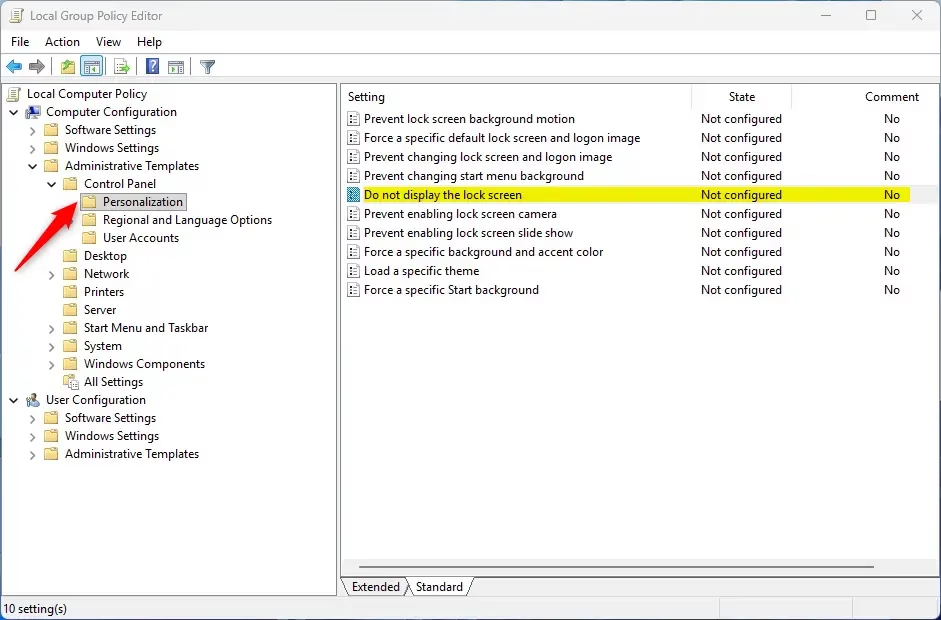
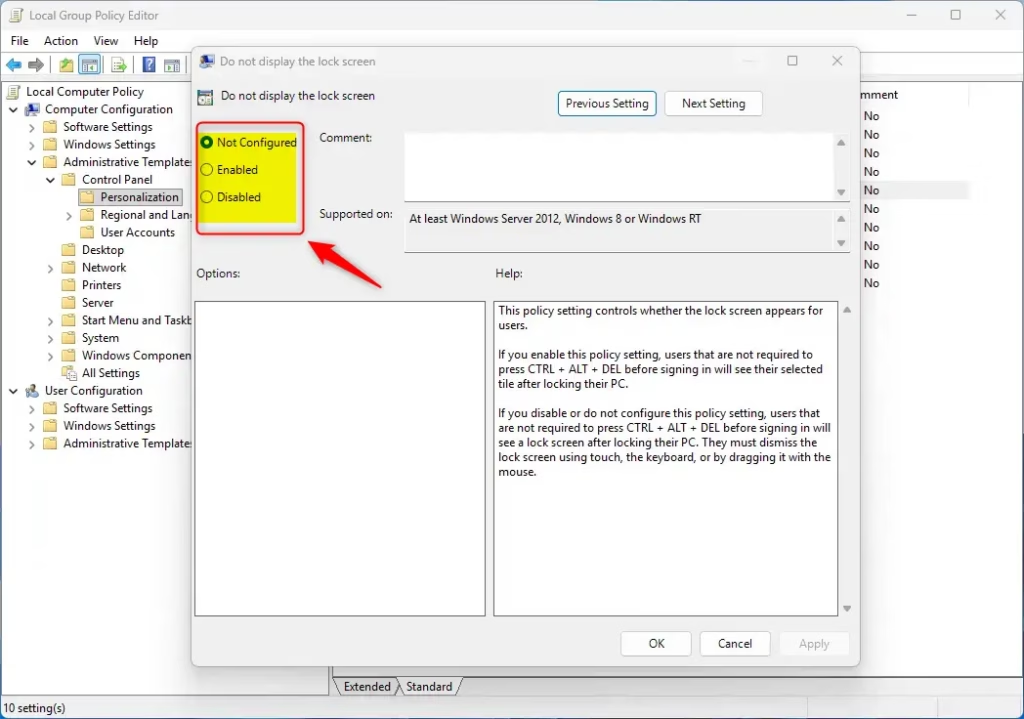
Computer Configuration > Administrative Templates > Control Panel > Personalization - On the right side, find and double-click “Do not display the lock screen”.
- To turn ON the lock screen (default):
Select Not Configured, then click OK. - To turn OFF the lock screen:
Select Enabled, then click OK. - You can now close the Local Group Policy Editor.
Option 2: Turn On or Off Lock Screen Using Registry Editor
Warning: Be careful when editing the registry. It’s a good idea to back up your registry before making changes.
Open the Terminal app on your device as administrator. Then run the command below to turn the lock screen on or off in Windows 11.
How to Turn On the Lock Screen (default)
reg add "HKEY_LOCAL_MACHINESOFTWAREMicrosoftWindowsCurrentVersionAuthenticationLogonUISessionData" /v AllowLockScreen /t REG_DWORD /d 1 /f

reg delete "HKEY_LOCAL_MACHINESOFTWAREPoliciesMicrosoftWindowsPersonalization" /v NoLockScreen /f
How to Turn Off the Lock Screen
reg add "HKEY_LOCAL_MACHINESOFTWAREPoliciesMicrosoftWindowsPersonalization" /v NoLockScreen /t REG_DWORD /d 1 /f
Summary
- You can turn the lock screen on or off for all users using either the Local Group Policy Editor or the Registry Editor.
- The Local Group Policy Editor is only available on Windows 11 Pro, Enterprise, and Education editions.
- You need administrator rights to change these settings.
- If secure sign-in (Ctrl+Alt+Delete) is enabled, you cannot disable the lock screen.
- Changes affect all users on the computer.
Follow these simple steps to customize how your computer shows the lock and sign-in screens, making your Windows 11 experience faster or more secure depending on your preference.


Leave a Reply