

If you have trouble seeing some colors on your screen, Windows 11 has a helpful feature called Color Filters. These filters change how colors look on your screen to make things easier to see, especially if colors look similar or hard to tell apart.
You can quickly turn these color filters on or off anytime by pressing the keys Win + Ctrl + C together. But first, you need to make sure this keyboard shortcut is turned on.
How to Enable or Disable the Color Filters Shortcut Using Settings
- Press Windows key + I on your keyboard to open Settings.
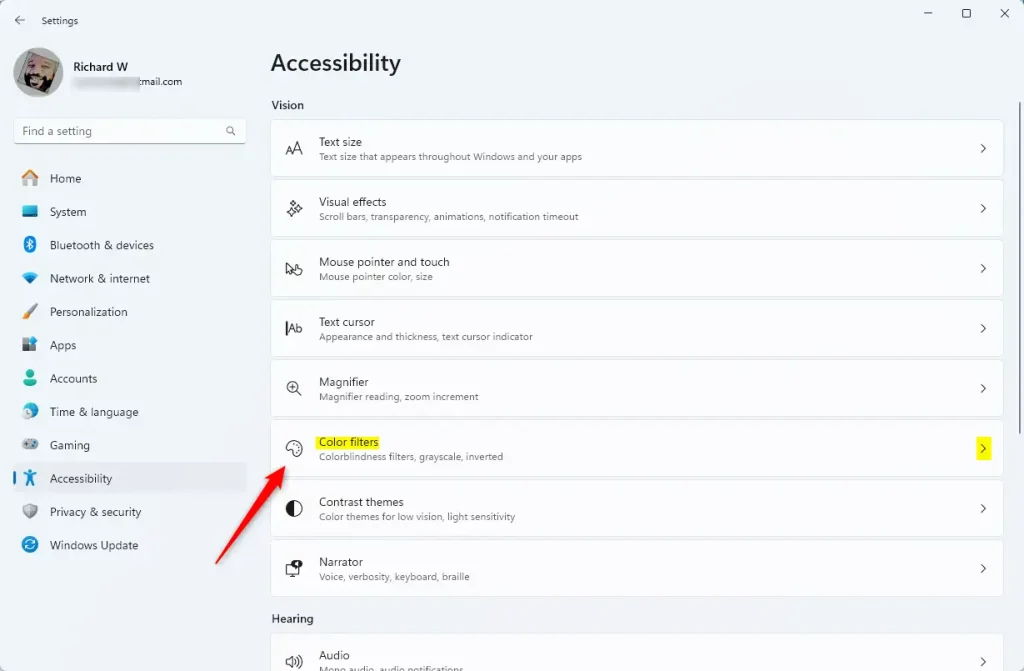
- In the Settings window, click Accessibility on the left side.
- On the right side, click Color filters.
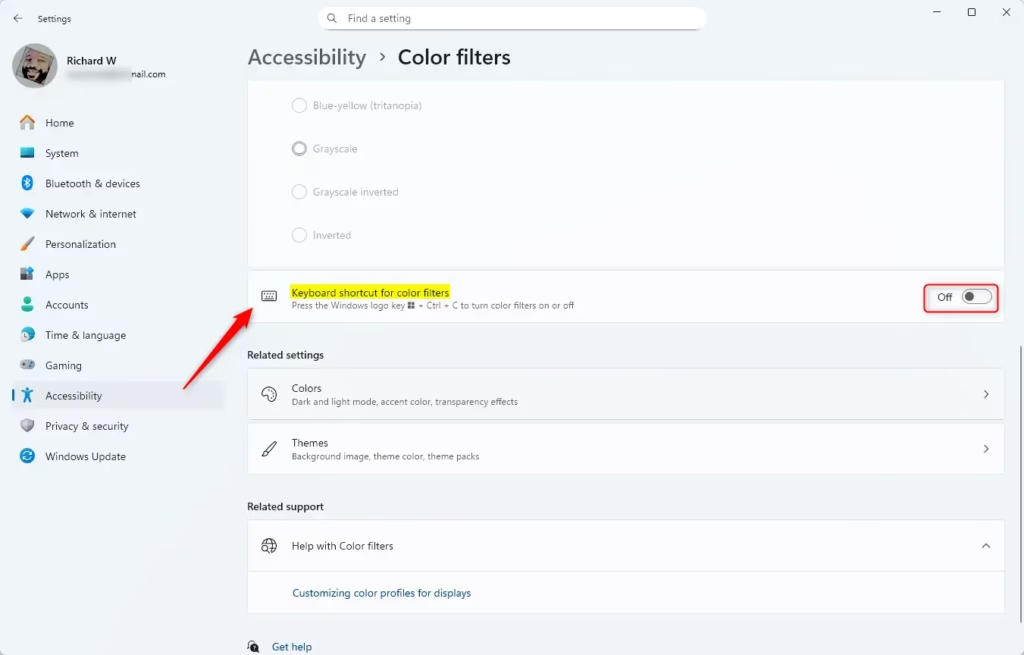
- Look for the option called Keyboard shortcut for color filters.
- Turn it On to enable the shortcut or Off if you don’t want to use it.
- You can close Settings when done.
How to Enable or Disable the Shortcut Using the Registry (Advanced)
Warning: Editing the Windows Registry can cause problems if done wrong. Please be careful and consider backing up your registry before making changes.
To Enable the color filters shortcut, create or change this registry setting:
reg add "HKEY_CURRENT_USER\Software\Microsoft\ColorFiltering" /v HotkeyEnabled /t REG_DWORD /d 1 /f
To Disable the shortcut (this is the default setting), use this:
reg add "HKEY_CURRENT_USER\Software\Microsoft\ColorFiltering" /v HotkeyEnabled /t REG_DWORD /d 0 /f
Summary
- The Win + Ctrl + C keys let you quickly turn color filters on or off when you need them.
- You can turn this shortcut on or off in Windows Settings or by changing the Registry if you know how.
- Color filters help people with color blindness or vision problems see the screen better.
- Make sure to check your settings if the shortcut doesn’t work as expected.
- This feature makes using your computer easier and more comfortable for many users.
If you’d like to learn more or see official details, visit the Microsoft support page for color filters.


Leave a Reply