
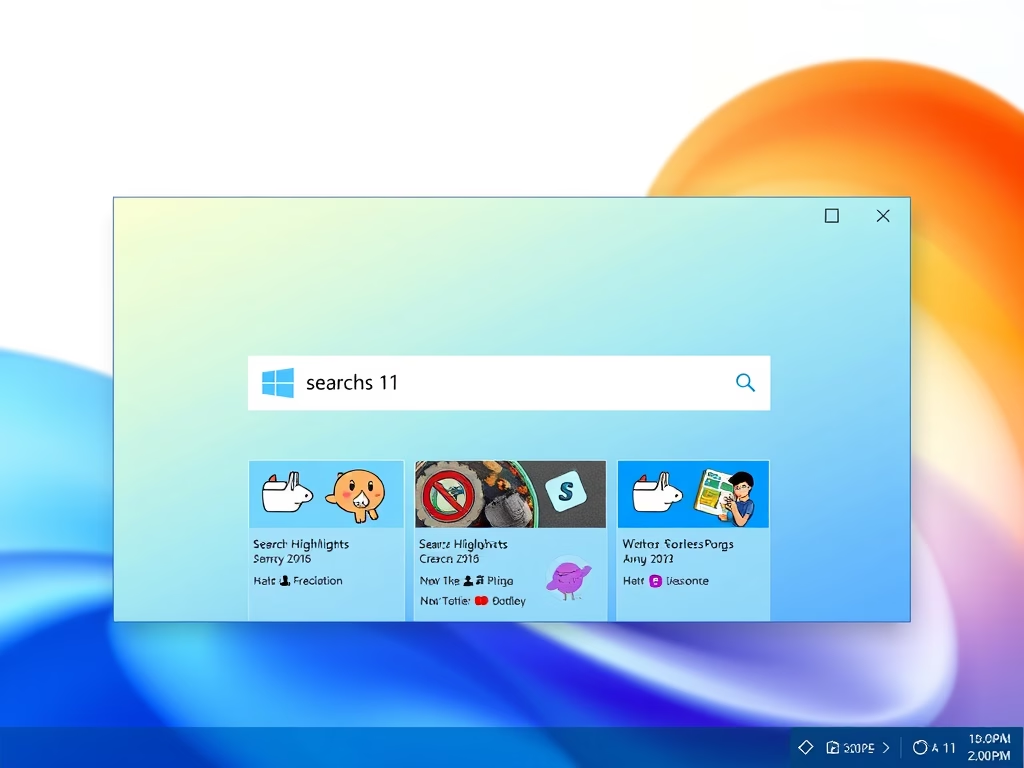
Do you use Windows 11? You might have seen a small picture or icon inside the search box on your taskbar. This is called Search Highlights. It shows fun facts, important dates like holidays, and other interesting information right in your search bar.
This guide will show you easy steps to turn Search Highlights on or off. You can decide what works best for you.
What Are Search Highlights?
Search Highlights add colorful pictures and information to your Windows search box. They help you discover cool things about today’s date or special events. For example, it might show you an anniversary, a holiday, or some useful tips.
Even with Search Highlights on, you can still type to find your apps, files, or settings. Nothing changes about how you search normally.
If you sign in with a work or school account, Search Highlights can also show helpful information from your organization. This includes files or contacts via Microsoft Search.
Note: If you don’t want to see these pictures and information, you can turn them off anytime using the steps below.
Turn Search Highlights On or Off for Yourself (Using Settings)
These steps work on most Windows 11 PCs starting with build 26100.4770 (Windows 11 24H2 update).
- Press Windows key + I on your keyboard to open Settings.
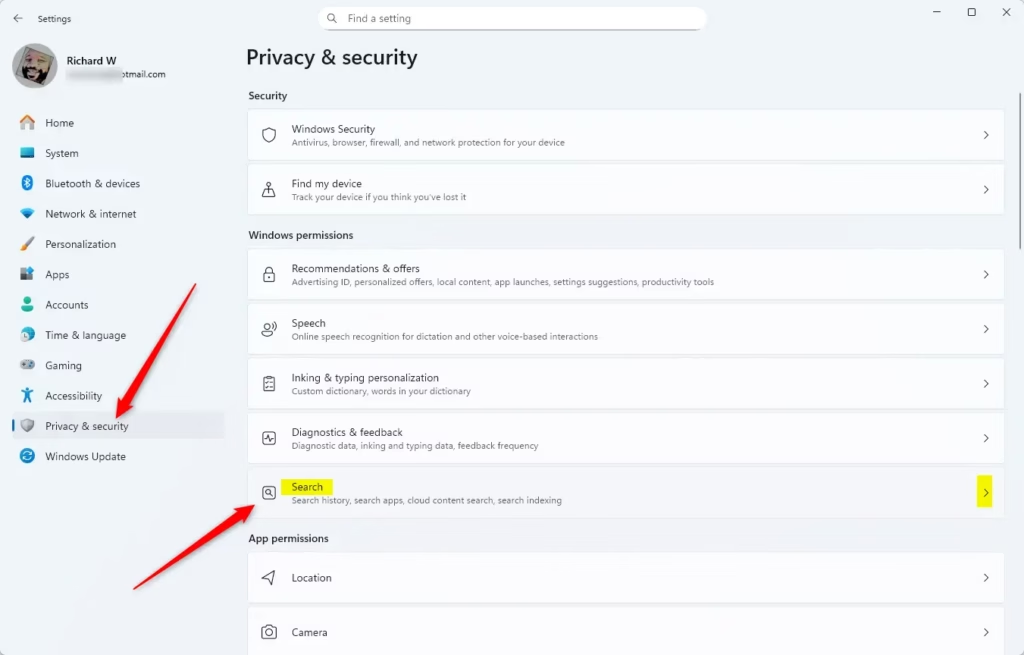
- Click Privacy & security on the left side.
- On the right, click Search. (Click here to open Search settings directly)
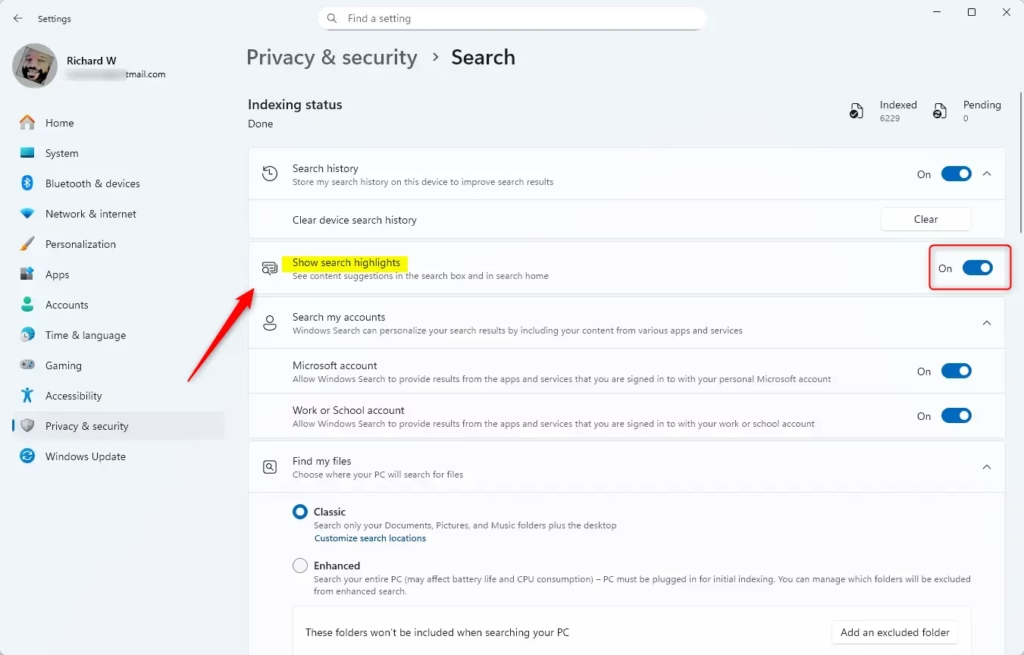
- Find the option called Show search highlights.
- Toggle the switch to On to enable Search Highlights, or Off to disable it.
- Close Settings when you’re done.
Turn Search Highlights On or Off for Everyone (Using Group Policy)
Important: This option is for advanced users or administrators. %%SC0%% You need to be signed in as an administrator, and it only works on Windows 11 Pro, Enterprise, or Education editions.
Here’s how to do it:
- Press Windows key + R, type
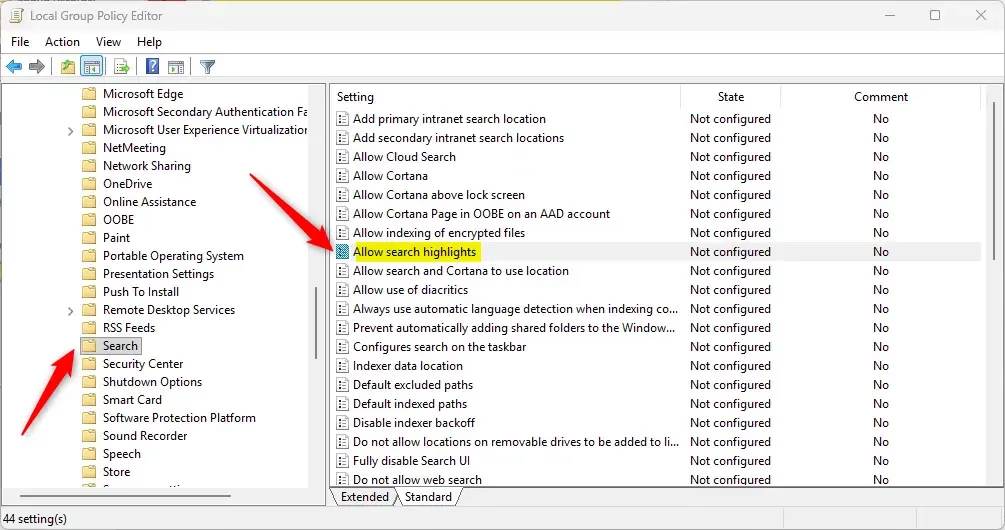
gpedit.msc, and press Enter to open the Local Group Policy Editor. - In the left panel, go to: Computer Configuration > Administrative Templates > Windows Components > Search
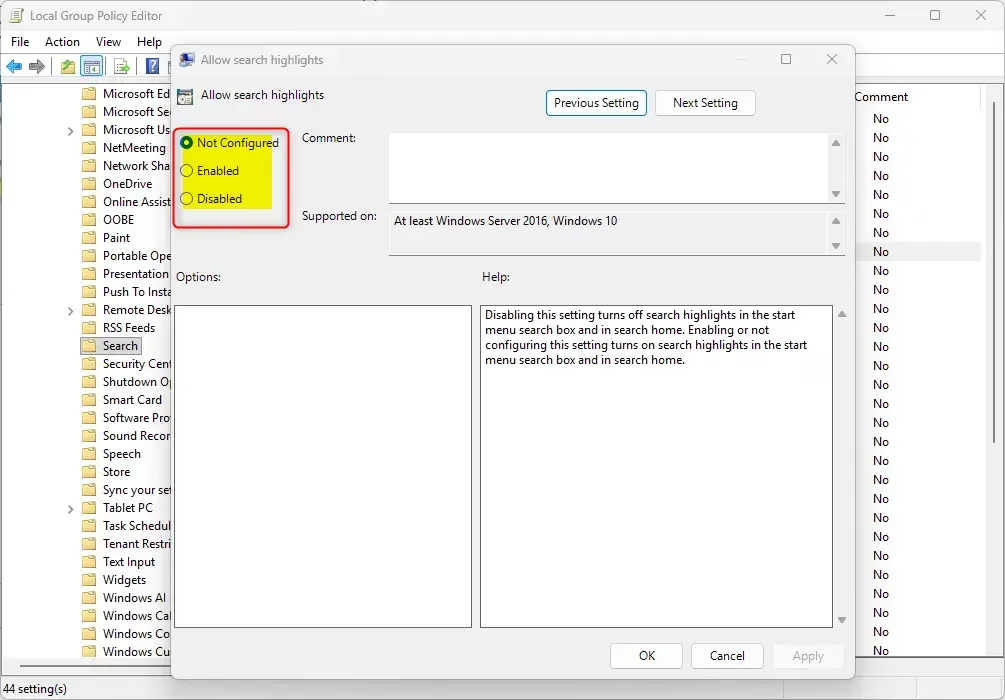
- In the right panel, double-click Allow search highlights.
- Choose one of these options:
- Not Configured – Use default settings.
- Enabled – Turn Search Highlights on for all users.
- Disabled – Turn Search Highlights off for all users.
- Click OK to save your choice.
- Close the Local Group Policy Editor.
What It Looks Like
Here are some pictures showing Search Highlights in action:
If you want to disable Search Highlights, you can also disable the Copilot and Web icons in Windows Search. This will turn off Search Highlights too.
Summary
- Search Highlights add fun and useful information to your Windows 11 search box.
- You can turn them on or off anytime in Settings for your own account.
- If you manage multiple users like at work, admins can turn this feature on or off for everyone using Group Policy.
- Search Highlights update regularly with new pictures and facts about special days.
More Resources
Search highlights coming to Windows 11 – Microsoft Community Hub
Search for anything, anywhere – Microsoft Support
Search Policy CSP – Microsoft Docs (for IT admins)
That’s it! Now you know how to turn Search Highlights on or off in Windows 11.



Leave a Reply