
If you use Windows 11, you can search for files, apps, and even stuff on the web right from your taskbar. Windows saves your recent searches on your computer to help you find things faster next time.
Sometimes, you might want to stop Windows from saving your search history for privacy or other reasons. This guide will show you simple steps to turn on or off your recent search history.
What Is Recent Search History?
Recent search history is a list of your past searches saved on your PC. For example, if you searched for an app or a file, Windows remembers it to show it faster next time.
Note: Turning off search history won’t erase the searches already saved. You’ll need to clear those separately if you want.
Quick Link to Official Microsoft Info
Want to learn more about Windows Search and privacy? Check out Windows Search and privacy – Microsoft Support.
Method 1: Turn On or Off Recent Search History in Settings
Follow these easy steps:
- Open Settings: Press Win + I on your keyboard.
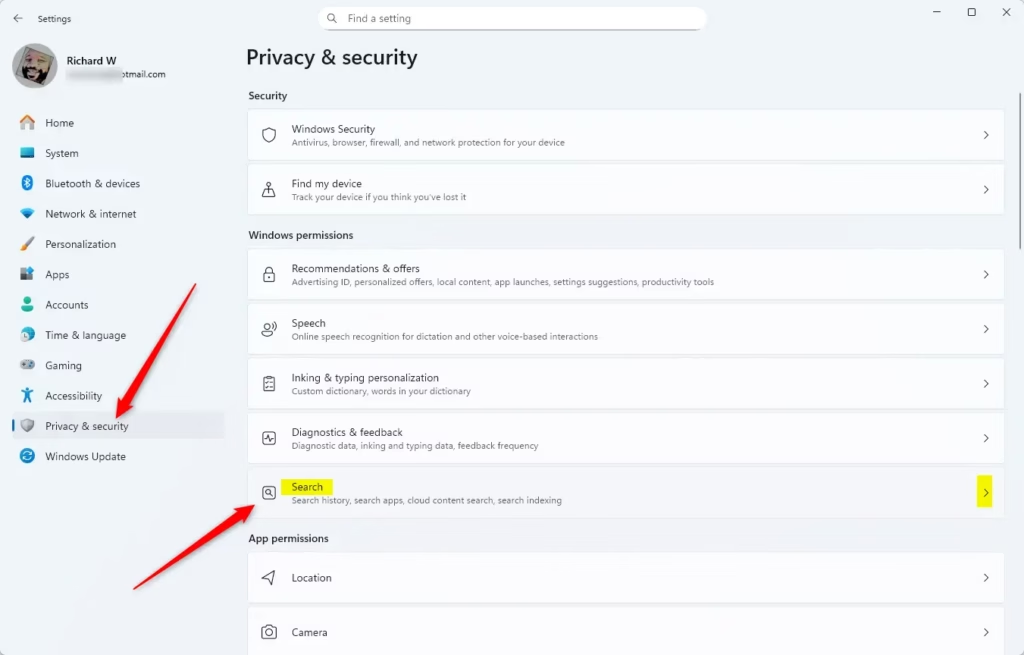
- Click Privacy & security on the left menu.
- Click Search on the right side.
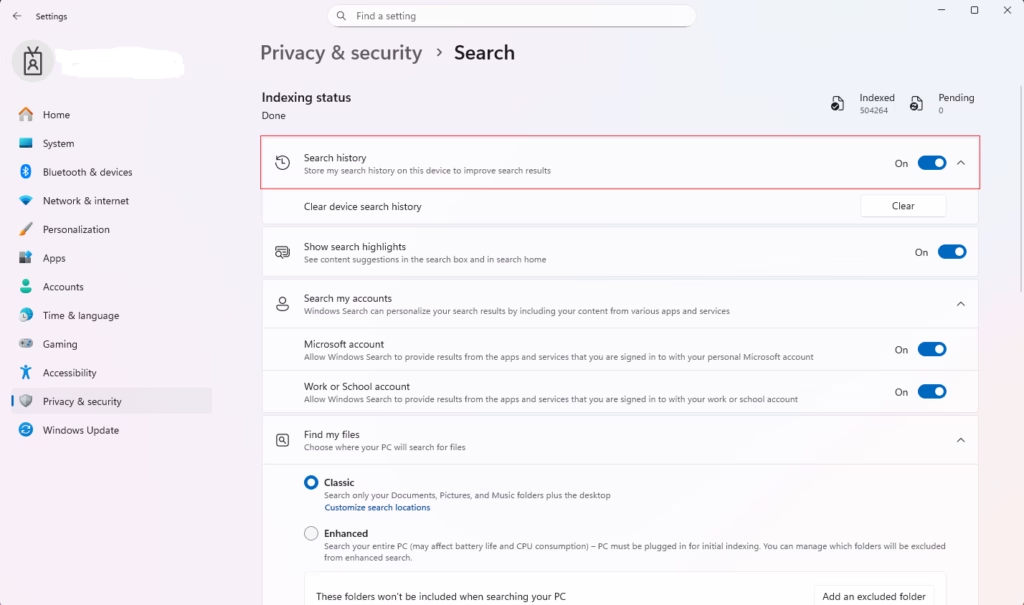
- Find the option called Search history on this device.
- Toggle it On to save your recent searches or Off to stop saving them.
You can also open the Search settings directly by clicking this link (it will open Settings): Open Search settings
Here is what the toggle looks like:
When done, you can close the Settings window.
Method 2: Turn On or Off Recent Search History Using Registry (Advanced Users)
If you’re comfortable with editing the Windows Registry, you can change the search history setting this way:
Turn On Recent Search History
reg add "HKEY_CURRENT_USER\Software\Microsoft\Windows\CurrentVersion\SearchSettings" /v IsDeviceSearchHistoryEnabled /t REG_DWORD /d 1 /f
Turn Off Recent Search History
reg add "HKEY_CURRENT_USER\Software\Microsoft\Windows\CurrentVersion\SearchSettings" /v IsDeviceSearchHistoryEnabled /t REG_DWORD /d 0 /f
Warning: Editing the registry can cause problems if done incorrectly. Always back up your registry before making changes.
Summary
- Easy Control: You can turn search history on or off anytime in Settings.
- Privacy: Turning off search history helps keep your recent searches private.
- Better Search: Keeping it on helps Windows show better results based on what you searched before.
- Simple Interface: Windows 11 has a clear and easy way to manage search settings.
- Don’t Worry: Turning off search history doesn’t delete what’s already saved.
Now you know how to control your recent search history in Windows 11 to make your search experience just the way you like it!



Leave a Reply