
Windows 11 has a cool feature called Live Captions. It shows words on your screen as people speak, which is helpful if you have trouble hearing or want to read along.
You can turn Live Captions on by pressing Windows + Ctrl + L on your keyboard. You can also find it in the Quick Settings menu under Accessibility. Learn more about Quick Settings here.
Live Captions has a setting called Filter profanity. This means any swear words or bad language will be hidden or replaced when captions show up. This is great if you want to keep things clean, especially around kids or in public places.
If you want to see exactly what is said, including any swear words, you can turn this filter off.
How to Turn On or Off the Profanity Filter in Live Captions
Follow these easy steps:
- Press Windows + Ctrl + L to open Live Captions.
- On the Live Captions bar that appears, click the Settings (gear) icon.
- Choose Preferences from the menu.
- Find the option called Filter profanity and toggle it ON or OFF depending on your choice.
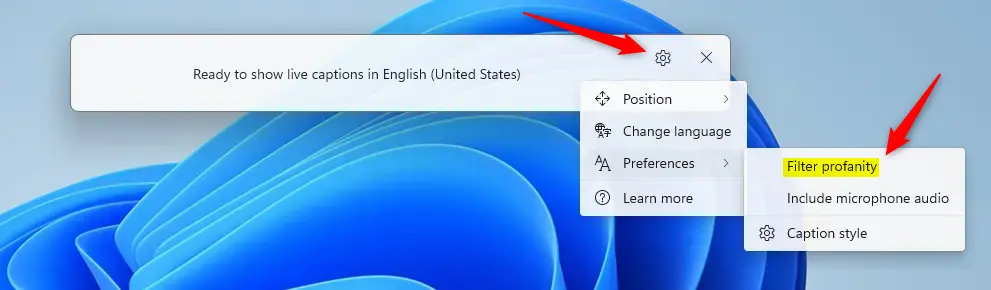
That’s it! Now your captions will show or hide bad language as you want.
How to Use Registry Editor to Change the Profanity Filter
If you’re comfortable with advanced settings, you can also use the Windows Registry Editor to turn the profanity filter on or off. Here’s how:
- Open the Registry Editor as an administrator. (Search for regedit in the Start menu, right-click it, and select “Run as administrator”.)
- Go to this folder path:
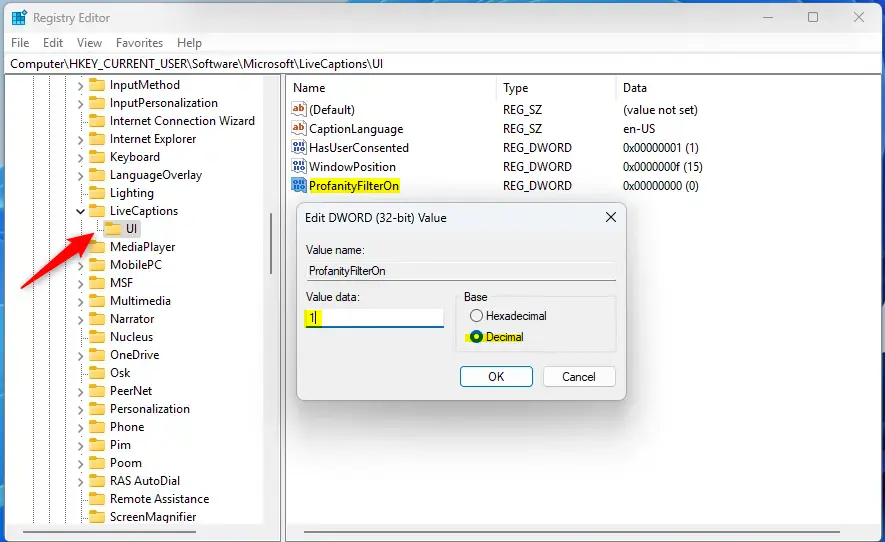
ComputerHKEY_CURRENT_USERSoftwareMicrosoftLiveCaptionsUI
- Look for an item named ProfanityFilterOn on the right side.
- Double-click it to open. To turn the filter ON, type
1. To turn it OFF, type0. - If you don’t see ProfanityFilterOn, right-click on an empty space, choose New > DWORD (32-bit) Value, name it ProfanityFilterOn, then set its value to
1or0. - Close Registry Editor and restart your computer to apply changes.
Summary
- Live Captions help you read what is being said on your PC in real time.
- The Filter profanity option hides bad language in captions, which is useful in certain settings.
- If you want to see all spoken words exactly, turn the filter off.
Enjoy using Live Captions your way!



Leave a Reply Cancel reply