How to Enable or Disable Passkey Autofill in Windows 11

Want to control how your Windows 11 computer handles passkey autofill for apps? This guide shows you exactly how to turn it on or off.
What Are Passkeys?
Passkeys are a new, safer way to sign into websites and apps without needing a password. You can use your fingerprint, face, or PIN instead, making logins quicker and more secure on your Windows 11 computer.
Windows can save these passkeys on your device when you use Windows Hello, a feature that uses your face, fingerprint, or PIN to sign in. Once saved, you only need one of these to log in.
How to Enable or Disable Passkey Autofill in 🪟 Windows 11
Follow these steps to turn passkey autofill on or off for apps:
Step 1 Open Settings
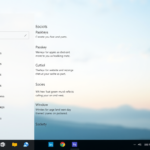
Click the Start menu (that’s the Windows icon) in the bottom left corner of your screen, then choose Settings. You can also press Windows key + I on your keyboard to open Settings faster.
Step 2Go to Privacy & Security
In the Settings window, click Privacy & security on the left side menu.
Step 3Find Passkey Settings
On the right side, scroll down and find the Passkey section. Click it to open more options.
Step 4Turn Passkey Autofill On or Off
To control passkey autofill on Windows 11, find the ‘Passkey autofill access’ setting in your Privacy & security options. Use the simple toggle switch next to it to turn this feature on or off, depending on your preference.
Passkeys section in Windows 11 Privacy & Security Settings

Toggle Passkey autofill access on or off
That’s it! You’ve now controlled whether apps can use passkey autofill on your Windows 11 computer.
Why Manage Passkey Autofill?
Managing passkey autofill on Windows 11 helps you balance convenience and security. Turning it on speeds up logins and reduces typing errors, while turning it off adds an extra layer of control for sensitive accounts.- Passkeys make signing in easier and more secure by using your face, fingerprint, or PIN instead of passwords.
- You can quickly turn autofill on or off to suit your comfort and security needs.
- Allowing autofill saves time during login and helps avoid typing errors.
- Always check your settings to keep your device secure and working the way you want.
- Keep Windows updated to enjoy new security features and improvements.
Learn More
If you want to learn more about passkeys and Windows Hello features, check out these helpful guides:
Summary
Passkeys offer a secure and easy way to log into apps and websites using your face, fingerprint, or PIN instead of passwords. In Windows 11, you can easily turn passkey autofill on or off by going to Settings, then Privacy & security, and finding the Passkey section.
Is Microsoft autofill being discontinued?
In July 2025, the ability to autofill with Authenticator stopped. In mid-August 2025, saved personal information of users became no longer accessible in Authenticator.
Was this guide helpful?

About the Author
Richard
Tech Writer, IT Professional
Richard, a writer for Geek Rewind, is a tech enthusiast who loves breaking down complex IT topics into simple, easy-to-understand ideas. With years of hands-on experience in system administration and enterprise IT operations, he’s developed a knack for offering practical tips and solutions. Richard aims to make technology more accessible and actionable. He's deeply committed to the Geek Rewind community, always ready to answer questions and engage in discussions.


No comments yet — be the first to share your thoughts!