How to Turn On or Off Narrator Announcing Keys in Windows 11

You can control whether Windows 11’s Narrator reads aloud the keys you press, like Arrow, Tab, or Enter, by turning this feature on or off.
This accessibility feature in Windows 11 confirms each key you press out loud. You might want to keep it on for confirmation, or turn it off if you prefer less sound while you type.
Here’s how you can enable or disable the keyboard echo setting within Windows 11’s Narrator options.
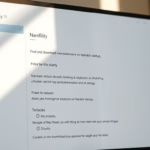
Go to Settings, then Accessibility, then Narrator. Under “Have Narrator announce when I type,” toggle the switch for “Arrow, Tab, and other navigational keys” to turn the feature on or off. This controls whether Narrator speaks the keys you press.
What Is Narrator?
Narrator is a built-in Windows tool that reads your screen aloud, helping people who have trouble seeing text.
Narrator can also announce special keys you press. This includes arrow keys and the tab key. This way, you’ll know precisely what you’re typing and where you’re going.
Why Use This Feature?
- It helps people who have trouble seeing by speaking which keys they press.
- It makes typing easier if you listen for sound feedback.
- Arrow and Tab keys help move through menus and text. Hearing them improves your experience.
How to Turn On or Off Narrator Announcing Keys
You can turn Narrator announcing keys on or off in Windows 11 Settings to control if it reads out navigation keys like Arrow and Tab.
- Open Windows Settings: Click the Start menu (Windows icon at the bottom left) and select Settings. Or press
Windows key + Ion your keyboard. - Go to Accessibility: In the Settings window, click Accessibility on the left sidebar.
- Open Narrator settings: Scroll down and click Narrator on the right panel to see options.
- Find “Have Narrator announce when I type”: Under the Verbosity section, click the arrow next to Have Narrator announce when I type to open more options.
- Turn on or off announcing keys: Look for the option that says Arrow, Tab, and other navigational keys and toggle the switch to turn it ON or OFF.
That’s it! Now your Narrator will speak (or stop speaking) the Arrow, Tab, and other keys as you type.
What Happens When You Enable This?
Once turned on, your computer will announce each navigational key you press. This gives you spoken feedback while you work. Turn it off if you find it annoying or distracting.
For more tips on using Narrator and making Windows easier to use, visit the full Narrator guide.
Summary
Narrator announcing keys is a helpful Windows 11 feature that reads out navigation keys like Arrow and Tab when you press them.
How do I turn off the Windows Narrator hotkey?
Look for options on the right side of the screen. Then, find the Vision section and click Narrator. The Narrator screen will then be displayed.
How do I turn off the Narrator on my PC 🪟 Windows 11?
In the Windows Settings, click [Accessibility]③, and then choose [Narrator]④. In the Narrator settings, you can turn the screen reader On or Off⑤. Note: If the keyboard shortcut for Narrator is enabled, you can quickly turn it on or off by pressing Windows logo key + Ctrl+Enter.
Was this guide helpful?

About the Author
Richard
Tech Writer, IT Professional
Richard, a writer for Geek Rewind, is a tech enthusiast who loves breaking down complex IT topics into simple, easy-to-understand ideas. With years of hands-on experience in system administration and enterprise IT operations, he’s developed a knack for offering practical tips and solutions. Richard aims to make technology more accessible and actionable. He's deeply committed to the Geek Rewind community, always ready to answer questions and engage in discussions.


No comments yet — be the first to share your thoughts!