
What is Game Mode?
Game Mode in Windows 11 helps your games run better. When you turn on Game Mode, your computer focuses its power on your game instead of doing other tasks.
Here’s what happens when Game Mode is on:
- Windows won’t install updates or restart while you’re playing.
- Your game may run smoother with fewer slowdowns.
Note: Windows automatically adjusts the power settings for Game Mode. You can’t change these settings while Game Mode is on.
How to Turn Game Mode On or Off in Settings
This is the easiest way to turn Game Mode on or off.
- Press the Windows + I keys on your keyboard to open Settings.
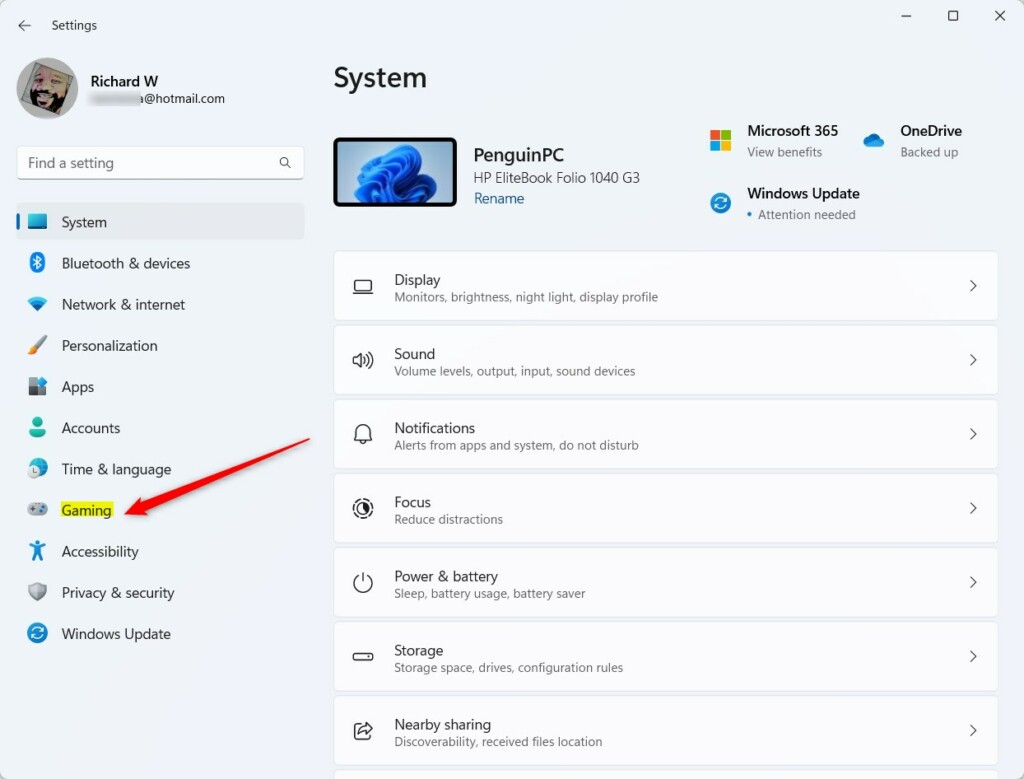
- Click on Gaming from the menu on the left side.
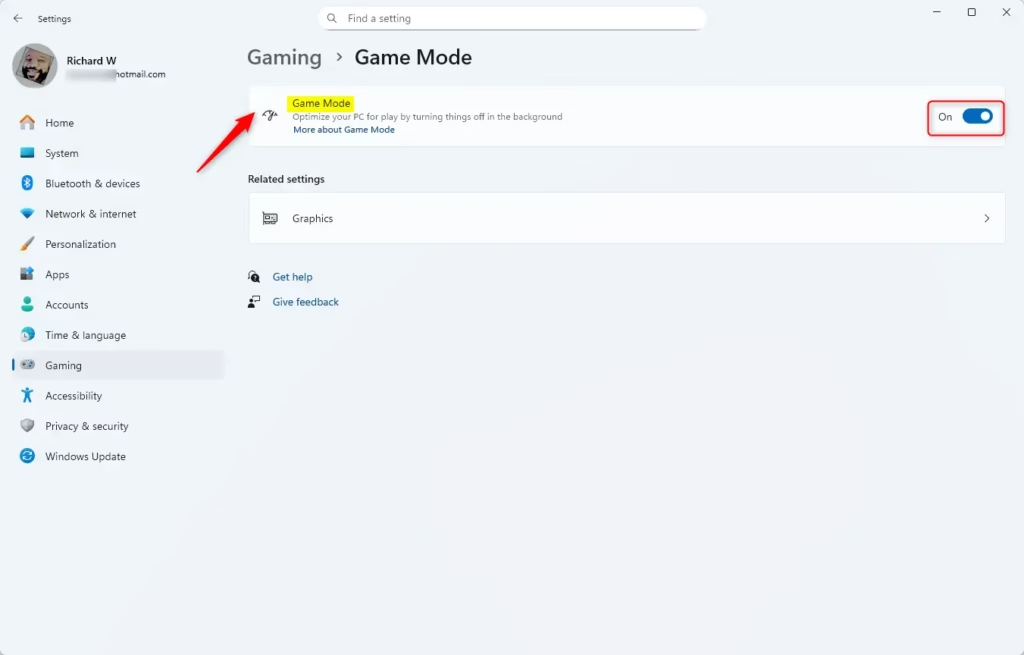
- Click on Game Mode on the right side.
- Use the switch to turn Game Mode On or Off.
- Close Settings when you’re done.
You can also jump straight to Game Mode settings by clicking here: Open Game Mode Settings
How to Turn Game Mode On or Off Using the Registry (Advanced)
If you’re comfortable editing the Windows registry, you can use this method instead. Be careful — consider making a backup of your registry before making changes.
Turn On Game Mode
⚠️ Requires admin privileges
reg add "HKEY_CURRENT_USER\Software\Microsoft\GameBar" /v AutoGameModeEnabled /t REG_DWORD /d 1 /fTurn Off Game Mode
⚠️ Requires admin privileges
reg add "HKEY_CURRENT_USER\Software\Microsoft\GameBar" /v AutoGameModeEnabled /t REG_DWORD /d 0 /fNeed More Help?
For more information about Game Mode, visit the Xbox Support website

Summary
Game Mode in Windows 11 helps your games run better by giving them priority on your computer. Windows stops installing updates and won’t restart while you’re playing. You can turn Game Mode on or off using Settings (the easy way) or the registry (the advanced way). Most users should use the Settings method. After making changes through the registry, restart your computer for the change to take effect.



Leave a Reply