How to Turn On or Off Finding and Downloading New Extensions When Narrator Starts in Windows 11

This guide will help you easily turn on or off the feature that lets Narrator find and download new extensions every time it starts on your Windows 11 PC.
Open Settings and go to Accessibility, then Narrator. Scroll to Experimental features and find the “Find and download new extensions on Narrator startup” option. Check the box to enable it, or uncheck it to disable automatic downloads.
What is Narrator?
Narrator is a helpful tool built into Windows 11 that reads out loud what’s on your screen. It helps people who have trouble seeing or are blind to use their computer by reading text and telling you what’s happening. You can use Narrator to do things like read emails, browse websites, or work on documents without needing a mouse.
What are Narrator Extensions?
Narrator can use special add-ons called extensions that make it work better with certain apps like Outlook and Excel. These extensions help Narrator work smoother and faster with those programs.
What Does “Find and Download New Extensions on Narrator Startup” Mean?
When this option is turned on, Narrator will check for new extensions and download them automatically each time it starts. This keeps your Narrator up to date with the latest features. This option is on by default.
If you don’t want Narrator to download new extensions automatically, you can turn this option off.
How to Turn On or Off This Feature
- Open Settings: Press
Windows key + Ion your keyboard to open the Settings app. - Go to Accessibility: On the left menu, click Accessibility.
- Open Narrator Settings: On the right side, click Narrator. Or press
Windows key + Ctrl + Nto open Narrator settings directly. - Find Experimental Features: Scroll down to the section called Experimental features and click on Enable Narrator extensions to open it.
- Turn On or Off the Download Option: Check the box for Find and download new extensions on Narrator startup to turn it on, or uncheck it to turn it off.
- Close Settings: You’re done! You can now close the Settings window.
Here are some images to help you:
Narrator settings showing Experimental features
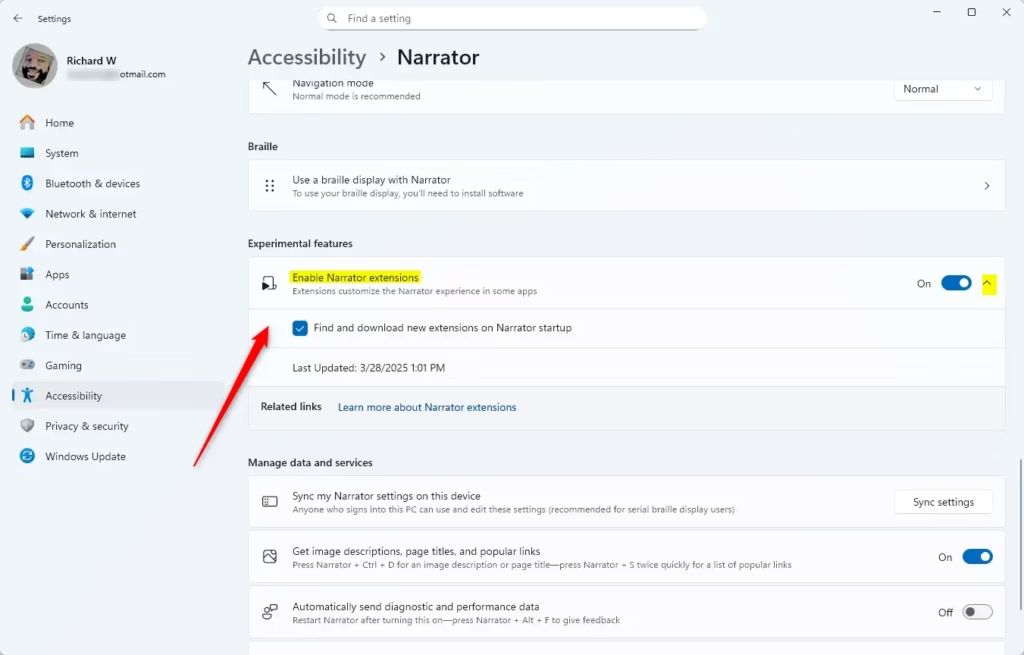
Check or uncheck the option to find and download new extensions
Why Should You Care?
- Better Performance: Extensions help Narrator work better with your favorite apps.
- Stay Updated: Automatically downloading new extensions makes sure you have the newest features.
- Control: You can turn off this feature anytime if you prefer to update extensions manually.
Extra Tip
In Narrator settings, you can also see a Last Updated label. This tells you the last time Narrator successfully downloaded new extensions from the Microsoft Store.
Learn More
Want to customize Narrator even more? Check out this official Microsoft guide: Customizing Narrator – Microsoft Support

Summary
Narrator is a built-in Windows 11 tool that reads what’s on your screen out loud. It can use extensions to work better with certain apps. By default, Narrator automatically downloads new extensions when it starts. You can turn this feature on or off by going to Settings > Accessibility > Narrator > Experimental features > Enable Narrator extensions. Check or uncheck the Find and download new extensions on Narrator startup option to control whether Narrator downloads updates automatically or not.
Do I need a Narrator extension on my computer?
Narrator is a screen-reading app that's built into Windows 10, so there's nothing you need to download or install.
Is Windows Narrator good?
“Narrator is useful in a pinch but offers limited functionality, particularly with browsers and web apps,” Thompson explains. “My students encountered navigation issues and sometimes silence when using Narrator to navigate the deeper levels of a Windows operating system (control panel applets, etc.).”
Was this guide helpful?

About the Author
Richard
Tech Writer, IT Professional
Richard, a writer for Geek Rewind, is a tech enthusiast who loves breaking down complex IT topics into simple, easy-to-understand ideas. With years of hands-on experience in system administration and enterprise IT operations, he’s developed a knack for offering practical tips and solutions. Richard aims to make technology more accessible and actionable. He's deeply committed to the Geek Rewind community, always ready to answer questions and engage in discussions.




No comments yet — be the first to share your thoughts!