
This guide will help you easily turn on or off sharing files and printers on your Windows 11 computer.
What is File and Printer Sharing?
File and printer sharing lets your computer share files, folders, or printers with other computers connected to the same network.
- File sharing: Lets others on your network see, copy, or change files in a shared folder.
- Printer sharing: Lets others use a printer connected to your computer.
Windows uses different network types: Domain, Private, and Public. You can choose to turn sharing on or off for each type separately.
Note: You need to be signed in as an administrator to change these settings.
Option 1: Turn File and Printer Sharing On or Off Using Windows Settings
- Press Win + I on your keyboard to open Settings.
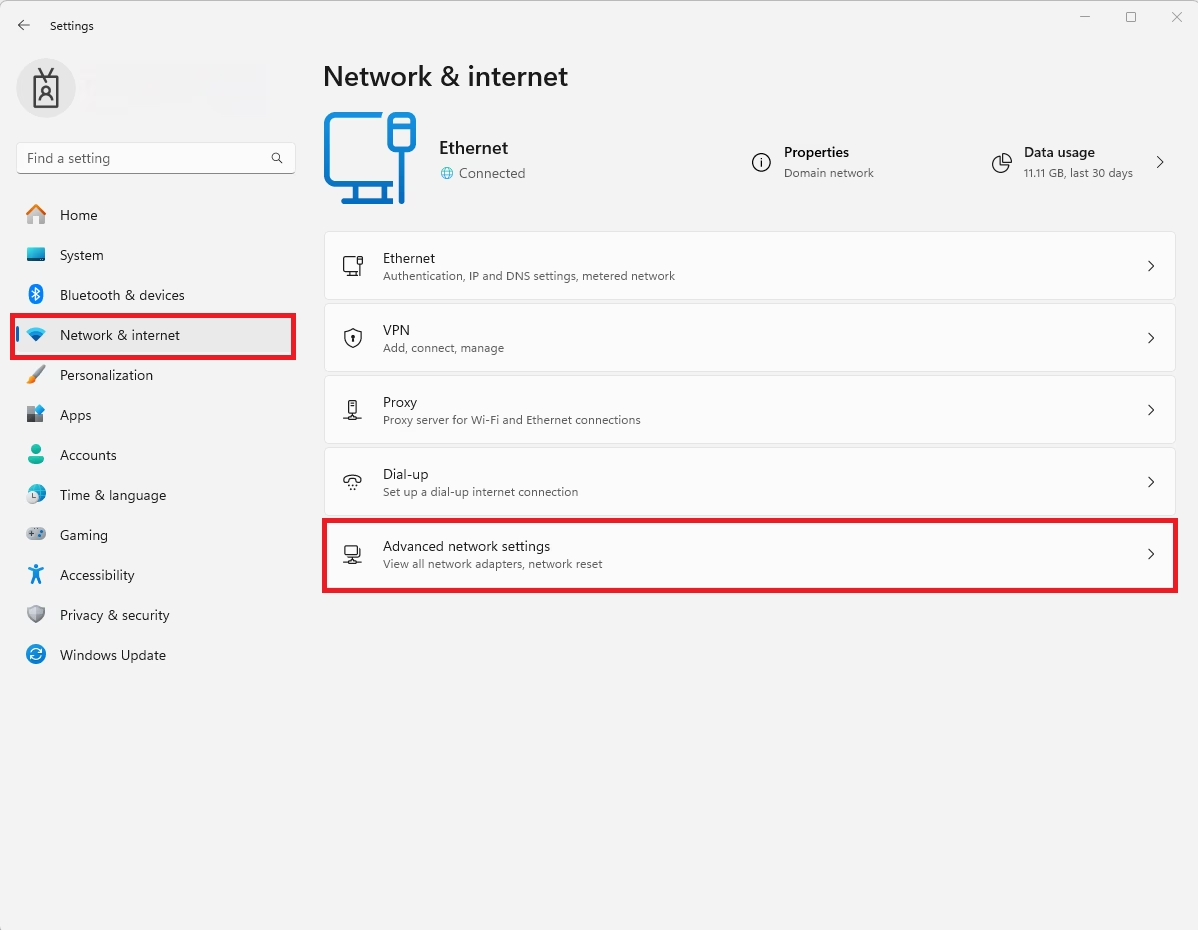
- Click Network & internet on the left side.
- On the right, click Advanced network settings.
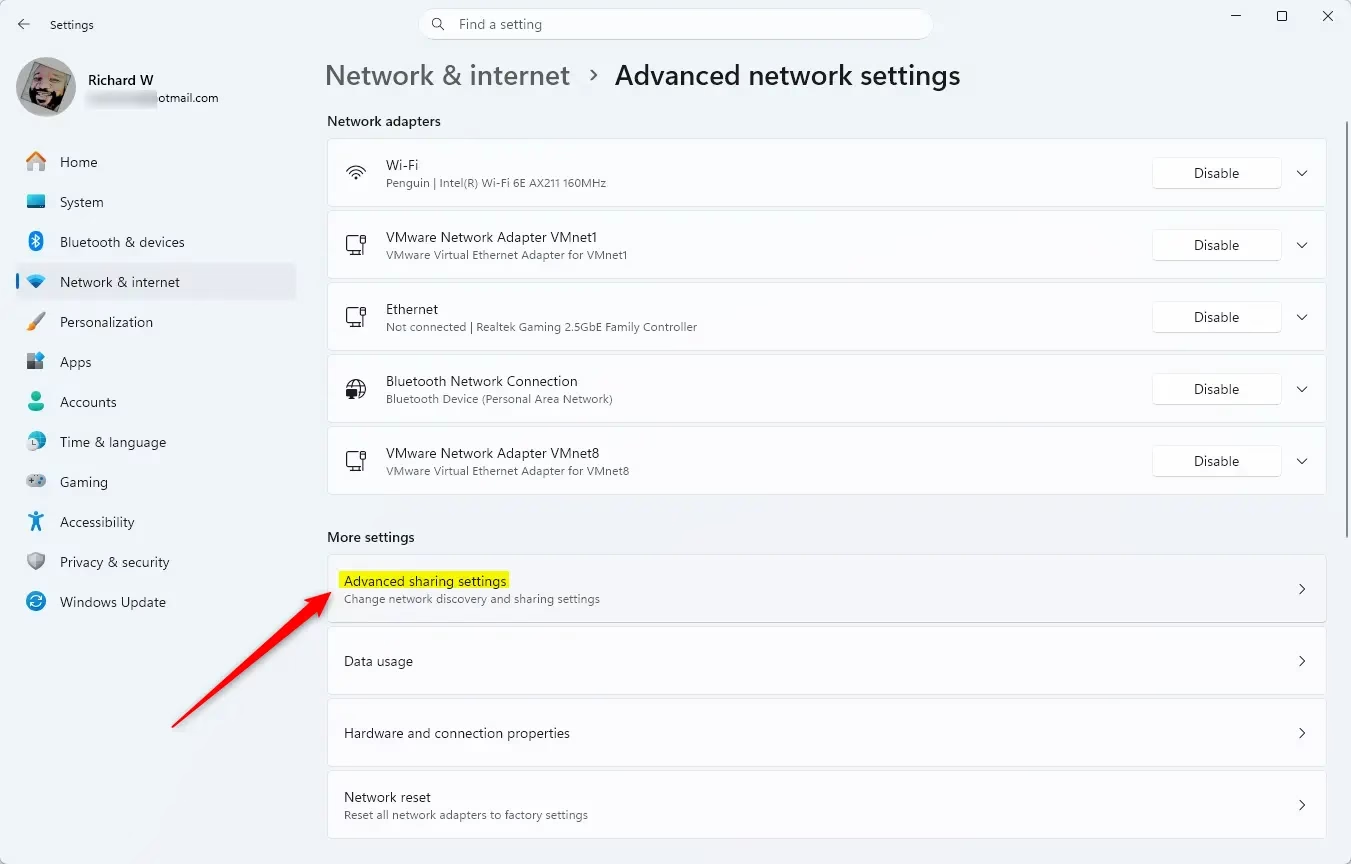
- Click Advanced sharing settings.
Open Advanced sharing settings directly
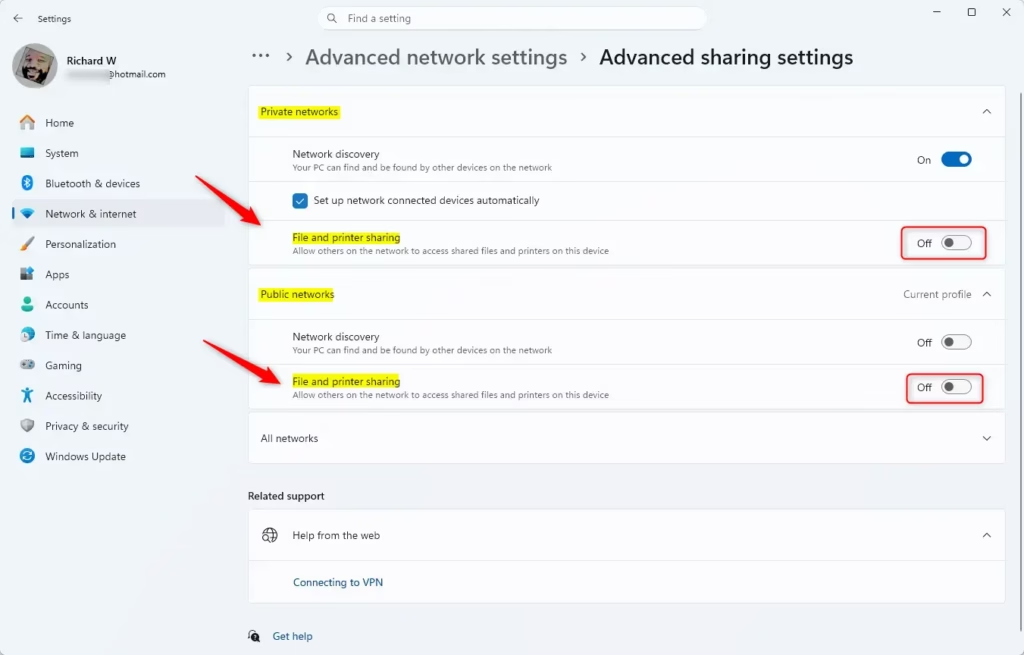
- Click the arrows next to Private networks and/or Public networks to expand each section.
- Turn File and printer sharing On or Off for each network type as you wish.
By default, file and printer sharing is on for private networks, and off for public networks (to keep you safer).
Once done, you can close the Settings window.
Option 2: Turn File and Printer Sharing On or Off Using PowerShell
This option is for users who are comfortable using commands.
- Right-click the Start button and select Windows Terminal (Admin).
- Make sure you are in the Windows PowerShell tab.
To Turn On File and Printer Sharing
Copy and paste one of the commands below, then press Enter. Choose the command based on which network profile you want to change:
- All network profiles:
Get-NetFirewallRule -Group '*-28502*' | Where-Object 'Profile' -Match 'Any' | Set-NetFirewallRule -Enabled 'True' - Domain network:
Get-NetFirewallRule -Group '*-28502*' | Where-Object 'Profile' -Match 'Domain' | Set-NetFirewallRule -Enabled 'True' - Private network:
Get-NetFirewallRule -Group '*-28502*' | Where-Object 'Profile' -Match 'Private' | Set-NetFirewallRule -Enabled 'True' - Public network:
Get-NetFirewallRule -Group '*-28502*' | Where-Object 'Profile' -Match 'Public' | Set-NetFirewallRule -Enabled 'True'
To Turn Off File and Printer Sharing
Copy and paste one of the commands below, then press Enter. Choose the command based on which network profile you want to change:
- All network profiles:
Get-NetFirewallRule -Group '*-28502*' | Where-Object 'Profile' -Match 'Any' | Set-NetFirewallRule -Enabled 'False' - Domain network:
Get-NetFirewallRule -Group '*-28502*' | Where-Object 'Profile' -Match 'Domain' | Set-NetFirewallRule -Enabled 'False' - Private network:
Get-NetFirewallRule -Group '*-28502*' | Where-Object 'Profile' -Match 'Private' | Set-NetFirewallRule -Enabled 'False' - Public network:
Get-NetFirewallRule -Group '*-28502*' | Where-Object 'Profile' -Match 'Public' | Set-NetFirewallRule -Enabled 'False'
When finished, you can close PowerShell.
Summary
- File and printer sharing lets you share files and printers with other devices on your network.
- You can control sharing separately for different network types: Domain, Private, and Public.
- You can use the easy Settings app or PowerShell commands if you prefer.
- Make sure you are signed in as an administrator before changing these settings.
- Knowing how to manage sharing helps keep your network safe and useful.



Leave a Reply