How to Turn On or Off Experimental Agentic Features in Windows 11

You can turn on or off experimental agentic features in Windows 11 to enable AI assistants to proactively help with your PC tasks.
These agentic features, often referred to as “agents,” are AI-powered components that run in the background, learning your habits and anticipating needs to streamline your workflow.
This functionality is a key part of Microsoft’s ongoing push to integrate more intelligent automation into the Windows operating system. For instance, you might see these agents manage file organization or suggest application shortcuts based on your usage patterns.
Enabling or disabling them is a straightforward process accessible through your Windows Settings, giving you control over their background operation and data access.
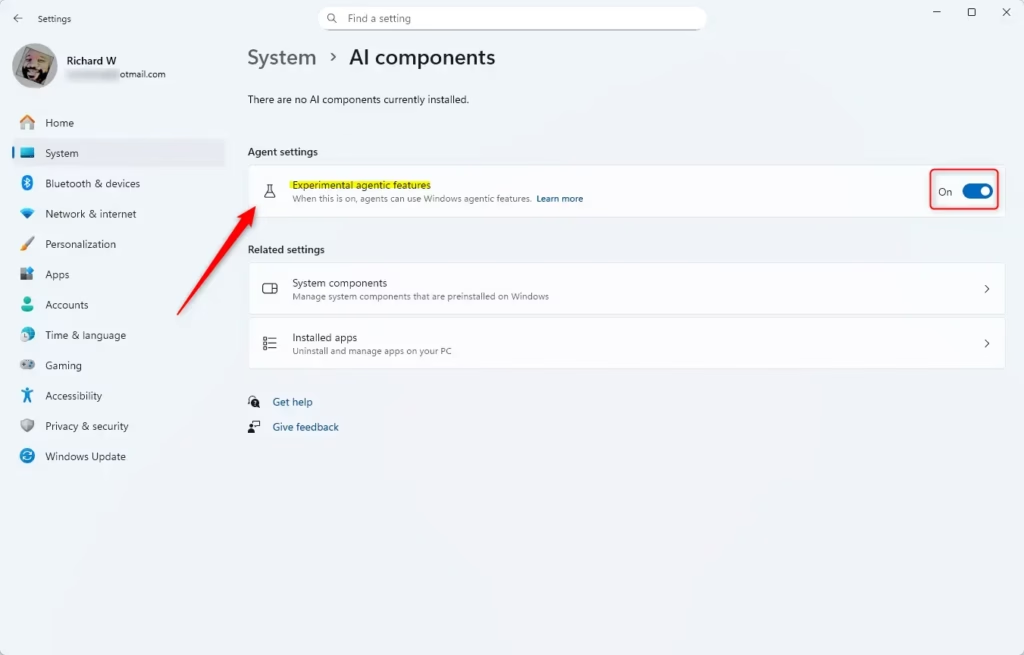
Navigate to Settings > System > AI components. Locate Experimental agentic features and use the toggle to turn them On or Off. Confirm by clicking “Turn on” if enabling the feature.
What Are Experimental Agentic Features?
Experimental agentic features in Windows 11 are new AI tools that can help you with everyday tasks like organizing files, scheduling meetings, or sending emails, acting much like a personal assistant.
- Organizing your files
- Scheduling meetings
- Sending emails
- Interacting with your apps just like a person would
One cool example is Copilot Actions, an AI assistant that can do complex jobs for you to save time.
How Do Agent Workspaces Work?
Agent workspaces in Windows 11 create a secure, separate area for AI agents, giving them their own accounts and only allowing access to the specific files and folders you approve, like Documents or Desktop.
- Agents get their own accounts separate from yours. Your files and apps stay safe.
- They only see and use the files and folders you allow. These include Documents, Downloads, Desktop, Music, Pictures, and Videos.
- They run in the background. You can keep working without interruptions.
- You stay in control. You can manage what agents access and turn the feature off anytime.
Important Things to Know
Before using Windows 11’s experimental agentic features, know that they’re off by default, require administrator permission to turn on, and apply to all users, with potential impacts on PC speed and security.How to Turn On or Off Experimental Agentic Features in 🪟 Windows 11
Option 1Using the Settings App
- Press
Win + Ion your keyboard. Settings will open. - Click System on the left menu. Then select AI components on the right.
- Find Experimental agentic features under Agent settings.
- Click the toggle to turn it On or Off. Off is the default.
- If turning on, click Turn on to confirm.
- Close Settings when done.
You can easily turn Windows 11 agentic features on or off using the Settings app by opening Settings, going to System, then AI components, and toggling the Experimental agentic features option.
Option 2Using Windows Registry (For Advanced Users)
Advanced users can turn Windows 11 agentic features on or off by editing the Windows Registry, but be very careful as incorrect changes can cause problems; back up your PC first.
Warning: Editing the registry can cause issues if done incorrectly. Make sure to back up your PC before proceeding.
To turn on Experimental Agentic Features, run the command below:
reg add "HKEY_LOCAL_MACHINE\SYSTEM\CurrentControlSet\Services\IsoEnvBroker" /v Enabled /t REG_DWORD /d 1 /fTo turn off Experimental Agentic Features, run the command below:
reg add "HKEY_LOCAL_MACHINE\SYSTEM\CurrentControlSet\Services\IsoEnvBroker" /v Enabled /t REG_DWORD /d 0 /fDouble-click the .reg file you created. Allow it to make changes to your device.
Summary
In summary, Windows 11’s experimental agentic features offer AI helpers for tasks, giving you control over their access while administrators manage the settings, and it’s important to use them cautiously as they are still in testing.
- You control what these AI agents can do and see.
- Only administrators can turn this feature on or off.
- It’s still in testing. Use it carefully and watch your PC’s performance.
By understanding and managing these features, you can safely get the benefits of AI. You’ll keep your files and privacy secure at the same time.
Learn More
- Microsoft official support page: Experimental Agentic Features – Microsoft Support
- Windows blog on security of AI agents: Securing AI agents on Windows
What is agentic 🪟 Windows 11?
The experimental agentic feature setting enables: The creation of agent accounts that provide agents with their own separate account on your device when acting on your behalf. Windows is using a phased approach to add stricter rules for agent accounts in upcoming releases.
Was this guide helpful?

About the Author
Richard
Tech Writer, IT Professional
Richard, a writer for Geek Rewind, is a tech enthusiast who loves breaking down complex IT topics into simple, easy-to-understand ideas. With years of hands-on experience in system administration and enterprise IT operations, he’s developed a knack for offering practical tips and solutions. Richard aims to make technology more accessible and actionable. He's deeply committed to the Geek Rewind community, always ready to answer questions and engage in discussions.




No comments yet — be the first to share your thoughts!